
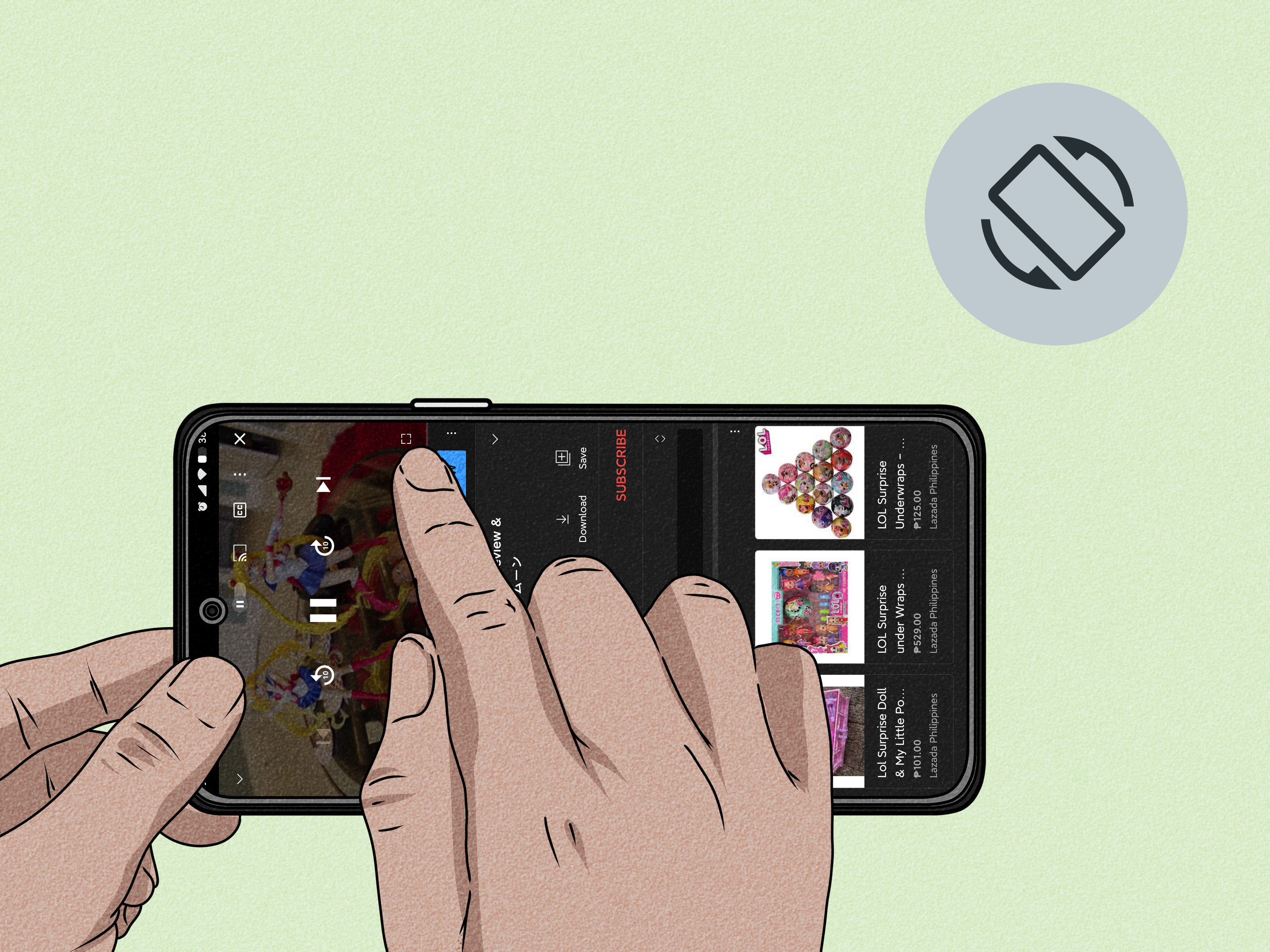
Sometimes your Android phone feels like it has a tiny rebellious streak. You tilt it sideways to watch a video, and it stubbornly stays upright. Other times, you are reading a long article in bed, shift your wrist by half an inch, and suddenly the screen spins like it is auditioning for a gymnastics team. If that sounds familiar, this guide is for you.
Learning how to switch to portrait or landscape mode on Android is usually simple, but the exact menus can vary depending on your phone brand, Android version, and whether the app you are using actually supports rotation. The good news is that most Android phones give you quick controls for screen orientation, plus a deeper settings menu if the fast toggle is not enough.
In this guide, you will learn the five practical steps to switch screen orientation on Android, understand why auto-rotate sometimes refuses to cooperate, and pick up a few real-world tips that make the whole experience smoother. No tech wizard robe required.
Why portrait and landscape mode matter
Portrait mode is the standard vertical view. It is great for texting, scrolling social media, reading email, and doing all the thumb-friendly things modern life demands. Landscape mode is the horizontal view. It is usually better for watching videos, playing games, editing photos, using split-screen features, and viewing wide content like spreadsheets, maps, and presentations.
The trick is not just knowing what portrait and landscape mode are. It is knowing how Android decides when to rotate, when to stay put, and when to act like it has never heard of your request in the first place.
How Android screen rotation works
Android uses built-in motion sensors to detect how you are holding your phone. When Auto-rotate is turned on, the screen can switch between portrait and landscape as you move the device. When auto-rotate is turned off, the phone usually locks the current orientation, often portrait. On some Android phones, especially Samsung Galaxy devices, you may also see a specific Landscape lock if you disable rotation while the phone is already sideways.
That means there are really three common situations:
- Auto-rotate on: the phone changes orientation automatically.
- Portrait lock: the screen stays vertical.
- Landscape lock: the screen stays horizontal, available on some devices.
Once you understand that, switching between modes becomes much less mysterious and much more “tap, done, move on with life.”
How to switch to portrait or landscape mode on Android in 5 steps
Step 1: Swipe down to open Quick Settings
Start from the top of your screen and swipe down once or twice to open the Quick Settings panel. This is the fastest way to control screen rotation on most Android phones. Look for a tile labeled Auto rotate, Portrait, or Landscape.
On many phones, one swipe shows notifications and a partial panel, while a second swipe expands the full Quick Settings area. If the icon is not immediately visible, do not panic. Android likes hiding useful things just enough to keep life interesting. Swipe left or right through the tiles if necessary.
Step 2: Tap the orientation tile
Once you find the tile, tap it to change the rotation behavior.
- If it says Auto rotate, tapping it may lock the screen in the current orientation.
- If it says Portrait, tapping it may turn auto-rotate back on.
- If your phone is sideways and supports it, you may see Landscape as a lock option.
This is the key move for switching between portrait and landscape mode on Android. The label changes based on the current setting, so the button may not always say exactly what you want next. Think of it as a toggle, not a menu of poetic possibilities.
Step 3: Rotate your phone to the position you want
If auto-rotate is enabled, simply turn your phone vertically for portrait mode or horizontally for landscape mode. The screen should respond within a moment. This works especially well in apps like YouTube, Google Photos, Chrome, and many games.
If auto-rotate is disabled, some Android phones will show a small temporary rotate suggestion button near the bottom of the screen when you turn the device. Tap that button to switch orientation once without fully re-enabling auto-rotate. It is a handy middle ground for people who hate accidental rotation but still want landscape mode when watching a video.
Step 4: Use Settings if Quick Settings is missing or limited
If the Quick Settings tile is missing, not responding, or buried in a digital cave, open the Settings app and go to Display. On many Android devices, you will find an option labeled Auto-rotate screen, Screen rotation, or something very similar.
This menu sometimes gives you more control than the Quick Settings tile. For example, some phones let you fine-tune how rotation behaves, and some Google Pixel and Android builds include rotation options connected to accessibility or face-detection features. If your phone keeps rotating at the wrong moment, this deeper menu is worth a look.
Step 5: Check whether the app or home screen supports rotation
Here is the part that frustrates a lot of people: even when auto-rotate is on, not every screen rotates. Some home screens stay in portrait by default unless you enable Home screen rotation in launcher settings. Some apps also ignore landscape mode entirely. Social apps, banking apps, and certain shopping apps are repeat offenders.
If your video app rotates but your home screen does not, that does not always mean something is broken. It may just mean that the phone and the app have different orientation rules. In other words, Android is not malfunctioning; it is just being very literal.
What to do if Android will not switch to portrait or landscape mode
If the screen still refuses to cooperate, work through these fixes before declaring war on your phone.
1. Make sure auto-rotate is actually on
This sounds obvious, but it is the most common cause. If the tile says Portrait or Landscape, your screen is locked. Switch it back to Auto rotate.
2. Test in more than one app
Open YouTube, Photos, or Chrome and try rotating again. If one app rotates and another does not, the issue is probably the app, not the phone.
3. Restart your phone
Yes, the old “turn it off and on again” trick still works because minor sensor and software glitches are real. It is not glamorous, but neither is half the stuff that actually solves tech problems.
4. Check home screen settings
If only the home screen stays vertical, tap and hold a blank area on the home screen, open Home settings, and look for an option like Allow Home screen rotation. Not all phones offer this, but many do.
5. Update Android and the app
Software updates can fix bugs that affect motion sensors, display behavior, and app compatibility. If rotation started acting up after an update, installing the next patch may solve it. Because yes, sometimes your phone needs one more update to recover from the previous update. Modern life is beautiful.
6. Review accessibility settings
Some accessibility features can affect how rotation behaves. For example, certain spoken feedback tools or custom interaction settings may change the experience. If the screen started acting differently after turning on accessibility features, check those menus.
7. Consider sensor problems
If nothing rotates anywhere, even after restarting and updating, your phone may have a sensor issue. That is less common, but it happens. In that case, it may be worth contacting your device maker or carrier support.
Portrait vs. landscape mode: which should you use?
There is no single right answer, but there is a right answer for the moment.
Use portrait mode when:
- You are texting or replying to messages
- You are reading articles, email, or social feeds
- You want one-handed control
- You are walking and glancing at your phone
Use landscape mode when:
- You are watching videos or livestreams
- You are gaming
- You are editing photos or documents
- You are viewing maps, charts, or wide websites
- You are using split-screen multitasking
The best setup for many people is to keep portrait lock on most of the day, then switch to landscape only when a task clearly benefits from it. That way you avoid random screen flips while still getting the wide-screen advantage when it matters.
Common mistakes people make with Android screen rotation
- Assuming every app supports landscape mode: many do, some do not.
- Forgetting the home screen has its own setting: app rotation and launcher rotation are not always linked.
- Thinking the phone is broken when the tile is just locked: it happens more often than people admit.
- Ignoring the Settings app: Quick Settings is fast, but deeper controls often live under Display.
- Holding the phone flat: rotation detection works best when the phone is clearly vertical or horizontal, not hovering at a weird in-between angle like a confused pancake.
Best practices for a smoother screen rotation experience
If you want fewer surprises and less annoyance, follow these practical habits:
- Keep Auto rotate off if you mostly read or browse in portrait mode.
- Use the temporary rotate suggestion button when available for occasional landscape viewing.
- Enable home screen rotation only if you genuinely want it.
- Test your most-used apps so you know which ones support horizontal view.
- Keep your phone updated, especially after major Android releases.
These tiny adjustments make a bigger difference than most people expect. A good screen rotation setup feels invisible, and that is exactly the point.
Final thoughts
Switching to portrait or landscape mode on Android is usually a quick job once you know where the controls live. In most cases, the process comes down to opening Quick Settings, tapping the orientation tile, rotating the phone, and checking Display settings or app support if something looks off.
The biggest takeaway is this: Android rotation is not just one switch. It is a combination of system settings, app support, home screen behavior, and device-specific design. Once you understand that, the whole thing becomes much easier to manage.
So the next time your screen refuses to rotate, do not assume your phone has become dramatic. It is probably just waiting for the right setting, the right app, or one firm tap in Quick Settings.
Extended experience section: what using portrait and landscape mode on Android feels like in real life
In everyday use, screen orientation affects more than people realize. It changes comfort, speed, and even how annoying your phone feels after a long day. Portrait mode is usually the default because it matches how most people naturally hold a phone. It is easy to text in portrait, easy to scroll, and easy to use with one hand while carrying coffee, groceries, or the emotional weight of twenty unopened emails.
Landscape mode, however, often feels better the moment content gets wider or more visual. Watching a movie trailer in portrait is possible, but it feels like peeking through a mail slot. The second the phone rotates to landscape, everything opens up. Videos look bigger, game controls feel less cramped, and editing photos becomes more precise. That is why many Android users leave rotation locked most of the time but still want fast access to landscape mode on demand.
There is also a comfort factor. People reading in bed often hate full auto-rotate because the screen flips when they shift position. That is where portrait lock becomes a hero. It keeps the display stable while you read articles, ebooks, or long message threads without the screen spinning every time your wrist relaxes. On the other hand, someone using their phone on a desk stand may prefer auto-rotate all day because it adapts naturally to whatever angle the phone is sitting at.
Another common experience is confusion around the home screen. Many users assume that if YouTube rotates, the home screen should rotate too. Then they return to the launcher and it snaps back upright like nothing happened. That can make Android feel inconsistent, but it is really just a design choice. Some launchers support home screen rotation, some hide it in settings, and some keep it off because the vertical layout is cleaner for icons and widgets.
App behavior is another real-world wrinkle. One person may expect a shopping app or banking app to rotate horizontally, only to discover it stays locked in portrait no matter what. That is not unusual. App developers decide whether landscape mode makes sense for their interface. So if one app refuses to rotate while another works perfectly, the problem may not be your phone at all. It may simply be the app’s layout preference.
Over time, most people settle into a routine. They figure out whether they like auto-rotate on, prefer portrait lock, or use a hybrid approach with the manual rotate button. Once that habit clicks, Android feels smoother and more predictable. And honestly, that is the real goal. You do not want to think about screen rotation every day. You just want your phone to behave like it understands the assignment.











