
Creating a virtual network in VMware Workstation sounds like something only a data center wizard should attempt while wearing a hoodie in a windowless room. Fortunately, it is much more approachable than that. VMware Workstation gives you a practical way to build small networks on a single computer, connect multiple virtual machines, test servers, practice cybersecurity labs, simulate client-server systems, and break things safely without making your real router cry.
In simple terms, a virtual network is a software-based network that connects virtual machines, the host computer, and sometimes the outside internet. Instead of buying switches, cables, routers, spare laptops, and a suspiciously large amount of coffee, you can create most of the same learning or testing environment inside VMware Workstation. The magic happens through virtual switches, virtual network adapters, DHCP services, NAT services, and network modes such as bridged, NAT, host-only, and custom VMnet networks.
This guide explains how to create virtual networks by using VMware Workstation, how each network mode works, when to use each one, and how to build a clean, reliable lab. Whether you are preparing for a networking exam, testing a Linux server, setting up a Windows domain lab, or building a safe sandbox for experiments, this article will walk you through the process without turning your brain into packet soup.
What Is a Virtual Network in VMware Workstation?
A virtual network in VMware Workstation is a software-defined connection between virtual machines and network resources. Each virtual machine can have one or more virtual network adapters. Those adapters connect to virtual networks called VMnets. A VMnet works like a virtual switch: machines connected to the same VMnet can communicate with each other as if they were plugged into the same physical switch.
VMware Workstation usually includes three important default networks:
- VMnet0: The default bridged network.
- VMnet1: The default host-only network.
- VMnet8: The default NAT network.
These names may look like robot serial numbers, but they are easy to understand once you know their jobs. Bridged networking connects the virtual machine directly to the physical network. NAT networking lets virtual machines share the host computer’s network connection. Host-only networking creates a private network between the host and the virtual machines, usually without internet access.
Why Create a Virtual Network in VMware Workstation?
The biggest reason is control. A virtual network lets you build an entire testing environment without touching your real production network. You can create a web server, database server, firewall, domain controller, Linux client, Windows client, and attacker test machine all on one laptop. That is a lot of power for one desk, and unlike physical hardware, virtual machines do not need extra shelf space or complain about dust.
Virtual networks are useful for many real-world situations:
- Testing server-client applications before deployment.
- Learning TCP/IP, DNS, DHCP, routing, and firewall rules.
- Practicing Windows Server, Linux administration, or cybersecurity labs.
- Creating isolated malware analysis or penetration testing environments.
- Simulating office networks, DMZ networks, and multi-subnet labs.
- Running development environments without interfering with the host machine.
For beginners, VMware Workstation networking is a great way to learn because mistakes are reversible. If your configuration fails, you can change the adapter mode, restore a snapshot, or rebuild the VMnet. Try doing that with a physical network after accidentally locking yourself out of the router. Spoiler: it is less fun.
Understanding VMware Workstation Network Modes
1. Bridged Networking
Bridged networking connects a virtual machine to the same physical network as the host computer. The VM behaves like another device on your home, office, or lab network. If your router uses DHCP, the virtual machine can receive an IP address from that router, just like a real laptop or phone.
Use bridged networking when you want other devices on the physical network to reach the virtual machine directly. For example, if you are testing a web server and want another computer on your LAN to open it in a browser, bridged mode is often the easiest option.
The downside is exposure. A bridged VM is visible on the real network. If the guest operating system is unpatched, misconfigured, or intentionally unsafe, bridged mode may create unnecessary risk. For suspicious software, malware labs, or experimental firewall rules, choose isolation instead. Your Wi-Fi router deserves peace.
2. NAT Networking
NAT, or Network Address Translation, allows virtual machines to access external networks by sharing the host computer’s network connection. In VMware Workstation, the default NAT network is usually VMnet8. The VM receives a private IP address from VMware’s DHCP service, and VMware’s NAT service translates traffic through the host.
NAT is excellent for general-purpose virtual machines that need internet access but do not need to be directly visible to the physical network. For example, if you install Ubuntu in a VM and need to download updates, NAT is simple and safe. The guest can browse the internet, but other devices on your LAN typically cannot initiate direct connections to it unless you configure port forwarding.
Think of NAT as the polite roommate of virtual networking. It lets your VM go outside, get updates, download packages, and talk to servers, but it does not immediately invite the whole neighborhood into your lab.
3. Host-Only Networking
Host-only networking creates a private network between the host computer and one or more virtual machines. By default, this is usually VMnet1. The VMs can talk to the host and to other VMs on the same host-only network, but they do not automatically reach the internet.
Host-only networking is perfect for isolated labs. You can create a private subnet for testing a domain controller, database cluster, vulnerable machine, or internal application. Because the network is separated from the outside world, it is safer for experiments that should not leak onto your real network.
For example, you might create a host-only network called LabNet with the subnet 192.168.50.0/24. A Windows Server VM could use 192.168.50.10, a Linux web server could use 192.168.50.20, and a client VM could receive an address through DHCP. Everything talks internally, but your office network remains untouched.
4. Custom VMnet Networks
Custom networks are where VMware Workstation becomes especially powerful. Instead of using only VMnet0, VMnet1, and VMnet8, you can create additional VMnets such as VMnet2, VMnet3, or VMnet4. Each custom VMnet can represent a different virtual switch or subnet.
This is useful when you want a more realistic lab. For example, you can create one network for “Internal LAN,” another for “DMZ,” and another for “Storage.” Then you can add a firewall VM with multiple network adapters and route traffic between them. Suddenly, your laptop has turned into a miniature enterprise network. Please do not let it go to its head.
Planning Your VMware Virtual Network
Before clicking buttons, plan the network. A good plan prevents IP address conflicts, broken routing, duplicate DHCP servers, and that special kind of confusion where everything looks correct but nothing pings.
Choose the Right Network Type
Use NAT when VMs need internet access but do not need to be visible on the physical LAN. Use bridged when the VM must appear as a normal device on the real network. Use host-only when you want isolation. Use custom VMnets when you need multiple private networks or advanced lab design.
Pick a Private IP Range
For private labs, choose a private IP range such as 10.10.10.0/24, 172.16.50.0/24, or 192.168.50.0/24. Avoid using the same subnet as your home or office router. If your home network is 192.168.1.0/24, do not create a VMware NAT or host-only network with that same range. Duplicate subnets can make routing behave like a confused GPS.
Decide Whether to Use DHCP or Static IPs
DHCP is convenient for clients and temporary machines. Static IP addresses are better for servers, domain controllers, firewalls, DNS servers, and anything another machine must consistently find. A good hybrid approach is to enable DHCP for general VMs but assign static addresses to infrastructure machines.
How to Create a Virtual Network in VMware Workstation
The following steps apply mainly to VMware Workstation Pro on Windows. Linux hosts are similar, though menu names and permissions may vary. On Windows, you may need administrator rights to change network settings.
Step 1: Open the Virtual Network Editor
Launch VMware Workstation. From the top menu, select Edit, then choose Virtual Network Editor. If you do not see all options, click Change Settings to run the editor with elevated permissions.
The Virtual Network Editor is the control room for VMware networking. Here you can view default VMnets, add custom networks, change subnet IP addresses, enable or disable DHCP, configure NAT, and connect host adapters.
Step 2: Review the Default Networks
You will usually see VMnet0, VMnet1, and VMnet8. VMnet0 is bridged, VMnet1 is host-only, and VMnet8 is NAT. Before changing anything, take a moment to understand what already exists. This is the networking equivalent of checking the map before driving into a tunnel.
If your goal is basic internet access for a VM, you may not need to create anything new. Select the VM, open VM Settings, choose Network Adapter, and set it to NAT. Start the VM, and it should receive an IP address automatically.
Step 3: Add a Custom Network
To create a new virtual network, click Add Network. Choose an available VMnet, such as VMnet2. VMware Workstation will create a new virtual switch. Select the new VMnet and decide how it should behave.
For an isolated lab, choose Host-only. For a network that shares the host’s internet connection, choose NAT if available. For a network that connects to the real LAN, use bridged networking carefully.
Step 4: Configure the Subnet
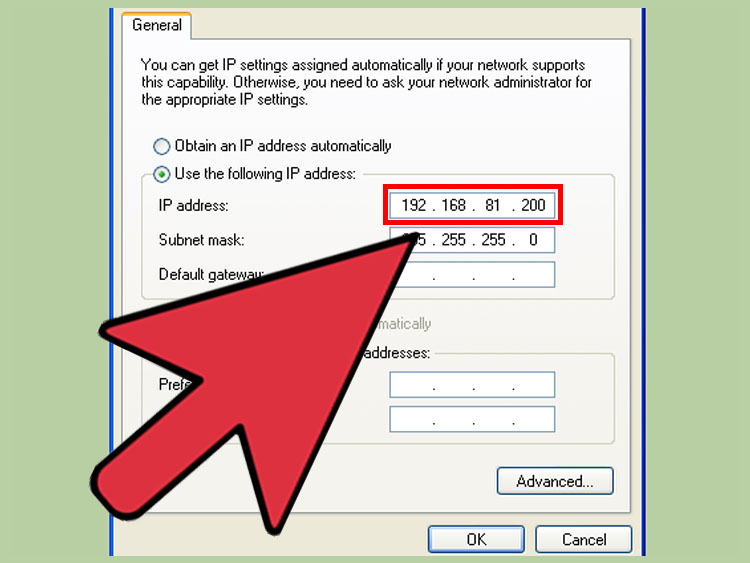
Enter a subnet IP address, such as 192.168.50.0, and use a subnet mask such as 255.255.255.0. This creates a /24 network with usable addresses from 192.168.50.1 to 192.168.50.254, depending on gateway and DHCP settings.
Keep the design simple unless you have a specific reason to do otherwise. A /24 subnet is easy to read, easy to troubleshoot, and large enough for most desktop labs.
Step 5: Enable or Disable DHCP
If you want VMware Workstation to assign IP addresses automatically, enable Use local DHCP service to distribute IP address to VMs. Then open DHCP settings and define the range. For example, you might use 192.168.50.100 through 192.168.50.200 for client machines.
If you prefer manual addressing, disable DHCP and assign static IPs inside each guest operating system. This is common for server labs because DNS, domain services, databases, and firewalls work best when their addresses do not keep changing like a cat deciding where to nap.
Step 6: Connect a Virtual Machine to the Network
Select the virtual machine, open VM Settings, and click Network Adapter. Choose Custom: Specific virtual network, then select the VMnet you created, such as VMnet2. Save the settings and start the VM.
Inside the guest OS, check the IP address. On Windows, open Command Prompt and run ipconfig. On Linux, run ip addr or ip a. Confirm that the VM received an address in the expected subnet.
Step 7: Test Connectivity
Testing is where the network proves itself. Start with simple checks:
- Ping another VM on the same VMnet.
- Ping the host adapter if host access is enabled.
- Check DNS resolution if the VM should access the internet.
- Test web access if using NAT or bridged mode.
- Verify firewall rules inside the guest OS.
If ping fails, do not panic. Firewalls often block ICMP by default. Check the IP address, subnet mask, gateway, VMware network mode, guest firewall, and whether the correct adapter is connected. Most VMware networking problems are not mysterious; they are usually one checkbox wearing a fake mustache.
Example Lab: Building a Small Web Server Network
Here is a practical example. Suppose you want to build a small lab with three machines: a Linux web server, a Windows client, and a firewall/router VM.
Network Design
- VMnet8 NAT: Provides internet access to the firewall/router VM.
- VMnet2 Host-only: Internal lab network using 192.168.60.0/24.
- Firewall VM: One adapter on VMnet8 and one adapter on VMnet2.
- Linux Web Server: One adapter on VMnet2 with static IP 192.168.60.10.
- Windows Client: One adapter on VMnet2 with DHCP or static IP 192.168.60.20.
This layout lets the firewall control traffic between the private lab and the outside world. The web server and client remain on an internal network, while the firewall VM decides what traffic can leave or enter. It is a small but realistic model of enterprise segmentation.
Why This Setup Works
The internal machines are not directly exposed to your physical network. The firewall/router VM becomes the controlled gateway. You can practice firewall rules, NAT, routing, logging, and service publishing without risking your real LAN. This is exactly why VMware Workstation is popular among students, developers, system administrators, and security learners.
Common VMware Workstation Networking Problems
The VM Has No IP Address
Check whether DHCP is enabled on the VMnet. Confirm that the network adapter is connected in the VM settings. Restart the guest network service or renew the DHCP lease. On Windows, use ipconfig /release and ipconfig /renew. On Linux, restart NetworkManager or request a new DHCP lease.
The VM Has Internet Access but Cannot Be Reached from the LAN
This usually happens in NAT mode. NAT allows outbound traffic easily, but inbound traffic from the physical LAN does not automatically reach the VM. Use bridged mode if the VM must be directly reachable, or configure NAT port forwarding if you only need specific services.
Two Networks Use the Same Subnet
Subnet overlap causes confusing routing problems. If your host network is 192.168.1.0/24 and your VMware network is also 192.168.1.0/24, the host may not know where to send traffic. Change the VMware subnet to something different, such as 192.168.50.0/24 or 10.10.10.0/24.
Bridged Networking Does Not Work on Wi-Fi
Some wireless adapters, drivers, corporate security tools, or network policies interfere with bridged networking. Try selecting a specific physical adapter instead of automatic bridging. If the network still refuses to cooperate, use NAT unless you truly need bridged access.
The Host Cannot Reach the VM
Make sure the VM is on a network that includes a host virtual adapter, such as host-only or NAT with host access. Also check guest firewall rules. A Windows VM may block file sharing, ping, or remote desktop until the firewall profile and rules are configured.
Security Best Practices for VMware Virtual Networks
Virtual does not mean harmless. A poorly configured VM can still scan your network, expose services, or download unsafe files. Use network modes intentionally.
- Use host-only networking for risky experiments.
- Avoid bridged mode for untrusted guest systems.
- Disable unnecessary services inside guest operating systems.
- Use snapshots before major changes.
- Keep guest operating systems patched when they connect to the internet.
- Document your VMnet names, subnets, gateways, and DHCP ranges.
Documentation may sound boring, but future you will appreciate it. A simple text file listing “VMnet2 = Internal LAN = 192.168.50.0/24” can save an hour of troubleshooting later.
Performance Tips for Better Virtual Networking
Networking performance in VMware Workstation depends on the host hardware, guest operating system, adapter type, disk speed, memory allocation, and background services. For best results, avoid starving your host computer. A lab with six VMs on a laptop with limited RAM can become slower than a printer firmware update.
Assign reasonable memory, avoid running unnecessary VMs, and use SSD storage if possible. For network-heavy labs, use lightweight Linux distributions where appropriate. If you are testing servers, give them static IP addresses and clear hostnames. Good naming makes troubleshooting easier: web01, db01, and client01 are much better than “Ubuntu Copy Final Really Final 2.”
Practical Experience: Lessons from Building VMware Workstation Virtual Networks
After working with VMware Workstation virtual networks in lab-style environments, one lesson becomes obvious: the simplest design usually wins. It is tempting to create five VMnets, three firewall layers, two DNS zones, and a tiny empire of virtual servers on day one. That might look impressive on a diagram, but it can quickly become difficult to troubleshoot. Start with one NAT network and one host-only network. Once that works, expand slowly.
A reliable beginner setup is one NAT-connected VM for internet access and one host-only network for internal testing. For example, place a Linux server and a Windows client on VMnet2 using 192.168.70.0/24. Give the server a static IP address such as 192.168.70.10 and let the client use DHCP. Test ping, file sharing, SSH, web services, and DNS. This small lab teaches more than people expect because it reveals how IP addresses, firewalls, services, and name resolution interact.
Another useful experience is learning when not to use bridged networking. Bridged mode is convenient, but it can introduce surprises. On a home network, it usually works well. On a corporate Wi-Fi network, hotel network, or university network, it may fail because of security policies, wireless restrictions, MAC address controls, or captive portals. NAT is often more predictable because the host handles the outside connection. When a VM only needs updates or package downloads, NAT is the sensible choice.
For cybersecurity practice, host-only networking is the safer starting point. If you are using intentionally vulnerable machines, keep them isolated. Do not bridge them to your real LAN. A host-only lab lets you practice scanning, exploitation, patching, logging, and firewall rules without exposing the guest machines to the outside network. Add a router or firewall VM only when you are ready to control traffic between networks.
One habit that saves time is taking snapshots before changing network settings inside a guest. Network changes are easy to make and sometimes annoying to reverse, especially when you are editing static IP settings, DNS servers, routes, or firewall policies. A snapshot gives you a clean rollback point. It is like putting a bookmark in reality.
Finally, keep a small network diagram. It does not need to be beautiful. A simple note showing VM names, VMnets, IP addresses, and gateway settings is enough. When something breaks two weeks later, that diagram becomes gold. VMware Workstation is powerful because it lets you create real networking behavior in a compact space, but that power is easiest to manage when the design is clear, labeled, and intentionally boring in the best possible way.
Conclusion
Creating virtual networks by using VMware Workstation is one of the best ways to learn, test, and build technical environments without buying physical hardware. Once you understand bridged, NAT, host-only, and custom VMnet networks, you can design labs for development, server administration, cybersecurity, troubleshooting, and certification practice.
Use NAT when you want simple internet access. Use bridged networking when the VM must appear on the physical LAN. Use host-only networking when isolation matters. Use custom VMnets when you want multiple subnets or realistic lab architecture. Plan your IP ranges, avoid subnet conflicts, document your setup, and test each connection step by step.
The beauty of VMware Workstation is that it lets you experiment boldly while keeping your real network safe. Build small, test often, take snapshots, and remember: every networking expert has, at some point, spent 30 minutes troubleshooting a problem caused by one unchecked box. Welcome to the club.











