
Trying to uninstall an app on a Mac should be simple: drag it to the Trash, empty the Trash, enjoy your freshly liberated storage space, and maybe reward yourself with a cookie. But sometimes macOS looks you straight in the eye and says, “No.” The app refuses to move. The Trash refuses to empty. A mystery helper keeps running in the background like a tiny digital goblin. Or the app disappears from the Applications folder but leaves behind files, login items, extensions, caches, and little crumbs scattered around your Library folders.
If that sounds familiar, this guide is for you. Below, you’ll learn how to completely uninstall apps that won’t delete on a Mac, including stubborn apps, background utilities, menu bar apps, old trial software, broken installers, and programs that keep coming back like they misunderstood the breakup.
This is written for regular Mac users, not only terminal-loving tech wizards. We’ll start with the safest methods first, then move into deeper cleanup options for leftover files and background items. By the end, your Mac should feel cleaner, calmer, and less haunted by apps you thought you deleted months ago.
Why Some Mac Apps Won’t Delete
Most Mac apps are packaged as .app files and stored in the Applications folder. For many basic apps, deleting the main app file is enough. But more complex software can install support files in multiple places. Antivirus tools, cloud storage apps, VPNs, design suites, printer utilities, browser helpers, and menu bar apps often include background services that keep running even after the main window is closed.
Common reasons an app refuses to uninstall include:
- The app is still running in the background.
- A helper process, login item, or menu bar service is active.
- The app requires an administrator password to remove.
- The app came with its own official uninstaller.
- macOS is protecting a system app that should not be deleted.
- Leftover files remain in Library folders after the main app is removed.
- A device management profile or extension is keeping part of the software active.
- The app is damaged, outdated, or partially removed.
The key is not to panic-delete random files. Your Mac has many folders with names that look like ancient robot spells. Delete the wrong thing, and you may create more problems than you solve. A complete uninstall should be careful, step-by-step, and slightly less dramatic than smashing the keyboard with a bagel.
Step 1: Quit the App Properly
Before you delete anything, make sure the app is actually closed. On macOS, clicking the red window button does not always quit an app. It often only closes the window while the app keeps running in the Dock, menu bar, or background.
Start with the simple method:
- Click the app name in the menu bar.
- Choose Quit.
- Or press Command + Q.
If the app has a menu bar icon, click that icon and look for Quit, Exit, Sign Out, or Close. Cloud apps such as Dropbox, backup tools, VPNs, and security utilities often need to be quit from the menu bar before you can uninstall them.
Step 2: Use Force Quit If the App Is Frozen
If the app refuses to close, use Force Quit. This is macOS telling the app, politely but firmly, “The meeting is over.”
- Press Option + Command + Esc.
- Select the app that will not close.
- Click Force Quit.
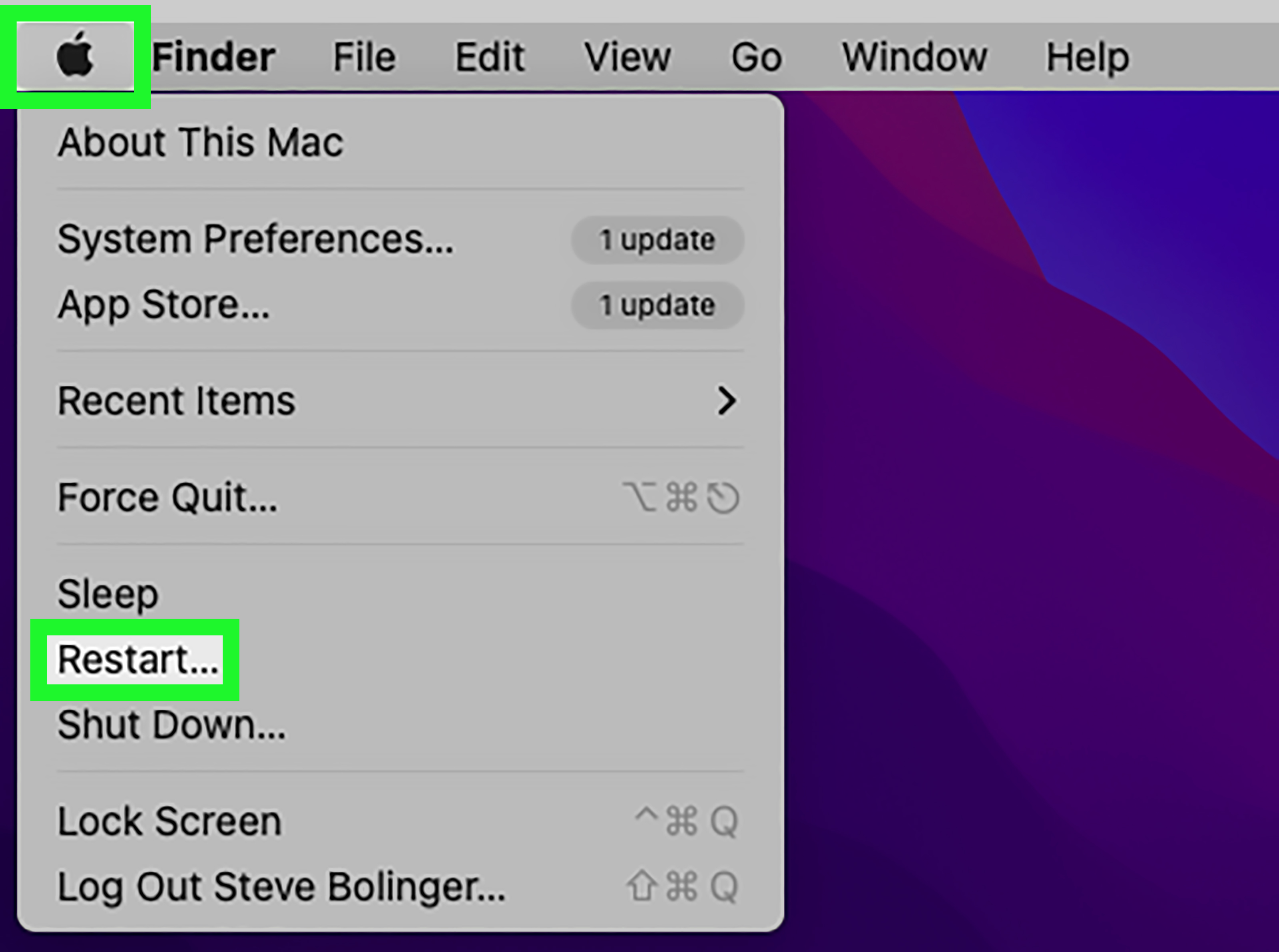
You can also click the Apple menu in the top-left corner and choose Force Quit. This method is useful when an app is frozen, not responding, or stuck in a weird half-open state. After forcing it to quit, try deleting the app again from the Applications folder.
Step 3: Use Activity Monitor for Stubborn Background Processes
If Force Quit does not work, the app may have a background process still running. Activity Monitor is the Mac version of looking under the hood and saying, “Ah, there’s the little troublemaker.”
- Open Finder.
- Go to Applications > Utilities.
- Open Activity Monitor.
- Use the search bar to search for the app name, developer name, or related process.
- Select the process.
- Click the X button at the top of the Activity Monitor window.
- Choose Quit, or Force Quit if necessary.
Be careful here. Do not quit random system processes just because their names look suspicious. macOS has plenty of processes with names only a motherboard could love. Focus on the app you are trying to uninstall and its clearly related helpers.
Step 4: Delete the App from Finder
Once the app is closed, use Finder to remove it.
- Open Finder.
- Click Applications in the sidebar.
- Find the app you want to remove.
- Right-click it and choose Move to Trash.
- Enter your administrator password if macOS asks for it.
- Open Finder and choose Empty Trash when you are ready to permanently delete it.
If you are not completely sure, do not empty the Trash immediately. Leaving the app in the Trash for a few minutes gives you a small safety net. Once you empty the Trash, the app is permanently removed from normal Finder recovery.
Step 5: Try Launchpad for App Store Apps
For apps downloaded from the Mac App Store, Launchpad can sometimes remove them cleanly.
- Open Launchpad.
- Find the app.
- Click and hold the app icon until icons start jiggling.
- Click the X button if it appears.
- Confirm that you want to delete the app.
If there is no X, that does not automatically mean your Mac is broken. Many non-App Store apps cannot be removed through Launchpad. Use Finder or the app’s official uninstaller instead.
Step 6: Check for the App’s Built-In Uninstaller
Some apps should not be removed by simply dragging them to the Trash. Big software packages often include their own uninstallers because they install extra components across your Mac. This is especially common with Adobe apps, Microsoft Office, antivirus software, printer drivers, audio tools, VPN clients, and cloud sync utilities.
Here is how to check:
- Open Finder.
- Go to Applications.
- Look for a folder named after the app or developer.
- Open the folder and search for something named Uninstall, Uninstaller, or Remove.
- Run the uninstaller and follow the instructions.
For example, Adobe Creative Cloud provides an official uninstaller. Malwarebytes includes an uninstall option from its Help menu. Microsoft provides manual uninstall steps for Office apps. Dropbox recommends quitting the app first, then removing it from Applications. When a developer offers an official uninstaller, use it. The app knows where it hid its socks.
Step 7: Remove Login Items and Background Items
Sometimes the app is gone, but macOS still shows a background item, menu bar helper, or login component. This can make it feel like the app survived the uninstall and is now living in the walls.
To check login and background items on modern macOS versions:
- Click the Apple menu.
- Open System Settings.
- Go to General.
- Click Login Items & Extensions.
- Review items under Open at Login and background-related sections.
- Remove or disable items clearly related to the app you uninstalled.
This step is especially helpful for apps that launch automatically when your Mac starts. If you delete the main app but leave behind a login helper, you may keep getting warnings, pop-ups, or background activity from software you thought was gone.
Step 8: Search for Leftover Files in Library Folders
After deleting the main app, leftover files may remain. These files can include preferences, caches, saved states, containers, logs, browser data, plugins, and support folders. Not all leftovers are harmful, but they can waste storage or cause issues if you reinstall the app later.
To manually check for leftovers:
- Open Finder.
- Click Go in the menu bar.
- Choose Go to Folder, or press Command + Shift + G.
- Search the following folders one at a time.
You can also check system-level folders, but be more cautious because they affect all users on the Mac:
Look for files or folders that clearly match the app name, developer name, or bundle identifier. For example, files related to a fictional app called “ExampleApp” might look like:
Move only clearly related files to the Trash. Do not delete a folder just because it looks unfamiliar. If you are unsure, leave it alone or make a backup first. The goal is to clean your Mac, not perform amateur archaeology in the Library folder and accidentally remove something important.
Step 9: Remove Extensions, Plugins, and Profiles
Some apps install extensions or configuration profiles. These can control network settings, security permissions, login behavior, browser behavior, or device management features. This is common with work or school Macs, VPNs, security software, and device management tools.
To check extensions:
- Open System Settings.
- Go to General.
- Open Login Items & Extensions.
- Review extensions and background services related to the app.
To check profiles on macOS 13 or later:
- Open System Settings.
- Click General.
- Open Device Management.
- Select any profile you recognize as unnecessary.
- Remove it only if you are sure it is not required by your school, workplace, or device owner.
- Restart your Mac.
If your Mac belongs to a company or school, do not remove management profiles without permission. That is not “decluttering”; that is “inviting an email from IT with a lot of bold text.”
Step 10: Restart Your Mac
Restarting is boring advice, but it works more often than people want to admit. A restart clears temporary states, stops stuck processes, refreshes Finder, and lets macOS release files that were previously locked.
After uninstalling a stubborn app, restart your Mac before deciding whether the problem is solved. Then check:
- Is the app gone from Applications?
- Is it removed from Launchpad?
- Are its menu bar icons gone?
- Did startup pop-ups stop?
- Is it absent from Login Items?
- Does Storage show more available space?
If yes, congratulations. Your app has left the building.
Step 11: Use Safe Mode If the App Still Won’t Delete
Safe Mode starts your Mac with only essential components. It can prevent third-party background items from loading, which makes it useful when an app refuses to delete because its helper process keeps relaunching.
For Macs with Apple Silicon
- Shut down your Mac.
- Press and hold the power button until startup options appear.
- Select your startup disk.
- Hold Shift and click Continue in Safe Mode.
For Intel-Based Macs
- Restart your Mac.
- Immediately hold the Shift key.
- Release it when the login window appears.
- Log in and look for “Safe Boot” in the menu bar.
Once in Safe Mode, try deleting the app again. After removal, restart normally.
Step 12: Consider a Trusted App Uninstaller
A dedicated Mac app uninstaller can help find related files automatically. Tools in this category usually scan for app bundles, support folders, preferences, caches, launch agents, and leftover files. This can be helpful if you are uncomfortable manually searching Library folders.
However, be selective. Download uninstallers only from reputable developers or trusted sources. Avoid random “Mac cleaner” pop-ups that claim your computer has 8,472 urgent problems and somehow knows this after five seconds. That is not a utility; that is a panic button wearing a fake mustache.
Before using any third-party uninstaller:
- Check the developer’s reputation.
- Read recent reviews from reliable tech publications.
- Make sure the app supports your macOS version.
- Review every file before deleting it.
- Avoid tools that pressure you with scary warnings.
A good uninstaller saves time. A bad one creates new cleanup projects. Choose wisely.
Step 13: Use Terminal Only as a Last Resort
Terminal can delete apps that Finder refuses to move, but it is powerful and unforgiving. There is no cute Trash can animation. There is no “Oops, bring it back” button. If you mistype a path, you can remove the wrong thing.
If you are confident and have a backup, you can remove a stubborn app from Applications with a command like this:
Replace AppName.app with the exact app name. A safer approach is to type sudo rm -R , leave a space, then drag the app from Finder into the Terminal window so macOS inserts the exact path. Press Return, enter your administrator password, and wait for the command to complete.
Do not use Terminal to delete Apple system apps, unknown system folders, or anything you cannot clearly identify. When in doubt, use Finder, the official uninstaller, or a trusted app removal tool instead.
Apps You Usually Should Not Delete
Some Apple apps are deeply connected to macOS features. Removing built-in apps such as Safari, Mail, Calendar, Photos, Music, Time Machine, or system utilities can cause problems. Even when you find online tricks claiming it is possible, that does not mean it is smart.
If the goal is to reduce clutter, remove the app from the Dock, hide it, or use another default app where macOS allows it. Trying to surgically remove built-in macOS components is like trying to remove raisins from a cookie after it has already been baked. Technically tempting, structurally suspicious.
Real Examples of Stubborn Mac Apps
Cloud Storage Apps
Cloud storage tools often keep sync engines running in the background. Before deleting them, quit the menu bar app and confirm that your files are backed up. Removing the desktop app usually does not delete the cloud account, but local folders may remain unless you choose to remove them.
Security and Antivirus Apps
Security apps often install background components because their job is to monitor activity. Use the developer’s official uninstall option whenever possible. Dragging only the main app to the Trash may leave menu bar items, extensions, or launch daemons behind.
Creative Suites
Design and video editing suites often install licensing services, fonts, plugins, caches, media libraries, and helper apps. Use official uninstallers first, then check for leftovers if you are freeing storage or preparing for a clean reinstall.
Old Trial Apps
Trial apps may leave receipts, preferences, or support files behind. This is not always malicious; sometimes the app stores settings so it can remember trial status or user preferences. If you are done with it, search Library folders for clearly related files.
How to Confirm the App Is Completely Gone
After uninstalling, run through this checklist:
- The app no longer appears in the Applications folder.
- The app is gone from Launchpad or the Dock.
- No related process appears in Activity Monitor.
- No related item appears under Login Items & Extensions.
- No related menu bar icon remains after restart.
- No obvious app folders remain in Application Support, Caches, Preferences, or Containers.
- The Trash has been emptied after you are sure you no longer need the app.
If the app still appears somewhere, search for the app name in Finder and Spotlight. Also search for the developer name. Some apps use company names rather than product names in their support files.
Common Mistakes to Avoid
- Deleting only the Dock icon: Removing an icon from the Dock does not uninstall the app.
- Emptying Trash too fast: Wait until you are sure you do not need the app or its files.
- Ignoring official uninstallers: Complex apps often need them.
- Deleting random Library files: Only remove files clearly tied to the app.
- Using Terminal casually: Terminal is not a broom. It is a chainsaw with a keyboard.
- Forgetting to restart: Some leftovers disappear only after a reboot.
Personal Experience: What Actually Works When a Mac App Refuses to Leave
The biggest lesson from dealing with stubborn Mac apps is that the first visible app icon is rarely the whole story. Many people drag an app to the Trash, see the icon vanish, and assume the job is done. Then the Mac starts up the next day and a menu bar helper appears again, grinning like it pays rent. That is usually the moment users realize they did not uninstall the entire app; they only removed the front door.
In real use, the most reliable approach is to slow down and work in layers. First, quit the app properly. Second, check Activity Monitor. Third, use the official uninstaller if the app provides one. Fourth, review Login Items and background items. Fifth, remove leftovers from Library folders only when the names clearly match the app or developer. This layered method prevents accidental damage and avoids the “delete everything that looks weird” strategy, which is how innocent preference files end up in the digital witness protection program.
Cloud apps are especially sneaky. A sync app can look closed while its background process is still active. If you try to remove it while it is syncing, Finder may complain that the item is in use. The fix is usually not complicated: pause syncing if the app allows it, quit from the menu bar, confirm the process is gone in Activity Monitor, and then remove the app. Also, always check whether deleting a local folder affects files you still need. The app and your documents are not always the same thing.
Security apps and VPNs are another category where patience pays off. These tools often install privileged helpers because they need system-level access to do their jobs. When you remove only the main app, the helper may remain. That is why the official uninstaller is so important. It can remove components that Finder does not clearly show. If the developer gives you a removal tool, use it before digging through system folders manually.
One practical habit that helps is taking a screenshot before changing Login Items or deleting Library folders. It sounds almost too simple, but screenshots create a quick reference if you need to undo something. Another helpful habit is moving suspected leftover files to the Trash but not emptying it immediately. Restart first. Use the Mac for a bit. If everything behaves normally, then empty the Trash. It is not glamorous, but neither is restoring a broken setting because you got a little too confident at 1:00 a.m.
The final lesson: do not treat every leftover file as an emergency. Some tiny preference files are harmless. The real problems are active launch agents, background services, large cache folders, broken login items, and apps that interfere with reinstalling or updating. Focus on those, and your Mac cleanup will be safer, faster, and far less stressful.
Conclusion
Learning how to completely uninstall apps that won’t delete on a Mac is mostly about knowing where apps hide their extra pieces. Start with the safest steps: quit the app, use Force Quit if needed, remove it from Finder or Launchpad, and run the official uninstaller when available. Then check Activity Monitor, Login Items & Extensions, Library folders, extensions, profiles, and Safe Mode for deeper cleanup.
You do not need to attack your Mac with random cleaner tools or Terminal commands right away. Most stubborn apps can be removed with a calm, methodical process. Think of it as politely escorting the app out, then checking the couch cushions for anything it left behind.











