
If your HP printer is suddenly producing crooked lines, fuzzy text, uneven colors, or photos that look like they were printed during a tiny earthquake, printer alignment may be the hero you need. Alignment helps your HP printer place ink accurately on the page so letters look crisp, lines stay straight, and colors land where they are supposed to landnot three pixels to the left, wearing sunglasses.
For most HP inkjet printers, including many HP DeskJet, ENVY, OfficeJet, OfficeJet Pro, and Smart Tank models, alignment is a built-in maintenance task. It is often needed after installing new cartridges, moving the printer, clearing a paper jam, updating software, or noticing poor print quality. The good news: you usually do not need a toolbox, a technician, or a dramatic speech. You need plain white paper, a few minutes, and the right menu.
This guide explains how to align your HP printer in five practical ways, including using the HP app, the printer control panel, HP Printer Assistant on Windows, HP Utility on Mac, and the Embedded Web Server for network-connected printers. You will also learn what to do if alignment fails, when to clean the printhead, and how to avoid making the problem worse.
What Does Printer Alignment Mean?
Printer alignment is the process of calibrating the printhead or ink cartridges so the printer deposits ink in the correct position. When alignment is off, the printer may still print, but the output can look messy. You may see jagged vertical lines, blurry text, double images, color shadows, uneven boxes, or photos with strange color shifts.
Think of your printer like a very precise marching band. Each ink nozzle has to step at exactly the right moment. If one section starts half a beat late, the whole parade looks wobbly. Alignment brings the printhead, cartridges, and paper path back into sync.
When Should You Align an HP Printer?
You should align your HP printer when you notice print quality problems that look like positioning errors rather than simple low ink. Common signs include crooked lines, overlapping colors, blurry characters, uneven tables, or borders that do not print straight. You should also run alignment after replacing ink cartridges or printheads if your printer prompts you to do so.
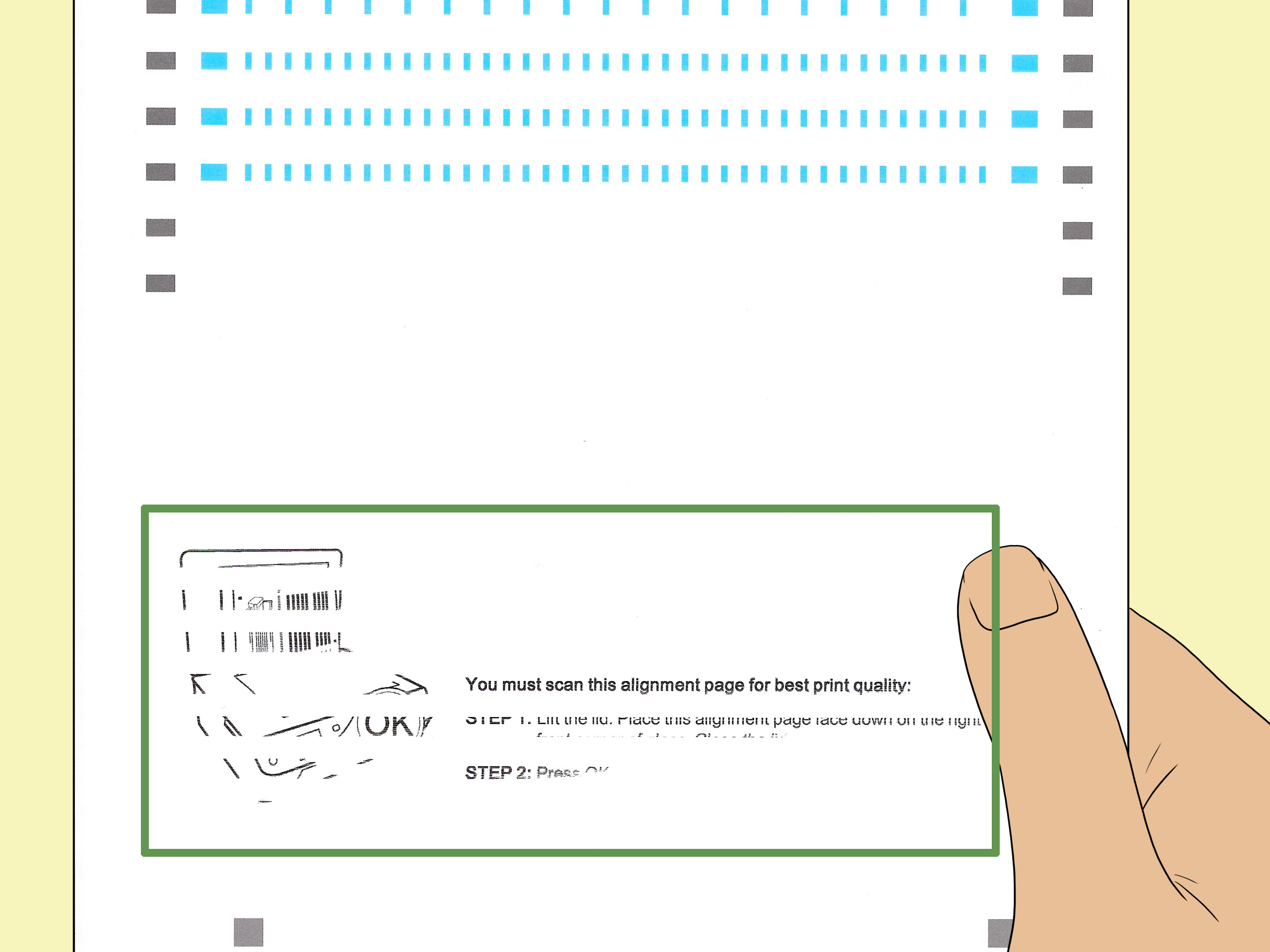
Many HP printers automatically request alignment after new cartridge installation. Do not ignore that page and use it as scrap paper for grocery lists. The alignment page is part of the process, and on all-in-one models, you may need to scan it so the printer can read the calibration pattern.
Before You Start: Quick Preparation Checklist
Before trying any HP printer alignment method, set yourself up for success. Load clean, plain white Letter or A4 paper into the input tray. Avoid colored paper, glossy photo paper, wrinkled sheets, recycled paper with heavy texture, or paper that has already been printed on. Alignment patterns need to be read clearly, and the printer is picky for a good reason.
Make sure the ink cartridges are installed correctly and that the access door is closed. If your printer uses ink tanks, confirm that the tanks are filled above the minimum line. If the printer has been sitting unused for weeks, print quality problems may come from dried ink or clogged nozzles, so cleaning the printhead may be necessary before alignment works.
Also check that your HP printer is powered on, connected to your computer or Wi-Fi network, and not showing paper jam, low ink, door open, or cartridge error messages. Alignment cannot work properly if the printer is already waving another little red flag.
How to Align Your HP Printer: 5 Ways
1. Align Your HP Printer Using the HP App
The HP app is one of the easiest ways to align many modern HP printers. Depending on your device, you may see it called the HP app or HP Smart. It works on Windows, macOS, iOS, and Android for many supported models. This method is especially helpful if your printer does not have a touchscreen or if you prefer managing printer maintenance from your computer or phone.
To use this method, open the HP app and select your printer from the home screen. Click or tap the printer image, then look for a section such as Printer Settings, Tools, Diagnostics, or Print Quality Tools. Choose Align Printer, Align Printheads, or Align Cartridges, depending on your model.
The printer will print an alignment page. Let the page finish completely before touching it. Some printers complete alignment automatically after printing the page. Others require you to place the alignment page face down on the scanner glass, usually aligned with the corner guide, and then press Scan or follow the app instructions.
This is a great first method because the app often guides you step by step. It can also show ink levels, connection status, and other maintenance tools in the same place. If the alignment option is missing, update the HP app, reinstall the full HP printer software, or check whether your printer model supports alignment through the app.
2. Align Your HP Printer from the Printer Control Panel
If your HP printer has a touchscreen or built-in control panel, you may be able to run alignment directly from the printer. This method does not require a computer, which is nice when your laptop is across the room and your printer is already judging you silently.
On many HP printers, start from the home screen and open Setup, Settings, Tools, or Printer Maintenance. Look for an option such as Align Printer, Align Printhead, Align Cartridges, or Print Alignment Page. Select the option and follow the on-screen prompts.
The printer will usually print a test or alignment page. If your HP all-in-one model has a scanner, the control panel may ask you to place the printed page on the scanner glass. Position it exactly as shown in the instructions. A crooked alignment page can cause the printer to fail alignment even when nothing is actually wrong with the cartridges.
This method is useful for HP ENVY, OfficeJet, OfficeJet Pro, DeskJet, and Smart Tank printers with built-in display menus. Menu names vary by model, but the general path usually leads through settings, tools, or maintenance.
3. Align Your HP Printer with HP Printer Assistant on Windows
HP Printer Assistant is a Windows software tool included with many full-feature HP driver packages. If you installed your printer using HP’s complete software instead of only a basic driver, you may already have it on your PC.
To open it, search Windows for your printer model name or for HP Printer Assistant. Select your printer from the results. Inside the program, click Print, Scan & Fax or a similar option, then choose Maintain Your Printer. Look for the maintenance or device services tab and select Align Printheads, Align Cartridges, or Align Printer.
After that, follow the instructions on your screen. The printer may print an alignment page, and you may need to scan it to finish the process. If the page prints with missing colors or streaks, run the printhead cleaning tool before trying alignment again.
This method is especially helpful for users with older HP printers or Windows PCs where the full HP software package offers more detailed maintenance tools than the newer app interface. If you cannot find HP Printer Assistant, download the official driver package for your specific HP printer model from HP support and install the recommended software.
4. Align Your HP Printer with HP Utility on Mac
Mac users can often align an HP printer using HP Utility or the HP app, depending on the printer model and software version. HP Utility has long been used for printer maintenance tasks such as checking supplies, cleaning printheads, and running alignment.
To try this method, open HP Utility on your Mac. You may find it in the Applications folder, inside an HP folder, or through your printer settings. Select your HP printer, then look for Information and Support, Printer Maintenance, or a similar section. Click Align, Align Printheads, or Align Cartridges.
Load plain white paper before starting. Once the alignment page prints, follow any on-screen instructions. If your printer has a scanner, scan the alignment page exactly as directed. If your model now uses the HP app instead of HP Utility, open the app, choose your printer, and look under print quality tools or printer maintenance.
If your Mac cannot find the printer, confirm that both devices are connected to the same Wi-Fi network. You can also remove and re-add the printer in macOS printer settings, then try the maintenance tool again. Printers are like cats: sometimes they pretend they do not know you until you reintroduce yourself.
5. Align Your HP Printer Through the Embedded Web Server
Some network-connected HP printers include an Embedded Web Server, often called EWS. This is a printer settings page that opens in a web browser when you enter the printer’s IP address. It is especially useful for OfficeJet Pro, Smart Tank, LaserJet, and business-class HP printers connected to a local network.
To use this method, first find your printer’s IP address. You can usually print a network configuration page from the printer control panel, view the IP address on the printer’s wireless menu, or find it in the HP app. Open a web browser on a device connected to the same network and enter the IP address in the address bar.
Once the Embedded Web Server opens, look for a section such as Tools, Utilities, Printer Maintenance, or Print Quality Toolbox. Choose Align Printer or Align Printhead if the option is available. Follow the prompts and complete the alignment page process.
This option is not available on every HP printer, and some settings may require an administrator password. However, it can be a powerful solution when the app is not cooperating or when you manage the printer from a shared office network.
What If HP Printer Alignment Fails?
If your HP printer says alignment failed, do not panic. Alignment failure is common, and it usually points to one of a few fixable issues. The first thing to check is the alignment page itself. If the page printed with missing colors, faded blocks, broken lines, or heavy streaks, the printer may not have enough clean ink output to complete calibration.
Check Ink Levels and Cartridge Seating
Low or empty ink can cause poor alignment results. Check estimated ink levels from the printer display, HP app, or printer software. If a cartridge is empty or very low, replace it before aligning again. For ink tank printers, make sure all tanks are filled above the minimum line.
Also open the cartridge access area and confirm that each cartridge is seated firmly. Remove and reinstall the cartridges if needed. Listen for the click. A cartridge that is almost installed is not installed; it is just loitering with confidence.
Clean the Printhead or Cartridges
If the alignment page has streaks or missing colors, run the printhead cleaning tool. You can usually find it in the HP app, printer control panel, HP Printer Assistant, HP Utility, or Embedded Web Server. After cleaning, print a diagnostic page and review the color blocks and lines. You may need to run cleaning more than once, but avoid doing it endlessly because cleaning cycles use ink.
Clean the Scanner Glass
For all-in-one HP printers that require scanning the alignment page, scanner glass matters. Dust, fingerprints, tape residue, or smudges can prevent the printer from reading the alignment marks. Turn off the printer, clean the scanner glass with a soft lint-free cloth lightly dampened with glass cleaner or distilled water, and dry it fully before scanning again. Do not spray liquid directly onto the glass.
Use the Right Paper
Alignment works best on plain white paper. Do not use photo paper, colored paper, preprinted forms, envelopes, labels, or curled sheets. Paper guides should rest gently against the edges of the paper without bending it. If the page feeds at an angle, the alignment pattern may not print correctly.
Reset the Printer
A basic power reset can clear temporary printer errors. With the printer turned on, disconnect the power cord from the printer and the wall outlet. Wait about 60 seconds, reconnect the power cord directly to a wall outlet, and turn the printer back on. Then try alignment again.
Update Printer Firmware and Software
Outdated firmware or software can cause maintenance tools to behave strangely. Use the HP app, printer control panel, or HP support software to check for firmware updates. Also update or reinstall your printer driver if alignment tools are missing or not launching.
HP Inkjet vs. HP LaserJet Alignment: Know the Difference
Most alignment instructions apply to HP inkjet printers. Inkjet printers use liquid ink and printheads or cartridges that may need alignment. HP LaserJet printers use toner, drums, and a different printing process. If your LaserJet has color registration or calibration issues, the maintenance menu may offer Calibrate, Color Calibration, or Registration instead of ink alignment.
If you own an HP LaserJet and see blurry text, ghosting, or color shifts, look for calibration settings in the control panel or HP software. Do not try inkjet-style cartridge alignment unless your LaserJet documentation specifically offers that option. A LaserJet does not want to be treated like an inkjet any more than a toaster wants to be asked to make soup.
How Often Should You Align an HP Printer?
You do not need to align your HP printer every week. In most cases, alignment is only necessary after replacing cartridges or printheads, after moving the printer, or when print quality problems appear. Running alignment too often is not harmful in a dramatic way, but it uses paper and ink. Let the printer ask for alignment when needed, and run it manually when the symptoms make sense.
If you print frequently, especially photos, forms, charts, or labels, alignment may be more noticeable when it is off. If you print rarely, clogged nozzles may be a bigger issue than alignment. In that case, printing a small test page every week or two can help keep ink flowing.
Best Practices to Keep Your HP Printer Aligned
Place your printer on a stable, level surface. A wobbly table, a leaning shelf, or a spot next to a frequently slammed drawer can affect paper feeding and print consistency. Keep paper dry and stored flat. Humidity can curl paper, and curled paper can feed unevenly.
Use the paper type setting that matches what you are printing. If you are printing on plain paper, choose plain paper. If you are printing photos, choose the correct photo paper type. Incorrect settings can affect ink placement, drying time, and output quality.
Replace cartridges carefully and avoid touching copper contacts or printhead nozzles. Oils from your fingers can interfere with electrical contact or ink flow. If you must clean contacts, use a lint-free cloth and be gentle. Your printer is not a cast-iron pan; aggressive scrubbing is not a maintenance strategy.
Personal Experiences and Practical Lessons from Aligning HP Printers
Anyone who has spent time with home and office printers knows that alignment problems rarely arrive politely. They usually show up five minutes before you need to print a shipping label, a school form, a tax document, or a presentation handout. That is when the printer decides your straight lines should become modern art.
One of the most common experiences with HP printer alignment is the “new cartridge surprise.” You install a fresh cartridge, expect beautiful printing, and immediately get an alignment page. Many users skip the step because the printer appears ready. Then the next document prints with fuzzy letters or color shadows. The lesson is simple: when the printer prints an alignment page after cartridge replacement, complete the process right away. It may feel like an interruption, but it saves time later.
Another real-world lesson is that the scanner step matters more than people think. On all-in-one HP printers, alignment often requires printing a page and scanning it. If the page is placed upside down, backward, too far from the corner, or slightly crooked, the printer may report failure. The printer is not being dramatic; it is reading a pattern. Even a small placement mistake can confuse it. A good habit is to check the tiny diagram printed on the alignment page or shown on the printer screen before closing the scanner lid.
Paper choice also makes a bigger difference than expected. Many people grab the nearest sheet, including colored paper, old drafts, or glossy photo paper. For alignment, plain white paper is the safest choice. The printer needs strong contrast between the printed marks and the page. If the paper already has text, texture, or color, the scanner may misread the pattern. In practical terms, the cheapest clean white office paper is often better for alignment than fancy paper.
A useful troubleshooting habit is to print a diagnostic page before running alignment over and over. If black ink is missing or cyan looks faded, alignment is probably not the real problem yet. Cleaning the printhead first may solve the issue or at least make alignment possible. Repeating alignment while the printhead is clogged is like trying to tune a guitar with a broken string. You can turn the pegs all day, but the music will still complain.
In small offices, another common experience is software confusion. One person uses the HP app, another uses Windows printer settings, and someone else tries the control panel. The good news is that these routes often lead to the same maintenance function. The best method is usually the one that your printer and device support most clearly. If the HP app shows print quality tools, use it. If the control panel has a maintenance menu, that may be faster. If you are on a network printer, the Embedded Web Server can be surprisingly handy.
It also helps to reset expectations. Alignment will not fix every print quality issue. If the cartridge is empty, the printhead is damaged, the paper is damp, or the printer has a mechanical feed problem, alignment alone will not perform miracles. It can correct placement, not resurrect an empty ink supply. Start with alignment when lines are crooked or colors are offset, but move to cleaning, ink replacement, paper checks, and firmware updates when symptoms point elsewhere.
The best experience comes from treating printer maintenance as a sequence: check paper, check ink, clean if needed, align, then test. That simple order prevents wasted paper and frustration. And when the printer finally produces a sharp, clean page, it feels oddly satisfyinglike winning a very small but emotionally important battle against office technology.
Conclusion
Aligning your HP printer is one of the simplest ways to fix blurry text, crooked lines, color shadows, and uneven print quality. The five best methods are using the HP app, the printer control panel, HP Printer Assistant on Windows, HP Utility on Mac, and the Embedded Web Server for network printers. Most users should start with the HP app or the printer control panel because those options are straightforward and widely supported.
If alignment fails, do not immediately assume the printer is broken. Check ink levels, reseat cartridges, clean the printhead, use plain white paper, clean the scanner glass, reset the printer, and update the software or firmware. In many cases, one of these steps solves the issue and gets your printer back to producing crisp documents instead of abstract office artwork.
Note: Menu names can vary by HP printer model. If your printer uses different wording, look for similar options such as Tools, Printer Maintenance, Print Quality Tools, Align Printer, Align Cartridges, Align Printhead, or Calibration.











