
If you have ever stared at a Microsoft Word table and thought, “Well, this looked finished five minutes ago,” welcome to the club. Tables in Word have a sneaky habit of needing one more line right after you think you are done. Maybe you forgot to add a name, maybe your budget grew a new expense, or maybe your neat little checklist turned into a monster with opinions. Whatever the reason, knowing how to add another row in Microsoft Word is one of those tiny skills that saves a surprising amount of time.
The good news is that Word makes this pretty easy once you know where to click. The even better news is that there is more than one way to do it. You can use the ribbon, the right-click menu, your keyboard, the little plus sign that appears around tables, and even a quick trick for adding multiple rows at once. In this guide, you will learn how to add another row in Microsoft Word in 11 simple steps, plus a few practical tips to make your tables behave like polite office furniture instead of rebellious folding chairs.
Why This Word Table Trick Matters
Adding a row sounds basic, but it matters in real-world documents. People use Word tables for resumes, invoices, schedules, reports, forms, meeting notes, lesson plans, and all kinds of documents that change at the last second. If you know how to insert a row in a Word table quickly, you can update your document without re-creating the whole table or wrecking the formatting.
This is also useful because Word tables are often part of longer documents. One wrong move can mess up spacing, page breaks, borders, or alignment. So yes, adding another row is simple, but doing it neatly is the real power move.
How to Add Another Row in Microsoft Word: 11 Steps
-
Open your Word document and find the table
Start by opening the document that contains the table you want to edit. Scroll to the table and decide where the new row should go. This matters because Word can add a row either above or below the current selection. In other words, Word is helpful, but it is not a mind reader.
-
Click inside the row near where you want the new one
Click in any cell of the row next to the location where you want to insert the new row. If you want the new row to appear above, click in the row below that target position. If you want the new row to appear below, click in the row above it. You do not need to select the entire row unless you are inserting multiple rows.
-
Look for the Table Layout tab on the ribbon
Once your cursor is inside the table, Word displays table-specific tools on the ribbon. Click the Table Layout tab. This is the control center for most Word table editing tasks, including adding rows, deleting rows, adjusting cell size, and generally convincing your table to cooperate.
-
Choose Insert Above if you want the new row on top
In the Rows & Columns group, click Insert Above. Word immediately inserts a new blank row above the row containing your cursor. This is especially handy when you realize you forgot a header item, skipped a category, or need to squeeze in one more entry without shifting the rest of your content manually.
-
Choose Insert Below if you want the new row underneath
If the new line belongs under the current one, click Insert Below. This is one of the most common ways to add another row in Microsoft Word, particularly when you are building lists, tracking data, or adding names one by one. Word usually copies the formatting from the neighboring row, which is a nice little gift from the software gods.
-
Use the right-click menu for a faster shortcut
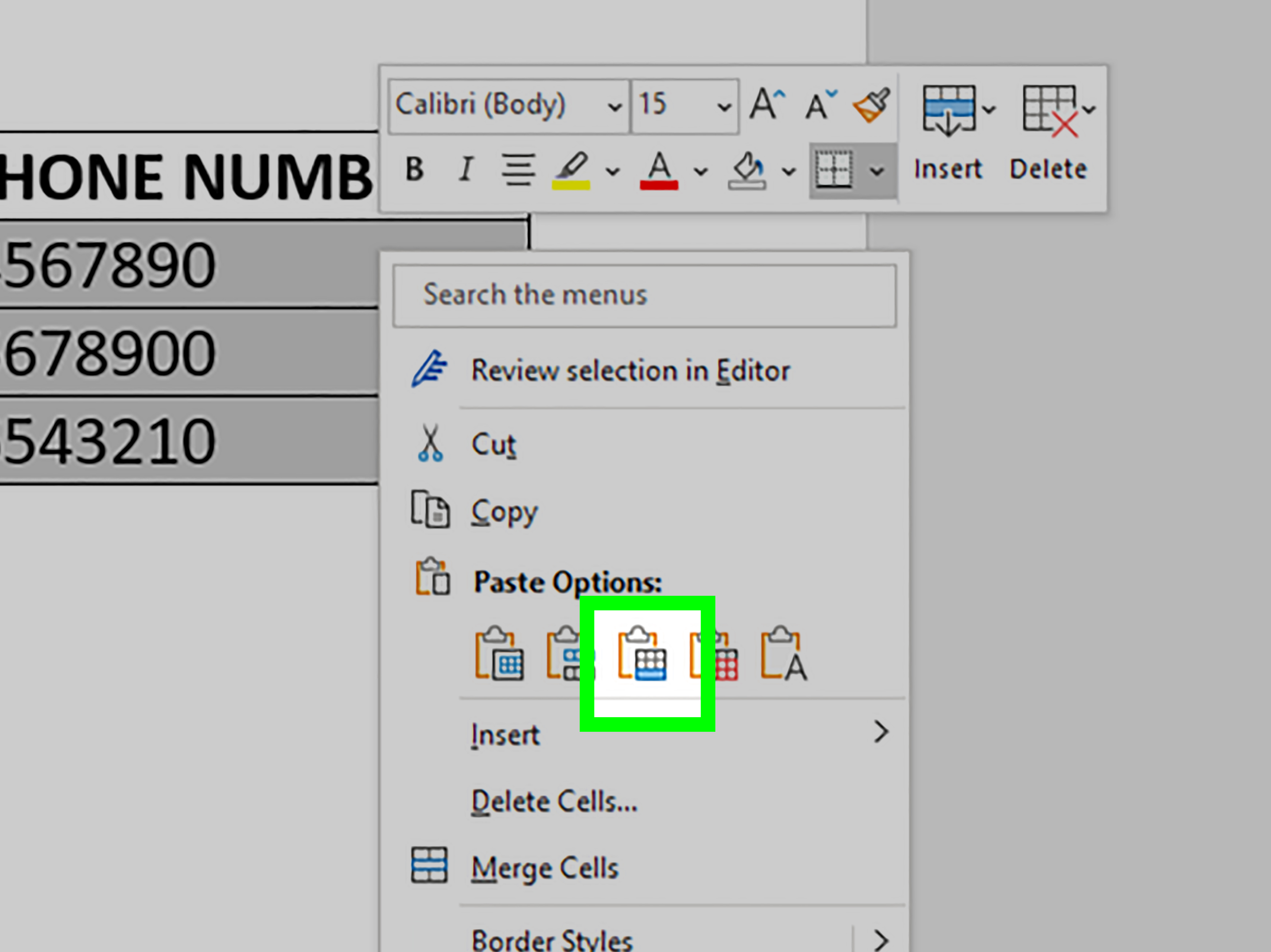
If you prefer context menus, right-click inside a table cell. From the shortcut menu, choose Insert, then select Insert Rows Above or Insert Rows Below. This method is great when you do not want to bounce back and forth to the ribbon. It is also the kind of shortcut that makes you look like you know exactly what you are doing, even if you just learned it 30 seconds ago.
-
Press Tab in the last cell to add a row at the end
Here is one of the easiest tricks in Word: click in the last cell of the last row of the table and press Tab. Word automatically creates a new row at the bottom. This method is perfect when you are entering data continuously, such as attendance, inventory, or a running to-do list. It feels smooth, fast, and oddly satisfying.
-
Use the plus sign button when it appears
In many modern Word versions, when you move your pointer near the left edge of a row or along the top or side of the table, a small plus sign may appear. Clicking that plus sign can quickly add a new row or column. If you are using Word for the web or newer desktop versions, this can be one of the fastest visual methods. If you do not see it, do not panic. Word sometimes hides helpful tools like a cat hiding in a cardboard box.
-
Select multiple rows first if you need to add several at once
If you need three new rows, do not insert them one by one like it is 2007. Instead, select three existing rows, then click Insert Above or Insert Below. Word will insert the same number of rows as the number you selected. This is a massive time saver for templates, forms, rosters, and reports where you already know how much space you need.
-
Check the formatting of the new row
Most of the time, Word applies the formatting of nearby rows automatically. Still, it is smart to double-check borders, shading, text alignment, font style, and row height. If your new row looks slightly off, use Format Painter or copy a correctly formatted row and adjust the content. This step matters because a crooked table row stands out on the page like a sock with sandals.
-
Troubleshoot if Word will not insert the row correctly
If the insert options are grayed out, missing, or behaving strangely, a few things may be going on. Your document may be in compatibility mode, the table may contain merged or locked cells, or your cursor may not actually be inside the table. In Word for the web, make sure you are in editing mode. On mobile, use the table controls and plus sign options rather than expecting the full desktop ribbon. If all else fails, save the file, reopen it, and try again. Even Word occasionally needs a coffee break.
Best Ways to Add Rows in Word, Depending on What You Are Doing
For quick data entry
Use the Tab key at the end of the table. This is ideal when you are adding entries one after another and want a fluid workflow.
For precise placement
Use Insert Above or Insert Below from the Table Layout tab. This gives you exact control over where the row appears.
For speed without leaving the table
Use the right-click menu. It is fast, efficient, and great when your hands are already on the mouse.
For adding several rows at once
Select multiple rows before inserting. This is the easiest way to expand a larger Word table without repeating the same command over and over.
Common Problems When Inserting a Row in a Word Table
The row goes in the wrong place
This usually happens because the cursor was in the wrong row before you clicked Insert Above or Insert Below. Double-check your cursor position before inserting.
The formatting looks weird
Word often copies the nearest formatting, but not always perfectly. If the row looks inconsistent, compare it with the rows around it and correct the borders, alignment, or shading.
The plus sign does not appear
Some Word versions show the hover insert button more clearly than others. If it does not appear, use the ribbon or right-click menu instead. They are more reliable anyway.
The table tools are missing
If you do not see the Table Layout tab, click directly inside the table. Those tools usually appear only when the table is selected or active.
Desktop, Web, and Mobile: Is the Process the Same?
Mostly, yes, but with a few differences. On the desktop version of Microsoft Word, you get the full ribbon and the broadest set of table controls. In Word for the web, you can still add rows using table layout commands, though the interface is lighter. On mobile devices, you typically tap table selection handles or a plus sign to insert a row.
So if you are wondering whether the method changes depending on where you are editing, the answer is a little bit. The basic idea stays the same: click or tap near the right place, then choose to insert above or below. The buttons may move around, but the mission remains identical.
Pro Tips for Cleaner Word Tables
- Use Repeat Header Rows if your table spans multiple pages.
- Keep row heights consistent for a cleaner layout.
- Avoid overusing merged cells if you plan to edit the table frequently.
- Use table styles for a more polished, readable design.
- Save before making large structural edits, especially in important documents.
Final Thoughts
Learning how to add another row in Microsoft Word is one of those small but powerful skills that pays off every time you work with tables. Whether you use the Insert Above and Insert Below commands, the right-click menu, the Tab key, or the handy plus sign, Word gives you several ways to get the job done. Once you know which method fits which situation, editing tables becomes much faster and far less annoying.
The best part is that you do not need advanced Word knowledge to do this well. Just a few table tools, a little confidence, and the willingness to click the right cell before blaming Microsoft. Master that, and your Word tables will start feeling a lot less like traps and a lot more like tools.
Experiences Related to “How to Add Another Row in Microsoft Word: 11 Steps”
In real life, people usually learn this skill not because they were curious about table design, but because a document suddenly needed to change right before a deadline. A student may build a clean study schedule and then remember one more subject needs to be added. An office worker may finish a report and realize the manager wants another line for “miscellaneous costs.” A teacher may create a grading table and then need space for a late assignment. In each case, adding another row in Microsoft Word becomes a tiny rescue mission.
One common experience is the new user who tries to press Enter inside a table cell and expects a new row to appear. Instead, Word simply adds another paragraph inside the same cell. That moment of confusion is almost a rite of passage. Once users discover the Tab key trick at the end of the table or the Insert Below button, the whole process suddenly makes sense. It feels less like fighting the program and more like finally speaking its language.
Another frequent experience happens with forms and templates. Someone creates a simple expense tracker, contact list, or project table and thinks they have planned enough space. Then reality shows up with six more names, four more tasks, and one extra headache. Instead of rebuilding the table from scratch, adding rows lets the document grow naturally. That flexibility is why Word tables remain useful even in workplaces that also use spreadsheets.
People also run into formatting surprises. They insert a new row and notice the border is thicker, the shading is missing, or the text alignment looks slightly different. It is not the end of the world, but it is a very classic Word moment. Over time, users learn to expect that quick formatting check after inserting a row. It becomes part of the rhythm: add row, type content, inspect borders, move on with life.
There is also the satisfaction factor. Once someone learns the faster methods, especially the right-click menu or multiple-row selection trick, they rarely go back to slower habits. What once took a minute of trial and error becomes a quick, confident action. That is why a simple topic like adding another row in Microsoft Word continues to matter. It is not just about one row. It is about working faster, keeping documents neat, and avoiding unnecessary frustration when your table decides it still has room for one more thing.











