
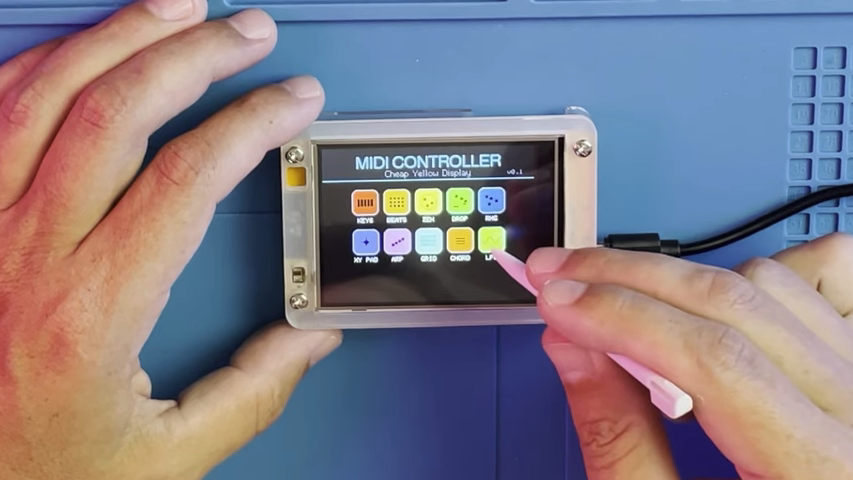
A touchscreen MIDI controller sounds like something that should arrive in a glossy box with a dramatic product video, a celebrity producer nodding at it, and a price tag that makes your wallet hide behind the couch. But the DIY world has a different answer: build it yourself, make it weird, and teach it to control exactly what you want. A touchscreen MIDI controller can be a drum pad, synth editor, clip launcher, lighting trigger, effects mixer, or all of those things depending on how brave you feel after coffee.
At its simplest, a touchscreen MIDI controller is a custom interface that sends MIDI messages to music software or hardware. Touch a button on the screen, and it can fire a note. Slide a virtual fader, and it can send a MIDI Control Change message. Drag your finger across an XY pad, and suddenly you are sweeping filter cutoff and resonance like a spaceship pilot who also understands music theory. That is the magic: the screen is not just a display. It becomes the instrument.
For makers, electronic musicians, live performers, and studio tinkerers, this kind of project hits a sweet spot. It combines music technology, embedded programming, interface design, and a little bit of “why is this not working?” character building. The good news is that modern microcontrollers, small touch displays, USB MIDI libraries, and open-source graphics tools have made the idea far more approachable than it was even a decade ago.
What Is a Touchscreen MIDI Controller?
A MIDI controller does not usually make sound by itself. Instead, it sends performance instructions to another device or application. Those instructions can include note on, note off, velocity, modulation, pitch bend, program changes, and Control Change values. Your DAW, software synth, sampler, drum machine, lighting software, or hardware synthesizer receives those messages and responds.
A touchscreen MIDI controller swaps some or all physical knobs, pads, and faders for a programmable touch interface. Instead of drilling holes into an enclosure for sixteen buttons and eight potentiometers, you can draw them on a screen. Today it might be a mixer page. Tomorrow it might be a step sequencer. Next week it might become a control surface for a granular delay plugin you absolutely bought for “serious sound design reasons.”
Why Touchscreens Appeal to DIY Musicians
The big advantage is flexibility. Physical controls feel wonderful, but they are fixed. A touchscreen can change layouts instantly. You can create pages for different songs, modes for different instruments, or performance screens that show only the controls you need during a live set.
Touchscreens also reduce hardware complexity. A single 3.5-inch or 7-inch display can replace a panel full of switches, LEDs, labels, and wiring. That matters for DIY builders because every physical control adds cost, soldering, troubleshooting, and a fresh opportunity to wire ground to the wrong place while pretending everything is fine.
The Core Parts of a DIY Touchscreen MIDI Controller
The best build depends on your goals, but most touchscreen MIDI controller projects share a few core ingredients: a brain, a display, a way to send MIDI, a power plan, and an enclosure that does not look like it was attacked by a raccoon with a rotary tool.
1. The Brain: Microcontroller or Single-Board Computer
Many DIY builders start with boards such as an Arduino-compatible microcontroller, Teensy, Raspberry Pi Pico, ESP32, or RP2040-based board. Boards with native USB support are especially useful because they can appear to a computer as a USB MIDI device. Arduino’s MIDIUSB approach, for example, allows compatible boards with native USB to show up as MIDI peripherals. CircuitPython also supports USB MIDI on many boards, making it friendly for beginners who prefer editing code files directly rather than wrestling with a full toolchain.
A Raspberry Pi can also work, especially if you want a larger graphical interface, Python-based app, networking, or a full Linux environment. The tradeoff is complexity. A microcontroller feels more like an appliance: power it, run firmware, send MIDI. A Raspberry Pi feels more like a tiny computer: flexible, powerful, and occasionally interested in updates at the worst possible moment.
2. The Touchscreen
Common options include small TFT touch displays using controllers such as ILI9341, larger HDMI touchscreens for Raspberry Pi, or integrated display modules built for ESP32 and RP2040 boards. Resistive touchscreens respond to pressure and can work with a stylus or fingernail. Capacitive touchscreens feel more like a phone or tablet and are generally smoother for finger gestures.
For music control, screen size matters. A tiny 2.8-inch screen can work for a compact effects controller, but it may feel cramped for a mixer, sequencer, or live performance surface. A 5-inch or 7-inch display gives you room for readable labels, safer touch targets, and fewer accidental “why did the bass disappear?” moments on stage.
3. MIDI Output
USB MIDI is the simplest path for many modern setups. Plug the controller into a laptop, tablet, or DAW computer, and map controls inside software such as Ableton Live, Logic Pro, FL Studio, Bitwig Studio, Cubase, or Reaper. Traditional 5-pin DIN MIDI is still useful for hardware synths and drum machines, but it requires extra circuitry and connectors.
Some builders also explore Bluetooth MIDI, Wi-Fi MIDI, or Web MIDI. The Web MIDI API allows compatible browsers to interact with MIDI devices, although browser support and secure-context requirements matter. That makes Web MIDI exciting for browser-based instruments and control panels, but USB MIDI remains the dependable workhorse for many DIY builds.
What Can You Control With It?
A touchscreen MIDI controller can send almost any practical MIDI message your receiving software or hardware understands. The fun begins when you design controls around musical tasks rather than copying a generic commercial layout.
Virtual Drum Pads
Create a grid of pads that send MIDI notes to a drum rack or sampler. Each pad can trigger a kick, snare, clap, hi-hat, vocal chop, or one suspicious sound named “final_final_snare_7.wav.” You can add color states, labels, velocity modes, or separate pages for different kits.
Faders and Mixer Controls
Touchscreen faders can send MIDI Control Change values to adjust track volume, send levels, filter cutoff, delay feedback, reverb size, or plugin parameters. While glass faders lack the tactile accuracy of motorized physical faders, they are excellent for compact control surfaces and visual feedback.
XY Pads
An XY pad is one of the best reasons to use a touchscreen. One finger controls two parameters at once. Map the X axis to filter cutoff and the Y axis to resonance. Or map X to delay time and Y to feedback. For ambient music, techno transitions, cinematic effects, and experimental sound design, an XY pad is basically a chaos rectangle with manners.
Step Sequencers
A touchscreen can display a grid-based sequencer with steps, notes, velocity values, accents, mutes, and pattern controls. This is harder to program than simple buttons, but it turns the controller into a performance instrument rather than a passive remote. Add clock sync, pattern memory, and probability controls, and suddenly your weekend project is asking to become a product.
DAW Shortcuts and Clip Launching
In Ableton Live, MIDI mapping allows users to assign controller messages to device parameters, mixer controls, clip launching, and other performance functions. A DIY touchscreen controller can become a custom Live remote with big buttons for scenes, transport controls, loop toggles, record arm states, and macro controls. The same concept applies to other DAWs that support MIDI learn or controller mapping.
Designing the Interface: The Part Everyone Underestimates
The electronics are important, but the interface decides whether your controller feels inspiring or like operating a microwave during an earthquake. A good touchscreen MIDI controller needs large targets, clear labels, predictable behavior, and visual feedback.
Use Big Buttons
Fingers are not mouse pointers. On a small screen, tiny controls are frustrating. For live performance, make buttons large enough to hit confidently while standing, moving, sweating, or pretending the audience did not notice your accidental loop trigger.
Group Controls by Musical Job
Do not cram every possible parameter onto one page. Create focused layouts: mixer, drums, synth macros, transport, effects, sequencer, and settings. A touchscreen shines when it lets you switch modes quickly. Use that advantage.
Show State Clearly
If a button toggles mute, record, or effect bypass, show whether it is on or off. If a slider sends a value, display the current number or position. Visual feedback helps you trust the controller, especially when there is no physical knob position to look at.
Respect Latency
A touchscreen interface should feel immediate. Slow screen refresh, inefficient drawing code, or overloaded processors can create lag. For music performance, even small delays can feel awkward. Keep the graphics simple, update only what changes, and test timing early.
Software Choices for DIY Builders
The software stack depends on the hardware. On microcontrollers, Arduino, CircuitPython, and MicroPython are common choices. Arduino is fast, widely documented, and supported by many libraries. CircuitPython is beginner-friendly and convenient for quick iteration. MicroPython works well on boards like the Raspberry Pi Pico and ESP32.
For graphical interfaces, builders often use display libraries specific to their screen or frameworks such as LVGL, a popular open-source embedded graphics library. LVGL is useful when you want widgets, buttons, sliders, animations, and a more polished interface without reinventing every pixel from scratch.
On Raspberry Pi, you can build the interface in Python using libraries such as Tkinter, Kivy, PyGame, or web technologies displayed in kiosk mode. A browser-based interface paired with MIDI output can be surprisingly powerful, though it introduces more layers to maintain.
Example Build Concept: A Compact Touchscreen Controller
Imagine a compact DIY controller built around an RP2040 or Teensy-style board with native USB MIDI and a 3.5-inch capacitive touchscreen. The enclosure is 3D printed, powered by USB-C, and designed to sit next to a laptop.
Page one contains transport buttons: play, stop, record, loop, metronome, and tap tempo. Page two contains eight macro sliders for a software synth. Page three has an XY pad for effects. Page four has sixteen drum pads. A small settings page lets you choose MIDI channel, adjust brightness, and select preset layouts.
Each control sends a MIDI note or Control Change message. In your DAW, you use MIDI learn to map those messages to parameters. The controller does not need to understand the entire DAW. It simply sends reliable, predictable messages. The DAW handles the rest.
Touchscreen vs. Physical Controls
Touchscreens are flexible, but physical controls still have advantages. Knobs can be adjusted without looking. Buttons give tactile confirmation. Faders allow muscle memory. A touchscreen asks your eyes to participate more often.
The best DIY MIDI controllers often combine both worlds. Use the screen for mode switching, labels, XY pads, menus, and dynamic controls. Add a few physical encoders or buttons for high-priority actions such as volume, play, stop, panic, and preset changes. A physical “panic” button that sends all notes off is not glamorous, but when a synth note gets stuck during a set, it becomes the most beautiful button in the room.
Common Problems and How to Avoid Them
Problem: The Computer Does Not Recognize the Controller
Check whether your board supports native USB MIDI. Not every microcontroller can act as a USB MIDI device without extra firmware or hardware. Boards based on ATmega32U4, SAMD, RP2040, some Teensy models, and many modern USB-capable chips are popular because they can present themselves as USB devices.
Problem: Touch Input Feels Jumpy
Touchscreens and capacitive sensors often need calibration, filtering, or threshold tuning. For sliders and XY pads, smooth the values slightly so the output does not jitter. But do not over-smooth, or fast gestures will feel lazy.
Problem: The UI Looks Great but Plays Badly
Beautiful graphics are nice. Reliable response is better. Test the controller with actual music software as soon as possible. If you wait until the enclosure is finished, you may discover that your gorgeous interface sends values backward, skips touches, or requires fingers shaped like sewing needles.
Problem: MIDI Mapping Becomes Confusing
Keep a simple MIDI map. Write down which MIDI channel, note numbers, and CC numbers each control uses. Reserve ranges for different pages. For example, use CC 20–27 for synth macros, CC 30–37 for mixer controls, and CC 40–45 for effects. Future you will be grateful, and future you is already dealing with enough cables.
Why This Project Is Worth Building
A DIY touchscreen MIDI controller is not just a cheaper version of something commercial. It is a custom instrument shaped around your workflow. You can build a controller for one song, one plugin, one live set, one hardware synth, or one strange idea that no manufacturer would ever approve in a meeting.
It also teaches useful skills: MIDI fundamentals, USB device behavior, embedded graphics, touch input, enclosure design, power management, and practical user-interface thinking. Those skills transfer to synthesizers, lighting controllers, interactive installations, museum exhibits, theater rigs, and other creative technology projects.
Most importantly, it makes music technology feel less sealed off. Commercial gear is wonderful, but DIY gear reminds you that electronic instruments are not magic boxes. They are systems. Once you understand the system, you can bend it toward your own habits, hands, and imagination.
Buying vs. Building: Which Makes Sense?
If you need a reliable touring controller by Friday, buy one. If you need deep integration with a specific DAW and do not enjoy troubleshooting, a commercial controller may save time. But if you want a custom layout, unusual performance controls, or a learning project that ends with a usable tool, building is absolutely worth considering.
The budget can vary widely. A tiny experimental build might use a low-cost microcontroller and small display. A larger Raspberry Pi touchscreen build may cost more but offer a richer interface. Add a 3D printed enclosure, quality USB connector, knobs, encoders, or DIN MIDI ports, and the project can grow quickly. DIY does not always mean cheaper. Sometimes it means “I spent more money, but now the buttons are exactly where I want them,” which is a valid artistic position.
Experience Notes: What It Feels Like to Build One
The first experience most builders have with a touchscreen MIDI controller is pure optimism. You draw a button on the screen, tap it, see a MIDI monitor register a note, and immediately imagine yourself controlling an entire live set from a sleek custom device. This is the honeymoon phase. Enjoy it. Take a picture. Maybe name the project something dramatic like “Glass Panther.”
Then comes the reality phase. The button works, but the slider jitters. The screen refreshes beautifully until you add more controls. Your DAW sees the device, then forgets the mapping because you changed the USB name. The enclosure fits perfectly except for the USB port, which is off by exactly the amount required to hurt your feelings. This is normal. DIY MIDI projects are a conversation between your idea and the physical universe, and the universe is picky about tolerances.
One useful lesson is to prototype the musical behavior before polishing the hardware. A cardboard enclosure and messy wires may look tragic, but they can tell you whether the layout actually works. Try using the controller for a real task: launching clips, tweaking a synth, controlling delay feedback, or playing a drum rack. You will quickly discover which controls need to be bigger, which labels are unclear, and which gestures feel natural.
Another experience many builders share is the surprise of how personal a controller becomes. A commercial MIDI device must serve thousands of users. Your DIY touchscreen controller only has to serve you. That means you can put the filter controls exactly where your hand expects them. You can make a giant mute button for the one track that always gets out of hand. You can create a page called “Emergency Vibes” that kills delay feedback, lowers reverb, and launches a safe loop. No committee can stop you.
Live testing is especially revealing. In the studio, a touchscreen controller feels clever. In a performance setting, it must feel obvious. Dark rooms, nervous hands, bright stage lights, and limited attention change everything. High-contrast screens, large buttons, simple pages, and clear feedback become more important than fancy animations. A good performance interface is not the one with the most features. It is the one you can operate while your brain is busy counting bars and wondering whether the next transition is genius or disaster.
The biggest reward is the moment the controller disappears. You stop thinking about USB descriptors, touch coordinates, and CC numbers. You touch the screen, the sound changes, and the tool becomes part of the music. That is when the project pays off. Not because it is perfect, but because it is yours: a handmade bridge between fingers, code, and sound.
Conclusion
A touchscreen MIDI controller for the DIY set is a practical project, a creative instrument, and a very effective way to learn how modern music technology talks to itself. With a USB-capable microcontroller or Raspberry Pi, a touch display, a MIDI library, and a thoughtful interface, you can build a controller that fits your workflow better than many off-the-shelf options.
The key is to design for music first. Start with the actions you perform most often, choose hardware that supports reliable MIDI output, keep the interface readable, and test with real software early. Whether you build a tiny effects pad, a touchscreen mixer, a clip launcher, or a full performance surface, the project rewards patience and experimentation. And yes, there will be debugging. But there will also be that excellent moment when you tap a homemade screen and your synth obeys like it has been waiting for you all along.
Note: This article is based on synthesized information from real MIDI specifications, maker documentation, embedded UI resources, USB MIDI references, and DAW mapping practices. Source links are intentionally not inserted in the article body as requested.











