
Featured photos on Facebook are like the tiny front porch of your profile. They are not your whole house, but they are the first thing many visitors notice before deciding whether to wave hello, scroll politely, or wonder why you still have a blurry concert photo from 2017 sitting there like a fossil.
The good news is that editing your Facebook featured photos is not difficult. The slightly less glamorous news is that Facebook loves moving buttons around the way people rearrange furniture before guests arrive. Depending on whether you are using the Facebook mobile app, desktop website, or a slightly different account layout, you may see labels such as Edit public details, Edit Featured, Featured, Highlights, or Collections.
This guide explains 3 ways to edit your featured photos on Facebook: adding new featured photos, replacing or removing old ones, and polishing your featured section so it looks intentional instead of “I clicked something once and never came back.”
What Are Featured Photos on Facebook?
Facebook featured photos are selected images that appear near the top of your profile, usually in or around the Intro area. They are designed to help people get a quick visual sense of who you are, what you care about, or what season of life you are currently advertising to the internet.
Unlike ordinary timeline posts, featured photos are not just another update floating through the News Feed. They sit on your profile as a curated display. Think of them as a mini portfolio, a social scrapbook, or your profile’s “best of” album. You can use them to show travel memories, family moments, graduation photos, professional highlights, hobbies, pets, events, or the one photo where the lighting, outfit, and hair all decided to cooperate on the same day.
Before editing, remember one important rule: featured content is meant to be visible on your profile. If privacy is your top concern, do not use photos that reveal sensitive information such as your address, school schedule, workplace badge, license plate, children’s school uniform, or vacation plans in real time. A beautiful photo can still be a little too informative.
Way 1: Add New Featured Photos to Your Facebook Profile
The first way to edit your featured photos is to add new ones. This is the best option when your profile feels outdated, you want to highlight a recent event, or your current featured section is giving “ancient digital attic.”
How to Add Featured Photos on the Facebook Mobile App
For most users, the Facebook app is the easiest place to manage featured photos. The exact labels may vary slightly, but the general process is usually similar:
- Open the Facebook app on your phone.
- Tap your profile picture or your name to open your profile.
- Scroll to the Intro section.
- Tap Edit public details or a similar editing option.
- Find the Featured or Highlights section.
- Tap Add, New, or Edit.
- Select photos or stories you want to feature.
- Preview your choices, then tap Save.
If you do not see the Featured option right away, scroll slowly. Facebook settings sometimes hide in plain sight, like the last clean spoon in a crowded kitchen drawer. You may also need to update your Facebook app if your interface looks very different from current instructions.
How to Add Featured Photos on Desktop
If you prefer a bigger screen, desktop can be more comfortable. Here is the usual path:
- Go to Facebook and open your profile.
- Look for the Intro area near the top of your profile.
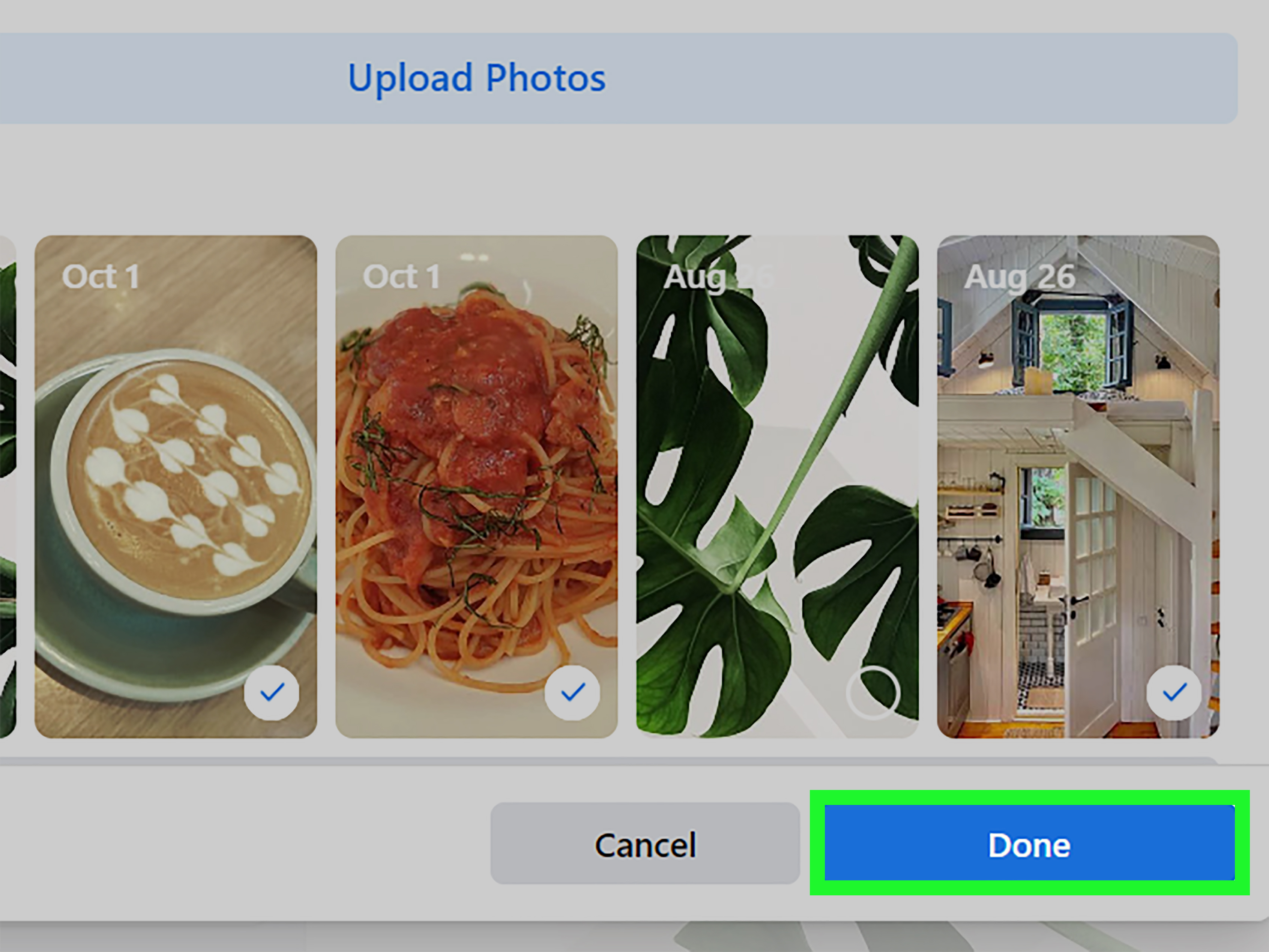
- Click Edit Featured or Edit Details.
- Choose the photos you want to display.
- Arrange or review the collection.
- Click Save.
Desktop is especially useful when you want to compare several photos at once. A picture that looks sharp on a phone may look less impressive on a laptop, where every awkward crop gets promoted to full management.
Best Photos to Add
Choose featured photos that tell a clear story. A strong featured section often includes a mix of personality, quality, and context. For example, one photo could show your face clearly, another could show a hobby, another could capture travel or a milestone, and another could highlight friends or family if everyone is comfortable being shown.
Avoid adding too many near-duplicate selfies. One great selfie says, “Nice to meet you.” Nine almost identical selfies say, “I have excellent confidence and possibly a ring light addiction.”
Way 2: Replace, Rearrange, or Remove Featured Photos
The second way to edit your featured photos on Facebook is to clean up what is already there. This matters because your profile can age faster than you think. A featured photo from a wedding, graduation, job, relationship, or trip may have made perfect sense at the time but feel outdated now.
How to Replace a Featured Photo
To replace a featured photo, open your profile and go back to the Featured or Intro editing area. From there, choose the existing collection or set of featured photos. Remove the image you no longer want and select a new one from your Facebook photos, uploads, or available stories.
After replacing the photo, review the full set. A single new photo can change the entire mood of your profile. For example, replacing a dark indoor shot with a bright outdoor photo can make your profile feel more current, friendly, and active.
How to Rearrange Featured Photos
If Facebook gives you a drag-and-drop or ordering option, place your strongest photo first. The first image often carries the most visual weight. It should be clear, flattering, and easy to understand at a glance.
A good order might look like this:
- A clear portrait or recent personal photo.
- A meaningful life event, such as graduation, travel, or a celebration.
- A hobby or interest that adds personality.
- A photo with friends, family, pets, or community.
The goal is not to create a museum exhibit about your life. The goal is to give visitors a quick, honest, and visually appealing snapshot of you.
How to Remove Featured Photos
To remove featured photos, open your profile, select the Featured editing option, and look for a remove button, minus icon, trash icon, or checkbox. Removing a photo from the Featured section usually removes it from that display area; it does not necessarily delete the original photo from Facebook.
This distinction is important. If you want a photo gone completely, you may need to delete the original photo from your Photos section or adjust its privacy settings. Removing something from Featured is more like taking a picture off the wall. Deleting the photo is like shredding the print and pretending the haircut never happened.
When You Should Remove a Featured Photo
Consider removing a featured photo if it is blurry, outdated, too revealing, no longer represents you, includes someone who may not want to be shown, or contains personal information in the background. Also remove photos that create the wrong impression professionally. If you are job hunting, your featured section does not need to look like a documentary titled Spring Break: The Unedited Footage.
Way 3: Edit the Look, Privacy, and Story Behind Your Featured Photos
The third way to edit your Facebook featured photos is not just about swapping pictures. It is about improving how your profile feels. A featured section works best when it looks curated, current, and safe to share.
Crop and Edit Photos Before Featuring Them
Facebook may crop featured photos differently depending on device, screen size, and layout. Before adding a photo, make sure the important part of the image is centered. If your face, pet, award, or landmark is sitting at the extreme edge of the frame, Facebook may crop it with the emotional sensitivity of a paper shredder.
Before uploading or selecting a photo, consider these quick edits:
- Crop out clutter from the background.
- Brighten photos that are too dark.
- Straighten tilted images.
- Choose high-resolution photos when possible.
- Avoid screenshots unless they are clean and meaningful.
You do not need professional editing software. Your phone’s built-in photo editor is usually enough. A small crop and brightness adjustment can make a casual photo look much more polished.
Check Photo Privacy Before Featuring Anything
Featured photos are meant to be easy for profile visitors to see, so think carefully before choosing them. Even if your regular posts are limited to friends, your profile’s public-facing areas may still be more visible than you expect. Review your Facebook privacy settings and use the “View As” option if available to see how your profile appears to people outside your friend list.
Privacy is not about being paranoid. It is about not handing strangers a free brochure of your personal life. Avoid featuring images that show your home exterior, children’s school name, work ID, travel tickets, medical documents, financial information, or anything that could be used to guess passwords or security questions.
Use Featured Photos to Tell a Better Profile Story
The best Facebook featured photos work together. They do not need to match perfectly, but they should feel like they belong to the same person. If your first photo is a professional headshot, your second is a blurry plate of nachos, and your third is a meme from 2013, visitors may leave with more questions than answers.
Try choosing photos around a simple theme:
- Friendly and personal: portrait, family, pet, travel, hobby.
- Professional but warm: headshot, event, speaking moment, volunteer work, creative project.
- Adventure-focused: hiking, road trips, beaches, city views, outdoor moments.
- Creative: artwork, photography, music, design, behind-the-scenes shots.
A theme makes your profile feel intentional without making it look like a corporate brochure. Unless you actually are a brochure, in which case congratulations on becoming sentient.
Common Problems When Editing Featured Photos on Facebook
You Cannot Find the Featured Section
If the Featured section is missing, first check whether you are using the Facebook mobile app or desktop website. Some features may not appear in every version of Facebook, especially on mobile browsers. Update the app, restart it, and check your profile again. If the option still does not appear, Facebook may be testing a different layout on your account.
Your Featured Photo Looks Cropped Wrong
This usually happens because Facebook displays the same image in different shapes depending on screen size. Use a photo with the subject centered and leave a little space around the edges. Avoid tight face crops unless you enjoy the “forehead with shoulders” aesthetic.
Your Changes Are Not Showing Immediately
Sometimes Facebook takes a moment to refresh. Try closing and reopening the app, checking from another device, or viewing your profile in a browser. If the change still does not appear, clear your app cache or wait a little before editing again.
You Removed a Featured Photo but It Still Exists
That is normal. Removing a photo from Featured does not always delete the original image. To delete it completely, go to the photo itself, open the menu, and choose the delete option if you uploaded it. If someone else uploaded the photo and tagged you, you may need to remove the tag instead.
Smart Tips for Better Facebook Featured Photos
Use recent photos whenever possible. A profile should not feel like a time capsule unless you are intentionally going for nostalgia. If your featured photos are older than your current phone, it may be time for a refresh.
Choose images that are easy to understand quickly. People scroll fast. A tiny, dark, chaotic group photo may mean a lot to you, but visitors may not know which person you are. Save complicated memories for albums; use simple, strong images for Featured.
Think about your audience. Friends, relatives, classmates, coworkers, clients, and potential employers may all see parts of your profile depending on your settings. You do not need to become boring. Just choose photos that will not require a follow-up statement beginning with, “Okay, let me explain.”
Refresh your featured photos every few months. This keeps your profile alive and helps it reflect your current life. Seasonal updates work well: travel in summer, cozy photos in winter, milestone photos after major events, and professional updates when your career changes.
Experience Notes: What Editing Featured Photos on Facebook Feels Like in Real Life
Editing featured photos sounds simple until you actually start doing it. Then suddenly you are reviewing eight years of life choices, wondering why every good photo includes either closed eyes, poor lighting, or someone in the background making the face of a surprised raccoon.
One practical experience many Facebook users share is that the first edit is usually not the final edit. You may add a photo that looks great in your gallery, only to discover that Facebook crops it in a way that removes the best part. This is especially common with vertical photos, group pictures, and images where the subject is too close to the edge. The fix is simple: choose photos with breathing room. Center the subject, keep important details away from corners, and preview the result before saving.
Another real-world lesson is that your featured section should match how you currently use Facebook. If your profile is mainly for family and friends, warm personal photos make sense. A vacation picture, a pet photo, a family celebration, and a recent portrait can feel natural. If you use Facebook for networking, business, freelancing, or community leadership, choose photos that still show personality but avoid anything too chaotic. You do not need a stiff corporate headshot in every slot, but you probably also do not need nine photos from karaoke night.
Privacy becomes more noticeable after you start editing. A photo may look harmless until you spot a house number, school sign, workplace badge, child’s name tag, or boarding pass in the background. Once you notice those details, you start reviewing photos differently. The best habit is to zoom in before featuring anything. Check corners, reflections, signs, documents, and screens. The internet has excellent eyesight when it wants to be nosy.
Featured photos can also carry emotional weight. Maybe a photo includes an ex, an old friend group, a former job, or a version of yourself you no longer want front and center. Removing that image can feel oddly satisfying. It is a small digital reset, but it helps your profile reflect who you are now rather than who you were when low-rise jeans, questionable filters, or dramatic captions seemed like reasonable decisions.
It also helps to ask a simple question before saving: “Would I be comfortable with a new friend, old classmate, coworker, or distant relative seeing this first?” If yes, it may be a good featured photo. If the answer is “only after a 10-minute explanation,” choose something else.
Finally, do not overthink it. Your Facebook featured photos do not need to become a personal branding masterpiece. They just need to be clear, current, and comfortable. Pick photos that make you smile, represent your life honestly, and do not expose private details. That is the sweet spot: polished enough to look intentional, relaxed enough to feel human.
Conclusion
Learning how to edit your featured photos on Facebook is really about taking control of your profile’s first impression. You can add new photos to show what is current, replace or remove outdated images, and improve the overall look by checking crops, privacy, and visual flow.
The best featured photos are not always the most perfect ones. They are the ones that feel accurate, friendly, and safe to share. Whether you want your profile to look professional, personal, creative, adventurous, or simply less abandoned, a quick featured-photo refresh can make a big difference.
So open your profile, review what is sitting in that Featured section, and give it the tiny makeover it deserves. Your future profile visitors may not applaud, but they will at least be spared from that blurry photo you forgot existed.
SEO Tags
Note: Facebook menu names and layouts may change by device, account type, app version, and region. If one label does not appear, look for similar options such as Edit Featured, Edit public details, Featured, Highlights, or Collections.











