
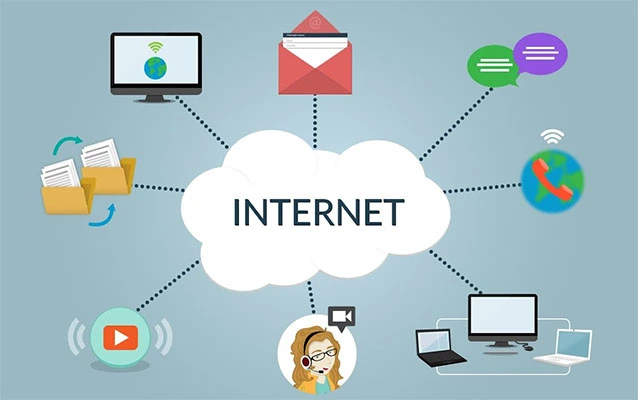
File sharing is the everyday magic trick of moving digital stuff from one person, device, or system to another. It is how a designer sends a logo to a client, how a teacher shares a worksheet with students, how your phone sends vacation photos to your laptop, and how a team edits one spreadsheet without creating seventeen versions named “final_FINAL_really-final-v3.xlsx.”
At its simplest, file sharing means giving someone access to a digital file. That file might be a photo, PDF, video, spreadsheet, presentation, software package, audio clip, medical form, tax document, or folder full of project materials. You can share it by email, cloud storage, messaging apps, file transfer services, local networks, USB drives, collaboration platforms, or secure business systems.
The concept sounds simple, but good file sharing is not just about getting a file from Point A to Point B. It is about sending the right file, to the right person, with the right level of access, in a way that does not accidentally turn your private folder into the digital equivalent of leaving your diary on a bus seat.
What Is File Sharing?
File sharing is the process of making digital files available to other users, devices, or applications. This can happen privately, publicly, temporarily, or continuously. In modern life, most file sharing happens through the internet, but it can also happen over a local network, Bluetooth, external drives, or direct device-to-device transfer.
There are two main ways file sharing works. The first is file transfer, where a file is copied from one place to another. For example, you upload a video to a file transfer service, and your coworker downloads it. The second is shared access, where the file stays in one location, usually cloud storage, and other people are granted permission to view, comment on, or edit it.
That difference matters. Sending a copy creates a separate version. Sharing access keeps everyone working with the same file. If you have ever watched three people edit three different versions of the same budget spreadsheet, you already know why shared access can save friendships, meetings, and possibly civilization.
Why File Sharing Matters
File sharing keeps digital work moving. Businesses use it to collaborate with clients, contractors, vendors, and remote teams. Families use it to share photos and documents. Schools use it for assignments and class materials. Creators use it to deliver high-resolution media. Developers use it to distribute code and software builds.
Without file sharing, modern work would slow to a crawl. Imagine printing a 70-page report, mailing it across the country, waiting for handwritten edits, scanning it back in, and then realizing the recipient used the wrong version. That was not a workflow. That was a character-building exercise.
File sharing also supports remote work, online learning, digital recordkeeping, cloud collaboration, and business automation. When done well, it improves speed, organization, version control, and communication. When done poorly, it can create security risks, duplicate files, access confusion, and the classic workplace mystery: “Who deleted column G?”
Common Types of File Sharing
1. Cloud-Based File Sharing
Cloud file sharing is one of the most common methods today. Services such as Google Drive, Microsoft OneDrive, Dropbox, Box, and iCloud Drive let users upload files to online storage and share them with selected people or anyone who has a link.
The biggest advantage is convenience. You can upload a file once, share a link, control permissions, and access the file from multiple devices. Many cloud platforms also support real-time collaboration, version history, comments, and folder sharing. For everyday work, cloud sharing is usually the most practical choice.
For example, a marketing team can store campaign images in a shared folder, give designers edit access, give executives view-only access, and send an external agency a link that expires after the project ends. Nobody needs to send a 600 MB attachment that causes an email server to cough dramatically and give up.
2. Email Attachments
Email attachments are still popular because they are familiar. You attach a file, write a message, and click send. This works well for small files such as PDFs, resumes, invoices, forms, or images.
However, email has limits. Large files may be blocked. Attachments can become outdated after you send them. If the wrong recipient is added, the file goes with the email. For sensitive or collaborative documents, a secure cloud link with controlled permissions is usually better than a traditional attachment.
3. File Transfer Services
File transfer services are built for sending files, especially large ones. They often let users upload a file, create a download link, and send that link to recipients. Some services include password protection, expiration dates, download limits, and notifications.
This method is useful for videos, design files, audio projects, photography galleries, large presentations, and compressed folders. It is less ideal for files that need ongoing collaboration because the recipient usually downloads a copy rather than working in a shared live document.
4. Local Network File Sharing
Local network sharing allows devices on the same network to access shared folders, drives, printers, or storage systems. This is common in offices, schools, studios, and homes with network-attached storage, also known as NAS.
For example, a video editing studio might store raw footage on a local server so editors can access large files without uploading everything to the internet. Local sharing can be fast and efficient, but it still needs proper permissions, backups, and security settings.
5. FTP, SFTP, and Managed File Transfer
FTP, short for File Transfer Protocol, is an older method for moving files between computers over a network. It is still used in some web hosting and technical environments. However, traditional FTP does not provide strong protection by default, so many organizations prefer SFTP, FTPS, or managed file transfer platforms.
SFTP uses secure shell technology to encrypt file transfers. Managed file transfer, often called MFT, is a business-grade approach that adds automation, logging, encryption, access control, compliance features, and reliability. This is useful for industries that handle sensitive data, financial records, healthcare files, legal documents, or recurring system-to-system transfers.
6. Peer-to-Peer File Sharing
Peer-to-peer, or P2P, file sharing allows users to exchange files directly with one another instead of downloading from one central server. It can be efficient for distributing large files, but it also carries risks. Some P2P networks have been associated with malware, copyright violations, and accidental exposure of private files.
Not all P2P technology is bad. Some legitimate tools use peer-to-peer concepts for syncing, collaboration, or large-scale distribution. The key is to use trusted software, understand what folders are being shared, and avoid downloading unknown files from strangers on the internet. Strangers on the internet are not automatically villains, but they are also not automatically your IT department.
7. Device-to-Device Sharing
Device-to-device sharing includes tools such as Bluetooth, AirDrop-style transfers, nearby sharing features, USB cables, and external drives. This is handy when two devices are physically close or when internet access is limited.
For quick photo transfers, phone-to-laptop sharing, or offline document movement, this method is simple. For business records or sensitive files, it should be handled carefully. External drives can be lost, and wireless transfer settings can accidentally allow unwanted requests if left too open.
How Do You Share a File?
The exact steps depend on the platform, but the basic process is usually the same: choose the file, choose the sharing method, set permissions, send access, and confirm the recipient can open it.
Step 1: Choose the Right File
Before sharing anything, make sure you are sending the correct version. Open the file, check the name, review the contents, and remove anything unnecessary. This is especially important for spreadsheets, contracts, presentations, client reports, and documents that may include hidden comments, tracked changes, or private metadata.
A good habit is to rename files clearly before sharing. Instead of “document1.pdf,” use something like “2026_Project_Proposal_ClientName.pdf.” Your future self will thank you, probably while drinking coffee and wondering why past-you was so mysterious.
Step 2: Pick the Best Sharing Method
Use email for small, low-risk files. Use cloud sharing for collaboration. Use file transfer services for large one-time deliveries. Use SFTP or managed file transfer for sensitive business workflows. Use local network sharing for internal office access. Use device-to-device sharing for quick nearby transfers.
The best method depends on file size, sensitivity, recipient, purpose, and whether the file will need updates. A wedding photo album, a tax form, a software build, and a team strategy document should not all be shared the same way.
Step 3: Set Permissions
Permissions control what recipients can do with a file. Common permission levels include:
- View only: The recipient can open and read the file but cannot change it.
- Comment: The recipient can add feedback without editing the original content.
- Edit: The recipient can make changes directly.
- Download: The recipient can save a copy to their device.
- Owner or manager: The recipient can control sharing settings and access.
As a rule, give people the lowest level of access they need. If someone only needs to read a proposal, do not give them edit access. If someone only needs a folder for two weeks, use an expiration date if the platform supports it.
Step 4: Share With Specific People When Possible
Many platforms offer two common options: share with named people or share with anyone who has the link. Sharing with specific people is safer because access is tied to their account. Anyone-with-the-link sharing is convenient, but it can spread beyond your intended audience if the link is forwarded.
Public links are not evil. They are useful for brochures, press kits, public forms, media downloads, and non-sensitive materials. But for private documents, contracts, financial records, internal reports, or client files, specific-user sharing is usually the better choice.
Step 5: Add Security Controls
Depending on the sensitivity of the file, consider adding a password, expiration date, two-factor authentication, watermark, download restriction, or encryption. For business files, use platforms that provide audit logs so you can see who accessed or changed the file.
For very sensitive files, do not send the password in the same message as the link. Sending both together is like locking your front door and taping the key to it with a cheerful note that says, “Please do not rob me.”
Step 6: Send the Link or File
After permissions are set, send the link or attachment through email, chat, project management software, or another approved communication channel. Add a short message explaining what the file is, what the recipient should do, and whether they can edit, comment, or simply review it.
Clear instructions prevent confusion. Instead of “See attached,” try “Please review the attached proposal and add comments by Friday. I shared it as view/comment only so we keep one clean master version.” That one sentence can save a meeting.
Step 7: Review and Remove Access Later
File sharing should not be “set it and forget it.” Periodically review shared files and folders. Remove people who no longer need access. Disable old public links. Delete duplicate files. Archive completed projects. This is digital housekeeping, and yes, it is less fun than buying a label maker, but it matters.
Best Practices for Secure File Sharing
Use Strong Passwords and Two-Factor Authentication
Your file sharing account is only as safe as the login protecting it. Use a strong, unique password and turn on two-factor authentication. This makes it much harder for someone to break into your cloud storage, even if your password is exposed somewhere else.
Avoid Oversharing
Oversharing is one of the most common file sharing mistakes. People often share entire folders when one file would do, grant edit access when view-only is enough, or leave public links active long after a project ends.
Before clicking “share,” ask: Who needs this? What exactly do they need? How long do they need it? What is the worst thing that could happen if the link is forwarded?
Check File Sensitivity
Not all files carry the same risk. A lunch menu is low-risk. A payroll spreadsheet is not. Sensitive files may include personal information, financial records, health data, legal documents, passwords, proprietary business plans, customer lists, or confidential research.
For sensitive content, use approved secure tools, limit access, encrypt when appropriate, and avoid personal email or random free transfer sites. Convenience is wonderful, but it should not be the boss of security.
Keep Versions Organized
Version confusion can turn a simple file share into a detective story. Use version history when available. Keep one master file. Avoid sending repeated attachments unless necessary. Use clear file names with dates or version numbers when files must exist separately.
A practical naming format might be “Client_Report_2026-07-08_v2.pdf.” It is not glamorous, but neither is searching through twelve mystery files at 11:48 p.m.
Scan Downloads and Be Careful With Unknown Links
File sharing is also a common path for malware and phishing. Be cautious with files from unknown senders, unexpected links, compressed folders, executable files, and documents that ask you to enable macros. If something feels suspicious, verify with the sender through another channel.
Use Business Tools for Business Files
For company data, use company-approved tools. Business platforms often include admin controls, retention policies, access logs, single sign-on, data loss prevention, and compliance features. Personal accounts may be convenient, but they can create serious problems when employees leave, devices are lost, or access needs to be audited.
File Sharing Examples
Example 1: Sharing a Resume
If you are applying for a job, you can send your resume as a PDF attachment or upload it to cloud storage and share a view-only link. A PDF helps preserve formatting. A cloud link lets you update the file without resending it, but make sure the employer can open it without requesting access.
Example 2: Sharing a Video With a Client
Large video files are usually too big for email. A file transfer service or cloud folder is better. You can upload the video, create a link, set an expiration date, and prevent editing. If the client needs to give feedback, use a platform that supports comments or time-stamped review notes.
Example 3: Sharing a Team Spreadsheet
For a spreadsheet that multiple people update, cloud collaboration is ideal. Give editors access only to people responsible for changes. Give view-only access to people who only need the information. Use version history so mistakes can be reversed.
Example 4: Sharing Confidential Documents
For tax documents, contracts, medical forms, or legal files, use a secure portal, encrypted sharing platform, or approved business system. Avoid sending sensitive documents through ordinary email unless the recipient specifically requires it and proper protection is in place.
Common File Sharing Mistakes to Avoid
The first mistake is sharing the wrong file. Always open and verify before sending. The second is giving too much access. View-only is often enough. The third is leaving links active forever. Old links can become forgotten doors into your data.
Another mistake is using unclear file names. A folder full of files named “new,” “new2,” and “use_this_one” is not organization. It is a cry for help. Use descriptive names, dates, and version numbers.
Finally, do not assume that a shared link is private just because it is long and ugly. A long link may be hard to guess, but it can still be forwarded, copied, exposed in messages, or accessed by people you did not intend. For private content, use account-based access whenever possible.
Is File Sharing Safe?
File sharing can be safe when you use trusted tools and good habits. The safest setup usually includes strong authentication, limited permissions, encrypted transfer, careful recipient selection, link expiration, access review, and secure storage.
The biggest risks come from human error: sending files to the wrong person, choosing “anyone with the link,” forgetting to remove access, downloading suspicious files, or using personal tools for sensitive work. In other words, the technology matters, but the person clicking the button also matters. The button is innocent. Usually.
How to Choose the Best File Sharing Method
Choose your method based on the job:
- Small personal file: Email attachment or messaging app.
- Collaborative document: Cloud storage with permissions.
- Large media file: File transfer service or cloud folder.
- Internal office files: Shared drive, NAS, or company cloud platform.
- Sensitive business data: Secure cloud platform, SFTP, or managed file transfer.
- Nearby device transfer: Bluetooth, nearby sharing, cable, or external drive.
For most people, cloud file sharing is the best everyday option because it balances convenience, collaboration, and control. For businesses, the best option is usually the one that matches the company’s security requirements, compliance needs, and workflow.
Experience-Based Tips for Better File Sharing
After working with file sharing in everyday personal, freelance, and business-style situations, one lesson stands above the rest: the easiest sharing method is not always the best sharing method. The best method is the one that prevents confusion after the link is sent.
For example, when sharing files with clients, a clean folder structure makes a huge difference. Instead of dropping everything into one folder called “Assets,” create subfolders such as “Final PDFs,” “Editable Files,” “Images,” “Invoices,” and “Reference Materials.” This tiny bit of organization makes you look professional and saves the recipient from playing digital hide-and-seek.
Another useful habit is writing short instructions inside the message that includes the shared file. People are busy. They may open a link days later with no memory of what they were supposed to do. A sentence like “Please review the PDF only; the editable design files are included for reference” prevents accidental edits and unnecessary questions.
Permission control is also more important than many beginners realize. Early on, many people give edit access because it feels generous. Then someone accidentally moves a folder, deletes a paragraph, renames a file, or changes formatting. View-only and comment-only permissions exist for a reason. They are not rude. They are seat belts.
For large files, patience and preparation help. Compressing related files into a ZIP folder can make delivery cleaner, but it is not always ideal for collaboration. If the recipient only needs to download the files once, a ZIP folder is fine. If the files will be updated, a shared folder is better because the recipient can always access the latest version.
For sensitive documents, I have learned to slow down. That means checking the recipient address carefully, confirming the sharing permission, and avoiding public links unless the file is truly meant for broad access. Sensitive files deserve a little ceremony. Not a parade, but at least a second look before clicking send.
One practical trick is to test the link in a private browser window or ask the platform to show what recipients can access. This helps confirm whether people can open the file without requesting permission. It also reveals when a file is accidentally locked down too tightly or, worse, open too widely.
Another experience-based tip: clean up after projects end. Shared folders tend to pile up like digital laundry. Once a project is complete, remove outside collaborators, archive the final files, and disable links that are no longer needed. This reduces risk and makes future searches easier.
Finally, remember that file sharing is partly technical and partly social. A perfectly secure link is not helpful if the recipient cannot understand what to do with it. A friendly message, clear file name, sensible folder structure, and correct permission setting can make file sharing feel effortless. That is the goal: fewer access requests, fewer duplicate files, fewer “Which version is this?” messages, and more actual work getting done.
Conclusion
File sharing is the process of giving people or systems access to digital files. It can be as simple as sending a photo or as advanced as automating encrypted business transfers between enterprise systems. The most common methods include cloud storage, email attachments, file transfer services, local networks, SFTP, managed file transfer, peer-to-peer tools, and device-to-device sharing.
The best way to share files depends on file size, sensitivity, collaboration needs, and recipient access. For everyday use, cloud sharing with clear permissions is often the smartest option. For large files, use a transfer service. For confidential data, choose secure platforms with encryption, access control, and audit features.
Good file sharing is not just about speed. It is about control, clarity, and safety. Share the right file, set the right permission, protect sensitive information, and remove access when it is no longer needed. Do that, and file sharing becomes less of a digital circus and more of a smooth, reliable workflow.
Note: This article is written from synthesized, real-world file sharing guidance and current best practices from reputable technology, cybersecurity, cloud storage, and digital privacy resources.












