
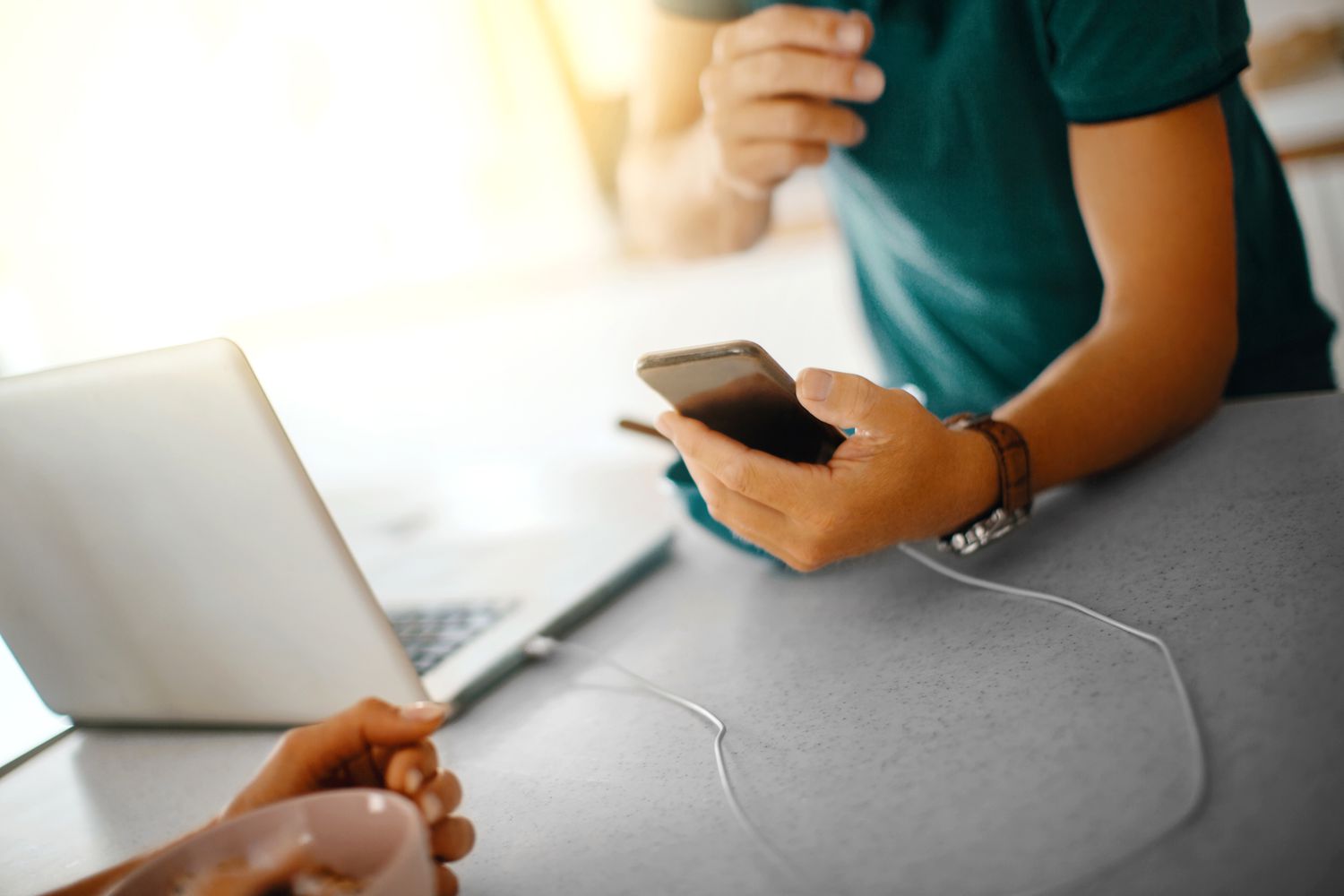
USB tethering is one of those delightfully practical tech tricks that feels almost too simple: plug your phone into your Windows 11 computer, flip one setting, and suddenly your laptop has internet. No café Wi-Fi. No hunting for passwords taped under a router. No praying that the hotel network does not collapse the moment you open a video call.
If you have a smartphone with mobile data, a working USB cable, and a Windows 11 PC, you can usually get online in a few minutes. USB tethering turns your phone into a wired internet source for your computer. Instead of broadcasting a Wi-Fi hotspot, your phone shares its cellular connection through the cable. That means a more private connection, often better stability, and less wireless interference. It is not magic, although when the airport Wi-Fi asks you to create an account for the third time, it may feel like sorcery.
This guide explains how to set up USB tethering on Windows 11 using Android or iPhone, how to confirm the connection is working, how to fix common problems, and how to manage data wisely so your phone plan does not have a dramatic meltdown.
What Is USB Tethering on Windows 11?
USB tethering is a way to share your phone’s mobile data connection with your Windows 11 computer through a USB cable. Your phone stays connected to the cellular network, such as 4G LTE or 5G, and your computer treats the phone like a wired network adapter. In Windows 11, the connection often appears under Settings > Network & internet, usually as an Ethernet-style connection.
The biggest difference between USB tethering and Wi-Fi hotspot mode is how the connection travels. A Wi-Fi hotspot broadcasts a wireless network that nearby devices can see. USB tethering uses a direct cable between your phone and PC. That can make it useful when Wi-Fi is blocked, crowded, unstable, or simply behaving like it had one too many espressos.
Why Use USB Tethering Instead of a Wi-Fi Hotspot?
Wi-Fi hotspots are convenient, but USB tethering has several practical advantages. First, it is usually more stable because the connection does not depend on short-range wireless signal strength. Second, it can be more private because your phone is not broadcasting a hotspot name for everyone nearby to notice. Third, the phone charges while connected, which is very helpful if you are working from a train, airport, car, classroom, or backup desk during an internet outage.
USB tethering can also be useful when a Windows 11 laptop has Wi-Fi driver problems. If the wireless adapter refuses to cooperate, USB tethering may give you temporary internet access so you can download updates, drivers, or troubleshooting tools. In other words, USB tethering is the tech equivalent of keeping a spare tire in the trunk.
What You Need Before You Start
Before setting up USB tethering on Windows 11, make sure you have the basics ready:
- A Windows 11 laptop, desktop, tablet, or 2-in-1 PC.
- A smartphone with active mobile data. Android and iPhone both support tethering, but menus differ by device and carrier.
- A USB cable that supports data transfer. Some cheap cables only charge. They are sneaky little troublemakers.
- A phone plan that allows hotspot or tethering. Many plans include it, but some limit speed, data, or availability.
- Updated phone and Windows software. Updates often fix connection and driver issues.
If USB tethering is grayed out on your phone, the cable is often the first suspect. Try a different cable, preferably the original cable or a high-quality USB-C cable that supports data transfer. Also unlock your phone after plugging it in, because some devices do not expose tethering options until the phone trusts or recognizes the computer.
How to Setup USB Tethering on Windows 11 with Android
Android phones vary by brand, but the general process is very similar across Samsung Galaxy, Google Pixel, Motorola, OnePlus, and other modern Android devices.
Step 1: Turn on mobile data
On your Android phone, make sure mobile data is enabled. Swipe down from the top of the screen and check that mobile data is on. You should see a 4G, LTE, 5G, or similar cellular indicator. If the phone itself cannot browse the internet, your Windows 11 PC will not magically do better. Sadly, cables do not create cell towers.
Step 2: Connect the phone to your Windows 11 PC
Plug your Android phone into your Windows 11 computer using a USB cable. If a prompt appears asking what you want to do with the USB connection, choose an option that allows data transfer if needed. On some Android phones, tethering can work without selecting file transfer, but choosing a normal data mode can help Windows detect the device correctly.
Step 3: Open Android hotspot and tethering settings
Open Settings on your Android phone. Look for Network & internet, Connections, or Mobile network, depending on your phone. Then choose Hotspot & tethering or Mobile Hotspot and Tethering.
On many Samsung Galaxy phones, the path is usually:
Settings > Connections > Mobile Hotspot and Tethering > USB tethering
On many Google Pixel phones, the path is often:
Settings > Network & internet > Hotspot & tethering > USB tethering
Step 4: Turn on USB tethering
Toggle USB tethering on. If the option is unavailable, check that the phone is connected by USB, the cable supports data, and the phone is unlocked. If it still does not work, try another USB port on your PC.
Step 5: Confirm the connection in Windows 11
On Windows 11, open Settings > Network & internet. You should see a new network connection. It may show as Ethernet, Remote NDIS, USB Ethernet, or another wired network name. Open a browser and visit a website. If it loads, congratulations: your phone has become your tiny pocket internet modem, and it did not even ask for applause.
How to Setup USB Tethering on Windows 11 with iPhone
USB tethering with iPhone works through Apple’s Personal Hotspot feature. It can be very reliable, but Windows 11 may need Apple Devices or iTunes installed so the correct Apple networking components are available.
Step 1: Enable Personal Hotspot
On your iPhone, open Settings. Tap Cellular, then Personal Hotspot. Turn on Allow Others to Join. On some iPhones, Personal Hotspot appears directly on the main Settings screen.
Step 2: Connect your iPhone by USB
Use a Lightning-to-USB or USB-C cable, depending on your iPhone model. Connect the iPhone to your Windows 11 computer. If your iPhone asks Trust This Computer?, tap Trust and enter your passcode. This trust step matters. Without it, Windows may see the phone as a charging device but not use it for internet sharing.
Step 3: Install Apple Devices or iTunes if needed
If Windows 11 does not recognize the iPhone tethering connection, install Apple Devices or iTunes from Microsoft Store or Apple’s official software channels. Once installed, reconnect the iPhone. You may need to unlock the phone and keep Personal Hotspot enabled while Windows detects the connection.
Step 4: Check Windows 11 network settings
Open Settings > Network & internet. If the tether is working, Windows should show a wired-style connection. You can also check the network icon near the clock. It may look like an Ethernet connection rather than Wi-Fi.
How to Make Windows 11 Prefer USB Tethering
If your computer keeps using Wi-Fi instead of USB tethering, temporarily turn off Wi-Fi. Select the Wi-Fi icon from the taskbar quick settings area and disable Wi-Fi, or go to Settings > Network & internet > Wi-Fi and switch it off. Then connect the phone and enable USB tethering again.
This is useful when you are connected to weak public Wi-Fi but want the faster cellular connection from your phone. Windows may prefer an existing Wi-Fi network unless you remove it, disconnect from it, or turn Wi-Fi off.
Best Windows 11 Settings for USB Tethering
Set the connection as metered
Mobile data is not always unlimited, even when the plan name uses exciting words like “premium,” “max,” or “ultimate.” To reduce background data usage, set the tethered connection as metered.
Go to Settings > Network & internet. Select the active tethered connection, often shown as Ethernet. Turn on Metered connection. This tells Windows and some apps to reduce background downloads, pause certain automatic updates, and behave with a little more financial responsibility.
Check data usage
Windows 11 lets you view data usage by network. Go to Settings > Network & internet > Advanced network settings > Data usage. Review which apps are using the most data. Browsers, video apps, cloud storage, gaming platforms, and system updates can consume data quickly.
Pause cloud sync temporarily
If you use OneDrive, Dropbox, Google Drive, iCloud, or another sync tool, pause syncing while tethered. A folder full of vacation videos can destroy a monthly hotspot allowance faster than you can say, “Why is my phone bill glowing?”
Troubleshooting: USB Tethering Not Working on Windows 11
If USB tethering does not work right away, do not panic. Most problems come from cables, permissions, drivers, phone settings, or carrier limitations.
1. Try a different USB cable
This is the most common fix. A charge-only cable can power your phone but will not pass data properly. Use a cable known to transfer files. If Windows does not detect the phone at all, the cable or port is the prime suspect.
2. Unlock the phone and approve prompts
Android may show a USB mode notification. iPhone may ask whether to trust the computer. Approve the prompt. Keep the phone unlocked while enabling tethering.
3. Restart both devices
Restart the phone and the Windows 11 PC. It is the oldest troubleshooting advice in the book because, annoyingly, it still works.
4. Check Device Manager
Right-click the Start button and choose Device Manager. Expand Network adapters. For Android tethering, look for something like Remote NDIS based Internet Sharing Device, USB Ethernet, or a similar adapter. For iPhone, look for Apple-related network or mobile device entries.
If the adapter has a warning icon, right-click it and choose Update driver. Select Search automatically for drivers. You can also check Settings > Windows Update > Advanced options > Optional updates for driver updates.
5. Install manufacturer drivers when needed
Most modern phones work with Windows automatically, but some devices may need vendor software or drivers. Samsung provides Windows USB drivers mainly for development and device communication. Dell, HP, Lenovo, and other PC makers also publish tested Windows 11 drivers for their hardware. If your laptop recently upgraded to Windows 11 and network devices behave strangely, visit your PC manufacturer’s support page and check for chipset, USB, and network driver updates.
6. Disable and re-enable USB tethering
Turn USB tethering off on the phone, unplug the cable, wait a few seconds, reconnect the cable, and turn USB tethering back on. This forces Windows to rediscover the network adapter.
7. Check your carrier plan
Some mobile carriers count USB tethering as hotspot use. Your plan may include a specific amount of high-speed hotspot data, slow tethered data after a threshold, or require hotspot access to be enabled. If the phone has mobile internet but the PC cannot connect through tethering, check your carrier account or plan details.
USB Tethering Speed Tips
USB tethering speed depends on your phone’s cellular signal, carrier network, data plan, USB cable, and Windows network performance. For better speed, place your phone where it has strong signal. A window often helps. Avoid burying the phone under books, blankets, or your suspiciously warm laptop.
Use a good cable and a direct USB port on the computer instead of a cheap hub. If your PC has both USB-A and USB-C ports, try the newer port. Close bandwidth-heavy apps like game launchers, video streaming services, cloud backups, and automatic download managers.
If your phone supports 5G and your area has good coverage, USB tethering can be surprisingly fast. However, speed may drop if the network is congested, your plan throttles hotspot data, or your phone overheats. If the phone gets hot, remove the case, keep it out of direct sunlight, and let it breathe. Phones are computers too, just smaller and more dramatic.
Is USB Tethering Safe?
USB tethering is generally safe when you use your own phone, your own computer, and a trusted cable. It can be safer than public Wi-Fi because you are not sharing a crowded network with strangers. Still, you should keep your phone and Windows 11 updated, avoid unknown USB accessories, and never trust random public charging cables or mystery USB ports.
For privacy, USB tethering is excellent because it does not broadcast a Wi-Fi network name. For security, it also avoids the weak-password problem that can happen with Wi-Fi hotspots. Just remember that your PC is using mobile data, so anything your computer does online still counts against your phone plan.
When USB Tethering Is the Best Choice
USB tethering shines in several everyday situations. It is great during home internet outages, especially if you need to send work files or attend an online meeting. It helps students get online when campus Wi-Fi is overloaded. It is useful for travelers when hotel Wi-Fi is slow, unstable, or locked behind a login page that seems designed by a committee of raccoons.
It is also handy for setting up a new Windows 11 laptop when Wi-Fi drivers are missing. If the laptop can detect your phone through USB, you may be able to get online long enough to download the correct drivers. That one trick can save a lot of frustration.
Real-World Experience Notes: What USB Tethering Feels Like in Daily Use
In real use, USB tethering on Windows 11 is less glamorous than a shiny mesh router commercial, but it is often more dependable when you need it most. The best experience usually starts with preparation. Keep a proper data-capable USB cable in your laptop bag. Not the suspicious cable from the junk drawer that only works when bent at a 37-degree angle. A short, sturdy USB-C cable or the phone’s original cable is worth it.
The first time you set up USB tethering, do it before an emergency. Try it at home while your normal internet is working. Connect the phone, enable tethering, check Windows network settings, and open a few websites. This way, when your home internet dies five minutes before a deadline, you are not learning the menu path while your browser spins like a tiny wheel of judgment.
Android users often find the experience very quick. Plug in the phone, go to Hotspot and Tethering, turn on USB tethering, and Windows 11 usually connects. The small catch is that Android menu names differ. One phone says Hotspot & tethering, another says Mobile Hotspot and Tethering, and another hides it under Connections. When in doubt, use the search bar inside Android Settings and type USB tethering.
iPhone users may have a slightly different first-time setup. Personal Hotspot must be enabled, the computer must be trusted, and Windows may need Apple Devices or iTunes installed. Once those pieces are in place, the connection is usually smooth. The important habit is to unlock the iPhone after plugging it in and respond to any trust prompts. Ignoring that prompt is like refusing to answer the door and then wondering why the delivery never arrived.
For remote work, USB tethering is best treated as a backup connection, not an unlimited replacement for home broadband. It works well for email, documents, messaging apps, web research, admin dashboards, and even video meetings if your signal is strong. It is less ideal for huge downloads, 4K streaming, cloud backup marathons, or game updates that measure themselves in “entire planets.”
Battery life is usually better with USB tethering than with Wi-Fi hotspot mode because the phone charges while connected. However, phones can still heat up during long tethering sessions, especially on 5G. Heat can reduce performance, so keep the phone on a hard surface, avoid direct sun, and remove thick cases during long sessions. If your phone becomes hot enough to toast bread, give it a break. Also, please do not toast bread on your phone.
The most valuable habit is data awareness. Turn on metered connection in Windows 11, pause cloud syncing, and avoid accidental downloads. Many people discover that their laptop uses more data than their phone because desktop websites, background updates, and sync apps are heavier. A phone may sip data; a laptop may arrive with a soup ladle.
Overall, USB tethering is one of the simplest backup internet methods for Windows 11. It is fast to set up, secure enough for everyday use, and wonderfully practical when Wi-Fi fails. Once you know where the settings live, it becomes a dependable little survival skill for modern computing.
Conclusion
Setting up USB tethering on Windows 11 is easy once you understand the flow: connect your phone with a data-capable USB cable, enable USB tethering or Personal Hotspot on the phone, and confirm the new wired-style connection in Windows. Android users usually turn on USB tethering from Hotspot and Tethering settings. iPhone users enable Personal Hotspot, trust the computer, and may need Apple Devices or iTunes installed on Windows.
For the best experience, use a reliable cable, keep both devices updated, set the connection as metered, and watch background apps that may quietly consume mobile data. USB tethering is not just a backup trick. It is a practical, secure, and travel-friendly way to keep a Windows 11 PC online when regular Wi-Fi is unavailable, overloaded, or acting like it needs a vacation.












