
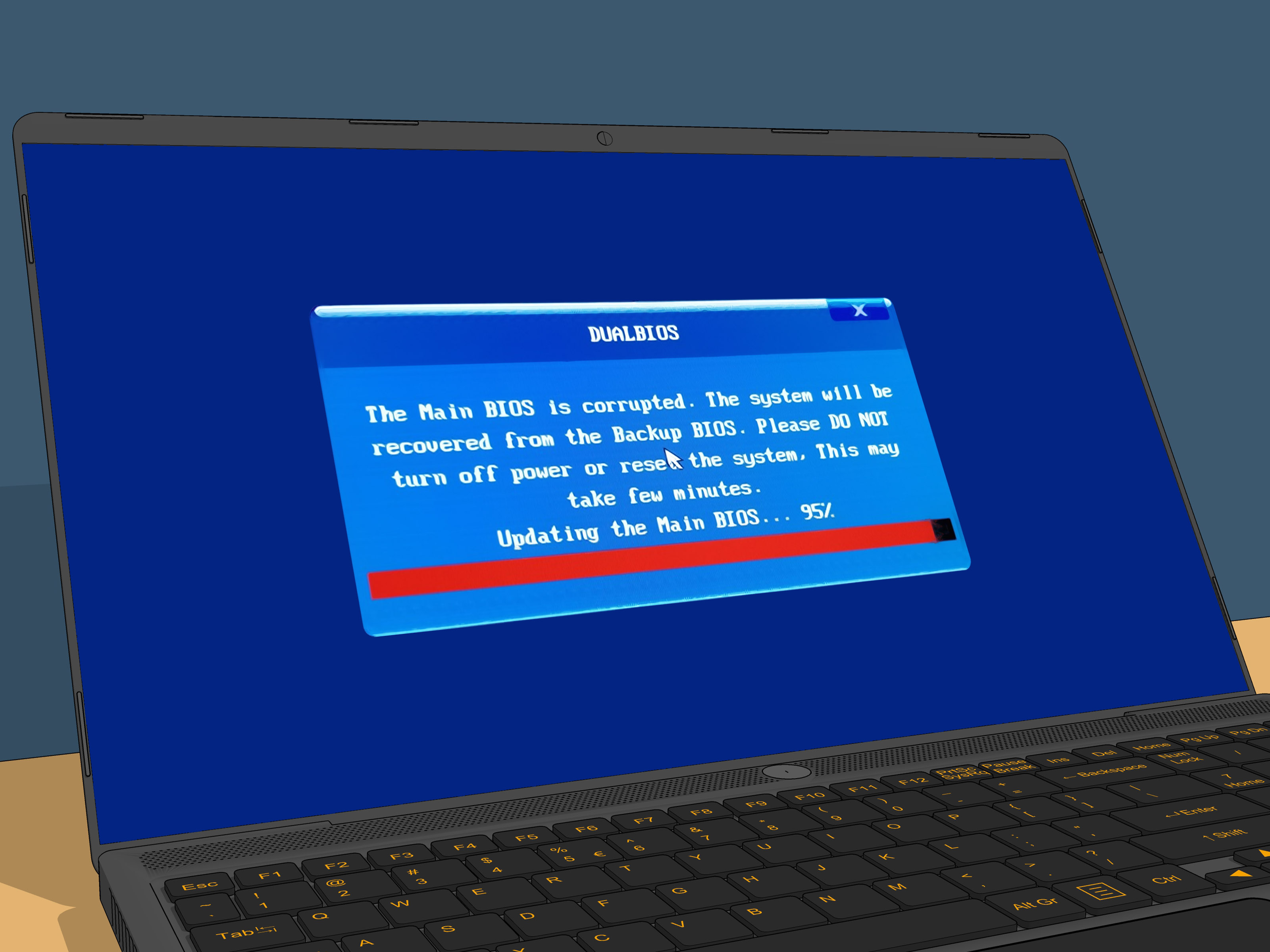
Few computer messages are more suspiciously calm than “Please wait while we install a system update.” It sounds polite, patient, and professional. Meanwhile, you are staring at the screen like it owes you rent, wondering whether your laptop is updating, frozen, secretly rebuilding civilization, or simply testing your emotional endurance.
This message can appear during a Windows update, a firmware or BIOS update, an OEM utility update, or a restart after important system changes. In many cases, it is normal. Updates can take longer when the system is installing a large feature update, repairing previous update files, configuring drivers, or running on a slow hard drive. But if the screen has been stuck for hours, the fan is screaming, the progress never changes, or the computer keeps looping back to the same message, it is time to troubleshoot carefully.
This guide explains 11 practical solutions for fixing the “Please Wait While We Install a System Update” screen without turning a small update problem into a full-blown digital soap opera. The steps move from safest to more advanced, so start at the top and only go deeper if the simple fixes do not work.
What Does “Please Wait While We Install a System Update” Mean?
The phrase usually means your PC is applying an operating system, driver, firmware, BIOS, or manufacturer-level update before Windows fully loads. The computer may be copying files, replacing system components, updating drivers, configuring boot files, or finishing tasks that cannot be completed while Windows is running normally.
The problem begins when the process stops moving. A system update can get stuck because of a corrupted update cache, weak internet connection, low disk space, failing storage drive, interrupted shutdown, outdated drivers, third-party antivirus conflict, pending BIOS update, or damaged Windows system files. In plain English: the computer is trying to finish its homework, but the dog, the printer driver, and three missing DLL files may all be involved.
Before You Try Anything: Decide Whether It Is Really Stuck
If your computer has been on this screen for only a few minutes, do not panic. Updates may sit at one percentage for a while and then suddenly jump forward. If the storage light is blinking, the fan changes speed, or the progress circle is still moving, the system may still be working.
A reasonable first move is to wait longer, especially if the device is installing a major Windows update or firmware update. However, if it has been stuck for two to three hours with no visible activity, or if it has been frozen overnight, the update process may have failed. At that point, use the solutions below.
11 Solutions for “Please Wait While We Install a System Update”
1. Keep the Computer Plugged In and Wait a Little Longer
The safest first solution is also the least dramatic: plug in the charger and wait. Laptops should not attempt major updates on a nearly empty battery. If the update includes BIOS or firmware changes, losing power at the wrong moment can cause serious startup problems.
Make sure the power adapter is connected directly to the laptop and wall outlet. Avoid running the update through a questionable power strip, a loose dock, or a USB-C charger that is too weak for the device. If the computer is warm but still active, give it more time. Large updates, slow hard drives, and older machines can be painfully slow.
Use this rule of thumb: if you see movement, wait. If nothing changes after several hours, continue to the next steps. Patience is good; becoming a permanent statue in front of your laptop is not required.
2. Remove External Devices
External hardware can interfere with update installation. Unplug nonessential devices such as USB drives, external hard drives, printers, scanners, docking stations, game controllers, memory cards, and extra monitors. Keep only the charger, keyboard, mouse, and main display if needed.
This matters because Windows may be trying to configure drivers for attached devices during the update. A faulty USB device, bad dock firmware, or incompatible driver can cause the system to hang. After removing accessories, give the computer a few minutes. If it does not recover, restart using the next method.
3. Perform a Safe Forced Restart
If the update has clearly frozen, perform a forced restart. Hold the power button for about 10 to 20 seconds until the computer shuts down. Wait another 30 seconds, then turn it back on.
This step can feel scary, because every update screen acts like touching the power button will summon a dragon. But if the system has genuinely stopped for hours, a forced shutdown may be the only way to break the loop. When the computer restarts, Windows may continue the update, roll it back, or enter recovery mode.
Important warning: if the screen specifically says the BIOS or firmware is being updated, avoid forcing shutdown unless the computer has been frozen for a very long time and there is no activity at all. BIOS updates are more sensitive than ordinary Windows updates.
4. Let Windows Repair or Undo the Update
After a forced restart, Windows may display messages such as “Undoing changes,” “Preparing Automatic Repair,” or “Diagnosing your PC.” Let these run. They are designed to recover from a failed update and restore a bootable state.
Do not interrupt the repair process unless it freezes for hours. If Windows successfully undoes the changes, sign in, back up important files, and pause before trying the update again. Check disk space, drivers, and update history first.
5. Boot Into Windows Recovery Environment
If your PC keeps returning to the same system update screen, use the Windows Recovery Environment. You can often trigger it by turning the computer off during startup two or three times in a row. On the next boot, Windows may open Automatic Repair.
From there, choose Troubleshoot > Advanced options. This area includes tools such as Startup Repair, Startup Settings, System Restore, Command Prompt, Uninstall Updates, and Reset this PC. Think of it as the backstage door to Windows when the front entrance is blocked by a stubborn update.
6. Run Startup Repair
In Windows Recovery Environment, select Troubleshoot > Advanced options > Startup Repair. This tool checks for common startup problems and attempts to repair boot files automatically.
Startup Repair is especially useful when the update damaged boot configuration, failed during restart, or left Windows unable to load normally. It may not fix every update issue, but it is safe and worth trying before using command-line repairs.
7. Start in Safe Mode
Safe Mode starts Windows with a minimal set of drivers and services. If a third-party driver, antivirus program, or manufacturer utility is causing the update to hang, Safe Mode may let you sign in and remove the troublemaker.
Go to Troubleshoot > Advanced options > Startup Settings > Restart, then choose Safe Mode or Safe Mode with Networking. Once inside Windows, uninstall recently added drivers, remove suspicious update utilities, and check Windows Update history.
You can also open Settings > Windows Update > Update history to see what recently installed or failed. If a driver update appeared right before the problem, that clue is worth more than a detective with a magnifying glass.
8. Uninstall the Latest Update
If the problem began immediately after an update, uninstalling the latest update may fix the loop. In Windows Recovery Environment, choose Troubleshoot > Advanced options > Uninstall Updates. You may see options to uninstall the latest quality update or the latest feature update.
A quality update is usually a smaller monthly patch. A feature update is larger and changes the Windows version more significantly. Start with the latest quality update if available. If the computer still fails to boot and the issue began after a major upgrade, consider removing the latest feature update.
9. Run DISM and System File Checker
Corrupted system files can prevent updates from finishing correctly. If you can boot into Windows or Safe Mode, open Command Prompt as administrator and run these commands:
DISM checks and repairs the Windows component store, while System File Checker scans protected system files and replaces damaged ones when possible. Run DISM first, then SFC. After both commands finish, restart the computer and check Windows Update again.
If SFC reports that it found and repaired files, that is a good sign. If it says some files could not be repaired, try running the commands again in Safe Mode or from recovery tools.
10. Reset Windows Update Components
Windows Update uses services and cache folders to download and stage updates. If those files become corrupted, the PC may repeatedly fail at the same update screen. Resetting Windows Update components forces Windows to rebuild fresh update folders.
Open Command Prompt as administrator and run:
After this, restart the computer and try Windows Update again. This does not delete your personal files. It simply clears the update download and verification cache so Windows can try again with fresh files.
11. Use System Restore, Reset This PC, or Reinstall Windows
If none of the above works, move to recovery options. In Windows Recovery Environment, try System Restore if restore points are available. This can roll system settings, drivers, and registry changes back to a previous working state without deleting personal files.
If System Restore is unavailable or fails, consider Reset this PC. Choose the option to keep personal files if your goal is repair rather than a complete wipe. You may still need to reinstall apps afterward, so read each screen carefully before clicking.
As a final option, use official Windows installation media to repair or reinstall Windows. This is the “bring in the bulldozer” solution, but it can rescue a machine that will not boot after repeated update failures. Before reinstalling, back up personal files whenever possible.
Special Case: BIOS or Firmware Update Stuck
Sometimes the “system update” is not just Windows. It may be a BIOS, UEFI, firmware, or manufacturer update delivered by Dell, Lenovo, HP, Acer, ASUS, or another PC maker. These updates are more delicate because they affect the low-level software that helps your computer start.
If the screen clearly mentions BIOS, firmware, or UEFI, do not rush to shut the computer off. Keep it plugged in and wait longer than you would for a normal Windows update. If it has been frozen for many hours with no fan changes, no disk activity, and no visible progress, check your manufacturer’s recovery instructions for your exact model.
Some laptops have BIOS recovery key combinations or emergency recovery procedures. These vary by brand and model, so guessing is not smart. The correct method for one laptop may be useless for another. Firmware recovery is one place where “I saw this on a forum at 2 a.m.” should not be your entire technical strategy.
Why This Error Happens
The stuck update screen usually has one of several causes. Low disk space is common because Windows needs room to download, unpack, install, and roll back updates if something goes wrong. Corrupted update files can also trap the PC in a loop, especially after a failed download or interrupted restart.
Driver conflicts are another major suspect. Graphics, storage, chipset, Wi-Fi, and manufacturer utility drivers can break an update if they are outdated or incompatible. Third-party antivirus tools may also block update processes. External devices can add more confusion by forcing Windows to load extra drivers during setup.
Hardware health matters too. A failing SSD or hard drive, bad RAM, overheating, or unstable power can interrupt updates. If the issue repeats after every update attempt, do not only blame Windows. The operating system may be the messenger, while the real villain is a tired storage drive wearing a tiny cape.
How to Prevent This Problem Next Time
The best time to prepare for update trouble is before your screen becomes a blue-and-white waiting room. Keep at least 15 to 25 GB of free space on the system drive for routine updates, and more for feature updates. Remove old temporary files, uninstall apps you no longer use, and move large videos or downloads to external storage.
Before installing major updates, plug in your laptop, close unnecessary apps, disconnect nonessential devices, and make sure your internet connection is stable. Create a restore point before big driver or firmware updates. Also, keep regular backups of important files. A backup is boring until the exact moment it becomes the hero of the movie.
For business computers, school laptops, or workstations, avoid installing updates right before a deadline. Give yourself time. No one wants to explain, “I would have submitted the report, but Windows entered a deeply personal growth phase.”
When to Get Professional Help
Get professional repair help if the PC will not power on, shows no logo, beeps repeatedly, displays a BIOS corruption warning, or fails after a firmware update. Also seek help if you hear clicking from a hard drive, see repeated blue screens, or cannot access important files.
If the data is valuable, stop experimenting once basic recovery options fail. Repeated forced restarts and reinstall attempts can make data recovery harder. A technician can remove the drive, back up files, check hardware health, and repair Windows more safely.
of Real-World Experience: What Usually Works and What Usually Wastes Time
In real troubleshooting, the “Please Wait While We Install a System Update” message often creates more anxiety than the actual problem deserves. The first pattern is simple: many machines are not truly frozen. They are slow. Older laptops with hard drives can sit on an update screen for what feels like a geological era, especially after months of ignored patches. In those cases, waiting with the charger connected is the correct move. The screen may look dead, but the system is still moving files in the background.
The second pattern is the accessory problem. A surprising number of update issues improve after unplugging everything: USB drives, docks, printers, external monitors, SD cards, and random cables that have been attached since the Bronze Age. During updates, Windows may try to detect or configure hardware. If one attached device responds badly, the update can stall. Removing external devices is easy, safe, and often overlooked because it feels too simple. Computers enjoy making simple things look mysterious.
The third common experience is the failed update cache. The machine downloads an update, the file is incomplete or corrupted, Windows tries to install it anyway, and the computer returns to the same stuck screen again and again. Resetting the SoftwareDistribution and catroot2 folders can solve this because it forces Windows to download clean update files. This fix is especially helpful when the same update fails repeatedly after every restart.
Safe Mode is another practical lifesaver. When a PC boots normally, it loads many drivers, startup apps, services, and security tools. Safe Mode trims that list down. If the computer works in Safe Mode but fails in normal mode, the issue is probably not “the whole computer is broken.” It is more likely a driver, update utility, antivirus product, or startup service. That distinction saves time and reduces panic.
The most frustrating cases involve firmware or BIOS updates. These deserve more caution than ordinary Windows updates. A frozen Windows patch can usually be repaired. A badly interrupted firmware update can prevent the system from starting at all. In real life, the smartest approach is to identify what kind of update is running before forcing shutdown. If it is clearly firmware-related, patience and manufacturer-specific recovery instructions matter.
Finally, the best long-term lesson is boring but powerful: backups change everything. When your files are safely backed up, troubleshooting becomes a repair task. Without backups, every click feels like defusing a bomb while wearing oven mitts. Keep free disk space, update drivers from trusted sources, avoid starting updates when the battery is low, and never begin major updates five minutes before you need the computer. Windows updates are much less stressful when you treat them like scheduled maintenance instead of surprise weather.
Conclusion
The “Please Wait While We Install a System Update” screen does not always mean disaster. Sometimes the computer simply needs time. Other times, it needs a forced restart, recovery repair, Safe Mode, update removal, DISM and SFC scans, or a reset of Windows Update components. Start with the safest fixes, pay attention to whether the update is Windows-based or firmware-based, and protect your files before attempting major repairs.
If the update loop keeps returning, do not keep repeating the same failed restart ritual forever. Use recovery tools, check disk space, remove external hardware, repair system files, and consider professional help when firmware or hardware may be involved. Your computer may be dramatic, but with the right steps, you can usually bring it back from update purgatory.











