
Your iPhone is supposed to make life easier, not suddenly look like it borrowed your grandma’s reading glasses. So when the app icons on your screen turn huge, your first thought is usually, “What did I touch?” The good news is that your phone is almost certainly fine. The bad news is that Apple now gives you more than one way to make things look bigger, which means there is more than one possible culprit.
If your iPhone icons look oversized, stretched, magnified, or oddly spaced, you are probably dealing with one of three settings: the Accessibility Zoom feature, Display Zoom, or the newer Home Screen customization option that switches icons from Small to Large. Those settings can look similar at a glance, but they behave very differently. One is designed for visual accessibility, one changes the overall display scale, and one is basically your iPhone trying on a bolder outfit.
This guide explains what each setting does, how to figure out which one is causing the problem, and how to get your Home Screen back to normal without turning your troubleshooting session into a minor emotional event. We will also cover a few real-world examples, common mistakes, and what to do if the screen is so zoomed in that you can barely reach the Settings app in the first place.
Why Your iPhone Icons Suddenly Look So Big
Before you start poking random menus like a caffeinated raccoon, it helps to understand what “large icons” actually means on an iPhone. Apple uses a few different display tools, and they can overlap in a confusing way.
1. Accessibility Zoom Is Turned On
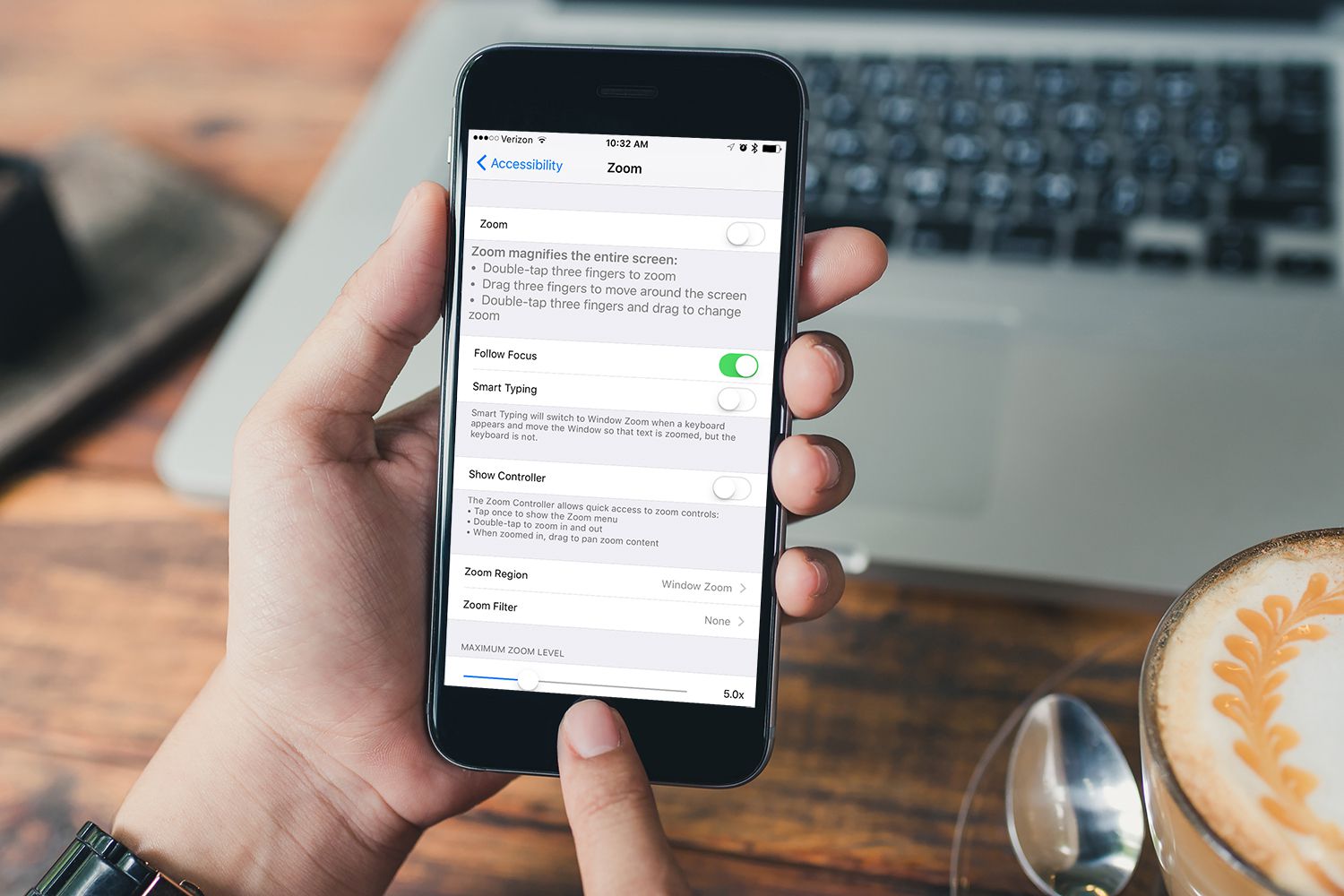
This is the most dramatic version. When Zoom is enabled in Accessibility, the screen can appear magnified or enlarged to the point that app icons look comically huge. In some cases, the whole screen looks blown up and you may not even be able to see everything at once. Instead of a tidy grid of apps, you get what feels like the cinematic release of your Settings icon.
This feature exists for a good reason. It helps users who need magnification to read and navigate the screen. But if it gets turned on by accident, it can feel like your iPhone has suddenly developed a very strong opinion about font size.
2. Display Zoom Is Set to a Larger View
Display Zoom is less extreme than Accessibility Zoom, but it can still make your interface feel bigger than usual. Text, buttons, and some on-screen elements appear larger because the display is using a zoomed presentation. This is often helpful for readability, especially on smaller iPhones, but some users turn it on during setup and later forget about it.
If your icons are not wildly magnified but still seem noticeably larger than before, Display Zoom is worth checking. Think of it as the “everything looks a bit roomier” setting rather than the “why is my Mail icon the size of a Pop-Tart?” setting.
3. Your Home Screen Is Using Large App Icons
Here is the newer twist. On recent iPhone software, Apple lets you customize the Home Screen and choose between Small and Large app icons. Large icons look cleaner to some people because the labels disappear, but if you switched the setting accidentally, it can seem like your iPhone changed itself overnight just to keep you humble.
This setting does not mean the phone is broken. It is just a design choice. The icons are intentionally bigger, and the names under them vanish. If that sleek look is not for you, switching back is easy once you know where the option lives.
How to Tell Which Setting Is Causing the Problem
Not all large icons are created equal. The fastest way to solve the issue is to identify the symptom first.
If the Entire Screen Looks Magnified
If you can only see part of the screen at once, and moving around feels awkward or jumpy, Accessibility Zoom is probably turned on. The screen may also respond to special gestures that you do not remember enabling. This is the classic “my iPhone is zoomed in and I cannot use it properly” problem.
If Everything Looks Bigger, But Still Normal
If the phone still works normally but text and interface elements feel larger overall, Display Zoom may be active. This tends to affect the whole interface rather than just the Home Screen.
If Only the Home Screen Icons Look Bigger
If apps look larger mainly on the Home Screen and the labels underneath are gone, then you are probably in Large icon mode. This is cosmetic, not catastrophic. Your iPhone has not gone rogue. It is just being stylish without permission.
How to Fix Large Icons on Your iPhone
Fix #1: Turn Off Accessibility Zoom
If your screen is heavily magnified, try this first.
- Double-tap the screen with three fingers.
- If the screen zooms back out, open Settings.
- Tap Accessibility.
- Tap Zoom.
- Turn Zoom off.
That three-finger gesture is the lifesaver here. Many people do not realize it exists, which is why they panic and assume the phone is frozen or broken. It is not. It is just very, very enthusiastic about magnification.
If you cannot navigate the screen easily, take a breath and use slow, deliberate taps. Once Zoom is off, your icons should return to their normal appearance immediately.
Fix #2: Switch Large Icons Back to Small
If the Home Screen looks oversized but the phone is otherwise behaving normally, check the icon-size customization setting.
- Go to your Home Screen.
- Touch and hold an empty area until the icons begin to jiggle.
- Tap Edit.
- Choose Customize.
- Select Small instead of Large.
That is it. If your app names suddenly reappear under the icons, congratulations: you found the culprit. This is one of the easiest fixes on the list and also one of the most overlooked, especially for people who recently updated iOS or let a curious child “customize” the Home Screen like a tiny, reckless interior designer.
Fix #3: Check Display Zoom
If everything looks slightly larger across the system, not just on the Home Screen, Display Zoom may be enabled.
- Open Settings.
- Tap Display & Brightness.
- Tap Display Zoom if your iPhone shows that option.
- Choose the standard or default view instead of the zoomed view.
- Confirm the change if prompted.
This setting is useful for people who want a more readable display, so there is no need to treat it like a villain. It just may not be what you want right now. If you prefer a denser, more familiar layout, switching back usually solves the “why does everything look chunky?” feeling.
When You Should Not Turn Zoom Off
Let us give Zoom a little respect. Accessibility features are there for a reason. If the larger display genuinely helps you read the screen, tap controls more comfortably, or avoid eye strain, then turning everything back to default might not be the smartest move.
Instead, you may want to fine-tune the settings. For example, maybe you do not want full-screen Zoom, but you do want larger text. Maybe Large icons feel silly, but Display Zoom makes the phone easier to use. The best setup is the one that helps you, not the one that wins an imaginary design contest.
In other words, if your iPhone suddenly looks easier to read and you are happier with it, this may not be a problem at all. It may just be accidental self-improvement.
Common Mistakes People Make When Troubleshooting
Blaming the Wrong Setting
This happens constantly. People assume the phone is stuck in Zoom mode when the real issue is simply that the Home Screen icons were changed from Small to Large. Or they think the icons are too big because of a software bug when the real issue is Display Zoom.
The fix becomes much faster once you separate “magnified screen” from “larger design style.”
Restarting the iPhone Before Checking Settings
A restart is not harmful, but it usually does not solve this issue because the settings are intentional system preferences, not temporary glitches. If your icons are oversized because of a configuration change, rebooting the phone is basically the digital equivalent of taking a lap around the kitchen and hoping the refrigerator starts working harder.
Changing Too Many Settings at Once
This is another classic move. Someone turns off Accessibility Zoom, changes text size, adjusts bold text, edits the Home Screen, and then forgets which change actually fixed the problem. Work in order. Check Zoom first, then the Home Screen icon size, then Display Zoom. Your future self will appreciate the organized approach.
What If You Cannot Access Settings Because the Screen Is Zoomed In?
This is where people usually begin negotiating with the phone like it is a difficult landlord. Do not do that. Use the gesture instead.
Double-tap the display with three fingers. If that zooms the screen out, you can get back into Settings and switch Zoom off properly. If you still struggle, move slowly and drag with three fingers to navigate around the enlarged screen until you reach the right menu.
In more stubborn cases, using a computer and device-management tools can help disable accessibility features, but most users will not need that. The three-finger gesture is usually enough to rescue the phone from its giant-icon phase.
Why Apple Offers So Many Ways to Make Things Bigger
Because not everyone uses an iPhone the same way. Some people want maximum readability. Some want a cleaner visual style. Some want fewer labels and bigger icons for a minimalist look. Some just want to stop squinting at 11:30 p.m. while trying to answer a text from six inches away.
Apple’s display options reflect all of that. Accessibility Zoom helps users magnify the screen in a powerful way. Display Zoom changes the scale of the interface. Large app icons offer visual customization on the Home Screen. In theory, that is flexible and user-friendly. In practice, it also creates the occasional “why does my phone look like this?” moment.
The trick is learning which setting belongs to which problem. Once you know that, the fix is usually quick.
Simple Best Practices to Prevent the Problem From Happening Again
- Do not enable display or accessibility features in a hurry during setup unless you know what they do.
- After a major iOS update, check whether your Home Screen customization changed.
- If someone else uses your phone, especially a child, verify that the Home Screen was not “improved” on your behalf.
- Learn the three-finger Zoom gesture so you can reverse accidental magnification quickly.
- Keep your preferred display setup simple unless you truly benefit from the extra adjustments.
Conclusion
If the icons on your iPhone suddenly look huge, do not panic and do not assume your phone is dying a dramatic death. Most of the time, the cause is a setting, not a defect. If the whole screen is magnified, turn off Accessibility Zoom. If only the Home Screen looks oversized, switch your app icons from Large back to Small. If the interface in general feels bigger, check Display Zoom.
The nice thing about this problem is that it usually has an easy fix once you know where to look. The less nice thing is that Apple now gives you multiple ways to make your screen look different, so the first guess is not always the right one. Still, with a little patience and the right menu path, your iPhone can go back to looking like your iPhone instead of a billboard for your apps.
And honestly, that is the real lesson here: when your icons get huge, your phone is not broken. It is just a little too committed to being helpful.
Experiences: What Large iPhone Icons Actually Feel Like in Real Life
If you have never had this happen, it is easy to underestimate how disorienting it can be. One minute your Home Screen looks normal, and the next minute your icons look so big that you wonder whether the phone updated itself while you were making coffee and decided your visual taste needed an intervention.
A common experience goes like this: you hand your phone to someone for a quick photo, a child taps the screen a few times, or you accidentally trigger something while cleaning the display. Suddenly, the icons are giant. The first reaction is usually confusion. The second is denial. The third is opening and closing apps like that will somehow shame the interface back into normal behavior.
For some people, the oversized look is merely annoying. For others, it genuinely interrupts their routine. Muscle memory matters on a smartphone. You expect the Home Screen to look a certain way. You expect the Settings app to sit in its usual place and appear in its usual size. When that visual pattern changes, even slightly, the phone feels unfamiliar. It is a small design shift, but the brain notices immediately.
There is also the emotional side of it, which is surprisingly relatable. Tech problems feel personal when they happen on a device you use all day. A laptop can misbehave and you shrug. An iPhone changes the size of its icons and suddenly it feels like betrayal. You did not ask for giant icons. You did not request a visual remix. You just wanted to check the weather.
That said, not every experience is negative. Some users discover that they actually like larger icons once they understand what changed. People with tired eyes, users who spend long hours on their phones, or anyone who prefers a cleaner visual style may find that larger icons are easier to spot and faster to tap. The absence of labels can also make the screen look calmer and less cluttered. What first feels wrong can sometimes become a preference.
There are also households where this issue becomes a recurring comedy routine. One person wants the display bigger for readability. Another wants everything compact and minimal. A parent turns on a setting to make the phone easier to use at night, then a teenager changes the Home Screen back because “it looks weird,” and suddenly everyone is conducting a tiny operating-system cold war through the Settings app.
In day-to-day life, the best experience usually comes from understanding the difference between accessibility tools and style choices. Once you know that Accessibility Zoom is about magnification, Display Zoom is about scaling, and Large icons are about visual customization, the whole problem becomes less mysterious. You stop reacting emotionally and start fixing the exact thing that changed.
That is why this topic matters more than it seems. It is not really about icons. It is about control. When your iPhone looks wrong, you want a quick, clear way to make it feel familiar again. And once you know the right path, you can solve the problem in under a minute instead of spending twenty frustrated minutes muttering, “Why is everything so big?” at a piece of glass that definitely is not sorry.











