Few modern mysteries are as dramatic as sending a text and watching it sit there in silence. Did they read it? Are they busy? Did their phone fall into a couch canyon? On a Samsung Galaxy phone, the answer depends on one important thing: whether your conversation is using RCS chat features instead of regular SMS or MMS.
This guide explains how to see if someone read your text on Samsung Galaxy, how to turn on read receipts, why the feature sometimes disappears, and what those tiny message status indicators really mean. The good news: it is not difficult. The slightly annoying news: both people usually need compatible messaging settings, supported carriers, internet access, and read receipts enabled. Technology, as always, enjoys making simple things wear a little hat.
What Are Read Receipts on Samsung Galaxy?
Read receipts are small message indicators that tell you when another person has opened your message. On many Samsung Galaxy phones, this feature works through RCS, short for Rich Communication Services. RCS is the upgraded version of texting that supports typing indicators, better group chats, higher-quality media, delivery confirmations, and read receipts.
Traditional SMS and MMS messages usually do not show whether someone read your text. SMS is the classic “green-bubble-style” text system: reliable, simple, and about as emotionally informative as a brick wall. RCS, on the other hand, can show more detailed status information when both people have it enabled.
Before You Start: What You Need
To see if someone read your text on a Samsung Galaxy, you generally need three things:
- A Samsung Galaxy phone using Google Messages or a supported messaging app.
- RCS chats turned on.
- The other person must also use RCS and allow read receipts.
Newer Galaxy phones in the United States increasingly use Google Messages as the default texting app. Samsung has also announced a transition away from Samsung Messages for many U.S. users, so Google Messages is the best place to start for most people.
How to See if Someone Read Your Text on Samsung Galaxy: 10 Steps
Step 1: Open Your Messaging App
Start by opening the messaging app on your Samsung Galaxy. On many newer Galaxy phones, this will be Google Messages. The icon usually looks like a blue conversation bubble. Some older phones may still have Samsung Messages, which may look like a white or blue speech bubble depending on your phone model and theme.
If you are not sure which app you are using, look at the app name at the top of the screen or long-press the app icon and tap “App info.” For the most reliable RCS read receipt experience, Google Messages is usually the recommended choice.
Step 2: Make Sure Google Messages Is Your Default SMS App
Read receipts may not work correctly if your phone is juggling multiple messaging apps like a circus performer with too many flaming pins. To check your default app, open Settings, tap Apps, choose Default apps, and then tap SMS app. Select Google Messages if you want to use Google’s RCS features.
After switching, your conversations may take a little time to sync. Do not panic if your message list looks slightly different at first. Most conversations should appear inside the new default app.
Step 3: Open Messages Settings
Inside Google Messages, tap your profile picture or account icon in the upper-right corner. Then tap Messages settings. This is the control room for your texting features. It is less exciting than a spaceship dashboard, but it does the job.
If your Galaxy phone uses Samsung Messages, tap the three-dot menu, open Settings, and look for options such as Chat settings or Advanced Messaging. However, availability may depend on your carrier, phone model, region, and app version.
Step 4: Tap RCS Chats or Chat Features
In Google Messages settings, tap RCS chats. On some phones or older versions of the app, this may appear as Chat features. If you do not see either option, update Google Messages from the Play Store, check that your SIM is active, and make sure mobile data or Wi-Fi is working.
RCS needs an internet connection. That means it can use Wi-Fi or mobile data. If you are in airplane mode, out of service, or connected to Wi-Fi that behaves like it was powered by a sleepy potato, RCS may not connect.
Step 5: Turn On RCS Chats
Switch on RCS chats. When RCS is active, your phone may show a status such as “Connected.” If it says “Setting up,” give it a few minutes. If it gets stuck, restart the phone, update the app, or check whether your carrier supports RCS on your current setup.
Once RCS is connected, your Samsung Galaxy can use enhanced messaging features, including read receipts, typing indicators, better media sharing, and more modern group chats.
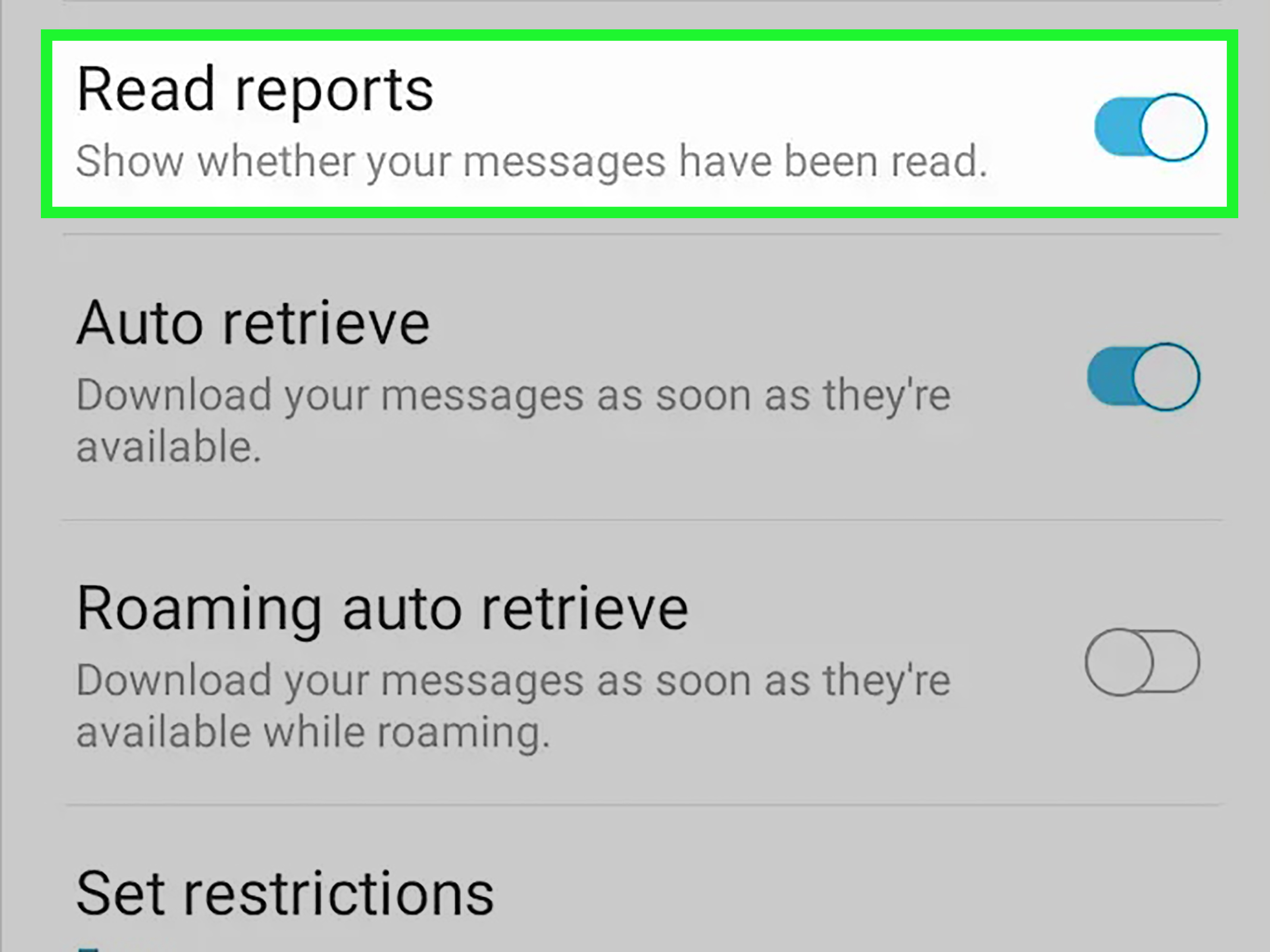
Step 6: Turn On Send Read Receipts
Still inside RCS chats, look for Send read receipts. Turn it on if you want others to know when you have read their messages. This also helps create a normal RCS conversation environment where read receipt features can work as expected.
Here is the important part: turning on your read receipts does not force the other person to send theirs. If they have read receipts turned off, you may not see when they read your message. Sadly, there is no magic “make them be transparent” button. Humanity continues to be complicated.
Step 7: Open the Conversation
Go back to your conversation list and open the chat with the person you texted. If the conversation is using RCS, you may see richer indicators than you would in a plain SMS chat. In some cases, the compose box may say “RCS message” instead of “Text message.” That is a good sign.
If the compose box says “Text message,” the conversation may be using SMS. In that case, you usually cannot see whether the person read your message. You may only know that the message was sent, and sometimes delivered, depending on your carrier and app.
Step 8: Send a Message
Send a normal message in the conversation. After sending, watch the small status text or check marks near the message. Depending on your app version and region, you may see words such as Sent, Delivered, or Read. You may also see check mark icons.
Sent usually means your phone sent the message out. Delivered means it reached the other person’s device. Read means the recipient opened the conversation and viewed the message, assuming read receipts are enabled on their side.
Step 9: Look for the “Read” Indicator
To see if someone read your text on Samsung Galaxy, look directly below or beside your latest sent message. If the other person has read receipts enabled and the chat is using RCS, you should see a Read label or an equivalent read indicator.
If you only see Delivered, the message reached the phone but may not have been opened yet. If you only see Sent, the message left your phone but may not have reached the recipient. If you see nothing useful at all, you may be in SMS mode, the other person may have read receipts off, or the messaging gods may simply be testing your patience.
Step 10: Troubleshoot If Read Receipts Do Not Appear
If read receipts do not show up, check these common causes:
- The other person has read receipts turned off.
- The conversation is using SMS or MMS instead of RCS.
- One of you has no internet connection.
- Google Messages is not the default SMS app.
- Your carrier or phone software needs an update.
- The recipient uses an app or device that does not fully support RCS read receipts.
- You are in a group chat where read receipt behavior may differ.
Try updating Google Messages, restarting your Galaxy phone, checking mobile data, and confirming that RCS says “Connected.” If you recently switched from Samsung Messages to Google Messages, allow time for conversations to transfer and settle.
Samsung Messages vs. Google Messages: Which One Should You Use?
For most Samsung Galaxy users, Google Messages is now the safer long-term choice. It supports RCS, is the default messaging app on many newer Galaxy devices, and is the app Samsung recommends for users moving away from Samsung Messages in the United States.
Samsung Messages may still work on some older phones, but carrier support for RCS inside Samsung Messages has become less consistent. For example, some carrier guidance now points users toward Google Messages for RCS features. If your goal is to see read receipts with fewer headaches, Google Messages is usually the practical answer.
Can You See Read Receipts for iPhone Users?
Sometimes. With RCS support expanding across Android and iPhone, some conversations between Samsung Galaxy and iPhone users may support richer messaging features than old SMS. However, read receipts still depend on the recipient’s device, carrier, region, software version, and settings.
If your message to an iPhone user is sent as SMS, you will not see a true read receipt. If the conversation uses RCS and the other person allows read receipts, you may see more detailed status information. In other words, the answer is “possibly,” which is tech’s favorite way of saying, “Please check five settings and then blame no one specifically.”
Why You Cannot Always Tell If Someone Read Your Text
Read receipts are not universal proof. They are a feature, not a surveillance system. The other person can disable them. Their phone may be offline. Their app may not support them. Their carrier may handle RCS differently. They may have previewed your message from a notification without opening the conversation. Or, yes, they may have read it and decided to reply later because life includes dishes, meetings, traffic, and the occasional emotional support snack.
The healthiest way to use read receipts is as a helpful clue, not a courtroom exhibit. A “Read” label tells you the message was viewed. It does not tell you the person’s mood, intention, schedule, or whether they are currently trapped under a laundry pile.
Privacy Tips for Samsung Galaxy Read Receipts
Turn Off Your Own Read Receipts If Needed
If you do not want others to know when you have read their messages, open Google Messages, tap your profile icon, go to Messages settings, tap RCS chats, and turn off Send read receipts.
Use Read Receipts Respectfully
Read receipts can be useful, especially for urgent messages, family coordination, work updates, and “Did you get the address?” situations. But they can also create pressure. Not every read message needs an instant reply. Sometimes people need a minute. Sometimes they need lunch. Sometimes they need to stare into the distance like a movie character processing a plot twist.
Do Not Rely on Third-Party Spy Apps
Avoid apps that claim they can secretly tell you when someone reads texts. Many are unreliable, invasive, or risky. Stick with built-in messaging features such as RCS read receipts. If the feature does not show a read status, respect the limitation.
Common Problems and Fixes
Problem: RCS Is Stuck on “Setting Up”
Restart your phone, update Google Messages, check your mobile number, and make sure mobile data is enabled. You can also turn RCS off and back on. If it still does not connect, your carrier account or network settings may need attention.
Problem: One Contact Shows Read Receipts, Another Does Not
This usually means one conversation is using RCS and the other is not, or one person has disabled read receipts. Read receipts are not guaranteed across every contact.
Problem: The Message Says “Delivered” but Not “Read”
The message reached the recipient’s device, but they may not have opened it. They may also have read receipts turned off. Delivered is not the same as read.
Problem: You Switched Apps and Things Look Weird
After changing from Samsung Messages to Google Messages, allow time for conversations to appear correctly. Keep both your phone software and Google Messages updated. Also confirm that Google Messages is selected as your default SMS app.
Real-Life Experiences: What It Feels Like to Use Read Receipts on a Samsung Galaxy
In real life, read receipts are both helpful and mildly dangerous to your peace of mind. Imagine you send your friend a message: “Want to grab dinner at 7?” A few seconds later, it says Delivered. Fine. Normal. Then it says Read. Suddenly, your brain puts on detective sunglasses. Why no reply? Are they checking the restaurant menu? Are they offended by tacos? Did they open the message and immediately join a witness protection program?
This is where read receipts can become less of a phone feature and more of a tiny emotional weather report. The practical benefit is obvious: you know your message was seen. That is useful when you are coordinating rides, confirming appointments, sending an address, checking on family, or making sure someone got important information. If your partner reads “The plumber is coming at 3” and does not reply, at least you know the message landed in human eyesight territory.
But the feature is not perfect. Many Samsung Galaxy users discover that read receipts work beautifully with one contact and completely vanish with another. That usually does not mean your phone is broken. It often means the first conversation is using RCS while the second is stuck on SMS, or the other person has read receipts turned off. One friend may appear with typing bubbles, read labels, and high-quality photos. Another may communicate like it is 2006, with plain texts and no clues except silence. Both are normal.
A common experience is switching to Google Messages and suddenly seeing more details in conversations. The first time you notice “RCS message” in the compose box, it feels like your texting app went to college. Photos look better, group chats behave more politely, and read receipts become easier to understand. Still, the other person’s settings matter. You cannot force someone else’s phone to send read receipts, which is probably good for privacy and bad for impatient people.
Another real-world lesson: read receipts should not be treated like a relationship lie detector. A person can read your message and be too busy to answer. They can open it during a meeting, while walking into a store, or while holding a sandwich in one hand and a chaotic life in the other. The “Read” label tells you only that the message was opened. It does not reveal intent. It does not translate silence. It does not provide a full psychological profile, even if your overthinking brain volunteers to create one for free.
The best approach is to use Samsung Galaxy read receipts as a convenience tool. For urgent matters, they are great. For casual conversations, they are simply extra information. If a message is important, follow up politely. If it is not urgent, give people room. Read receipts can make texting clearer, but good communication still beats staring at a screen like it owes you money.
Conclusion
To see if someone read your text on Samsung Galaxy, use Google Messages, turn on RCS chats, enable read receipts, and check the status under your sent message. If the conversation shows Read, the recipient opened your message. If it only says Delivered, the message reached their device but may not have been opened. If you do not see read status at all, the chat may be using SMS/MMS, the other person may have read receipts off, or RCS may not be connected.
The key takeaway is simple: read receipts on Samsung Galaxy work best when both people use RCS-compatible messaging with read receipts enabled. They are useful, but not universal. Use them as a helpful signal, not a reason to spiral into digital detective mode.