
If Instagram is where your memes, plans, and “Hey, are you awake?” messages live, knowing how to see direct messages on Instagram is basically a life skill. The good news is that Instagram DMs are not hidden in some secret digital cave. Once you know where to tap or click, your inbox is easy to find on both mobile and desktop.
Still, Instagram messaging has a few twists. Some messages go straight to your main inbox. Others land in Requests. Business and creator accounts can split chats into folders. And if you only check Instagram occasionally, it can feel like your messages are playing hide-and-seek for sport.
This guide breaks it all down in plain English. You will learn how to see Instagram messages on the app, how to check Instagram DMs on a computer, where to find message requests, why some chats seem to disappear, and what to do when your inbox is acting weird. No fluff, no robotic jargon, and no mysterious “just try refreshing” advice tossed at you like confetti.
What Are Instagram Direct Messages?
Instagram Direct Messages, often called Instagram DMs, are private chats you send and receive inside the app or on the Instagram website. These chats can include text, photos, videos, voice messages, Reels, posts, stickers, and more. In other words, it is Instagram’s private conversation lane while the feed and Stories do all the loud public talking.
If you are trying to see direct messages on Instagram, you are looking for your inbox. That inbox may include:
- One-on-one chats
- Group conversations
- Replies to your Stories
- Message requests from people you do not follow
- Promotional or customer messages if you run a business or creator account
How to See Direct Messages on Instagram in the Mobile App
If you are using an iPhone or Android phone, this is the fastest way to check Instagram messages.
Step 1: Open Instagram and Log In
Launch the Instagram app and make sure you are signed into the correct account. This sounds obvious, but people with multiple accounts know this pain well. Sometimes the missing message is not missing at all. It is just hanging out in your other account like it pays rent there.
Step 2: Go to the Home Screen
Tap the Home icon if you are not already on your main feed. From there, look toward the top area of the screen for the Messenger or messages icon. Depending on your app version, the design may look slightly different, but it leads to the same place: your Instagram inbox.
Step 3: Open Your Inbox
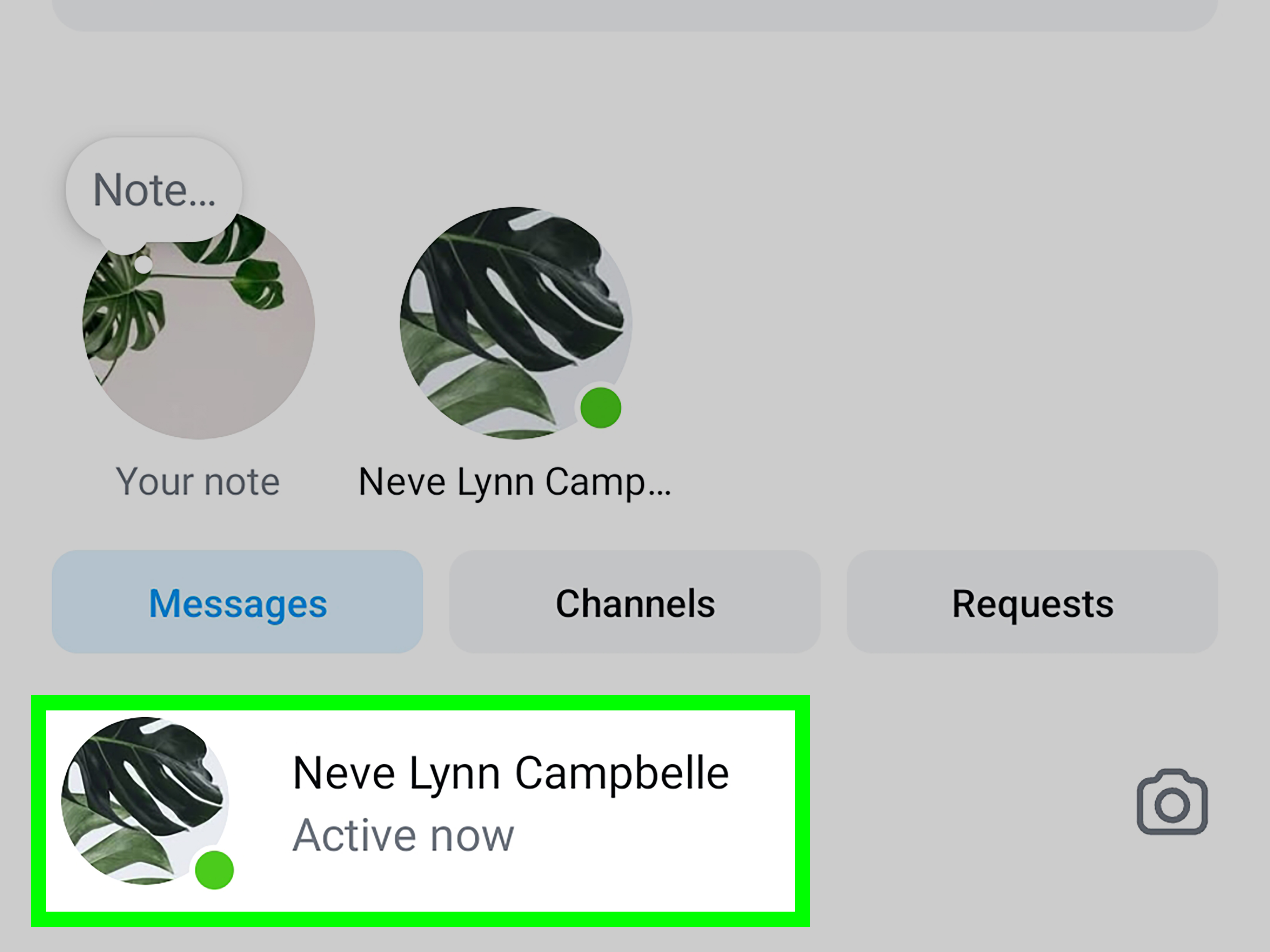
Tap the messages icon to open your DMs. You will see recent conversations listed in order, with newer chats usually appearing near the top. Unread messages are often easier to spot because they stand out visually.
Step 4: Tap a Conversation to Read It
Select any chat to open the full thread. Once inside, you can read older messages, send replies, react to messages, share posts, or continue the conversation like the socially functional adult you absolutely are.
Step 5: Use the Search Bar if Needed
If your inbox is crowded, use the search feature at the top to find a person, keyword, or conversation faster. This is especially helpful if your DMs are a chaotic museum of old links, birthday wishes, and unread “Can you send me that photo?” messages from six months ago.
How to Check Instagram DMs on a Computer
Not everyone wants to peck out replies on a tiny phone keyboard. If you are working, studying, or pretending to work while checking social media, you can also see direct messages on Instagram from a desktop browser.
Steps to See Instagram Messages on Desktop
- Go to Instagram in your web browser.
- Log into your account.
- Click Messages in the side menu or the message icon, depending on the layout you see.
- Select a conversation from the list.
- Read, reply, and continue your chat from the larger screen.
This is one of the easiest ways to check Instagram messages on desktop, especially if you are managing conversations while multitasking. The desktop version is convenient for reading, typing, and handling everyday chats, although some mobile-only features may still be more complete in the app.
Where to Find Message Requests on Instagram
Here is where many people get confused. Not every message goes straight into your main inbox.
If someone you do not follow sends you a message, it may go into Message Requests. Instagram does this so strangers, spam, and random internet weirdness do not immediately walk into your private chats uninvited.
How to See Instagram Message Requests
Open your inbox and look for a Requests section. Tap it to view pending messages. From there, you can usually accept, delete, or report the request.
Until you accept a request, the conversation is separate from your normal inbox. That means if you are wondering why someone says they messaged you but you cannot find it, your Requests folder is the first place to check.
What About Hidden Requests?
Instagram may also place potentially offensive, spammy, or unwanted messages in a Hidden Requests area. Think of it as the app politely saying, “You probably do not want this, but here it is if you insist.”
If you want to be thorough, check both Requests and Hidden Requests before assuming a message never arrived.
How Professional Accounts See Messages Differently
If you use a creator or business account, your inbox may have extra organization tools. This setup can include folders such as Primary, General, and Requests.
- Primary is for important conversations you want front and center.
- General is for less urgent chats that you still want to keep.
- Requests is where messages from people you do not follow may appear.
This is handy if Instagram is part of your work life and your inbox is half customer questions, half friends sending you raccoon videos. With folders, your chat life becomes a little less wild.
Why You Might Not Be Able to See Direct Messages on Instagram
If your messages are not showing up, a few common issues may be the reason.
You Are Looking in the Wrong Account
Many users switch between personal, creator, and business profiles. Double-check that you are in the right account before you start assuming Instagram has swallowed your chat whole.
The Message Is in Requests
As mentioned earlier, messages from non-followers often stay in Requests until you approve them.
The App Needs an Update
An outdated app can cause glitches, missing features, or weird inbox behavior. Updating Instagram may solve the problem surprisingly fast.
Your Internet Connection Is Acting Like a Drama Queen
If your connection is weak, messages may not load right away. Switch between Wi-Fi and mobile data or reload the app.
You Deleted the Conversation
If you removed a chat, it usually will not remain in your inbox. That is the harsh truth. Instagram is not a magical lost-and-found bin for every deleted DM.
The Other Person Unsent a Message
If a message was unsent before you opened the thread, it may no longer appear. So yes, sometimes the mystery is not technical. Sometimes someone simply changed their mind at Olympic speed.
Useful Instagram DM Features That Make Life Easier
Read Receipts
Instagram lets users manage read receipts in chats, which can affect whether others see that you viewed a message. This is helpful if you want more control over your inbox behavior and less pressure to answer immediately.
Locked Chats
If privacy matters, locked chats add another layer of protection for certain conversations. This can be useful for personal, sensitive, or business-related messages.
Scheduled Messages
Instagram has also added message scheduling for chats in supported versions. If you like planning ahead, this is a nice touch. It is also a great way to avoid sending “professional” messages at 1:14 a.m. when you are clearly powered by insomnia and leftover coffee.
Best Practices for Managing Your Instagram Inbox
Knowing how to see direct messages on Instagram is step one. Knowing how not to drown in them is step two.
Check Requests Regularly
If you only look at your main inbox, you may miss messages from new contacts, clients, or followers.
Use Search Instead of Endless Scrolling
Scrolling through old chats is not a productivity strategy. It is digital archaeology. Search is faster.
Separate Personal and Professional Replies
If you use Instagram for work, keep your inbox organized. Folder tools on professional accounts can save time and prevent awkward mix-ups.
Turn Notifications On Thoughtfully
Notifications help you catch new messages quickly, but too many alerts can make your phone feel like it is demanding emotional labor every six seconds. Customize them to match your actual needs.
How to See Direct Messages on Instagram: Quick Answer
If you want the shortest possible version, here it is:
- On mobile: Open Instagram, tap the messages icon, and open your conversation.
- On desktop: Log into Instagram on the web, click Messages, and select a chat.
- If a message is missing: Check Requests and Hidden Requests.
- If you use a professional account: Look through Primary, General, and Requests.
That is the core process. Everything else is just Instagram adding a few extra doors to the same messaging house.
Real-World Experiences with Seeing Direct Messages on Instagram
One of the most common experiences people have with Instagram DMs is assuming a message never arrived when it was actually sitting quietly in Requests. This happens all the time with small business owners, creators, and even regular users who do not follow everyone back. A customer sends a question, a potential collaborator reaches out, or an old friend says hello, and the message ends up in a side folder that the account owner rarely checks. Then weeks later, they discover it and have the emotional experience of finding unpaid bills, except somehow more awkward.
Another very real situation happens on desktop. Plenty of users know Instagram as a phone app first, so they do not even realize they can read and reply to messages from a browser. Then one day they are on a laptop, log in, notice the Messages option, and suddenly feel like they have unlocked a premium adulting feature. Typing longer replies is easier, sending work-related responses feels less clumsy, and searching through older conversations is much more manageable on a larger screen.
There is also the classic multi-account confusion. People who manage a personal account and a creator or business account often think their inbox is broken when they are simply checking the wrong profile. They open Instagram, tap messages, see nothing important, and panic for no reason. After switching accounts, the missing DM appears immediately, looking innocent and unbothered. It is one of the most common causes of “Instagram ate my message” complaints.
For creators and freelancers, the split inbox can be both a blessing and a tiny source of chaos. Primary and General folders are useful, but only if you remember to check both. Some users love the extra organization because it separates urgent conversations from lower-priority chats. Others forget the General tab exists and accidentally ghost people without meaning to. Instagram does not always make this feel dramatic, but socially, it can absolutely become dramatic.
Privacy-conscious users often have another experience entirely: they want to read messages without broadcasting too much information about when they were active or whether they already saw the chat. For them, DM settings like read receipts matter a lot. The inbox is not just about convenience. It is about controlling how available you appear online, which in today’s world is basically a personality boundary with a Wi-Fi connection.
And then there are everyday users who mostly use DMs for sharing Reels, jokes, pet videos, and wildly specific memes that make no sense to anyone outside the friendship. For them, the biggest challenge is not finding the inbox. It is finding one message inside an avalanche of “look at this” content. Search becomes the hero. Without it, locating an old message can feel like trying to find one french fry in the ocean.
All of these experiences point to the same conclusion: Instagram DMs are easy to access once you understand how the inbox is organized. Most problems are not mysterious. They come down to folders, account switching, app updates, or simply not knowing that desktop messaging exists. Once you know where everything lives, checking your Instagram messages becomes much less frustrating and a lot more useful.
Conclusion
Learning how to see direct messages on Instagram is simple once you know where the inbox, Requests, and account folders live. On mobile, tap into your messages from the app. On desktop, open Instagram on the web and head to Messages. If something looks missing, check Requests, Hidden Requests, and the correct account before declaring your inbox haunted.
In short, Instagram DMs are not hard to use. They are just organized in a way that occasionally makes users feel like they need a map, a flashlight, and a support group. Thankfully, now you have the map.












