
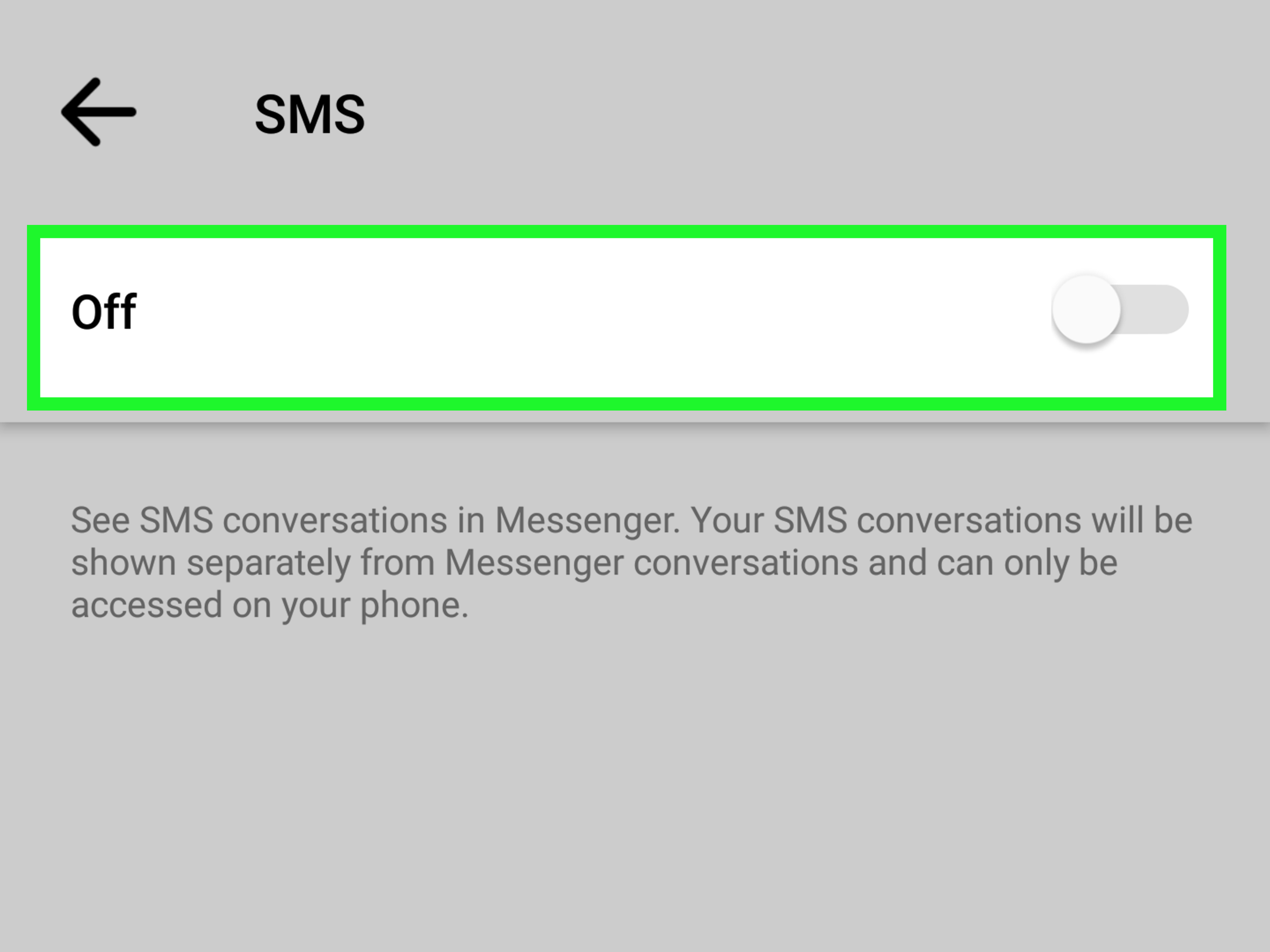
At some point, a lot of Android phones let Facebook Messenger play “one app to rule them all” by showing both your Messenger chats and your plain-old text messages (SMS/MMS) in the same inbox. Convenient? Sure. Confusing? Also yesespecially when you just want your texts to go back to the regular texting app where they belong.
This guide blends the most practical, real-world advice from official Meta help pages, Android/Google support documentation, Samsung’s support guidance, and well-known U.S. tech how-to outletsthen rewrites it into something you can actually follow without needing a second cup of coffee (or a third therapist).
First, a quick reality check (so you don’t chase a ghost feature)
Meta began removing SMS support from the Messenger app on Android years ago, and the company has also noted that SMS in Messenger is no longer available for many users once they update the app. Translation: depending on your Messenger version and phone, you may not even have an “SMS” toggle anymorebecause Messenger simply doesn’t handle carrier text messages on your device like it used to.
Still, you might see one of these situations:
- Messenger is (or was) your default SMS app, and you want to undo that.
- Old SMS threads are still showing up in Messenger’s conversation list and you want them gone.
- You meant “Facebook text alerts” (notifications Facebook sends to your phone number), not your phone’s SMS inbox.
No worriesthis article covers all three, without making you learn the difference the hard way (like at 2:00 a.m. when you’re trying to find a verification code).
What “removing SMS from Messenger” actually changes
On Android, SMS/MMS belongs to the phone (your carrier texts) and is handled by a default SMS app (like Google Messages or Samsung Messages). Messenger chats belong to your Facebook/Meta account.
So “removing SMS from Messenger” usually means:
- Messenger stops being the default SMS app (so your texts don’t route through it).
- Messenger loses SMS permissions (so it can’t read or send carrier texts).
- Texts move back to your chosen texting app (Google Messages, Samsung Messages, etc.).
Important: if you delete SMS messages anywhere on Android, you can delete them everywhere, because the device stores them in a shared message database. If you’re sentimental about old texts (or need them for receipts, family stuff, or court drama), consider backing up first.
How to Remove SMS from Messenger in 4 Steps
-
Step 1: Identify what you’re seeing (SMS vs. Messenger chats) and pick your “real” texting app
Before flipping switches, decide where you want your texts to live. On most Android phones, your best bets are:
- Google Messages (common on Pixel and many Android phones)
- Samsung Messages (common on Galaxy phones, though many now use Google Messages too)
- Another SMS app you trust (but keep it reputabletexts are sensitive)
Now do a quick check inside Messenger:
- Open Messenger → tap the menu/profile area → look for anything labeled “SMS”.
- If you see an SMS section or “Default SMS app” prompt, Messenger is still (somehow) involved.
- If you don’t see SMS settings, that’s normal on many updated versionsyour phone is probably already moving SMS away from Messenger, and you mainly need to switch defaults and clean up leftovers.
Pro tip: if your goal is “stop all texts from showing in Messenger,” picking your preferred texting app first makes the next steps feel less like random button-mashing and more like a plan.
-
Step 2: Change your phone’s default SMS app (so Messenger can’t “own” your texts)
This is the big one. On Android, whichever app is set as the default SMS app is the boss of SMS/MMS. Your exact menu names vary by phone brand, but the path is usually close to one of these:
Option A (most Android phones)
- Open Settings.
- Tap Apps (sometimes “Apps & notifications”).
- Tap Default apps (or “Choose default apps”).
- Tap SMS app (or “Messaging app”).
- Select Google Messages, Samsung Messages, or your preferred texting app.
Option B (Samsung Galaxy-style menus)
- Open Settings.
- Tap Apps.
- Tap Choose default apps.
- Tap SMS app.
- Pick your preferred texting app.
Once you do this, your phone should route SMS/MMS through the app you chosenot Messenger. If Messenger was previously handling texts, you’ll usually see your SMS threads populate in the new texting app automatically.
-
Step 3: Revoke SMS permissions from Messenger (and clear “defaults” if your phone still clings)
Even after you change the default SMS app, Messenger might still have permissions that let it read certain message-related info (or it may keep showing old SMS threads until it gets the hint). Take away its SMS access:
Revoke permissions
- Open Settings → Privacy or Security & Privacy.
- Tap Permission manager (or “Permissions”).
- Tap SMS.
- Find Messenger and set it to Don’t allow.
If your phone doesn’t show SMS in Permission manager, try: Settings → Apps → Messenger → Permissions, then turn off anything related to SMS (or messaging permissions).
Clear Messenger “defaults” (optional but often helpful)
Some Android versions keep old defaults like they keep old screenshots: forever. If Messenger still behaves like it’s in charge:
- Go to Settings → Apps → Messenger.
- Tap Set as default (or “Open by default”).
- Tap Clear defaults (if available).
If you want the “big reset” approach, some phones let you reset default app preferences: Settings → Apps → (three-dot menu) → Reset app preferences. This doesn’t delete apps, but it can reset defaults across the systemso only do it if you’re okay reselecting a few app preferences later.
-
Step 4: Clean up Messenger (hide leftovers) and confirm SMS is back in your texting app
Now that Messenger is no longer the default SMS app (and doesn’t have SMS permission), you can tidy up what you still see. Think of it as sweeping up after moving furniture: the room is better, but the dust is emotionally attached.
Confirm your SMS works in the new app
- Open your chosen texting app (Google Messages/Samsung Messages).
- Send yourself a test text (or ask a friend to text you “pizza” for science).
- Make sure the text arrives in the texting appnot Messenger.
Remove old SMS-looking threads from Messenger (if they’re still visible)
If Messenger still shows old threads that look like SMS, you can try:
- Archive the conversation (hides it without deleting).
- Delete the conversation (be carefulon Android, deleting can remove messages from the device’s shared SMS storage).
Clear cache (helps if Messenger shows stale stuff)
- Go to Settings → Apps → Messenger.
- Tap Storage & cache (or “Storage”).
- Tap Clear cache.
Clearing cache doesn’t usually delete your account chats, but it can clear out weird display leftovers that make it look like Messenger is still married to your SMS. (And like many breakups, the UI can take a minute to accept reality.)
Troubleshooting: when it’s not working like the internet promised
“I don’t see Messenger as an option under SMS app anymore.”
That’s normal on many newer versions because Messenger’s SMS support has been removed for lots of Android users. If Messenger isn’t listed, you’re already halfway donejust select your preferred texting app and move on.
“Texts still show up in Messenger even after I changed the default SMS app.”
Try this checklist:
- Re-check Settings → Apps → Default apps → SMS app (sometimes it silently flips back after updates).
- Revoke Messenger’s SMS permission again (some phones ask more than once).
- Clear Messenger cache.
- Restart your phone (the classic fix… because it works more often than it should).
“My SMS messages look missing in my texting app.”
Usually they’re not goneyour new texting app might still be loading them, or it may need permission. Open the texting app and make sure it has SMS permissions enabled. If it asks for permission prompts, approve them.
“I’m on an iPhonewhy is this guide talking about Android?”
Because the “Messenger as your SMS inbox” situation is primarily an Android thing. iOS historically keeps SMS/iMessage inside Apple’s Messages app. If you’re on iPhone and you’re getting unwanted texts from Facebook, jump to the next section.
If you meant “Facebook is texting me,” not “my SMS inbox is in Messenger”
Some people say “SMS from Messenger” when they really mean Facebook text alertslike security codes, login alerts, or notification summaries sent to your phone number.
To reduce or stop Facebook’s SMS notifications, check your Facebook notification settings and turn off SMS delivery for notifications you don’t want. (This is separate from your phone’s normal SMS texting app.)
Privacy and sanity tips (because messaging chaos is a lifestyle now)
- Keep SMS in one place. If you want a clean life, use one default texting app for carrier texts and keep Messenger for Messenger chats. Mixing them is how you end up replying “Love you too” to your dentist.
- Be cautious when deleting threads. On Android, deleting SMS threads can permanently remove them from your device. When in doubt, archive instead of delete.
- Update apps intentionally. When Messenger updates, features change. When your texting app updates, settings change. Your future self will thank you for checking defaults after big updates.
FAQ
Will removing SMS from Messenger delete my Messenger chats?
No. Messenger chats (Facebook/Meta conversations) live with your account and aren’t the same as SMS. You’re mainly changing how your phone handles carrier texts.
Do I need to uninstall Messenger to stop SMS showing up?
Usually, no. Switching the default SMS app and revoking SMS permission is enough. Uninstalling is a last resort if you want to completely remove Messengerlike a digital detox, but with fewer yoga mats.
Can I “remove SMS” but still keep Messenger as the app for chat bubbles and Facebook messages?
Yes. That’s the ideal setup for most people: use your preferred SMS app for texts, and Messenger for Messenger. Clean boundaries are healthyeven for apps.
Experience Notes: what people usually notice after removing SMS from Messenger (the 500-word reality tour)
The first thing most people notice after removing SMS from Messenger is a sudden sense of calmfollowed immediately by suspicion. “That was too easy,” you think, staring at your home screen like it’s about to do something sneaky. And honestly? That’s fair. Messaging settings have a long history of acting like they’re fixed, then quietly changing after the next update.
In the first day, the most common “wait, what?” moment is that your texts don’t movethey simply reappear somewhere else. You open Google Messages or Samsung Messages and there they are: threads from last week, last year, and that one conversation you hoped had been erased by time. This is normal because Android stores SMS in a shared system database, and the default SMS app is basically the “front desk” that displays them.
The second most common experience is notification whiplash. If Messenger used to notify you for SMS, you may suddenly get fewer notificationsthen morethen fewer again as Android hands responsibility to your chosen SMS app. It can feel like your phone is trying to decide which app is “allowed” to be excited about new messages. A quick visit to your SMS app’s notification settings usually restores the expected behavior: lock-screen previews, sound/vibration, and those little badges that tell you someone texted “Where are you?” five minutes ago.
Another thing people report: Messenger’s conversation list sometimes looks “messy” for a bit. You might still see old threads that look like SMS conversations sitting alongside real Messenger chats. That’s where archiving shines. Archiving is the polite way to say, “I acknowledge you exist, but I never want to see you again.” Deleting can be tempting, but it’s the option that can lead to regret if you accidentally remove an important SMS thread from your device.
The “advanced” real-world moment happens when you realize defaults can flip back. A Messenger update, a system update, or even installing another messaging app can trigger Android to ask, “Which app do you want to use?” If you tap “Always” without reading (because you’re busy being a person), you can accidentally set the wrong default again. The best habit is simple: after any big update, do a 10-second check in Settings → Apps → Default apps → SMS app. It’s like checking your pockets for keys, but for your messaging life.
Once everything settles, most people end up liking the split: texts in a dedicated SMS app, Messenger for Messenger. It’s cleaner, easier to troubleshoot, and way less likely to cause that awkward moment where you reply to a friend on the wrong platform. In other words: your phone stops trying to be “helpful,” and starts being predictablewhich is the highest compliment you can give technology.
Conclusion
Removing SMS from Messenger is really about putting your phone’s texting system back in its proper lane. The winning combo is: choose a dedicated texting app, set it as the default SMS app, revoke SMS permissions from Messenger, and clean up any leftover threads or cached clutter. After that, Messenger can go back to being what it’s best atMessenger chatswhile your SMS lives happily ever after in a real texting app.











