
Playing Windows games on a Mac used to feel like trying to toast bread with a desk lamp: technically possible, occasionally impressive, and usually not recommended for hungry people. Thankfully, Mac gaming has changed. Apple silicon is powerful, cloud gaming is mature, and compatibility tools are much better than the old “download a mystery wrapper and pray” era.
Still, Windows games are not magically Mac games. Some run beautifully. Some need tinkering. Some crash so dramatically you expect them to leave a tiny resignation letter on your desktop. The best solution depends on your Mac model, the game’s engine, anti-cheat system, DirectX version, controller support, and how much patience you have before saying, “Maybe I should just play Stardew Valley again.”
This guide breaks down nine realistic ways to play Windows games on Mac, including native ports, compatibility layers, virtual machines, Boot Camp, cloud gaming, and remote streaming. Whether you own a new M-series MacBook or an older Intel iMac, there is probably a route that fits your game library.
Before You Start: Know Your Mac and Your Game
The first rule of playing Windows games on Mac is simple: your Mac model matters. Intel Macs and Apple silicon Macs handle Windows software very differently. Intel Macs can use Boot Camp to install Windows directly. Apple silicon Macs cannot use Boot Camp, so they rely on virtualization, compatibility layers, cloud gaming, or remote streaming.
The second rule is that not all Windows games are equal. A lightweight indie game built with older DirectX support may run through CrossOver or Wine with minimal fuss. A competitive shooter with kernel-level anti-cheat may refuse to launch outside a real Windows PC. A giant DirectX 12 title might run through Apple’s Game Porting Toolkit-based tools, but performance can vary from “surprisingly smooth” to “slideshow with sound effects.”
Before spending money, check the game’s Steam page, publisher notes, community forums, and compatibility databases. If other Mac users have tested the exact game on similar hardware, their notes can save you hours of heroic suffering.
1. Check for a Native Mac Version First
The easiest way to play a Windows game on Mac is to discover that it is not Windows-only after all. Start by checking Steam, Epic Games Store, GOG, the Mac App Store, and the developer’s official site. Many games have native macOS versions, and some support Steam Cloud saves, so you can continue your progress without performing ritual sacrifices to the settings menu.
Native Mac games usually offer the best mix of stability, controller support, performance, updates, and online compatibility. You avoid translation layers, virtual machines, and the weird moment when a Windows installer asks where your C drive went. Games like Baldur’s Gate 3, No Man’s Sky, Hades, Civilization VI, and many indie titles have offered strong Mac support in recent years.
Best for
Players who want the simplest setup, stable updates, and the least troubleshooting.
Watch out for
Some Mac versions lag behind Windows updates, especially for mods, DLC, or multiplayer patches. Always confirm whether the Mac build supports the same version as your friends are playing.
2. Use CrossOver for Mac
CrossOver is one of the most popular ways to run Windows games on Mac without installing Windows. It is built on Wine, a compatibility layer that translates Windows API calls into macOS-compatible instructions. In plain English: it tries to make a Windows game feel like it is running at home, even though it is actually wearing socks in someone else’s kitchen.
CrossOver is easier than raw Wine because it gives you a polished interface, install recipes, bottle management, and compatibility guidance. For many players, it is the best first paid option for Windows games on Apple silicon. It can run a surprising number of titles from Steam, GOG, and standalone installers, especially games that do not rely on aggressive anti-cheat.
Performance can be excellent when a game is compatible because CrossOver avoids the overhead of running a full Windows virtual machine. It also does not require a Windows license. That said, compatibility is game-by-game. Some titles run perfectly; others require launch options, patches, or a firm goodbye.
Best for
Apple silicon Mac users who want a polished Windows-game compatibility tool without installing Windows.
Watch out for
Online games with anti-cheat, certain launchers, and newer DirectX 12 titles may be unreliable. Check CrossOver’s compatibility database before buying.
3. Try Whisky and Apple’s Game Porting Toolkit
Apple’s Game Porting Toolkit was designed mainly for developers evaluating how Windows games could run on Apple platforms. But the Mac gaming community quickly realized that it could also help regular users experiment with Windows games. Tools like Whisky make that process much friendlier by providing a clean interface, prebuilt components, and simple bottle creation.
Whisky is especially attractive because it focuses on modern Windows games and Apple silicon. Instead of forcing users to compile tools manually, it wraps the process into a more approachable app. That means less Terminal wizardry and more time asking the important question: “Why did I buy so many games during the Steam sale?”
This route can work well for games that benefit from DirectX-to-Metal translation. It is particularly interesting for single-player Windows titles that do not require invasive anti-cheat. However, it is still more experimental than simply buying a native Mac game. Expect occasional glitches, launcher drama, and performance differences between chips.
Best for
Mac gamers who like experimenting with modern Windows titles on Apple silicon.
Watch out for
It is not a guaranteed consumer support path. Keep expectations realistic, check game-specific reports, and do not assume every AAA release will work.
4. Use Porting Kit or Wine
Wine is the foundation underneath many Mac Windows-game solutions. It is not an emulator; it translates Windows calls into something macOS can understand. That can make it faster and lighter than virtualization, but also more unpredictable. Wine is powerful, flexible, and occasionally behaves like a brilliant raccoon in a server room.
Porting Kit makes Wine-based installations easier by offering ready-made wrappers and game installation scripts. It is especially useful for older Windows games, classic RPGs, strategy titles, and games from GOG. If your target game is older, lightweight, or already supported by Porting Kit, this may be one of the best free or low-cost options.
Advanced users can install Wine directly, but beginners usually have a better time with CrossOver, Whisky, or Porting Kit. Raw Wine gives you control, but it also gives you responsibility. That is wonderful if you enjoy tweaking DLL overrides. Less wonderful if your idea of troubleshooting is pressing “restart” harder.
Best for
Classic Windows games, older titles, GOG releases, and users who do not mind some tinkering.
Watch out for
Manual Wine setups can be confusing. Compatibility depends heavily on the game, macOS version, and required Windows components.
5. Install Windows in Parallels Desktop
Parallels Desktop creates a Windows virtual machine on your Mac. On Apple silicon, it installs Windows 11 for Arm, letting you run many Windows apps and some games inside macOS. You can switch between Mac and Windows apps without rebooting, which feels delightfully futuristic until a game launcher updates for twenty minutes.
For productivity apps, Parallels is excellent. For gaming, it is useful but not universal. It supports DirectX 11, which helps with many older and mid-range games, but demanding 3D titles, DirectX 12-heavy games, and anti-cheat-protected multiplayer games can be troublesome. Performance also depends on how much memory and CPU power you assign to the virtual machine.
Parallels is often the easiest Windows-on-Mac solution for non-technical users because it automates much of the setup. It is also a paid product, and some users may need a Windows license. If your target game is light, older, or known to work in Windows 11 Arm, Parallels can be smooth. If you mainly play competitive shooters, it may not be the magic portal you hoped for.
Best for
Users who need Windows for more than games and want a polished virtual machine experience.
Watch out for
Virtualization adds overhead, and Windows 11 Arm compatibility is not the same as native Windows on a gaming PC.
6. Use Boot Camp on an Intel Mac
If you have an Intel-based Mac, Boot Camp is still one of the strongest ways to play Windows games. Boot Camp lets you install Windows directly on a separate partition and boot into it. Unlike virtualization, Windows gets direct access to the hardware, which usually means better performance and broader game compatibility.
For older Intel iMacs, MacBook Pros, and Mac minis with decent graphics, Boot Camp can be the closest thing to turning your Mac into a Windows gaming machine. Steam, Epic Games Store, Battle.net, and other Windows launchers behave normally because you are actually running Windows, not translating it.
The catch is that Boot Camp does not work on Apple silicon Macs. If your Mac has an M1, M2, M3, or newer Apple chip, this solution is off the table. You also need enough storage for Windows, drivers, games, and updates. Modern games are huge; some arrive weighing more than a small refrigerator.
Best for
Intel Mac owners who want the best local Windows compatibility.
Watch out for
You must reboot to switch between macOS and Windows, and performance depends heavily on your Mac’s GPU and cooling.
7. Try VMware Fusion or UTM for Virtualization
Parallels is not the only virtualization option. VMware Fusion offers Windows virtualization on Mac, including support for Windows 11 Arm on Apple silicon. UTM is another option for users who prefer a free, flexible virtual machine tool. These solutions can run Windows environments, but gaming performance varies widely.
VMware Fusion has improved 3D acceleration support, and it can be useful for lighter games or older titles. UTM is excellent for experimentation, operating systems, and technical setups, but it is usually not the first recommendation for serious gaming. Virtual machines are convenient, but they often struggle with the exact things modern games love: advanced graphics APIs, heavy GPU demands, launcher layers, and anti-cheat systems.
Think of VMware Fusion and UTM as good options for testing, retro gaming, and less demanding Windows titles. For cutting-edge games, a compatibility layer or streaming solution may be better.
Best for
Tech-savvy users, light Windows games, older titles, and people who need a virtual Windows environment for other tasks.
Watch out for
Do not expect every modern 3D game to run well. Research your specific title first.
8. Use Cloud Gaming Services
Cloud gaming skips the whole “make Windows games run on Mac” problem by running the game on a remote server and streaming the video to your screen. Your Mac becomes the display, controller hub, and snack-adjacent command center.
NVIDIA GeForce NOW is one of the strongest options for Mac users because it connects to supported PC game stores such as Steam, Epic, and Xbox. Xbox Cloud Gaming also works through supported browsers and gives subscribers access to a rotating library. Depending on your region, services like Boosteroid or Amazon Luna may also be options, though availability and library support change over time.
The biggest advantage is convenience. You can play demanding games on a MacBook Air without installing 100GB of files or worrying about DirectX translation. The biggest weakness is network dependency. If your internet is unstable, cloud gaming turns epic battles into interpretive slideshows. A fast connection, low latency, and 5GHz Wi-Fi or Ethernet make a huge difference.
Best for
Players with strong internet who want access to demanding games without installing Windows.
Watch out for
Game libraries vary by service, publishers can remove titles, and input lag matters for competitive games.
9. Stream from a Windows Gaming PC
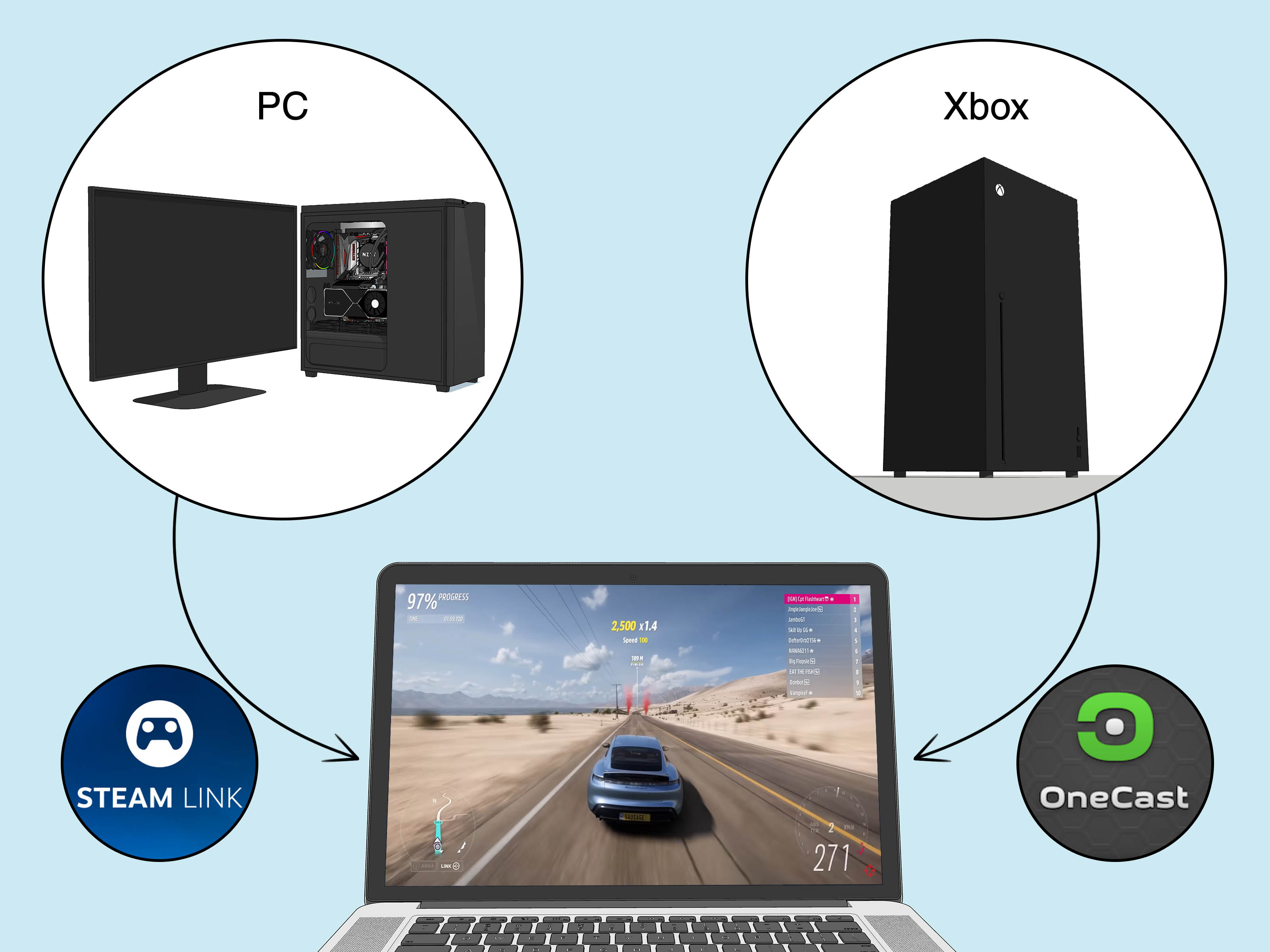
If you already own a Windows gaming PC, remote streaming may be the best solution. Steam Remote Play lets you stream games from your Windows PC to your Mac through Steam. Moonlight, often paired with Sunshine on the host PC, offers a powerful open-source streaming setup with high-resolution and high-frame-rate options.
This method gives you the compatibility of a real Windows gaming computer and the comfort of playing on your Mac. It is great for using a MacBook in bed, on the couch, or at a desk where your gaming tower sounds like a jet engine preparing for emotional takeoff.
Local network quality is everything. Ethernet is best, but strong 5GHz or 6GHz Wi-Fi can work well. For smooth results, keep the gaming PC wired to your router when possible, lower streaming resolution if needed, and use a controller or keyboard setup that feels natural on Mac.
Best for
People who already own a Windows gaming PC and want to play from a Mac around the house.
Watch out for
Your host PC must be on, configured correctly, and powerful enough to run the game while streaming it.
Which Solution Should You Choose?
If you want the fewest headaches, check for a native Mac version first. If there is no native version and you have Apple silicon, try CrossOver or Whisky for local play. If the game is older, Porting Kit may be perfect. If you need Windows for school, work, and some light gaming, Parallels is convenient. If you own an Intel Mac, Boot Camp remains the most direct local Windows route. If your internet is excellent, cloud gaming may beat every local workaround. If you own a gaming PC, remote streaming is often the best overall experience.
Here is the honest gamer answer: there is no single best method for every Windows game on Mac. Mac gaming is more like choosing a character class. CrossOver is the agile rogue. Parallels is the practical wizard. Boot Camp is the retired warrior who still hits hard on Intel machines. Cloud gaming is the mysterious portal. Remote streaming is the rich friend with a powerful PC.
Performance Tips for Better Windows Gaming on Mac
No matter which method you choose, a few habits can improve the experience. Close heavy background apps before launching a game. Keep macOS updated, but check community reports before installing a major new macOS version if you rely on compatibility tools. Use Game Mode when available, especially for native and full-screen games on Apple silicon. Plug in your MacBook for longer sessions because gaming on battery can reduce performance and turn your laptop into a hand warmer.
Controllers also matter. Many Mac-compatible controllers work over Bluetooth or USB, including Xbox and PlayStation controllers. For cloud gaming and remote streaming, USB or low-latency Bluetooth can reduce input delay. If a game feels sluggish, try lowering resolution before lowering every graphics setting. On Macs with high-resolution Retina displays, running at native resolution can be brutal for performance.
Finally, keep your expectations game-specific. A ten-year-old strategy game may run flawlessly through Wine. A new multiplayer shooter may refuse to cooperate because of anti-cheat. A single-player RPG may run well through Whisky but need one launch flag. The best Mac gamers are not necessarily the most technical; they are the ones who research before clicking “Install.”
Common Problems and Quick Fixes
The game will not launch
Check whether the game requires anti-cheat, DirectX 12, Windows-only drivers, or launcher services that do not work through your chosen method. Try a different bottle, update CrossOver or Whisky, or check compatibility notes.
The game runs slowly
Lower the resolution, disable ray tracing, reduce shadows, and close background apps. In virtual machines, assign more memory or CPU cores only if your Mac has enough to spare.
The controller is not detected
Try USB instead of Bluetooth, update controller firmware, enable Steam Input, or test the controller in macOS first.
Multiplayer does not work
Anti-cheat is often the reason. Some systems require native Windows and may block compatibility layers or virtual machines.
Experience Notes: What Mac Gamers Learn the Hard Way
The biggest experience lesson is that Mac gaming rewards planning. Many players begin by asking, “Can my Mac run this Windows game?” A better question is, “Which method gives this specific game the highest chance of running well?” That small shift saves a lot of frustration. A MacBook Pro with an M-series chip may be powerful, but power alone does not solve compatibility. The game must also agree to cooperate with the translation layer, virtual machine, cloud service, or streaming setup.
For single-player games, CrossOver and Whisky often feel like magic when they work. You install the launcher, download the game, click play, and suddenly your Mac is doing something the publisher never officially promised. The experience can be smooth enough that you forget there is a compatibility layer involved. Then another game refuses to start, and you remember that computers have a sense of humor, but it is not a kind one.
Cloud gaming feels different. It removes installation pain almost completely. There is no worrying about storage, drivers, DirectX, or Windows Arm. The trade-off is that your internet connection becomes part of the hardware. On a strong connection, GeForce NOW or Xbox Cloud Gaming can make a thin MacBook feel like a serious gaming machine. On unstable Wi-Fi, even a simple camera turn can feel like steering a boat through pudding. Cloud gaming is fantastic when the network is stable and disappointing when latency spikes.
Remote streaming from a Windows PC is often the most underrated experience. If the host PC is powerful and wired to the router, a Mac can become a beautiful portable gaming screen. This setup is especially useful for players who like macOS for daily work but keep a Windows desktop for heavy games. The Mac stays cool, the Windows PC does the lifting, and everyone gets to pretend the cable management behind the desk is not a crime scene.
Virtual machines are convenient but should be treated realistically. Parallels is polished and excellent for many Windows tasks, but gaming inside a virtual machine is not the same as gaming on native Windows hardware. It can be great for older games, 2D titles, management sims, and less demanding 3D releases. It is less ideal for competitive games, heavy graphics, or anything that expects direct GPU access.
Intel Mac owners have a different experience. Boot Camp can still be excellent because it runs Windows directly. The limitation is hardware age. Many Intel Macs are older now, and cooling can become the final boss. A game may technically run, but if the fans sound like a vacuum cleaner arguing with a leaf blower, lowering settings is wise.
The practical takeaway is simple: start with the lowest-friction option, then move up. Look for a native Mac version. Check compatibility reports. Try CrossOver, Whisky, or Porting Kit for local play. Use Parallels if you need Windows anyway. Choose cloud gaming when internet is strong. Use remote streaming if you already own a Windows PC. Mac gaming is no longer a joke, but it is still a puzzle. Fortunately, it is a puzzle with far more solutions than it had a few years ago.
Conclusion
Playing Windows games on Mac is absolutely possible, but the best method depends on your hardware, your game, and your patience level. Native Mac versions are easiest. CrossOver, Whisky, Wine, and Porting Kit can unlock many Windows titles without installing Windows. Parallels and VMware Fusion offer virtualized Windows environments. Boot Camp remains powerful for Intel Macs. Cloud gaming and remote streaming can bypass compatibility headaches entirely.
The smartest approach is to match the solution to the game. Do not buy software blindly. Check compatibility lists, trial versions, refund policies, and community reports. With the right setup, your Mac can run far more Windows games than you might expect. It may not replace a dedicated gaming PC for every player, but it can absolutely hold its ownand it looks very classy doing it.












