
Instagram is very good at remembering things. Your favorite meme account? Remembered. The Reel you watched once about organizing a refrigerator like a tiny grocery store? Somehow remembered forever. Your login info? Absolutely rememberedunless you deliberately tell Instagram, your phone, your browser, and your password manager to stop being so helpful.
If Instagram keeps logging you in automatically, showing your profile on the login screen, or suggesting your account after you sign out, the problem is usually not one single setting. It may be stored inside the Instagram app, saved by your iPhone or Android password manager, linked through Meta Accounts Center, remembered by your browser, or kept alive by app cache and trusted-device settings.
This guide explains how to make Instagram forget your login info, turn off auto login permanently, remove remembered accounts, and prevent your phone from quietly handing Instagram the keys again. Think of it as teaching Instagram some personal boundariespolitely, firmly, and with fewer mysterious buttons.
What Does “Make Instagram Forget Your Login Info” Actually Mean?
When people say they want Instagram to forget their login info, they may mean several different things:
- Remove a remembered Instagram account from the app’s login screen.
- Stop Instagram from logging in automatically after tapping the app icon.
- Delete saved Instagram passwords from iPhone, Android, Chrome, Safari, Firefox, or Edge.
- Turn off saved login information for multiple Instagram accounts.
- Stop Facebook or another Meta account from helping Instagram log back in.
- Remove trusted devices so Instagram asks for verification again.
The important thing to know is this: logging out is not always the same as removing saved login information. Logging out closes the current session. Removing saved login info tells the device or app not to offer one-tap access again. If you only log out, Instagram may still display your profile picture on the login page like, “Welcome back, bestie.”
Why Instagram Keeps Logging You In Automatically
Instagram auto login usually happens because at least one of these systems still remembers you:
1. Instagram Saved Login Info
The Instagram app can save login details on your device. This allows you to tap your profile and sign in again without typing your username and password. Convenient? Yes. Ideal on a shared phone? Absolutely not.
2. Your Phone’s Password Manager
On iPhone, iCloud Keychain or the Passwords app may store your Instagram password. On Android, Google Password Manager often does the same. Even if Instagram forgets you, your phone may say, “No worries, I remember everything.”
3. Browser Autofill
If you use Instagram on Chrome, Safari, Firefox, or Edge, your browser may save your username and password. Clearing Instagram from the mobile app does not automatically delete browser-saved passwords.
4. Meta Accounts Center
If your Instagram account is connected to Facebook or another Instagram account, Meta’s shared login features may make switching and signing in easier. That is useful for creators and social media managers, but annoying when you want a clean logout.
5. Active Sessions and Trusted Devices
Instagram may keep you signed in on devices you have used before. If the device is recognized, the login process can feel almost automatic. Removing saved credentials and reviewing login activity helps tighten things up.
Before You Start: Know Your Password First
Before deleting anything, make sure you know your Instagram password or have access to your recovery email, phone number, or authenticator app. This is not the moment to be brave and mysterious. If you delete saved login info without knowing your password, you may lock yourself out and spend the next hour whispering, “Please send the code,” to your inbox.
Open Instagram, go to your account settings, and confirm your email and phone number are current. If you use two-factor authentication, make sure your authenticator app or backup method is working. Once you are confident you can log in manually, continue.
How to Remove Saved Login Info in the Instagram App
This is the first and most important step. It removes the account profile that appears on Instagram’s login screen.
On iPhone or Android
- Open the Instagram app.
- Go to your profile.
- Tap the menu icon in the top-right corner.
- Go to Settings and privacy.
- Scroll down and tap Log out.
- When Instagram asks whether you want to save your login information, choose Not now or do not save it.
- Return to the Instagram login screen.
- Tap Options, the three dots, or the settings-style menu near the saved profile.
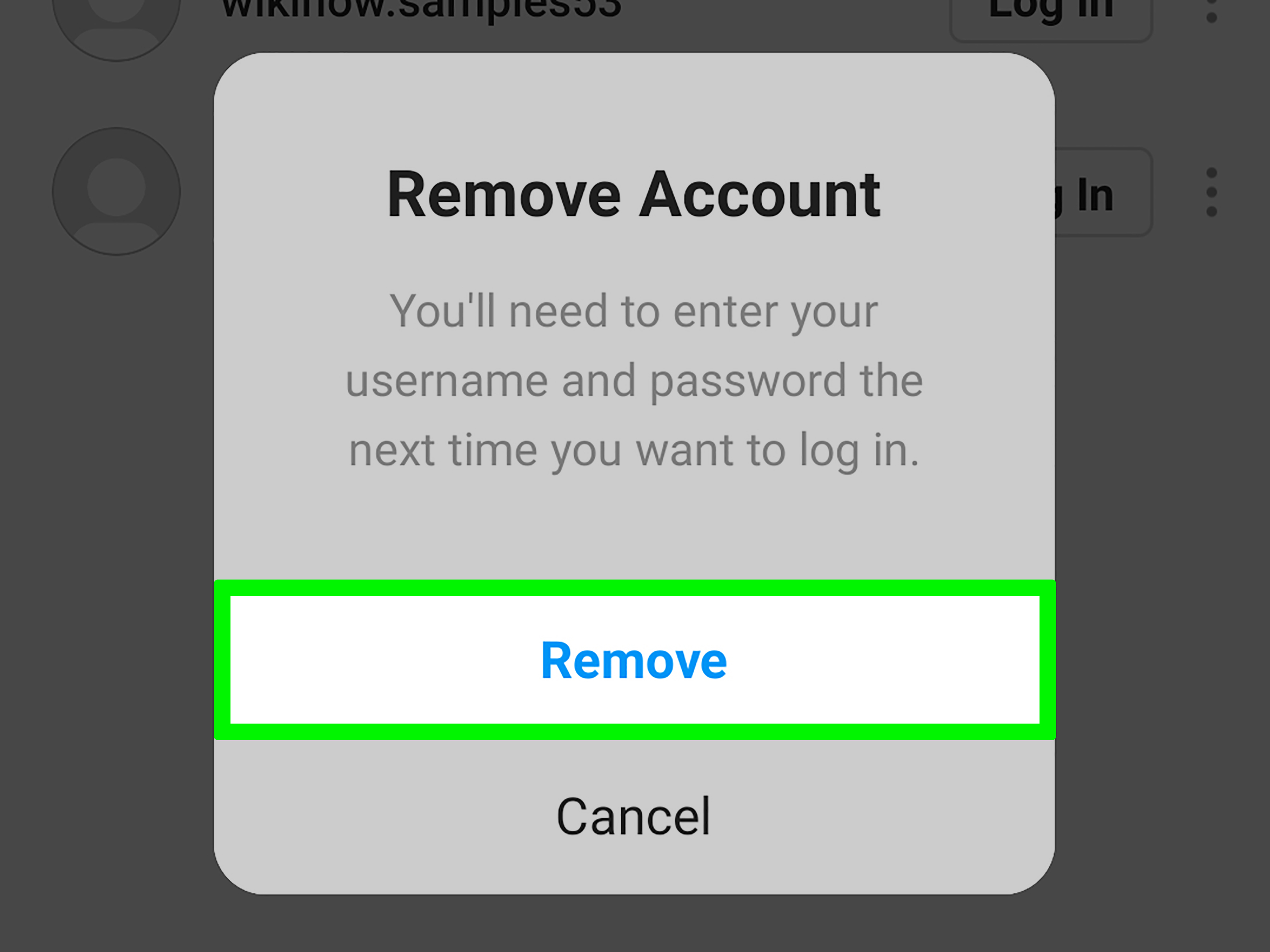
- Select Remove profile from this device or Remove.
- Confirm the removal.
The wording can vary slightly depending on your app version, region, and device. Look for phrases such as Remove profile, Remove account, Remove from this device, or Forget login info. Instagram loves changing labels just enough to keep everyone humble.
How to Stop Instagram From Saving Login Info Again
After you remove saved login info, pay attention the next time you log out. Instagram may ask whether you want to save your login details. Choose Not now. If you tap Save, the remembered account may return, and Instagram will act like the whole breakup never happened.
For best results, log out fully after changing the setting. Then close and reopen the app. If your profile no longer appears as a one-tap login option, Instagram has forgotten that saved profile on the device.
How to Delete Instagram Passwords on iPhone
If Instagram still autofills your password on iPhone, the password may be stored in Apple’s Passwords app or iCloud Keychain.
Steps for iPhone
- Open the Passwords app. On older iOS versions, go to Settings > Passwords.
- Use Face ID, Touch ID, or your passcode.
- Search for Instagram.
- Tap the Instagram login entry.
- Tap Edit.
- Choose Delete Password or Delete Passkey.
- Confirm the deletion.
If you use iCloud Keychain, deleting the saved Instagram password may remove it from other Apple devices signed in with the same Apple ID. That is helpful if you want Instagram forgotten everywhere, but make sure you truly know the password before deleting it.
How to Delete Instagram Passwords on Android
On many Android phones, Instagram login details are saved in Google Password Manager. This can autofill your password in the Instagram app and in Chrome.
Steps for Android
- Open Chrome or your phone’s Settings.
- Go to Google Password Manager.
- Search for Instagram.
- Tap the saved Instagram login.
- Verify your identity if asked.
- Tap Delete.
- Confirm the deletion.
You can also turn off password-saving prompts so your phone does not ask to save Instagram again. In Google Password Manager settings, look for Offer to save passwords and switch it off if that fits your privacy preference.
How to Remove Instagram Login Info From Chrome
If you use Instagram.com in Chrome, the browser may store login information separately from the Instagram app.
- Open Chrome.
- Tap or click the three-dot menu.
- Go to Settings.
- Select Google Password Manager or Passwords and autofill.
- Search for instagram.com.
- Delete the saved password.
- Optional: turn off Offer to save passwords.
If Chrome sync is enabled, deleting the password may remove it across devices connected to the same Google account. That is useful when you want a clean sweep instead of playing whack-a-mole with every laptop, tablet, and spare phone in the house.
How to Remove Instagram Login Info From Safari
Safari uses Apple’s saved passwords system. On iPhone, delete the Instagram password through the Passwords app. On Mac, open System Settings, go to Passwords, find Instagram, and delete the entry.
After deleting it, visit Instagram.com again and check whether Safari still suggests your username or password. If it does, also clear website data for Instagram in Safari settings.
How to Remove Instagram Login Info From Firefox
Firefox has its own password manager. If you have logged into Instagram through Firefox, remove the saved login there too.
- Open Firefox.
- Open the menu.
- Select Passwords or Logins and Passwords.
- Search for Instagram.
- Select the saved login.
- Click or tap Remove.
How to Remove Instagram Login Info From Microsoft Edge
Microsoft Edge can also save Instagram credentials through Microsoft Password Manager.
- Open Microsoft Edge.
- Go to Settings.
- Open Passwords and autofill or Microsoft Password Manager.
- Search for Instagram.
- Open the saved login entry.
- Delete it.
- Turn off password-saving prompts if you do not want Edge to offer again.
Remove Instagram From Meta Accounts Center Login Sharing
If your Instagram account is connected to Facebook or another Instagram account, shared login settings may make sign-in easier across Meta apps. To reduce automatic login behavior, review Accounts Center.
- Open Instagram.
- Go to your profile.
- Tap the menu icon.
- Open Accounts Center.
- Go to Connected experiences or Logging in with accounts.
- Review which accounts can log into other accounts.
- Remove unnecessary login connections.
This step is especially useful if you manage multiple accounts. For example, if your personal Instagram, business Instagram, and Facebook profile are all connected, removing saved login info from only one place may not be enough. Meta may still make account switching feel automatic.
Review Instagram Login Activity and Remove Unknown Devices
Saved login info is different from active sessions. A saved login helps you sign in again. An active session means your account is already logged in somewhere. For better privacy, check both.
- Open Instagram.
- Go to Settings and privacy.
- Open Accounts Center.
- Go to Password and security.
- Select Where you’re logged in or Login activity.
- Review the devices listed.
- Log out of devices you do not recognize or no longer use.
If you see a device you do not recognize, change your Instagram password immediately and enable two-factor authentication. Do not simply log it out and hope for the best. Hope is not a security strategy; it is a motivational poster.
Clear Instagram Cache and App Data
If Instagram still behaves like it remembers you, clearing cache or app data can help. This is more powerful on Android than on iPhone.
On Android
- Open your phone’s Settings.
- Go to Apps.
- Select Instagram.
- Tap Storage.
- Tap Clear cache.
- If needed, tap Clear data or Clear storage.
Clearing data resets the app more completely and may log you out. Make sure you know your password first.
On iPhone
iPhone does not offer the same simple app-cache clearing button for Instagram. The practical method is to delete and reinstall the app.
- Press and hold the Instagram app icon.
- Tap Remove App.
- Choose Delete App.
- Restart your iPhone.
- Reinstall Instagram from the App Store.
After reinstalling, do not choose to save login information when signing out again.
Turn Off Autofill If You Want Maximum Privacy
If your main goal is privacy on a shared device, deleting the Instagram password may not be enough. You may also want to turn off autofill. This prevents your phone or browser from offering saved credentials automatically.
On iPhone
Go to Settings > General > AutoFill & Passwords, then adjust password autofill settings. The exact label may vary by iOS version.
On Android
Open Settings, search for Autofill, and review your current autofill service. You can switch providers, disable autofill, or manage Google Password Manager settings.
In Browsers
Chrome, Firefox, Safari, and Edge all allow you to manage saved passwords and password-saving prompts. Delete Instagram entries and turn off future save prompts if you do not want the browser to ask again.
What to Do If Instagram Still Shows Your Account
If your account still appears after all of this, use this quick troubleshooting checklist:
- Update the Instagram app.
- Log out again and choose Not now when asked to save login info.
- Remove the profile from the login screen.
- Delete Instagram passwords from iPhone Passwords or Google Password Manager.
- Remove Instagram passwords from all browsers you use.
- Check Meta Accounts Center for shared login settings.
- Clear app cache or reinstall Instagram.
- Restart your device.
Also remember that profile suggestions can sometimes appear because of account history, not because your password is still stored. The key question is whether someone can tap the profile and enter without typing the password. If tapping still requires a password, your login info may already be removed.
Best Privacy Tips for Shared Phones, Family Tablets, and Work Devices
If you use Instagram on a device that other people can access, take extra care. Log out when finished, never save login info, and avoid letting the browser remember your password. Use a strong password that is not reused on other websites. Turn on two-factor authentication so a password alone is not enough to access your account.
For school, work, library, or borrowed devices, use a private browsing window if you must log in through a browser. Afterward, log out, close the browser, and avoid saving credentials. Better yet, do not log into personal social accounts on public devices unless it is truly necessary.
Common Mistakes That Make Instagram Auto Login Come Back
Mistake 1: Saving the Password Again
You carefully delete everything, then the next time your browser asks to save the password, you tap Save out of habit. Congratulations, the ghost has returned.
Mistake 2: Only Deleting the App
Deleting Instagram may remove local app data, but it does not always remove passwords stored in iCloud Keychain, Google Password Manager, Chrome, Firefox, or Edge.
Mistake 3: Forgetting About Other Devices
If your password syncs across devices, another phone or browser may still remember Instagram. Check your main devices, not just the one in your hand.
Mistake 4: Ignoring Accounts Center
Connected Meta accounts can make sign-ins and account switching smoother. If you want Instagram to stop acting connected, review those settings.
Experience Notes: What Usually Works in Real Life
In real-life use, the most reliable way to make Instagram forget your login info is to treat the problem like a three-layer cake: Instagram app, device password manager, and browser autofill. If you only fix one layer, the other two may keep serving your login back to you with a tiny digital fork.
For example, imagine you remove your account from the Instagram login screen on your iPhone. You close the app, reopen it, and the profile is gone. Great. Then you type your username on Instagram.com in Safari, and your password appears automatically. That does not mean Instagram ignored you. It means Apple’s saved passwords still had the credential. Delete it from the Passwords app, and the autofill suggestion should stop.
On Android, the most common surprise is Google Password Manager. A user may clear Instagram cache, uninstall the app, reinstall it, and still see the password pop up. That is because the saved password lives in the Google account, not just inside Instagram. Once the Instagram entry is deleted from Google Password Manager, the automatic suggestion usually disappears across Android and Chrome.
Another practical lesson: always log out slowly. Many people rush through the logout screen and accidentally agree to save login information. Instagram may ask a question like, “Do you want to save your login info?” If you are tapping quickly, you might choose the convenient option without noticing. The fix is simple but important: when logging out, pause and choose the option that does not save login details.
For people managing several Instagram accounts, Meta Accounts Center can be the sneaky part. You may remove one account from the device, but another connected account still makes switching feel instant. This is common for creators, small business owners, social media assistants, and anyone who has a personal account plus a brand account. Reviewing login sharing in Accounts Center helps separate accounts that no longer need to be linked.
One more experience-based tip: after removing saved info, test the result like a stranger would. Close Instagram completely, reopen it, and see what happens. If the app opens directly into your feed, you are still logged in. If it shows your profile photo and lets you enter with one tap, saved login info probably remains. If it asks for your username and password, you have likely succeeded.
For shared devices, the safest setup is boringand boring is beautiful in security. Do not save the Instagram password. Do not allow autofill. Log out after each session. Keep two-factor authentication on. Use your own device whenever possible. A boring privacy routine beats a dramatic account recovery adventure every single time.
Finally, remember that “permanently” depends on your future choices. Instagram can forget your login info today, but if you log in tomorrow and tap Save, it will remember again. The permanent part is not just a setting; it is a habit. Remove the saved profile, delete saved passwords, turn off autofill if needed, and stop approving save prompts. That combination gives you the cleanest, most reliable way to turn off Instagram auto login for good.
Conclusion
Making Instagram forget your login info is not difficult, but it does require checking every place your credentials may be stored. Start inside the Instagram app by logging out without saving login information and removing the saved profile from the device. Then delete Instagram passwords from iPhone Passwords, Google Password Manager, and any browser you use. Review Meta Accounts Center if your Instagram is connected to Facebook or other Instagram accounts. Finally, clear cache, reinstall the app if needed, and test the login screen.
Once everything is removed, Instagram should stop offering one-tap auto login. More importantly, anyone using your phone, tablet, or browser will not be able to open your account just because the device remembered too much. Your login should belong to younot to your app, your browser, or that one old tablet sitting on the coffee table like a security risk with a screen.












