Logging in to Instagram on a PC or Mac should not feel like solving a tiny digital escape room. Thankfully, Instagram works directly in a web browser, so you do not need to install a suspicious “InstaGrammm Desktop Ultra Pro 9000” app from the shadowy corner of the internet. Whether you are using Windows, macOS, Chrome, Safari, Edge, or Firefox, the basic process is simple: open Instagram, enter your login details, verify your identity if asked, and start browsing.
This guide explains how to log in to Instagram on a computer in three easy steps, plus what to do if the login page refuses to cooperate, your password disappears from your brain like a forgotten grocery list, or Instagram asks for a security code. You will also learn how to stay safe on shared computers, manage saved login information, and avoid common mistakes that can lock you out of your account.
Can You Log In to Instagram on a PC or Mac?
Yes, you can log in to Instagram on a PC or Mac by going to Instagram.com in a web browser. The desktop version lets you view your feed, watch Reels, check Stories, search accounts, send messages, comment, like posts, manage parts of your profile, and create posts from your computer. It is especially useful if you type faster on a keyboard, manage a brand account, edit photos on desktop software, or simply prefer a larger screen.
The web version of Instagram is not always identical to the mobile app, but it is no longer the bare-bones experience it once was. For many everyday tasks, using Instagram on a computer feels smooth, practical, and refreshingly thumb-cramp-free.
How to Log In to Instagram on a PC or Mac: 3 Easy Steps
Step 1: Open Instagram in Your Browser
On your PC or Mac, open your preferred browser. Chrome, Safari, Edge, and Firefox all work well for most users. In the address bar, type instagram.com and press Enter. Make sure you are visiting the real Instagram website, not a look-alike page with extra words, strange spelling, or an address that seems like it was assembled by a raccoon walking across a keyboard.
Once the page loads, you should see the Instagram login screen. If you already logged in before and saved your session, Instagram may take you directly to your feed. In that case, congratulations: your computer remembered what you had for breakfast better than you did.
Step 2: Enter Your Username, Email, Phone Number, and Password
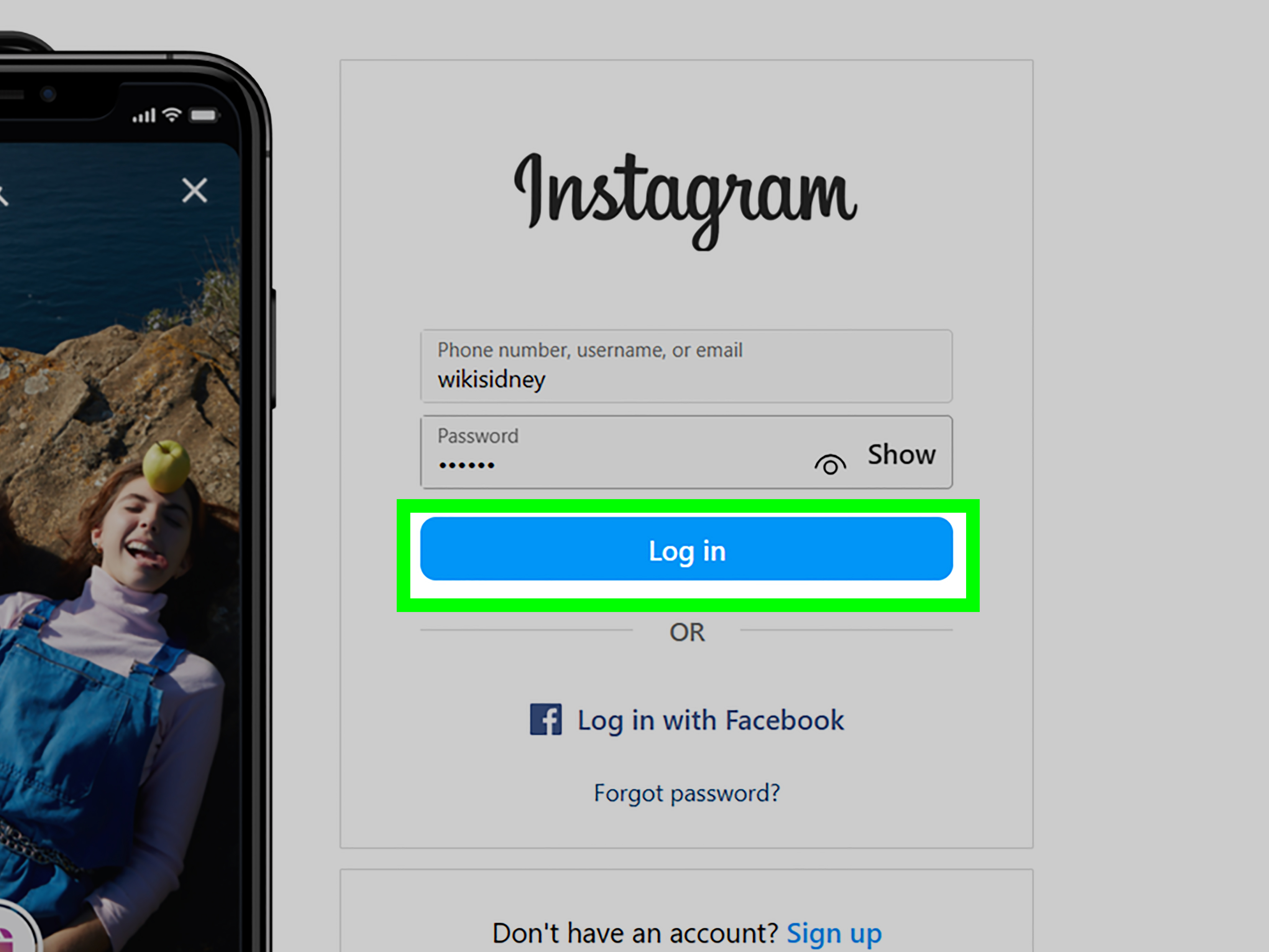
On the login screen, enter the username, email address, or phone number connected to your Instagram account. Then type your password. Double-check for common mistakes, especially if your password contains uppercase letters, symbols, or numbers. Password fields hide what you type, which is great for privacy and terrible for catching a sneaky typo.
If you use a password manager, let it fill in your credentials only after confirming that you are on the official Instagram website. A password manager can save time and reduce mistakes, but it should never be treated like a magic shield. The best setup is a strong, unique Instagram password that you do not reuse anywhere else.
Step 3: Complete Verification and Start Using Instagram
Click Log in. If your details are correct, Instagram will open your account. If you have two-factor authentication enabled, Instagram may ask for a security code from an authentication app, text message, WhatsApp, or another approved method. Enter the code carefully. Most codes expire quickly, so this is not the moment to wander away and reorganize your sock drawer.
After you log in, Instagram may ask whether you want to save your login information. On your own trusted computer, saving login details can be convenient. On a public, school, office, hotel, library, or borrowed computer, do not save your login information. Log out when you finish, and avoid checking “remember me” style options unless you fully trust the device.
Logging In With Facebook or Meta Account Connections
Some users can log in to Instagram through a connected Facebook account or manage related login settings through Meta’s Accounts Center. This can be helpful if your Instagram and Facebook accounts are linked. However, the safest and most reliable method is still to know your Instagram username or email and password, especially if you need to recover the account later.
If Instagram prompts you to continue with Facebook, follow the on-screen instructions. Make sure the Facebook account shown is actually yours. If you share a computer with family members or coworkers, browsers sometimes keep another person signed in. That can lead to the awkward modern tragedy known as “Why am I suddenly logged into Uncle Steve’s account?”
What You Can Do on Instagram From a Computer
Once you log in to Instagram on a PC or Mac, you can do many of the same things you do on your phone. You can scroll your feed, watch Reels, view Stories, respond to comments, check notifications, send direct messages, search for accounts, and open profiles. You can also upload content through the desktop interface, which is convenient when your photos or videos are already stored on your computer.
For creators, marketers, photographers, and small business owners, desktop Instagram can be a productivity upgrade. Writing captions on a full keyboard is easier than wrestling with autocorrect on a phone. Editing images, organizing files, and uploading from the same device can also speed up your workflow. Your phone may be smart, but your laptop has a keyboard, and sometimes that is the whole game.
If You Forgot Your Instagram Password
If your password is not working, click Forgot password? on the login page. Instagram can send a recovery link or login code to the email address, phone number, or username associated with your account. Follow the instructions carefully and create a new password that is strong, unique, and not already used for your email, banking, shopping, or other social media accounts.
A good password is long, unpredictable, and difficult to guess. Avoid birthdays, pet names, favorite sports teams, or anything that appears in your public profile. If your password is “instagram123,” the internet security goblin is already laughing. Use a password manager if possible, because remembering dozens of strong passwords manually is a hobby almost nobody asked for.
If Instagram Asks for a Security Code
If you enabled two-factor authentication, Instagram may ask for a code after you enter your password. This extra step protects your account even if someone learns your password. Depending on your settings, the code may come from an authentication app, text message, WhatsApp, or backup codes you saved earlier.
If you do not receive the code, wait a minute, check your signal, confirm that your phone number or authentication app is still available, and look for backup options on the login screen. If you recently changed phones, lost access to your number, or deleted your authentication app, recovery can take longer. That is why it is wise to save backup codes in a safe place before trouble arrives wearing tap shoes.
Troubleshooting: Why Instagram Login May Not Work on PC or Mac
Check Your Internet Connection
Start with the obvious but often overlooked issue: your internet connection. Open another website to confirm that your browser is online. If other pages load slowly or not at all, restart your router, switch networks, or try again later. Instagram cannot log you in if your Wi-Fi is currently having an emotional crisis.
Clear Browser Cache and Cookies
Sometimes old cookies or cached files interfere with login sessions. In Chrome or Edge, go to browser settings and clear cookies and cached images/files. In Safari on Mac, open Safari settings, go to Privacy, and manage website data. Removing stored data for Instagram can force the browser to load a clean session. Just remember that clearing cookies may log you out of other websites too.
Try a Different Browser
If Instagram will not load in Safari, try Chrome or Firefox. If Chrome is being stubborn, try Edge. Browser extensions, privacy settings, ad blockers, VPNs, or outdated cache files can occasionally block login scripts. Testing another browser helps you quickly determine whether the issue is Instagram, your account, or your browser setup.
Disable Extensions Temporarily
Privacy extensions, script blockers, aggressive ad blockers, and some VPN tools can interfere with login pages. Temporarily disable extensions, refresh Instagram, and try again. If it works, re-enable extensions one by one to find the culprit. This is less exciting than detective work on television, but at least nobody dramatically removes sunglasses.
Check for Account Warnings or Suspicious Activity
If Instagram detects unusual login behavior, such as attempts from a new location, new device, or suspicious network, it may ask for extra verification. This is normal security behavior. Follow the official prompts and avoid third-party websites that promise instant account unlocking. If a site asks for your Instagram password outside Instagram or Meta, treat it like a digital raccoon offering financial advice.
How to Stay Safe When Logging In on a Computer
Logging in to Instagram on your own computer is usually straightforward. Logging in on someone else’s computer requires more caution. Never save your password on a shared device. Always log out when finished. Avoid using public Wi-Fi for sensitive account changes unless you trust the network or use a secure connection. Be careful with browser pop-ups, fake login pages, and emails claiming that your account will be deleted unless you click immediately.
After using Instagram on a shared computer, visit your account settings later from a trusted device and review recent login activity. If you see a device or location you do not recognize, log it out and change your password. Enable two-factor authentication for stronger protection. A few minutes of prevention can save days of account recovery headaches.
Should You Save Instagram Login Information on Desktop?
Saving login information is convenient on a personal computer that only you use. It lets you open Instagram without typing your password every time. However, convenience and security often sit on opposite ends of the couch, glaring at each other. If your computer is shared, unlocked, borrowed, or used in a workplace, skip saved login.
For the safest setup, use a password manager protected by a strong master password, keep your operating system updated, lock your screen when away, and avoid storing passwords directly in browsers on shared devices. If you do save login information, make sure your computer account itself is protected with a password, PIN, fingerprint, or other secure sign-in method.
How to Log Out of Instagram on PC or Mac
To log out, click your profile picture or profile menu on Instagram’s desktop site, then choose Log out. If the browser asks whether to save your login, choose carefully. On a shared computer, do not save it. If you accidentally saved your details, clear Instagram’s cookies and saved passwords from the browser settings or remove the saved login information from your password manager.
Logging out is especially important on public computers. Closing the browser window is not always enough. Some browsers restore sessions, and some websites keep you signed in unless you actively log out. In other words, do not trust the little X button to do a security guard’s job.
Using Instagram on PC vs. Mac: Is There a Difference?
The login process is almost the same on PC and Mac. The main difference is the browser you are likely to use. Many Windows users use Chrome or Edge, while many Mac users use Safari or Chrome. Instagram’s web login works across modern browsers, so the steps remain simple: go to Instagram.com, enter your account details, complete verification, and use your account.
If you experience problems, the troubleshooting steps differ slightly by browser. On Mac, Safari users may need to manage website data, check cookie settings, or test a private window. On Windows, Chrome or Edge users may need to clear browsing data, update the browser, or disable extensions. The good news: none of this requires a computer science degree, a soldering iron, or chanting near the router.
Common Instagram Desktop Login Mistakes to Avoid
The first common mistake is typing the wrong username or password repeatedly. Too many failed attempts can trigger security checks. The second mistake is using unofficial apps or browser extensions that request your login details. The third is ignoring two-factor authentication until after something goes wrong. The fourth is staying logged in on shared computers. The fifth is using the same password everywhere, which turns one leaked password into a skeleton key for your digital life.
Another mistake is confusing account recovery emails with phishing emails. If you receive a password reset message you did not request, do not panic, but do not click blindly either. Go directly to Instagram.com from your browser, check your security settings, and change your password if something seems suspicious.
Real-World Experience: What Logging In to Instagram on Desktop Is Actually Like
In everyday use, logging in to Instagram on a PC or Mac feels simple once you know what to expect. The first time can be slightly annoying if Instagram asks for a verification code, especially when your phone is in another room, under a pillow, or mysteriously at 3% battery. But after that initial check, desktop access can be surprisingly comfortable.
For example, imagine you manage a small bakery’s Instagram account. Your cupcake photos are stored on your Mac after editing, your caption ideas are in a Google Doc, and your hashtag list is saved in a spreadsheet. Logging in through Instagram.com lets you move from editing to posting without sending files back and forth to your phone. You can copy a caption without fighting mobile formatting, check the image on a bigger screen, and reply to comments with a real keyboard. That alone can save enough time to frost a tray of cinnamon rolls, which is obviously the highest form of productivity.
For personal users, desktop Instagram is great for browsing when you are already working on a computer. You can answer messages without picking up your phone and accidentally losing twenty minutes to weather apps, snack videos, and one extremely confident raccoon reel. The larger screen also makes it easier to view photos, read longer captions, and manage account settings.
The biggest lesson from using Instagram on desktop is that security habits matter more than the device itself. On your own laptop, saving your login may be fine. On a shared computer, it is risky. If you log in at work, school, a hotel business center, or a friend’s machine, always log out. Check that the browser did not save your password. When in doubt, clear the site data or change your password later from a trusted device.
Another real-world tip: keep your recovery information current. Many login problems become disasters because the account is tied to an old phone number, abandoned email address, or authentication app that vanished with a previous phone. Before you need recovery, confirm that your email, phone number, and two-factor settings are up to date. Future you will be grateful, and future you is already dealing with enough.
Finally, desktop Instagram works best when you treat it as a practical tool rather than a backup plan you only open during emergencies. Bookmark the official site, use a password manager, enable two-factor authentication, and get familiar with where settings live. Then, when you need to log in quickly from a PC or Mac, the process feels less like a tech problem and more like opening any other website.
Conclusion
Logging in to Instagram on a PC or Mac is easy: open Instagram.com, enter your account details, complete any verification prompts, and start using your account. The desktop version is useful for browsing, messaging, posting, managing comments, and working more comfortably with a keyboard and larger screen. If something goes wrong, most problems can be fixed by checking your password, resetting your login, clearing browser data, trying another browser, or completing Instagram’s security checks.
The main rule is simple: convenience is nice, but account security comes first. Use a strong password, enable two-factor authentication, keep recovery information updated, and never save login details on a shared device. Do that, and Instagram on desktop becomes a handy tool instead of a tiny drama machine wearing a browser tab costume.