
Excel is famous for numbers, formulas, charts, budgets, and that one spreadsheet someone named “Final_Final_REALLY_FINAL.xlsx.” But Excel can also hold more than rows and columns. You can insert an object in Excel, such as a PDF, Word document, PowerPoint file, another spreadsheet, image, chart, or linked file, directly inside a worksheet. This is useful when you want a workbook to act like a mini command center instead of a lonely grid of cells.
Maybe you are building an invoice tracker and want to attach signed contracts. Maybe your project sheet needs supporting PDFs. Maybe you want to embed a Word explanation beside a sales chart so your future self does not stare at the file and whisper, “What was I thinking?” Whatever the reason, learning how to insert an object in Excel can save time, reduce file-hunting, and make your workbook easier to understand.
This guide explains the process in 14 clear steps, plus tips for linking versus embedding, displaying objects as icons, resizing objects, fixing common problems, and keeping your workbook clean. The steps below focus mainly on desktop versions of Microsoft Excel because the full Insert Object feature is not always available in browser-based Excel.
What Does “Insert an Object” Mean in Excel?
In Excel, an object is a separate item placed inside a worksheet. It may be a file, image, chart, drawing, text box, document, or another type of content created by a different program. When people say “insert an object in Excel,” they usually mean using the Insert > Object command to embed or link a file.
There are two main ways to add a file object:
Embedded Object
An embedded object becomes part of the workbook. For example, if you embed a PDF into Excel, the file is stored inside the Excel file. This is convenient because the workbook carries the attachment with it. The downside is that the Excel file size can grow quickly, especially if you add large PDFs, presentations, or high-resolution images.
Linked Object
A linked object points to the original file location. When the source file changes, the linked object can open the updated version. This keeps the workbook smaller, but it depends on the source file staying in the same location. If the original file is moved, renamed, deleted, or trapped in a mysterious folder called “Old Desktop Stuff,” the link may break.
When Should You Insert an Object in Excel?
Inserting an object is helpful when the supporting material belongs with the data. For example, a finance workbook might include receipts, a product list might include PDF specification sheets, and a project tracker might include a Word file containing meeting notes. Instead of sending five files and hoping everyone opens the right one, you can keep related materials close to the worksheet.
However, objects should be used with purpose. Excel is still a spreadsheet, not a digital garage. If you embed every document your computer has ever met, the workbook may become slow, bloated, and cranky. Use objects for items that directly support the worksheet.
How to Insert an Object in Excel: 14 Steps
Follow these steps to insert a file object into an Excel worksheet. The example works well for PDFs, Word documents, PowerPoint presentations, and other compatible file types.
Step 1: Open Your Excel Workbook
Start by opening the workbook where you want to insert the object. If you are working with an important file, save a backup copy first. This is not because Excel is scary. It is because “I should have made a copy” is one of the oldest office legends.
Step 2: Choose the Worksheet
Select the worksheet where the object should appear. If your workbook has several tabs, choose the one that makes the most sense. For example, attach invoices to an “Invoices” sheet, contracts to a “Contracts” sheet, and project documents to a “Project Files” sheet.
Step 3: Click the Cell Where the Object Should Go
Click the cell near the spot where you want the object to appear. Excel objects float above cells, but selecting a cell gives you a clean starting location. A good habit is to place objects near labels, section headers, or related rows.
Step 4: Go to the Insert Tab
On the Excel ribbon, click the Insert tab. This tab contains tools for adding tables, charts, pictures, shapes, links, text boxes, and objects. In other words, it is Excel’s “bring extra stuff into the party” tab.
Step 5: Find the Text Group
Look toward the right side of the Insert tab for the Text group. Depending on your screen size and Excel version, the Object button may appear directly, or you may need to open a drop-down menu.
Step 6: Click Object
Click Object. Excel opens the Object dialog box. This is where you decide whether to create a new object from another program or insert an existing file.
Step 7: Choose Create from File
In the Object dialog box, select the Create from File tab. This option is used when you already have a file on your computer or network and want to place it in the workbook.
Step 8: Click Browse
Click Browse to search for the file you want to insert. Choose the correct PDF, Word document, PowerPoint presentation, Excel workbook, or other supported file. Try to avoid files with vague names like “document1.pdf,” unless you enjoy future detective work.
Step 9: Decide Whether to Embed or Link
If you want the file stored inside the Excel workbook, leave Link to file unchecked. This embeds the object. If you want Excel to point to the original file location, check Link to file. Linking is useful when the source file changes often and everyone using the workbook can access the same file path.
Step 10: Choose Display as Icon
Check Display as icon if you want the object to appear as a small clickable icon. This is usually the cleanest choice for PDFs and documents. If you leave this option unchecked, Excel may show a preview of the file, such as the first page. A preview can be useful, but it can also make the sheet look like a document exploded on it.
Step 11: Change the Icon Label if Needed
If the option is available, click Change Icon to rename the object caption. Use a clear label such as “Signed Contract,” “June Receipt,” “Product Spec Sheet,” or “Client Proposal.” A good label helps users understand what they are opening before they double-click it.
Step 12: Click OK
Click OK. Excel inserts the object into the worksheet. If you selected Display as icon, you will see a clickable icon. If not, you may see a preview of the file content.
Step 13: Move and Resize the Object
Click the object and drag it into position. You can resize it by dragging the corners or edges. If the object should stay visually connected to a particular row or column, place it carefully inside or near the related cell area.
Step 14: Test the Object
Double-click the object to make sure it opens correctly. If it is embedded, the file should open from within the workbook. If it is linked, Excel needs access to the original file location. Testing now prevents awkward moments later, such as presenting a workbook and discovering the “important attachment” opens absolutely nothing.
How to Insert a New Object from Inside Excel
You can also create a new object without starting from an existing file. Go to Insert > Object, then choose the Create New tab. Select the object type, such as a Word document or another supported format, and click OK. Excel creates the object and lets you work with it.
This option is useful when you want to write an explanation, create a small document, or add content from another Office program while staying inside your workbook. It is not the most common method, but it can be handy for dashboards, reports, templates, and documentation-heavy spreadsheets.
How to Insert a PDF as an Object in Excel
PDF files are among the most common objects people insert into Excel. The process is simple: click a cell, go to Insert > Object, choose Create from File, browse for the PDF, select Display as icon, and click OK. The PDF becomes a clickable object in the worksheet.
For a cleaner layout, display the PDF as an icon instead of showing the first page. This is especially helpful if the PDF is long, visually busy, or not meant to be read directly from the worksheet. Think of the icon as a neat little doorway to the file, not a giant billboard blocking your data.
Embedding vs. Linking: Which One Is Better?
Choose embedding when you want the workbook to contain everything needed. This is best for final reports, archived records, invoices, receipts, signed forms, or files that do not change often. The biggest benefit is portability. You can send one workbook, and the attached object travels with it.
Choose linking when you want the workbook to open the latest version of a file stored elsewhere. This is best for shared drives, controlled company folders, or files that are updated regularly. The biggest risk is broken links. If the file path changes, Excel may not find the source.
A simple rule: embed stable files, link living files. If the document is final, embed it. If the document is still changing and stored in a reliable shared location, link it.
How to Insert Pictures and Other Visual Objects
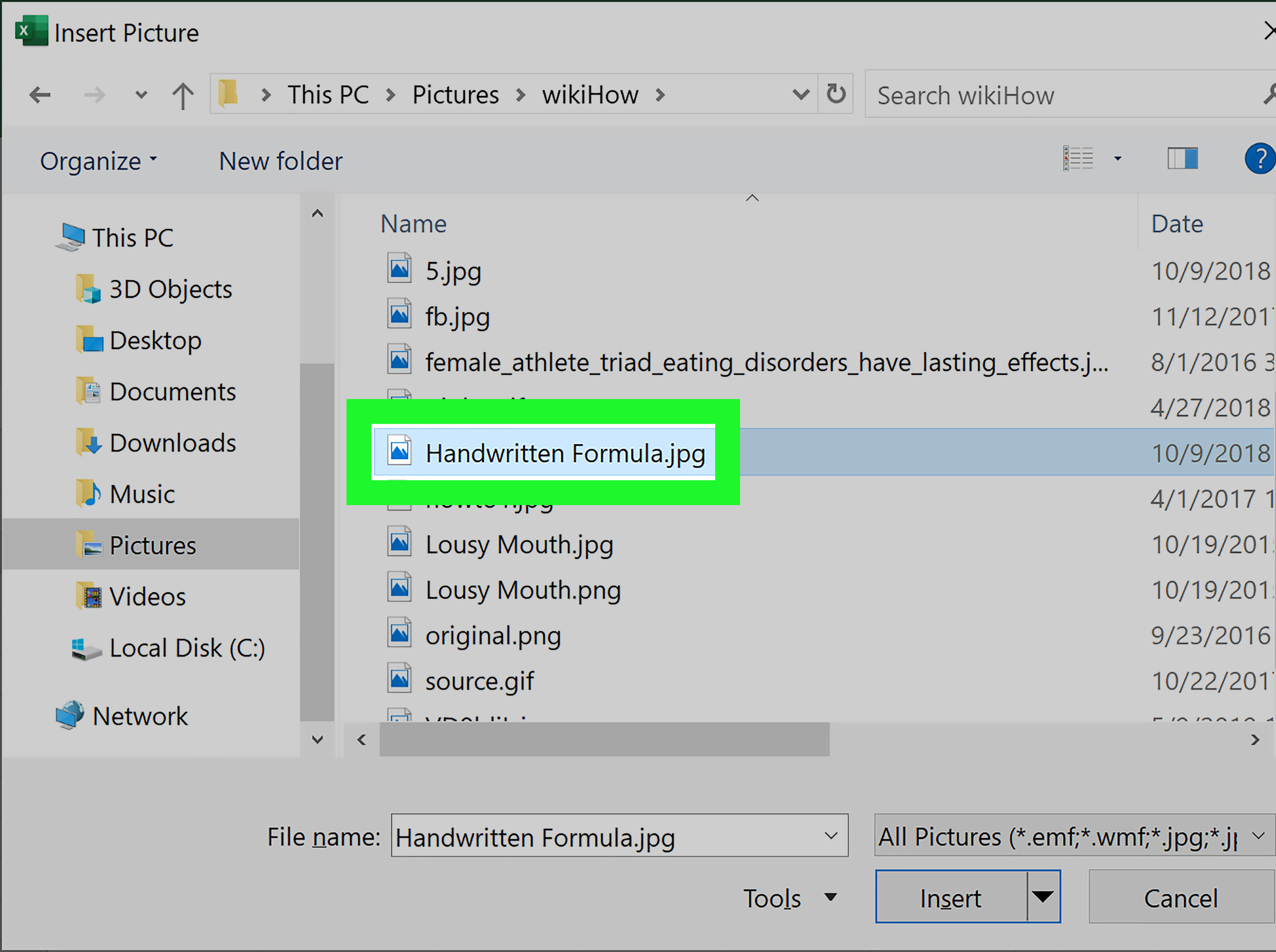
Not every object needs the Object dialog box. If you want to add an image, use Insert > Pictures. Modern Excel versions may allow pictures to be placed over cells or directly inside cells. Pictures in cells are useful for product catalogs, employee lists, inventory sheets, and visual checklists.
You can also insert shapes, icons, SmartArt, charts, screenshots, text boxes, and other visual elements from the Insert tab. These are objects too, but they serve a different purpose from embedded files. Use them to explain, highlight, organize, or visualize information.
How to Keep Objects Organized in Excel
After inserting several objects, your worksheet can get crowded. Use clear labels, consistent icon placement, and enough spacing around each object. If objects overlap, move them apart or resize them. You can also use the Selection Pane to manage objects, hide them, show them, or select the correct one when your worksheet becomes a tiny object jungle.
For better alignment, Excel includes snap-to-grid and snap-to-object options. These help objects line up neatly with worksheet cells or with other objects. A tidy sheet is easier to use, and it also gives the impression that you are a spreadsheet wizard who has definitely slept eight hours.
How to Make Inserted Objects Move with Cells
Objects in Excel often float above the grid. That means sorting, filtering, hiding rows, or resizing columns may not always move the object the way you expect. To make an object behave more naturally with cells, right-click it, choose Format Object, open the properties or size settings, and look for options such as Move and size with cells.
This is especially important when embedding PDFs or icons beside specific rows. For example, if row 12 contains a customer record and the PDF icon belongs to that customer, you probably want the icon to stay with row 12 when the sheet is sorted or filtered.
Accessibility Tip: Add Alt Text to Visual Objects
If you insert images, charts, SmartArt, or meaningful visual objects, add alt text. Alt text helps people using screen readers understand what the object shows and why it matters. Right-click the object and choose the alt text option, or select the object and use the formatting tab to open the Alt Text pane.
Keep alt text short, useful, and specific. For example, “Bar chart showing monthly sales growth from January to June” is better than “chart.” For decorative objects, mark them as decorative when appropriate.
Common Problems When Inserting Objects in Excel
The Object Button Is Missing
If you are using Excel for the web, the full Object feature may not be available. Open the workbook in the desktop version of Excel. Also check whether your ribbon is collapsed or your screen is too narrow, because some buttons may be hidden under menus.
The Object Does Not Open
If an embedded object will not open, make sure the required program is installed. For example, a PDF object may need a PDF reader. If it is a linked object, confirm that the original file still exists in the same location.
The File Size Becomes Huge
Embedded files increase workbook size. If your Excel file suddenly becomes heavier than a Thanksgiving plate, check how many objects you inserted. Consider linking large files instead of embedding them, or compressing files before insertion.
The Object Moves Weirdly
Use Format Object settings to control whether the object moves and sizes with cells. This is helpful when sorting, filtering, or hiding rows.
The Icon Caption Looks Confusing
Use Change Icon, when available, to rename the caption. Clear labels make workbooks easier for other people to use.
Best Practices for Inserting Objects in Excel
Use objects only when they add value. A workbook with two helpful attachments is useful. A workbook with 80 random icons is a scavenger hunt nobody requested. Place objects near the data they support, name them clearly, and test them before sharing the file.
If you are creating a workbook for a team, use a consistent structure. For example, put all attachment icons in the same column, such as “Supporting File.” Add a short note explaining whether the objects are embedded or linked. This prevents confusion and helps everyone understand how the workbook should be maintained.
For shared workbooks, avoid linking to files stored only on your personal computer. A link to your desktop may work beautifully for you and fail spectacularly for everyone else. Use shared network folders, SharePoint, OneDrive, or another approved shared location when linking files.
Specific Examples of Object Use in Excel
Example 1: Invoice Tracker
A small business tracks invoice numbers, client names, payment status, and due dates in Excel. By inserting each invoice PDF as an icon beside the matching row, the team can open the original invoice directly from the tracker.
Example 2: Product Catalog
A sales team builds a product sheet with item numbers, prices, descriptions, and PDF specification sheets. Each product row includes a linked or embedded spec sheet icon, making the workbook useful for quick client conversations.
Example 3: Project Dashboard
A project manager adds a Word document containing meeting notes and a PowerPoint file containing stakeholder slides. The dashboard becomes a central hub for both data and context.
Example 4: Training Workbook
An instructor creates an Excel workbook with exercises and embeds reference documents. Students can open the materials without searching through separate folders.
Experience Notes: What I Have Learned from Using Objects in Excel
The most important lesson about inserting objects in Excel is simple: plan the worksheet before adding attachments. Objects are easy to insert, but they can become messy if you scatter them randomly. I have seen workbooks where PDF icons floated over headers, covered formulas, or sat three rows away from the record they belonged to. Technically, the files were inserted. Practically, the sheet looked like a filing cabinet had sneezed.
A better approach is to create a dedicated column for attachments. Name it something obvious, such as “Document,” “Receipt,” “Contract,” or “Supporting File.” Then place each object icon in the same position within each row. This makes the sheet easier to scan and easier to maintain. When people open the workbook, they immediately understand where the extra files live.
Another experience-based tip is to use Display as icon for most documents. Previews can look impressive for about twelve seconds, but they often take too much space. A PDF preview might cover nearby cells, distort the layout, or make printing awkward. Icons are cleaner, especially when the worksheet’s main job is tracking data rather than displaying the entire document.
File size is another sneaky issue. One embedded PDF may not matter. Twenty large PDFs can turn a simple workbook into a slow-moving digital refrigerator. Before embedding lots of objects, ask whether the workbook truly needs to contain every file. For final archives, embedding is convenient. For active projects, linking to shared files may be smarter.
Testing is also non-negotiable. After inserting an object, double-click it. Then save, close, reopen, and test again. If you plan to share the workbook with someone else, test it on another computer or account when possible. Linked files are especially sensitive to file paths and permissions. A linked object that works on your machine may fail for a coworker who does not have access to the same folder.
Finally, document your system. Add a small note at the top of the worksheet explaining what the icons do. For example: “Double-click icons in the Supporting File column to open embedded PDFs.” That one sentence can prevent confusion, accidental deletion, and panicked messages that begin with “Where did the contracts go?” Excel objects are powerful, but like all powerful office tools, they behave best when given rules, labels, and a little adult supervision.
Conclusion
Learning how to insert an object in Excel gives your workbook more context, convenience, and flexibility. Instead of forcing users to search through folders for supporting files, you can embed or link documents directly inside the worksheet. The process is straightforward: choose a cell, open the Insert tab, click Object, select Create from File, browse for the file, choose whether to link or embed, display it as an icon if needed, and test the result.
The real skill is not just inserting the object. It is knowing when to embed, when to link, how to label objects, how to keep them aligned, and how to avoid turning your workbook into a cluttered attic. Use objects thoughtfully, keep your layout clean, and your Excel file can become more than a spreadsheet. It can become a tidy, clickable, well-organized workspace.











