Need to format a USB on Mac without accidentally launching a tiny digital disaster? Good news: macOS makes the job fairly painless with Disk Utility. Better news: you do not need to be a wizard, a developer, or the person everyone calls when the office printer starts “thinking.”
Introduction: Why Formatting a USB on Mac Matters
Formatting a USB drive on a Mac is one of those small computer tasks that feels suspiciously simpleuntil you reach the menu that asks you to choose between APFS, Mac OS Extended, MS-DOS (FAT), ExFAT, GUID Partition Map, and Master Boot Record. Suddenly, a five-minute chore starts looking like a tax form written by robots.
The truth is much friendlier. Formatting a USB flash drive means preparing it with a file system your computer can use. It can erase old data, fix compatibility issues, make a drive usable on both Mac and Windows, or prepare it for photos, videos, documents, installers, backups, school files, office handoffs, and that mysterious folder named “final_final_REAL_final.”
This guide explains how to format USB on Mac in 10 clear steps using Disk Utility, the built-in macOS tool for managing storage devices. You will also learn which format to choose, how to avoid common mistakes, what to do when your USB drive does not show up, and how to safely eject the drive when the job is done. Consider this your calm, no-panic roadmapbecause your flash drive may be tiny, but your files are not emotionally tiny.
Before You Format: Know What Formatting Does
Before clicking the tempting little Erase button, understand one thing: formatting usually deletes everything on the USB drive. macOS is not being dramatic when it says the process will erase data. It means the vacation photos, tax documents, exported video projects, old resumes, random screenshots, and the spreadsheet you named “Do Not Lose” can vanish.
So, before you format a USB drive on Mac, copy anything important to another location. Move it to your Mac, iCloud Drive, an external hard drive, a network storage folder, or another safe place. If the drive contains files you care about, treat formatting like cleaning out a refrigerator: look carefully before tossing everything into the void.
When should you format a USB drive?
You may need to format USB on Mac when the drive is new, corrupted, full of old files, not compatible with Windows, not readable by your TV or car stereo, or using a file system that limits file sizes. Formatting can also help when you want a clean drive for transferring files, creating a bootable installer, or preparing storage for a specific device.
Which USB Format Should You Choose on Mac?
The best format depends on how you plan to use the USB drive. This is the part where people usually squint at the screen and say, “I just want the thing to work.” Fair. Here is the simple version.
ExFAT: Best for Mac and Windows
ExFAT is usually the best choice if you want your USB drive to work with both macOS and Windows. It supports large files, so it is better than FAT32 for videos, design files, large ZIP archives, and backups of chunky folders. If your goal is to move files between a MacBook and a Windows PC, choose ExFAT and enjoy fewer compatibility tantrums.
MS-DOS (FAT): Best for older devices and small files
MS-DOS (FAT), often known as FAT32, works with many older devices, cameras, printers, car audio systems, game consoles, and simple media players. However, FAT32 has an important limitation: it cannot handle individual files larger than 4 GB. That is fine for documents and photos, but not ideal for 4K video, large installers, or a massive folder of “definitely organized” media.
APFS: Best for modern Mac-only use
APFS, or Apple File System, is designed for modern Apple devices and works well with solid-state storage. If you only plan to use the USB drive with Macs running current versions of macOS, APFS is a strong choice. However, Windows does not natively write to APFS, so it is not the friendly option for cross-platform file sharing.
Mac OS Extended: Useful for older Mac workflows
Mac OS Extended (Journaled) is an older Mac format that may still be useful for older Macs, older software, or certain legacy workflows. For most everyday users with modern Macs, APFS or ExFAT will usually make more sense.
Quick recommendation
Use ExFAT if you need Mac and Windows compatibility. Use APFS if the drive will stay in the Apple ecosystem. Use MS-DOS (FAT) only when an older device requires it. Use Mac OS Extended for older Mac-specific needs.
How to Format USB on Mac: 10 Steps
Step 1: Back Up the USB Drive
Start by checking what is already on the USB drive. Plug it into your Mac, open it in Finder, and copy important files somewhere safe. Do not skip this step unless you are completely sure the drive contains nothing valuable. Formatting is not a gentle tidy-up; it is more like sending the drive to storage boot camp.
A practical example: if your USB drive contains work documents and family videos, create a folder on your Mac called “USB Backup,” copy the files there, and confirm they open correctly before continuing. This takes a few extra minutes, but it can save you from the special kind of regret that comes with deleting your only copy of something important.
Step 2: Connect the USB Drive to Your Mac
Insert the USB flash drive into your Mac. If your Mac only has USB-C ports and your flash drive uses USB-A, use a reliable adapter or hub. Cheap adapters are not always the villain, but when storage devices randomly disconnect, the adapter is definitely a suspect wearing sunglasses indoors.
Wait a few seconds for macOS to recognize the drive. It may appear on the desktop, in Finder, or in the Finder sidebar under Locations. If it does not appear, do not panic. Disk Utility may still see it, which is what matters for formatting.
Step 3: Open Disk Utility
Open Disk Utility, the built-in macOS app for managing disks and volumes. You can find it by pressing Command + Space, typing Disk Utility, and pressing Return. You can also open Finder, go to Applications, then Utilities, and launch Disk Utility.
Disk Utility may look a little technical at first, but for this task you only need a few controls: the sidebar, the View menu, the Erase button, and the format options.
Step 4: Choose View > Show All Devices
In Disk Utility, click View in the menu bar and choose Show All Devices. This step is important because macOS may otherwise show only volumes, not the physical USB device. Selecting the physical device gives you access to partition scheme options, which can affect compatibility.
If you only see APFS options and cannot find ExFAT or MS-DOS (FAT), you are probably selecting an APFS volume or container instead of the top-level USB device. Choose the highest-level item for the USB drive in the sidebar. This is one of the most common formatting hiccups on Mac, and thankfully it is easier to fix than a tangled charging cable.
Step 5: Select the Correct USB Drive
In the left sidebar, select your USB drive. Look carefully at the name and capacity so you do not erase the wrong disk. If your USB drive is 64 GB, do not select a 1 TB external hard drive. If your USB drive is named “NO NAME,” “UNTITLED,” or “KINGSTON,” select that devicenot your internal Macintosh HD.
This is the moment to slow down. Formatting the wrong drive can be painful. Read the sidebar like you are reading the label on medicine: carefully, calmly, and without pretending you are too cool to double-check.
Step 6: Click the Erase Button
With the correct USB drive selected, click the Erase button in the Disk Utility toolbar. A dialog box will appear asking for a name, format, and sometimes a scheme. This is where you tell macOS how you want the USB drive prepared.
If the Erase button is unavailable, the drive may be in use, damaged, locked, or selected at the wrong level. Close any files stored on the drive, quit apps that may be using it, and try again. If necessary, eject and reconnect the USB drive.
Step 7: Name the USB Drive
Enter a clear name for the drive. Keep it short and practical. Names like WORK_USB, PHOTO_TRANSFER, MAC_WIN, or BACKUP_64GB are more useful than “Stuff” or “PleaseWork.” Avoid using unusual symbols if you plan to use the drive with different computers or devices.
A good USB name saves time later. When you plug in several drives, a clear label helps you avoid opening every device like you are searching through drawers for one missing sock.
Step 8: Choose the File Format
Open the Format menu and choose the format that matches your needs. For most people who want a USB drive that works on Mac and Windows, choose ExFAT. If the USB will be used only on modern Macs, choose APFS. If an older device specifically requires FAT32, choose MS-DOS (FAT).
Here are common examples:
- Sharing large video files between Mac and PC: choose ExFAT.
- Using the USB only with your MacBook: choose APFS.
- Loading music into an older car stereo: choose MS-DOS (FAT), if the stereo requires it.
- Preparing a drive for older Mac software: choose Mac OS Extended (Journaled), if required.
If you are not sure, ExFAT is the safest everyday choice for broad compatibility.
Step 9: Choose the Scheme
If Disk Utility shows a Scheme menu, choose the option that fits your plan. For most modern Mac use, GUID Partition Map is the standard choice. For some older Windows devices, older cameras, or special hardware that expects maximum legacy compatibility, Master Boot Record may be useful.
A simple rule: choose GUID Partition Map for modern Mac-focused use, especially with APFS. Choose Master Boot Record when using ExFAT or MS-DOS (FAT) for broad compatibility with older Windows-oriented devices, if that device requires it. If you are simply sharing files between a current Mac and a current Windows PC, ExFAT with a compatible scheme usually works well.
Step 10: Click Erase and Wait
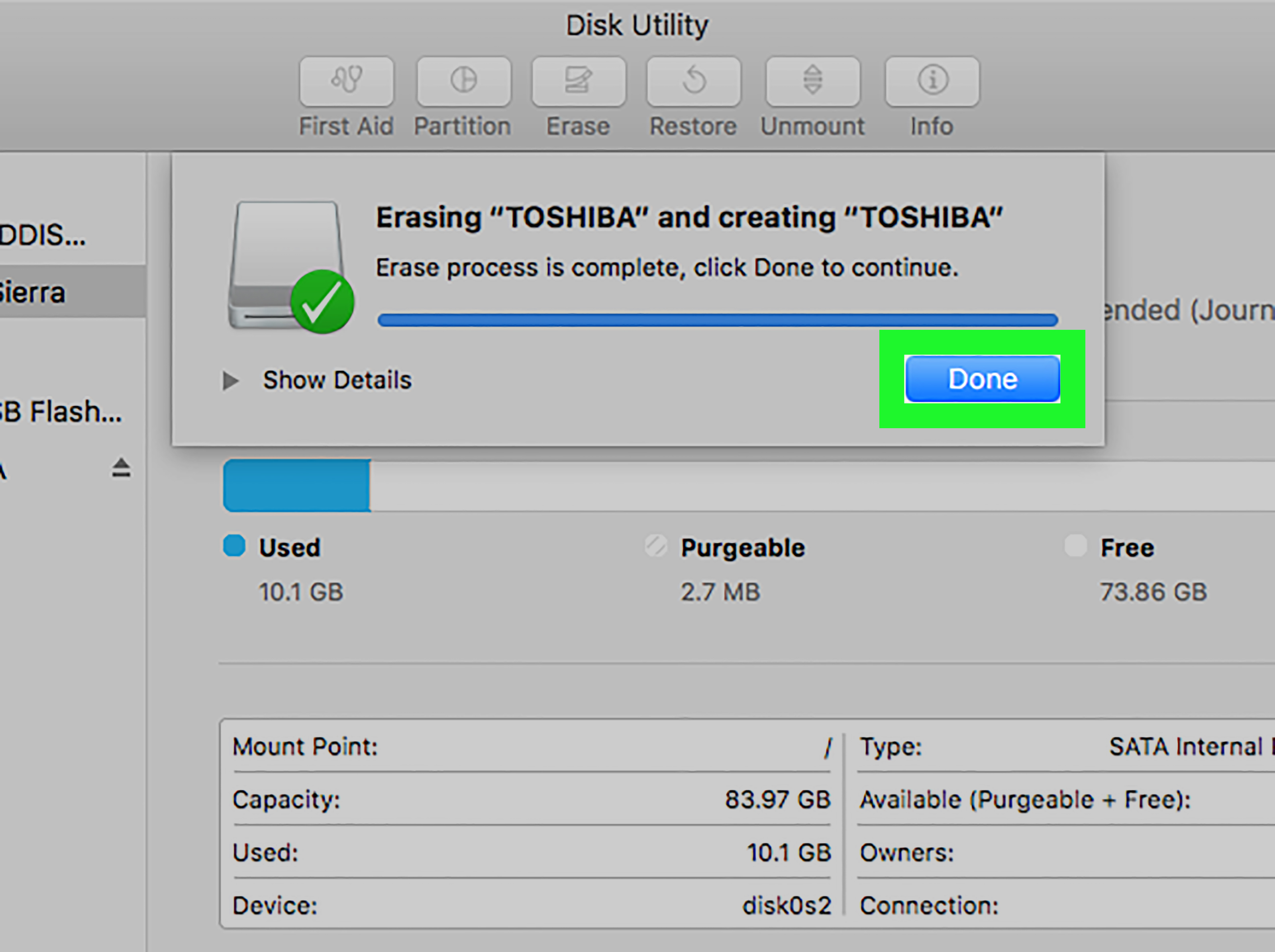
Click Erase. Disk Utility will format the USB drive. The process may take a few seconds for a small flash drive or longer for a larger or slower device. When Disk Utility says the process is complete, click Done.
After formatting, the USB drive should appear in Finder with its new name. Open it, copy a small test file to it, eject it, reconnect it, and confirm the file is still there. This quick test is not required, but it is a smart habitlike checking that your suitcase has socks before leaving for the airport.
How to Safely Eject the USB Drive on Mac
After formatting or copying files, safely eject the USB drive before unplugging it. In Finder, click the eject icon next to the drive name in the sidebar. You can also right-click the drive icon and choose Eject. Wait until the icon disappears before removing the drive.
Why bother? Because macOS may still be writing data in the background. Pulling the drive too early can corrupt files or make the drive act weird later. Yes, sometimes nothing bad happens. But “sometimes nothing bad happens” is also not a great strategy for crossing streets.
Troubleshooting: What If the USB Drive Does Not Show Up?
Check the USB port, adapter, or hub
Try another port, another adapter, or another Mac if available. USB hubs can fail, and some low-power hubs may not provide stable connections. If the USB drive has a light, check whether it turns on.
Use Disk Utility to look for hidden devices
Open Disk Utility, choose View > Show All Devices, and check the sidebar. A drive may not appear in Finder but still appear in Disk Utility. If it appears there, you may be able to format or repair it.
Run First Aid
If the drive appears but behaves strangely, select it in Disk Utility and click First Aid. This tool checks the disk structure and may repair certain file system issues. If Disk Utility warns that the drive is failing, copy any recoverable data immediately and replace the drive.
Try another computer
If the USB drive does not appear on any computer, it may be physically damaged. Flash drives are convenient, but they are not immortal. They are more like tiny digital sandwiches: useful, portable, and eventually questionable.
Common Mistakes When Formatting USB on Mac
Mistake 1: Forgetting to back up files
This is the classic mistake. Always back up important files before formatting. Once the drive is erased, recovery may be difficult, expensive, or impossible.
Mistake 2: Choosing APFS for a Windows drive
APFS is excellent for Apple devices, but it is not the best choice when you need easy Windows compatibility. Choose ExFAT for a USB drive that needs to travel between Mac and PC.
Mistake 3: Using FAT32 for huge files
MS-DOS (FAT) can be useful for older devices, but the 4 GB single-file limit is a dealbreaker for many modern files. If your movie, installer, or archive is larger than 4 GB, use ExFAT instead.
Mistake 4: Selecting the wrong disk
Always confirm the drive name and capacity before clicking Erase. Accidentally formatting an external backup drive instead of a USB stick is a bad plot twist no one asked for.
Mistake 5: Pulling the drive without ejecting it
Safely eject the drive every time. It takes two seconds and can prevent file corruption. Your future self deserves that tiny kindness.
Advanced Option: Formatting USB on Mac Using Terminal
Most users should use Disk Utility because it is visual and safer. However, advanced users can format USB drives using Terminal with the diskutil command. This method can be useful for scripting, troubleshooting, or working with stubborn drives.
A typical workflow is to run diskutil list to identify the disk, then use an erase command with the correct disk identifier. Be extremely careful: Terminal will do exactly what you tell it to do, even if what you tell it is a terrible idea. If you are not comfortable identifying disks from command-line output, stick with Disk Utility.
For everyday formatting, Disk Utility remains the best option. It is built into macOS, easy to understand, and powerful enough for most USB flash drive tasks.
Real-World Examples: Which Format Should You Use?
Example 1: Student sharing files with classmates
If a student uses a MacBook but needs to share presentations with classmates using Windows laptops, ExFAT is the best choice. It handles large files and works across modern systems.
Example 2: Photographer moving RAW files
A photographer transferring large RAW files or video clips should avoid FAT32 because of the file size limit. ExFAT is practical for handoffs, while APFS may be better for Mac-only storage.
Example 3: Office worker using a USB with printers
Some office printers and scanners prefer FAT32. If the device manual says FAT32, use MS-DOS (FAT) in Disk Utility. The printer does not care about your dreams; it cares about compatible file systems.
Example 4: Mac user creating a personal archive
If the drive will live with one modern Mac and store personal documents, APFS is a smart option. It is native to macOS and designed for Apple’s current storage environment.
Security Tips Before Giving Away a USB Drive
If you are formatting a USB drive before giving it away, selling it, or lending it to someone, remember that normal formatting may not securely remove every trace of old data. For sensitive information, consider using encryption before storing files, or use a secure erase method where appropriate and available.
For flash storage, secure deletion can be more complicated than it sounds because of how flash memory manages data internally. If the drive held private financial records, confidential work files, medical documents, or identity information, the safest option may be to keep the drive, encrypt it, or physically destroy it rather than handing it to someone else.
For normal everyday reuse, a standard erase in Disk Utility is usually enough. For sensitive data, be more cautious. Your old grocery list is probably fine. Your passport scan deserves more respect.
Extra Experience: Practical Lessons from Formatting USB Drives on Mac
After formatting many USB drives on Mac for work, school, media transfers, backups, bootable tools, and “please make this work before the meeting starts” emergencies, one lesson stands out: the format matters more than people expect. Most USB problems are not caused by the drive being broken. They are caused by the drive being formatted in a way the next device does not understand.
One common experience is the Mac-to-Windows handoff. Someone formats a USB drive as APFS because it sounds modern, clean, and very Apple. It works beautifully on the Mac. Then they plug it into a Windows laptop and the PC acts like the drive is a mysterious artifact from an ancient civilization. The drive is not necessarily damaged. Windows simply does not handle APFS natively in the same friendly way macOS does. In this case, reformatting as ExFAT usually solves the problem.
Another familiar situation involves video files. A person formats a USB drive as FAT32 because it seems universal. Then they try to copy a large 4K video and get an error. The drive has enough free space, but the file system cannot handle a single file over 4 GB. This is where ExFAT becomes the hero walking into the scene with practical shoes and a clipboard. For large media files, ExFAT is often the most convenient choice when multiple operating systems are involved.
There is also the “missing ExFAT option” puzzle. On newer macOS versions, some users open Disk Utility, click a volume, and only see APFS choices. The fix is usually to choose View > Show All Devices and select the top-level physical USB device instead of a lower-level volume or container. It feels like a hidden door in a video game, except the treasure is a dropdown menu.
Adapters are another real-world troublemaker. Many modern Macs use USB-C, while older flash drives use USB-A. A poor-quality adapter can make a perfectly good USB drive disconnect, fail to mount, or disappear during formatting. If Disk Utility throws errors or the drive keeps vanishing, test another adapter before blaming the drive. The smallest accessory on your desk can cause the loudest headache.
For people who frequently use USB drives with TVs, car stereos, label printers, cameras, or embroidery machines, the best advice is to check the device manual first. Some devices are picky and may only read FAT32. Others support ExFAT. A Mac may happily format the drive in several ways, but the target device gets the final vote. Technology is democratic in the most annoying way possible.
Finally, labeling drives helps more than it should. A USB named CLIENT_FILES or TV_MOVIES is easier to manage than five identical drives called UNTITLED. After formatting, give the drive a meaningful name, copy a test file, eject it properly, reconnect it, and confirm everything works. That little routine prevents confusion and makes you look like the calm, organized person you may or may not actually be.
The big takeaway is simple: formatting a USB on Mac is easy once you know the goal. Decide where the drive will be used, choose the right file system, select the correct device in Disk Utility, and do not skip the backup. Do that, and your USB drive should behave like a useful tool instead of a pocket-sized chaos machine.
Conclusion: Formatting a USB on Mac Is Easy When You Choose the Right Format
Learning how to format USB on Mac is mostly about making the right choices before clicking Erase. Disk Utility gives you the tools, but you provide the judgment: back up your files, select the correct drive, choose the right format, pick the proper scheme, and safely eject the USB when finished.
For most people, ExFAT is the best option for sharing files between Mac and Windows. APFS is excellent for modern Mac-only use. MS-DOS (FAT) is useful for older devices but limited with large files. Mac OS Extended remains relevant for certain older Mac workflows. Once you understand those options, the process becomes refreshingly simple.
So the next time a USB drive refuses to cooperate, do not glare at it like it insulted your family. Open Disk Utility, follow the 10 steps, and format it with confidence. Your Mac already has the tools. You just needed the map.