
Few tiny disasters feel as modern as missing an important notification. Your boss sends a message, your delivery driver circles the block like a confused pigeon, your bank app whispers about suspicious activity, and your phone says absolutely nothing. Rude.
If notifications are not working on Android or iPhone, the problem is usually not mysterious. Most of the time, alerts are being blocked by notification permissions, Do Not Disturb, Focus, battery-saving settings, background data restrictions, app-specific controls, or a software glitch that needs the classic “turn it off and on again” treatment. Yes, the oldest tech advice in the book still has rent-free real estate in 2026.
This guide walks you through practical fixes for both Android and iPhone, including system settings, app settings, lock screen alerts, sound problems, delayed push notifications, and stubborn apps like Messages, WhatsApp, Gmail, Instagram, Facebook Messenger, Slack, Telegram, banking apps, and delivery apps.
Why Are Notifications Not Working on Android or iPhone?
Before you start tapping random switches like you are defusing a movie bomb, it helps to understand what can stop notifications from appearing. A phone notification depends on several things working together: the app must be allowed to send alerts, the phone must allow alerts to show, the internet connection must be active, background activity must not be restricted, and sound or vibration must not be silenced.
Common causes include:
- Notifications are disabled for the app.
- Do Not Disturb, Focus, Sleep, Work, or Driving mode is active.
- The app is muted, hidden, or set to deliver quietly.
- Battery Saver or Low Power Mode is delaying background activity.
- Background App Refresh, mobile data, or background data is turned off.
- The app needs an update, reinstall, or fresh login.
- The phone has a temporary software glitch.
- Notification categories or channels are turned off on Android.
- Notification Summary, Scheduled Summary, or lock screen settings are hiding alerts on iPhone.
- The app’s own internal notification settings are disabled.
The good news: you usually do not need a repair shop. You need a settings tour, a little patience, and maybe one dramatic restart for emotional support.
Quick Fixes to Try First on Any Phone
1. Restart Your Phone
Start simple. Restarting your Android phone or iPhone clears temporary system glitches, refreshes network connections, and gives misbehaving apps a clean start. It is not glamorous, but neither is missing a two-factor authentication code while staring at your screen like it owes you money.
On iPhone, hold the side button and volume button on newer models, then slide to power off. On Android, hold the power button and tap Restart if available. After the phone turns back on, ask someone to send a test message or trigger a test notification from the app.
2. Check Your Internet Connection
Push notifications usually need Wi-Fi or cellular data. If your phone is connected to weak Wi-Fi, stuck behind a login page, or using spotty mobile service, notifications may arrive late or not at all.
Open a browser and load a fresh webpage. If it crawls like a snail carrying groceries, switch from Wi-Fi to cellular data or from cellular data to Wi-Fi. Also check that Airplane Mode is off. If one app is affected, confirm that the app is allowed to use mobile data.
3. Turn Up the Volume and Check Silent Mode
Sometimes notifications are working, but your phone is doing its best impression of a monk. On iPhone, check the Ring/Silent switch if your model has one, and make sure the phone is not set to silent. On newer iPhones with an Action Button, check the assigned action and sound settings. On Android, press the volume button and make sure notification volume is not set to zero.
If notifications appear on screen but make no sound, the issue is likely sound, vibration, app tone, or notification style rather than the notification system itself.
How to Fix Notifications Not Working on iPhone
1. Turn On Notifications for the App
On iPhone, every app needs permission to send notifications. If you accidentally tapped “Don’t Allow” when installing an app, that app may remain silent forever unless you manually fix it.
Go to Settings > Notifications, choose the app, and turn on Allow Notifications. Then enable the places where you want alerts to appear: Lock Screen, Notification Center, and Banners. For most important apps, enable all three.
Also check Sounds and Badges. If Sounds is off, the alert may show silently. If Badges is off, the little red number on the app icon will not appear.
2. Disable Focus or Do Not Disturb
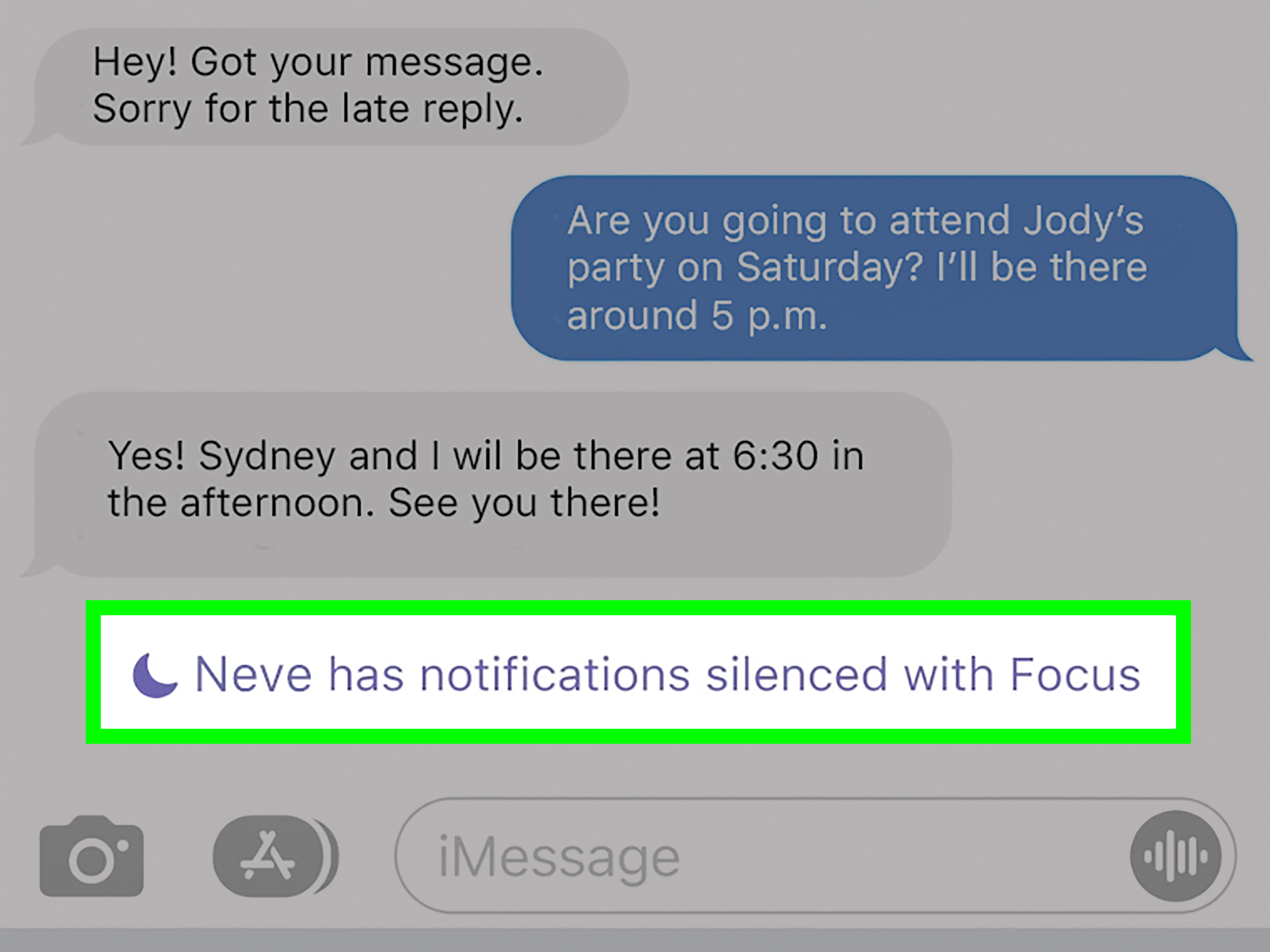
Focus mode is useful when you want peace. It is less useful when it accidentally turns your iPhone into a secret vault. Do Not Disturb, Sleep, Work, Personal, Driving, and custom Focus modes can silence notifications, calls, and messages.
Open Control Center and check the Focus button. If Do Not Disturb or another Focus is active, tap it to turn it off. You can also go to Settings > Focus and review each Focus mode.
If you want Focus on but still need alerts from certain apps, open the Focus mode, tap Apps, and choose which apps are allowed to send notifications. For example, you might allow Messages, Phone, Calendar, Slack, Gmail, or your security app while keeping social media quiet.
3. Check Scheduled Summary
Scheduled Summary can bundle less urgent notifications and deliver them later. That is great for newsletters and shopping apps. It is not great when your food delivery update arrives after your fries have emotionally moved on.
Go to Settings > Notifications > Scheduled Summary. Either turn it off or remove important apps from the summary list. Apps that need immediate attention should not be tucked into a scheduled bundle.
4. Make Sure Notification Previews Are Visible
If you are receiving alerts but they look blank, hidden, or unhelpful, check preview settings. Go to Settings > Notifications > Show Previews. Choose Always, When Unlocked, or Never.
For privacy, “When Unlocked” is a smart choice. For troubleshooting, temporarily choose “Always” so you can confirm notifications are actually arriving.
5. Check App-Specific Settings Inside the App
Some apps have their own notification controls separate from iOS settings. Gmail, Outlook, WhatsApp, Telegram, Messenger, Instagram, Slack, and banking apps often include internal switches for message alerts, email categories, mentions, transactions, direct messages, group notifications, or promotional alerts.
Open the app, go to its settings, and look for Notifications, Alerts, Message Notifications, or Email Notifications. Make sure the important categories are enabled.
6. Enable Background App Refresh
Background App Refresh allows apps to update content when you are not actively using them. Many push notifications still work without it, but some apps behave better when it is enabled, especially email, messaging, weather, calendar, and productivity apps.
Go to Settings > General > Background App Refresh. Turn it on for Wi-Fi or Wi-Fi & Cellular Data, then make sure the affected app is enabled.
7. Turn Off Low Power Mode Temporarily
Low Power Mode reduces background activity to save battery. That is helpful at 4% battery when you are negotiating with the universe, but it can delay updates from some apps.
Go to Settings > Battery and turn off Low Power Mode. Test notifications again. If they start working, the app may be affected by battery restrictions or background refresh limits.
8. Update iOS and the App
Notification bugs can happen after major iOS releases or app updates. Developers often fix these issues in later updates.
Go to Settings > General > Software Update and install available iOS updates. Then open the App Store, tap your profile icon, and update the affected app. After updating, restart your iPhone and test again.
9. Reinstall the App
If only one app refuses to send alerts, uninstalling and reinstalling it can reset broken notification permissions. Delete the app, restart your iPhone, reinstall the app from the App Store, open it, sign in, and allow notifications when prompted.
Before deleting any app, make sure important data is backed up or synced. This matters for apps with local files, drafts, offline notes, or authenticator data.
10. Reset Network Settings
If push notifications are delayed across many apps, network settings may be corrupted. Go to Settings > General > Transfer or Reset iPhone > Reset > Reset Network Settings.
This will erase saved Wi-Fi networks and Bluetooth-related network preferences, so keep your Wi-Fi password nearby. It does not delete photos, messages, or apps.
How to Fix Notifications Not Working on Android
1. Turn On App Notifications
On Android, go to Settings > Notifications > App notifications, then choose the affected app and make sure notifications are allowed. On some phones, you can also long-press the app icon, tap App info, then tap Notifications.
Android gives users very detailed notification controls. That is powerful, but it also means one tiny switch can ruin your day. Check that the main notification toggle is on and that individual categories are enabled.
2. Check Notification Categories or Channels
Android apps can separate notifications into categories, sometimes called channels. For example, a shopping app may have categories for order updates, promotions, delivery alerts, account alerts, and recommendations. You may have turned off one category without disabling the whole app.
Go to the app’s notification settings and review each category. Keep important categories such as messages, direct mentions, delivery updates, account security, calendar reminders, and payment alerts turned on. Disable noisy categories like promotions only if you want fewer distractions.
3. Disable Do Not Disturb or Add Exceptions
Do Not Disturb on Android can silence calls, messages, conversations, reminders, alarms, and app alerts. Swipe down from the top of the screen and check Quick Settings. If Do Not Disturb is on, turn it off.
You can also go to Settings > Sound & vibration > Do Not Disturb or Settings > Notifications > Do Not Disturb, depending on your phone. Review schedules, allowed apps, allowed people, repeat callers, alarms, and reminders.
If you want Do Not Disturb to stay active but still receive alerts from specific apps, add those apps as exceptions or enable “override Do Not Disturb” where available.
4. Turn Off Battery Saver Temporarily
Battery Saver can delay notifications by limiting background activity. If alerts arrive only when you open the app, battery restrictions are a prime suspect.
Go to Settings > Battery and turn off Battery Saver. On Pixel phones and many Android devices, also check Adaptive Battery. Adaptive Battery learns your habits and may delay notifications for apps you use less often.
5. Set the App Battery Usage to Unrestricted
For important apps, allow more background activity. Long-press the app icon, tap App info, then look for Battery, App battery usage, or Battery optimization. Choose Unrestricted or Don’t optimize if available.
This is especially helpful for messaging apps, email apps, smart home apps, security cameras, authenticator apps, delivery apps, calendar apps, and work communication tools. The trade-off is slightly more battery use, but at least your phone stops behaving like it joined a silent retreat.
6. Allow Background Data
If Android blocks background data, apps may not receive new information until you open them. Go to Settings > Apps > [App Name] > Mobile data & Wi-Fi. Turn on Background data. If you use Data Saver, allow unrestricted data usage for important apps.
This is a common fix for Gmail, WhatsApp, Messenger, Telegram, Slack, Outlook, banking apps, ride-share apps, and delivery apps that only update after being opened.
7. Check Sleeping Apps on Samsung Galaxy
Samsung Galaxy phones include battery management features that can put apps into sleeping or deep sleeping states. This can stop or delay notifications.
Go to Settings > Battery > Background usage limits. Check Sleeping apps and Deep sleeping apps. Remove important apps from these lists. You can also add important apps to Never auto sleeping apps if your model supports it.
8. Clear App Cache
Clearing an app cache removes temporary files that may be causing weird behavior. It usually does not delete your account or personal data.
Go to Settings > Apps > [App Name] > Storage & cache, then tap Clear cache. Restart the app and test notifications again.
If the problem continues, you can consider Clear storage or Clear data, but be careful. That can sign you out or erase local app settings.
9. Update Android and the App
Open the Play Store and update the affected app. Then go to Settings > System > Software update or your phone’s update section and install available Android updates.
Different Android brands use different menu names. Pixel, Samsung, Motorola, OnePlus, and other manufacturers may place update settings in slightly different locations, but the idea is the same: keep both the operating system and the app current.
10. Reinstall the App
If one app is the problem, uninstall and reinstall it. After reinstalling, open the app and approve notification permissions when asked. On Android 13 and newer, apps must request permission to send notifications, so missing that prompt can leave an app silent.
After reinstalling, check both Android notification settings and the app’s own notification settings. A fresh install helps, but only if the permissions are turned on afterward.
Fix Notifications Showing But No Sound
If notifications appear but do not make sound, check these settings:
- Make sure the phone is not on silent or vibrate only.
- Increase notification volume, not just media volume.
- Choose a notification sound for the app.
- Turn off Do Not Disturb, Focus, Sleep, or Driving mode.
- Check Bluetooth devices, because sound may be going to earbuds, a car, or a speaker.
- Make sure the app notification category is set to alert, not silent.
On Android, app categories can be set to “Silent,” which means the alert may appear without sound or vibration. On iPhone, an app may have notifications enabled but Sounds disabled. Tiny setting, big drama.
Fix Notifications Not Showing on the Lock Screen
If alerts arrive but do not show on the lock screen, check display settings.
On iPhone
Go to Settings > Notifications, choose the app, and make sure Lock Screen is enabled. Then check Show Previews. If previews are set to “Never,” you may see limited information.
On Android
Go to Settings > Notifications > Notifications on lock screen. Choose whether to show conversations, default and silent notifications, hide silent notifications, or hide sensitive content. Menu names vary by brand, but lock screen notification controls are usually under Notifications or Lock Screen settings.
Fix Delayed Notifications
Delayed notifications are usually caused by battery optimization, background data limits, weak internet, or the app’s own sync settings. If Gmail only alerts when opened, WhatsApp messages arrive late, or Slack pings appear after the meeting is already over, check these areas first:
- Disable Battery Saver or Low Power Mode.
- Allow background data for the app.
- Set the app battery usage to unrestricted on Android.
- Enable Background App Refresh on iPhone.
- Update the app.
- Check app-specific sync settings.
- Remove the app from sleeping or deep sleeping lists on Samsung.
For email apps, also check fetch and sync frequency. Some email accounts are set to fetch mail manually or at longer intervals, which can make notifications feel broken when they are simply slow.
App-Specific Notification Fixes
Gmail Notifications Not Working
Open Gmail and check Settings > your email account > Notifications. Make sure notifications are enabled and that Sync Gmail is turned on. On Android, also check notification categories for each email account. On iPhone, confirm that Gmail has permission under iOS Notifications and Background App Refresh.
WhatsApp Notifications Not Working
Open WhatsApp and go to Settings > Notifications. Check message notifications, group notifications, sounds, and previews. On Android, allow background data and unrestricted battery usage. On iPhone, make sure Focus mode is not silencing WhatsApp.
Messages or iMessage Notifications Not Working
On iPhone, check Settings > Notifications > Messages. Make sure Allow Notifications, Sounds, Badges, and Lock Screen alerts are enabled. Also check Settings > Focus to confirm Messages is not blocked. If one conversation is muted, open Messages, swipe or tap into the conversation settings, and unmute alerts.
Instagram, Facebook Messenger, or TikTok Notifications Not Working
Social apps often include internal controls for direct messages, comments, live videos, followers, reminders, and promotional alerts. Check both phone settings and in-app notification settings. Also consider whether you actually want every notification back. Some of those pings are less “urgent message” and more “someone you met once in 2018 posted a sandwich.”
Advanced Fixes When Nothing Works
Reset App Preferences on Android
Some Android phones allow you to reset app preferences. This can restore disabled apps, default app settings, background data settings, and permission-related choices. Go to Settings > Apps, tap the menu, and look for Reset app preferences. The exact path varies by device.
This does not usually delete app data, but it may reset default app choices and permissions, so review important apps afterward.
Reset All Settings on iPhone
If notification problems affect many apps, go to Settings > General > Transfer or Reset iPhone > Reset > Reset All Settings. This resets system settings without deleting your personal content.
You may need to reconfigure Wi-Fi, privacy permissions, Apple Pay cards, wallpaper, and notification preferences afterward. Use this only after easier fixes fail.
Check for Server Outages
If one service suddenly stops sending notifications to many users, the issue may be on the company’s side. Messaging apps, email providers, banking apps, social networks, and delivery platforms can experience outages. Search the app’s status page or check whether other users are reporting the same issue.
Contact Support
If a banking app, security camera app, work app, or medical app still cannot send notifications after all settings are correct, contact the app developer or device support. Some apps require account-level notification settings, server-side permissions, or device re-registration.
Best Notification Settings for Fewer Problems
Once notifications are working again, do not simply turn everything on and let your phone become a pocket-sized casino. Use smarter notification habits:
- Allow instant alerts for calls, messages, calendars, banking, security, work, travel, delivery, and health apps.
- Send low-priority alerts to summaries or silent delivery.
- Turn off promotional notifications from shopping and entertainment apps.
- Use Focus or Do Not Disturb schedules carefully.
- Create exceptions for people and apps that truly matter.
- Review notification settings monthly, especially after major updates.
The goal is not “more notifications.” The goal is the right notifications at the right time. Your phone should be a helpful assistant, not a caffeinated squirrel with a bell.
Real-World Experience: What Usually Fixes Notification Problems Fastest
After troubleshooting notification issues across Android and iPhone, a pattern becomes obvious: users often look for complicated solutions before checking the simple switches. In many cases, notifications are not broken at all. They are blocked, muted, delayed, summarized, silenced, restricted, or politely hidden behind a setting nobody remembers turning on.
The first real-world lesson is that Do Not Disturb and Focus modes cause more confusion than almost anything else. Someone enables Sleep Focus once, sets a schedule, forgets about it, and then wonders why morning alerts vanish into the digital fog. On Android, scheduled Do Not Disturb can do the same thing. The phone is not malfunctioning; it is obeying instructions from three months ago. Annoying? Yes. Technically impressive? Also yes.
The second lesson is that battery optimization is a sneaky notification villain. Modern phones are aggressive about saving power. That is great when you need the battery to survive a long day, but less great when messaging apps are pushed into the background and treated like they are on vacation. Apps such as Gmail, WhatsApp, Slack, Messenger, and smart home camera apps often work better when battery restrictions are relaxed. On Android especially, setting an important app to unrestricted battery usage can make delayed notifications arrive normally again.
The third lesson is that app-specific settings matter more than people expect. Many users enable notifications in iPhone or Android settings but forget that the app itself has separate controls. Gmail may have account-level notification rules. WhatsApp may have muted group chats. Instagram may allow direct messages but block live video alerts. Slack may have workspace-specific schedules. If only one app is acting strange, always check inside that app before blaming the whole phone.
The fourth lesson is that lock screen behavior can look like a notification failure. A phone may receive alerts perfectly, but the user does not see them because lock screen notifications are hidden, previews are disabled, or the app is set to deliver quietly. This is especially common after privacy changes, phone upgrades, workplace device management settings, or restoring from an old backup. If alerts appear in Notification Center but not on the lock screen, the fix is usually display style, not push delivery.
The fifth lesson is that reinstalling an app is often underrated. It sounds basic, but a clean reinstall can reset a broken permission flow, refresh device registration with the app’s notification server, and force the app to ask for notification permission again. This is especially useful after switching phones, restoring backups, updating operating systems, or changing accounts.
Finally, the best long-term approach is to build a notification system that matches your real life. Keep urgent apps loud and visible. Keep entertainment apps quiet. Let promotional alerts go to summaries or turn them off completely. Use Focus or Do Not Disturb, but review the schedules and exceptions regularly. A clean notification setup saves time, prevents missed alerts, and reduces the daily chaos of your phone yelling about everything from bank activity to a flash sale on socks.
Note: The fixes above are based on current Android, iPhone, Samsung Galaxy, app-permission, battery-management, and push-notification behavior. Menu names may vary slightly depending on your phone model, carrier, Android skin, iOS version, and app version.
Conclusion
When notifications are not working on Android or iPhone, do not panic and do not immediately assume your phone is haunted. Start with the basics: restart the device, check the internet, turn off Do Not Disturb or Focus, and confirm that the app is allowed to send notifications. Then move into deeper fixes like background data, battery optimization, notification categories, Background App Refresh, app updates, cache clearing, and reinstalling the app.
The fastest solution depends on the symptom. If no apps notify you, look at system-wide settings like Do Not Disturb, Focus, sound, network, or battery saver. If only one app is broken, check that app’s notification permissions, internal settings, battery access, and data access. If alerts arrive late, background restrictions are usually the main suspect. If alerts show but make no sound, check silent mode, notification volume, app sounds, and Bluetooth output.
Notifications are tiny, but they run through a surprisingly complex chain of permissions and settings. Once you understand that chain, fixing them becomes much easier. And when your phone finally pings again at the right time, you may experience the rarest modern emotion: gratitude toward a notification.











