
If you’ve ever opened a Word document and thought, “Why is my essay bleeding red ink like it just watched a sad movie?”congrats. You’ve met Track Changes. It’s Word’s built-in way to show edits, suggestions, and comments without permanently rewriting someone’s work behind their back. Think of it as editing with the lights on.
In this guide, you’ll learn how to turn Track Changes on, make edits that are easy to review, control what you see (because “All Markup” can look like a confetti cannon), and accept or reject changes like a calm professionalrather than a stressed-out raccoon rummaging through revision history at 2 a.m.
What Track Changes Actually Does (and Why People Love It)
When Track Changes is enabled, Word records edits in a visible way. Insertions, deletions, moves, and even formatting updates can show up as “markup.” Each change is tied to a reviewer name, so you can see who did what. This is a big deal for teamworkpapers, proposals, contracts, scripts, manuals, you name it.
Track Changes vs. Comments (Use Both, Not Either/Or)
Track Changes is best for specific text editsrewriting a sentence, fixing a typo, removing a paragraph. Comments are best for discussionasking questions, flagging unclear logic, suggesting a bigger rewrite, or politely saying, “This section is confusing, but I’m trying to be supportive.”
One important detail: tracked edits and comments don’t magically disappear just because you switched the view. They stay in the file until changes are accepted/rejected and comments are deleted. That’s why “final cleanup” matters (more on that later).
Before You Start: A 60-Second Setup That Saves Hours
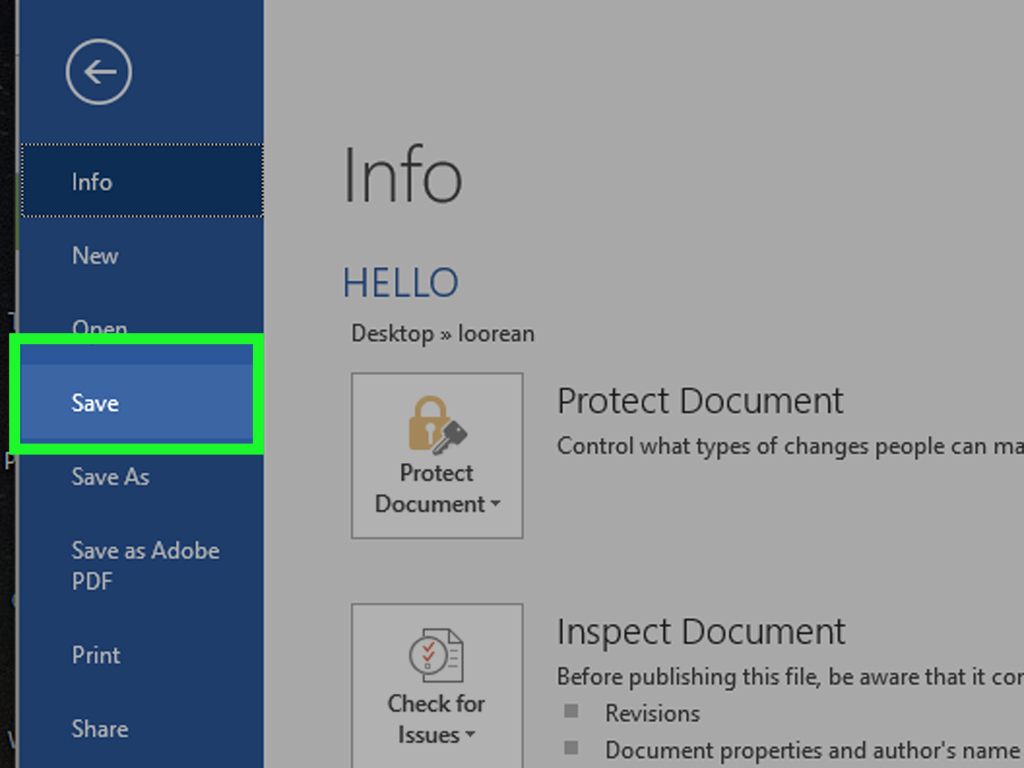
- Make a safety copy (File > Save As) if the document is high-stakes.
- Store the file in OneDrive or SharePoint if you’re collaborating live. Real-time co-authoring works best when everyone edits the same cloud file.
- Agree on the rules with your team:
- Are edits allowed everywhere, or should reviewers mostly leave comments?
- Should formatting changes be tracked, or will that create chaos?
- Who has final approval to accept/reject edits?
- Decide who you’re tracking: everyone’s changes, or just yours (useful when you’re suggesting edits but don’t want to force tracking on the whole group).
How to Turn On Track Changes (Windows, Mac, and Word for the Web)
Turn it on from the ribbon
- Open your document in Microsoft Word.
- Go to the Review tab.
- Select Track Changes.
Choose whose changes to track
In many versions of Word (especially Microsoft 365), Track Changes has options:
- For Everyone: Tracks edits made by anyone working in the document.
- Just Mine: Tracks only your edits (handy when you’re reviewing a shared file without forcing everyone else into markup mode).
- Off: Stops tracking new changes (existing tracked edits remain until you accept/reject them).
Keyboard shortcuts (because clicking is so last decade)
- Windows: Ctrl + Shift + E toggles Track Changes.
- Mac: Many setups use Command + Shift + E (varies by configuration/version).
Pro tip: Add a Track Changes indicator so you don’t “forget” it’s on
Word lets you add a Track Changes toggle to the status bar (the strip along the bottom). That way, you can see at a glance whether you’re tracking. It’s the editing equivalent of checking whether you left the stove onjust with fewer fire alarms.
How to Edit While Track Changes Is On (Without Creating a Mess)
Make clean, reviewable edits
Once Track Changes is enabled, edit normallytype, delete, paste, rearrange. Word records the changes as markup. If you remove a sentence, Word can display it as a deletion instead of making it vanish into the void.
Use Comments for “big picture” feedback
If you’re tempted to rewrite three paragraphs because the organization is unclear, leave a comment first. For example:
- “This section might work better if the definition comes before the example. Want me to rearrange it, or do you prefer to rewrite?”
Example: Editing a paragraph like a human editor
Let’s say the original sentence is:
“The results were good and showed improvement in many areas and it was successful.”
With Track Changes on, you might revise to:
“The results showed measurable improvement across several areas.”
Then add a comment:
“If you have specific metrics (percentages, scores, time saved), we can make this even stronger.”
How to Control What You See (Simple Markup, All Markup, No Markup, Original)
Track Changes is powerful. It’s also capable of making a document look like it’s wearing a thousand sticky notes. That’s why Word gives you markup views.
Markup views explained
- Simple Markup: A cleaner view with indicators (like a red line in the margin) showing where changes exist.
- All Markup: The “show me everything” view with visible insertions, deletions, formatting changes, and comments.
- No Markup: Hides markup to show what the document would look like if all changes were accepted (but it does not accept them).
- Original: Shows the document as it was before tracked edits (again, changes are still in the file until you resolve them).
Show or hide specific types of markup
If you only want to focus on text edits (and not formatting), use Show Markup options to toggle:
- Comments
- Insertions and Deletions
- Formatting
- Specific reviewers (when available)
Use the Reviewing Pane when the page looks chaotic
The Reviewing Pane can list changes in a separate panel (vertical or horizontal), which is great when the margins are packed. It’s like moving the “noise” into a neat dashboard so you can actually read the paragraph again.
How to Accept or Reject Changes (Step-by-Step)
Review changes one at a time (recommended)
- Click near the start of the document (or where you want to begin reviewing).
- Go to the Review tab.
- Use Next (or navigation tools) to jump to each change.
- Choose Accept or Reject.
Word will typically move to the next change as you accept/reject, which makes it easier to stay consistent.
Accept all changes (use with caution)
If you’re confident the edits are solidor you’ve already reviewed them in contextyou can accept everything at once using the Accept dropdown. The same goes for rejecting everything. Just remember: “Accept All” is fast, but speed is not the same as wisdom.
Right-click is your friend
In many cases, you can right-click a specific change and accept/reject it directly. This is great when you’re reviewing one paragraph and don’t want to jump around the document.
Lock Track Changes (When You Need Transparency)
If you’re managing a document where tracking must stay onlike a formal review cycleyou can use Lock Tracking so someone can’t quietly turn tracking off and “accidentally” rewrite the entire conclusion.
- Go to Review > Track Changes (dropdown).
- Select Lock Tracking.
- Create a password (store it safely).
Note: Depending on your setup and protections, certain restrictions can interact with tracking in tricky ways. If a document is heavily protected, some editing features may be limited until protection settings are adjusted.
Collaborative Editing: Sharing, Comments, and @Mentions
If your document is stored in OneDrive/SharePoint, you can share it and collaborate without emailing fifteen versions named: FINAL_final_REALfinal_v7_THISONE.docx
Best practices for teamwork
- Use comments to assign attention: @mention someone in a comment to pull them into a specific decision point.
- Decide on a workflow: for example, reviewers suggest changes; the document owner accepts/rejects.
- Keep feedback organized: resolve or delete outdated comment threads once decisions are made.
Final Cleanup: How to Deliver a Clean, Professional Document
Step 1: Resolve changes and comments
- Accept or reject all tracked edits (after reviewing).
- Delete comments you don’t want included in the final version.
Step 2: Inspect the document for hidden data
Before you send a document to a client, publish it online, or submit it to a school/workplace, run Document Inspector to find and remove hidden data like tracked changes, comments, document properties, and more.
- Go to File > Info.
- Select Check for Issues.
- Choose Inspect Document.
- Review results and remove what you don’t want shared.
Step 3: Print or export the right version
If you need a clean copy, remember: No Markup is a viewing modeit can display the document as if changes were accepted, but it does not actually accept them. For a truly clean final, you still need to accept/reject changes (and inspect the document).
Troubleshooting: Quick Fixes for Common Track Changes Problems
“Why is everything showing up as redlines?”
- Switch from All Markup to Simple Markup (or vice versa) depending on what you need to see.
- Use Show Markup to hide formatting changes if they’re distracting.
“I turned tracking off, but the document still shows edits.”
Turning tracking off only stops recording new changes. Existing tracked edits remain until you accept or reject them.
“I can’t use Track Changesbuttons are greyed out.”
The document may be protected or restricted. You may need the password/permissions to adjust protection settings before tracking works normally.
“The file is too messy to review.”
- Open the Reviewing Pane to scan edits in a list.
- Filter by reviewer (when available) to review one person at a time.
- Agree on a rule: major rewrites become comments first, not walls of redlines.
Conclusion
Track Changes is one of Word’s most useful collaboration tools because it makes editing transparent, reviewable, and reversible. Turn it on from the Review tab, choose the right markup view, make edits and comments with intention, then accept/reject changes carefully. And before you hit send, run Document Inspector so your “final draft” doesn’t secretly contain a thousand revisions and a comment that says, “Not sure what this paragraph is doing, but it’s doing it loudly.”
Real-World Editing Experiences (and Lessons People Learn the Hard Way)
In the real world, Track Changes isn’t just a featureit’s a whole social ecosystem. Teams often discover that editing a document is less about pressing “Accept” and more about managing expectations, clarity, and a little bit of ego (everyone has that one sentence they’ll defend like it’s a family heirloom). Here are a few common scenarios and what people tend to learn from them.
1) The “Everything Is Marked Up” Surprise. A classic: someone opens a document and panics because it looks like a legal thriller. What’s usually happening is that the view is set to All Markup, which is great for deep review but terrible for calm reading. Teams that collaborate a lot often adopt a simple habit: reviewers work in All Markup when editing, then switch to Simple Markup to read for flow. That one change alone can reduce the “I can’t even read this” frustration and makes it easier to focus on meaning instead of markup clutter.
2) The “Silent Rewrite” Problem (and why Lock Tracking exists). In group projects, it’s surprisingly easy for someone to turn off Track Changes and edit like a ninja. Not always malicioussometimes they just don’t want the mess on screen. But it breaks transparency. In more formal workflows (contracts, client reports, graded papers), teams often use a simple rule: if the draft is under review, tracking stays on until the final approver resolves changes. Lock Tracking can be a helpful guardrail in those situations, especially when the document must preserve an audit trail.
3) The “Formatting Apocalypse.” Formatting changes can create noise fastfonts, spacing, indentation, numbering, style updates. People learn to separate content review from design cleanup. A practical workflow is: first review the words (track text edits and comments), then do a final formatting pass as a dedicated step. If formatting needs review, some teams temporarily hide formatting markup so content edits don’t get buried. The lesson: formatting is important, but it shouldn’t drown the message.
4) The “Comment Thread That Never Ends.” Comments are greatuntil they become a never-ending chat room. In longer documents, people often learn to treat comments like tasks: resolve the decision, then delete or resolve the comment. If you keep every old thread, reviewers waste time re-reading debates that were already settled. A clean comment trail helps everyone move forward without re-litigating paragraph three for the seventh time.
5) The “Final Draft That Isn’t Final” Moment. Many teams have learned the hard way that switching to No Markup does not actually remove editsit just hides them. Someone prints or exports thinking they’re sending the clean version, but the file still contains tracked revisions underneath. That’s why experienced editors build a “send checklist”: accept/reject changes, delete comments, then run Document Inspector. It’s a small routine that prevents big embarrassmentespecially with clients, school submissions, or anything public-facing.
The big takeaway from these real-world patterns is simple: Track Changes works best when everyone uses it intentionally. Set expectations, choose the right view, separate content review from formatting, and clean up properly before sharing. When teams do that, Track Changes stops feeling like chaos and starts feeling like what it really is: a clear, honest conversation in the margins.













