
At some point, almost everyone looks at their Facebook photos and thinks, “Why did I upload 43 blurry pictures of a sandwich?” Maybe you are cleaning up an old profile, removing outdated memories, protecting your privacy, or simply trying to make your timeline look less like a digital attic. Whatever the reason, learning how to delete multiple photos on Facebook can save you time, stress, and a surprising amount of scrolling.
The tricky part is that Facebook does not always give users one perfect “select all photos and delete everything” button. Instead, your options depend on where the photos are stored, whether you uploaded them, whether they are inside an album, and whether you are using Facebook on desktop or mobile. The good news: once you know where to look, deleting Facebook photos becomes much easier.
This guide explains how to delete multiple photos on Facebook using desktop and mobile, how to remove full albums, how to use Activity Log, what to do with tagged photos, and how to avoid common mistakes before you start cleaning house.
Before You Delete Facebook Photos: Know These Rules
Before you begin deleting photos like a social-media tornado, it helps to understand how Facebook handles photo removal. Facebook lets you delete photos that you uploaded yourself. If someone else posted a photo of you, you usually cannot delete it from Facebook entirely. You can remove your tag, hide it from your profile, or ask the uploader to remove it.
Another important detail: some Facebook albums cannot be deleted as full albums. Albums such as Profile Pictures, Cover Photos, and Mobile Uploads may need to be cleaned photo by photo. User-created albums, such as “Summer Trip,” “Wedding Ideas,” or “Random Stuff From 2016,” are usually easier to remove in one action.
Also, deletion is not the same as hiding. If you delete a photo, it is removed from Facebook. If you only change the privacy setting to “Only me,” the photo still exists but is hidden from other people. For many users, privacy adjustment is enough. For others, deletion is the cleaner choice.
Best Ways to Delete Multiple Photos on Facebook
There are three practical ways to remove multiple Facebook photos:
- Delete an entire album if the photos are grouped inside a user-created album.
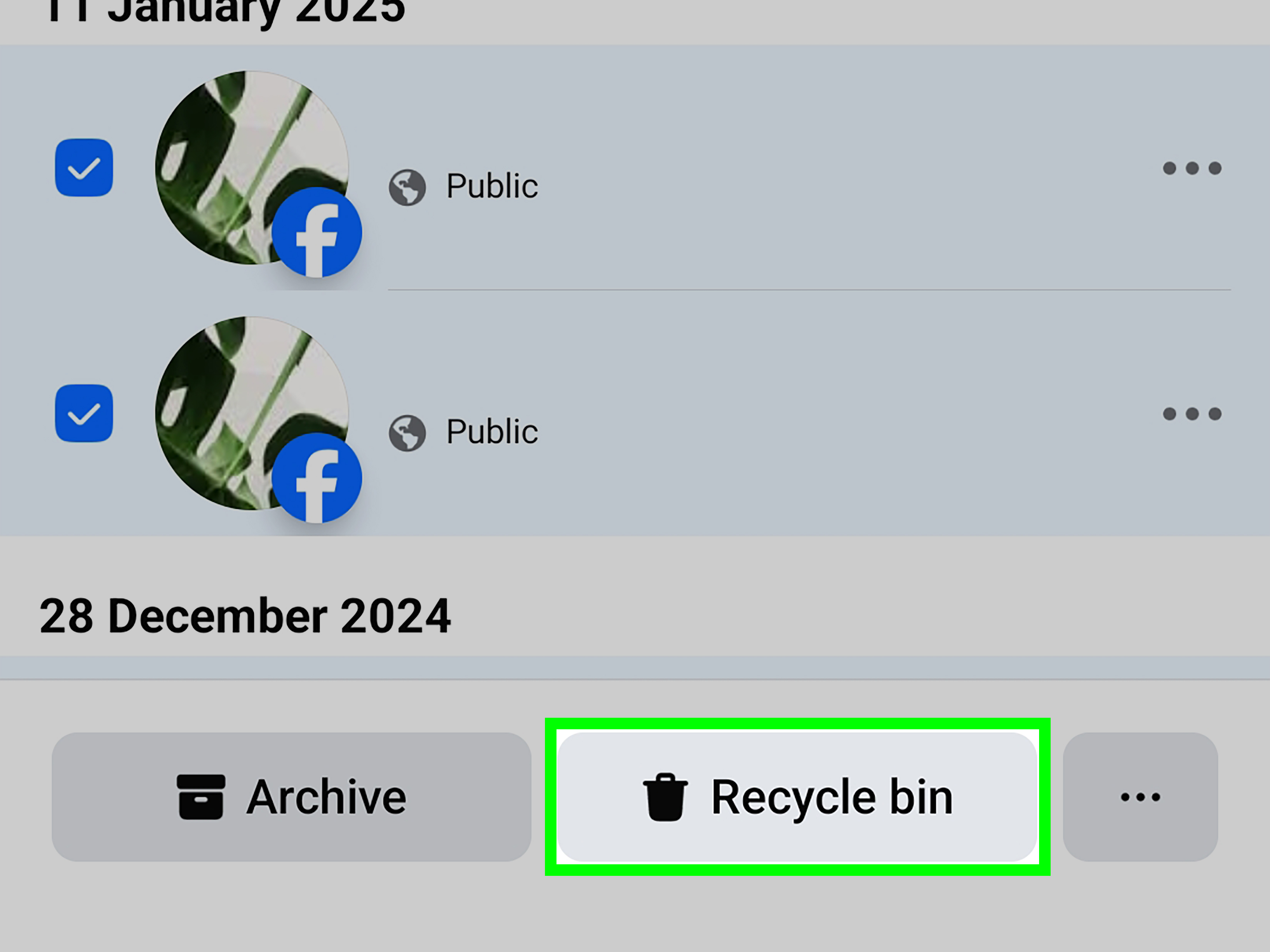
- Use Activity Log or Manage Activity to review old photo posts and move items to Trash.
- Delete individual photos one by one when Facebook does not allow bulk deletion for that album or post type.
The fastest method is deleting a full album. The most flexible method is Activity Log. The slowest but sometimes unavoidable method is manual deletion. Think of it like cleaning a closet: sometimes you can donate the whole box, and sometimes you have to inspect every mystery cable individually.
How to Delete Multiple Photos on Facebook Using Desktop
If you are using a computer, Facebook’s desktop site is often the easiest place to organize old photos. A larger screen helps you see albums, menus, and confirmation boxes more clearly.
Method 1: Delete a Facebook Photo Album on Desktop
If the photos you want to delete are inside an album you created, deleting the entire album is usually the quickest option.
- Open Facebook in your browser and log in.
- Click your profile picture or name to go to your profile.
- Select Photos.
- Click Albums.
- Open the album you want to remove.
- Look for the three-dot menu or album settings option.
- Choose Delete album.
- Confirm the deletion.
This removes the album and the photos inside it. However, if the album is one of Facebook’s default albums, you may not see the delete album option. In that case, you will need to open photos individually and delete them one at a time.
Method 2: Delete Individual Photos on Desktop
For albums that cannot be deleted, or for photos scattered across your timeline, use the individual photo deletion method.
- Go to your Facebook profile.
- Click Photos.
- Open Your Photos or an album.
- Select the photo you want to remove.
- Click the three-dot menu.
- Select Delete photo.
- Confirm your choice.
Yes, this can be repetitive. No, Facebook does not give you a trophy for patience. But for profile pictures, cover photos, and some mobile uploads, this method is often the most reliable.
Method 3: Use Activity Log on Desktop
Activity Log is useful when you want to find old photo posts by date, category, or activity type. It can help you clean up photos that are attached to old posts, not just photos sitting inside albums.
- Open Facebook on desktop.
- Go to your profile.
- Click the three-dot menu near your profile controls.
- Select Activity Log.
- Look for sections related to your posts, photos, videos, or activity history.
- Filter or scroll until you find the photo posts you want to remove.
- Select the items available for management.
- Move them to Trash or delete them, depending on the option shown.
Facebook menus change from time to time, so the exact labels may vary slightly. If you do not see “Photos” immediately, look under broader categories such as “Your activity across Facebook,” “Posts,” or “Photos and videos.”
How to Delete Multiple Photos on Facebook Using Mobile
Many people manage Facebook from their phones, which makes sense because most photos are uploaded from mobile devices in the first place. The mobile app is convenient, but the smaller screen can make bulk cleanup feel a little cramped.
Method 1: Delete a Facebook Album on Mobile
To delete an album from the Facebook app:
- Open the Facebook app on your iPhone or Android device.
- Tap your profile picture or name to open your profile.
- Scroll down and tap Photos.
- Tap Albums.
- Select the album you want to delete.
- Tap the three-dot menu or album options.
- Choose Edit album if needed.
- Tap Delete album.
- Confirm the deletion.
If the delete option does not appear, the album may be protected by Facebook because it is a default album. In that case, delete photos inside the album manually.
Method 2: Delete Individual Facebook Photos on Mobile
To remove a single photo from the mobile app:
- Open the Facebook app.
- Go to your profile.
- Tap Photos.
- Open the photo you want to delete.
- Tap the three-dot menu or options button.
- Select Delete photo.
- Confirm the action.
This is the method you will use most often for Profile Pictures, Cover Photos, Timeline Photos, and Mobile Uploads. It is not glamorous, but it works.
Method 3: Use Activity Log on Mobile
Activity Log can be especially helpful on mobile because it lets you review old activity without manually digging through years of profile posts.
- Open the Facebook app.
- Go to your profile.
- Tap the three-dot menu near your profile details.
- Select Activity Log.
- Browse categories related to posts, photos, videos, or your activity.
- Use filters if available.
- Select items you want to remove.
- Move them to Trash or delete them.
If you are doing a serious cleanup, Activity Log is your best friend. It is like a filing cabinet for your Facebook history, except the cabinet occasionally rearranges its own drawers after app updates.
Can You Delete All Facebook Photos at Once?
Usually, no. Facebook does not provide a universal “delete all photos” button for personal profiles. You may be able to remove many photos quickly by deleting entire albums or using Activity Log, but there is no guaranteed one-click option that removes every photo from every album.
Be careful with browser extensions or third-party tools that claim to mass delete all Facebook photos instantly. Some may stop working when Facebook changes its interface. Others may ask for risky permissions. Since your Facebook account contains personal messages, photos, contacts, and login data, it is safer to use Facebook’s built-in tools whenever possible.
How to Delete Tagged Photos on Facebook
Tagged photos are different from uploaded photos. If someone else posted the photo, you cannot delete it from their account unless you have access to that account. What you can do is remove the tag so the photo is no longer connected to your profile.
Remove a Tag From a Facebook Photo
- Open the photo where you are tagged.
- Click or tap the three-dot menu.
- Select Remove tag.
- Confirm your choice.
If the photo is embarrassing, outdated, or inappropriate, you can also message the person who uploaded it and ask them to remove it. A simple request often works better than an awkward digital staring contest.
Should You Download Your Facebook Photos First?
Yes, if there is any chance you might want those photos later. Before deleting a large number of photos, consider downloading your Facebook information. This can help you save copies of photos, videos, posts, and other account data.
This is especially useful if you are cleaning up years of family photos, school memories, travel albums, or business-related content. Today’s “I will never need this” photo can become tomorrow’s “Wait, that was the only picture from that birthday party.”
Deleting vs. Hiding Facebook Photos
Deletion is permanent after Facebook’s recovery window expires. Hiding is less dramatic. If your goal is privacy rather than total removal, changing the audience may be smarter.
For example, you can change an album or post audience from Public to Friends, or from Friends to Only Me. This keeps the content available to you while limiting who can see it. Use deletion when you truly want the photo gone. Use privacy settings when you simply want fewer people viewing it.
Common Problems When Deleting Facebook Photos
You Do Not See the Delete Option
This usually means one of three things: you did not upload the photo, the album is a default Facebook album, or you are looking at a shared/tagged photo instead of your own uploaded content.
The Album Cannot Be Deleted
Facebook does not allow every album to be deleted as a full album. Profile Pictures, Cover Photos, and Mobile Uploads may require manual cleanup.
The Photo Still Appears Somewhere
Sometimes your browser or app cache may make old content appear briefly. Refresh the page, close and reopen the app, or check from another device. Also remember that if someone else shared or saved a copy, deleting your upload does not remove their separate copy.
You Deleted the Wrong Photo
Check Facebook’s Trash or Activity Log quickly. Content moved to Trash may be restorable for a limited time. Do not wait too long, because deleted content may become unrecoverable after the retention period ends.
Smart Cleanup Strategy for Facebook Photos
If your profile has years of uploads, do not start randomly deleting. Use a simple system:
- Download important photos first. Save anything sentimental, legal, professional, or family-related.
- Delete obvious junk albums. Start with albums you created and no longer need.
- Review default albums. Clean Profile Pictures, Cover Photos, and Mobile Uploads carefully.
- Use Activity Log. Filter by year or content type to find older photo posts.
- Remove tags. Clean up photos uploaded by other people.
- Adjust privacy settings. Hide photos you want to keep but no longer want public.
This approach is faster, safer, and less likely to end with you accidentally deleting the only good photo from a once-in-a-lifetime vacation.
Experience Section: What It Is Really Like to Delete Multiple Photos on Facebook
Deleting multiple photos on Facebook sounds simple until you actually start doing it. At first, you may expect a big, friendly button that says, “Delete all embarrassing memories from 2012.” Sadly, Facebook is not quite that generous. The process is more like sorting through a garage: some boxes can be thrown out immediately, while others require opening, checking, laughing, cringing, and deciding whether your younger self deserves forgiveness.
The easiest wins usually come from old albums. For example, if you created an album called “College Weekend,” “Old Phone Uploads,” or “Stuff,” you may be able to delete the entire album in less than a minute. That feels great. It is fast, clean, and satisfying. But then you reach default albums like Mobile Uploads or Profile Pictures, and suddenly the cleanup becomes slower. Facebook may not let you delete the whole album, so you have to open photos individually. This is when snacks become important.
From a practical point of view, desktop is better for large cleanups. The bigger screen makes it easier to compare photos, open albums, and avoid tapping the wrong option. Mobile is better for quick fixes, such as deleting one awkward upload you just noticed while waiting in line for coffee. If you are removing hundreds of photos, use a computer. If you are removing five, your phone is fine.
Another useful lesson is to delete in rounds. Do not try to clean your entire Facebook photo history in one emotional evening. Start with albums you know you do not want. Then review profile pictures and cover photos. After that, move to Activity Log and search by year. This keeps the process organized and prevents accidental deletion. It also gives you time to decide whether a photo is actually bad or just funny in a vintage way.
One surprisingly helpful habit is making a “save before delete” folder on your computer or phone. Before removing old Facebook photos, download anything that might matter later: family gatherings, school events, travel memories, old business images, or photos with people you no longer see often. You may not want those pictures public, but that does not mean you want them gone forever.
Privacy settings are also worth considering. Sometimes the best answer is not deletion. If a photo is harmless but too personal for public viewing, changing the audience to “Only me” can solve the problem without destroying the memory. This is especially useful for old family albums, childhood photos, or posts that feel too personal but still meaningful.
The biggest takeaway is this: Facebook photo cleanup is less about speed and more about control. You are deciding what your profile says about you today. Delete the clutter, save the memories, hide what should be private, and do not trust random tools that promise instant mass deletion. A careful cleanup may take longer, but your future self will appreciate not losing something important just because you got impatient.
Conclusion
Deleting multiple photos on Facebook is completely possible, but the best method depends on where those photos are stored. If they are inside a user-created album, deleting the album is usually the fastest route. If they are scattered across old posts, Activity Log can help you find and remove them more efficiently. If they live in default albums, you may need to delete them one by one.
Before you remove anything, download important photos and think about whether privacy settings might solve the problem instead. Facebook cleanup is not just about deleting old pictures. It is about shaping your online presence, protecting your privacy, and making sure your profile reflects who you are nownot who you were when low-resolution mirror selfies ruled the internet.













