
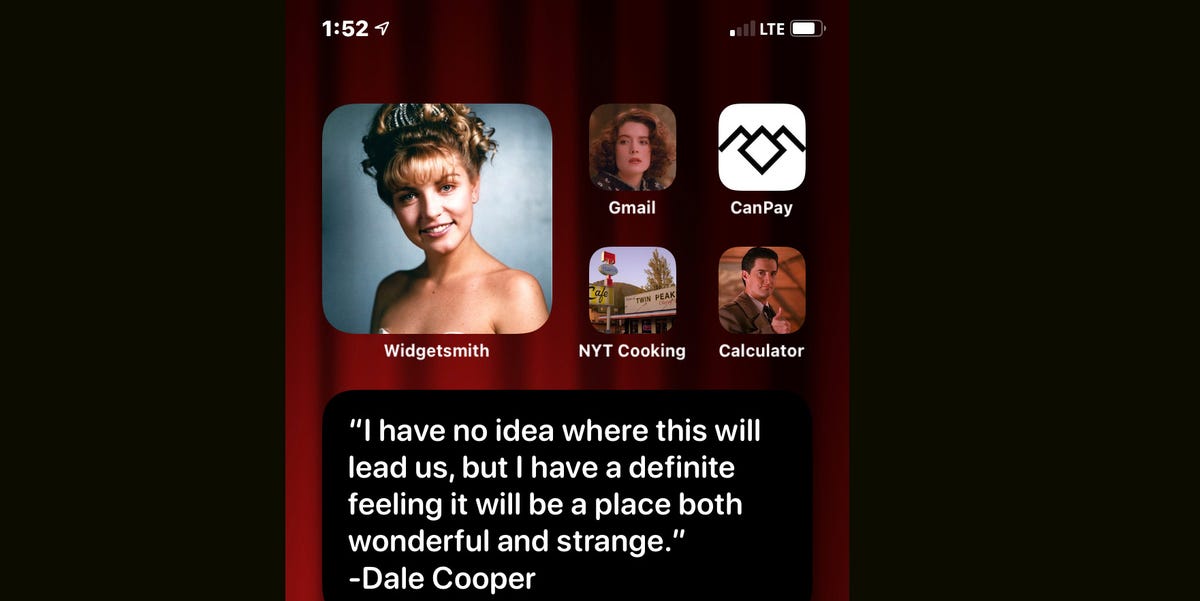
Your iPhone Home Screen used to be a very polite grid of app icons: useful, familiar, and about as expressive as a filing cabinet. Then iOS 14 arrived and handed everyone a tiny interior design studio. Suddenly, iPhone users were building pastel productivity dashboards, moody black-and-white layouts, cottagecore calendar pages, anime-themed app icons, and minimalist screens so clean they looked like they drank cucumber water.
The star of the show was the iOS 14 widget. For the first time, Apple let users place widgets directly on the Home Screen instead of hiding them away in Today View. That small change made a huge difference. Weather, calendar events, reminders, photos, battery levels, fitness stats, notes, and custom widget designs could finally live beside your apps. Add the Shortcuts app for custom icons, and your iPhone could go from “standard issue rectangle” to “tiny personal command center” in one afternoon.
This guide walks you through how to customize your iOS 14 Home Screen, create custom widgets, use Widgetsmith-style layouts, organize your apps, design a theme, and avoid common mistakes that make a beautiful setup annoying to use. Because yes, your Home Screen can look amazing and still help you find your calculator before the waiter returns with the check.
What Made iOS 14 Home Screen Customization So Popular?
Before iOS 14, iPhone customization was fairly limited. You could change your wallpaper, rearrange apps, make folders, and add widgets to the Today View. It worked, but it did not exactly scream “personal aesthetic.” iOS 14 changed that by introducing Home Screen widgets in multiple sizes and adding the App Library, which automatically organized apps away from the main Home Screen.
That combination created a new design playground. You could keep only your favorite apps on the first page, hide clutter in the App Library, and use widgets as visual anchors. A small weather widget might sit beside your daily essentials. A medium calendar widget could become the center of a productivity page. A large photo widget could turn one page into a mini mood board.
Then third-party apps entered the chat. Apps such as Widgetsmith, Color Widgets, Photo Widget, and similar customization tools allowed users to create widgets with custom fonts, colors, photos, calendars, clocks, quotes, and themed backgrounds. Meanwhile, Apple’s Shortcuts app made it possible to create custom app icons by adding shortcut tiles to the Home Screen. The result was a customization boom that spread across TikTok, Pinterest, YouTube, Reddit, and tech blogs faster than someone saying, “Wait, your iPhone can do that?”
Before You Start: Update, Backup, and Plan Your Theme
Before you begin customizing your iOS 14 Home Screen, make sure your iPhone is updated to a compatible iOS version and backed up. Home Screen customization is usually safe, but anytime you start reorganizing apps, hiding pages, and creating dozens of shortcuts, it is nice to know you can recover your setup if something goes sideways.
Check Your iOS Version
Go to Settings > General > Software Update. If your device supports iOS 14 or later, install the latest available update for your iPhone model. Later iOS versions improved several customization behaviors, but the basic Home Screen widget experience began with iOS 14.
Choose a Visual Style
Do not begin by downloading 87 random icons at midnight. That road leads to chaos, screenshots, and regret. Start with a simple design direction. Popular iOS 14 Home Screen themes include:
- Minimalist: neutral wallpaper, clean icons, simple calendar and clock widgets.
- Pastel: soft colors, cute icons, photo widgets, rounded visual balance.
- Dark aesthetic: black wallpaper, neon accents, monochrome widgets.
- Productivity setup: calendar, reminders, notes, weather, and focus apps on the first page.
- Photo mood board: personal images, travel photos, pets, quotes, or seasonal themes.
- Color-coded layout: apps grouped by icon color or function.
Pick one main color palette, one wallpaper style, and one widget font direction. This keeps your Home Screen from looking like five different design apps had a pillow fight.
How to Add Widgets to Your iOS 14 Home Screen
Adding widgets in iOS 14 is simple, and it is the foundation of every custom layout. Apple widgets come in different sizes, usually small, medium, and large. Small widgets are compact and fit into a four-icon space. Medium widgets stretch horizontally across the screen. Large widgets take up a bigger block and work well for photos, calendars, maps, and information dashboards.
Step-by-Step: Add a Widget
- Touch and hold an empty area of your Home Screen until the apps begin to jiggle.
- Tap the plus (+) button in the upper-left corner.
- Scroll through the widget gallery or search for an app.
- Choose the widget you want to add.
- Swipe through the available sizes.
- Tap Add Widget.
- Drag the widget into place.
- Tap Done.
That is the basic move. Once you know it, the rest is just design, patience, and resisting the urge to rebuild your whole phone every time you see a new Pinterest board.
Best Built-In iOS 14 Widgets to Try
Apple’s built-in widgets are useful because they are reliable, clean, and already optimized for iPhone. Some of the best widgets for a practical iOS 14 Home Screen include:
- Weather: great for daily planning and outfit decisions.
- Calendar: ideal for students, professionals, and anyone who forgets meetings exist.
- Reminders: helpful for tasks, shopping lists, and recurring chores.
- Photos: adds personality with featured images.
- Batteries: shows battery levels for iPhone and connected accessories.
- Notes: useful for quick access to lists, ideas, or planning notes.
- Fitness: displays activity progress if you use Apple Watch or fitness tracking.
- Smart Stack: combines multiple widgets in one space and rotates them intelligently.
How to Use Smart Stack Like a Pro
Smart Stack is one of the most useful iOS 14 widget features. Instead of placing five separate widgets on one page, you can stack compatible widgets in the same space and swipe through them. iOS can also rotate the stack based on time, location, or activity patterns.
For example, your Smart Stack might show weather in the morning, calendar during work hours, reminders in the afternoon, and fitness later in the day. It is like having a tiny assistant on your Home Screen, minus the awkward small talk.
How to Add a Smart Stack
- Long-press an empty area on the Home Screen.
- Tap the plus (+) button.
- Select Smart Stack from the widget gallery.
- Choose a widget size.
- Tap Add Widget.
- Drag it where you want it and tap Done.
How to Edit a Widget Stack
To edit a stack, long-press it and choose Edit Stack. From there, you can reorder widgets, remove widgets, or turn Smart Rotate on or off. If you want full control, turn off Smart Rotate and manually swipe through your stack. If you prefer convenience, leave it on and let iOS guess what you need. It may not always read your mind, but it usually tries harder than a group chat planning dinner.
How to Create Custom Widgets With Widgetsmith-Style Apps
Apple’s built-in widgets are functional, but third-party widget apps are where iOS 14 customization becomes truly personal. Widgetsmith became one of the most famous examples because it allowed users to create custom widgets with different styles, fonts, colors, photos, calendars, clocks, and health information. Other apps offered similar features, including Color Widgets and photo-based widget tools.
The general process is similar across most custom widget apps: create a widget inside the app, choose a size and style, save it, then add that app’s widget to your Home Screen through the iOS widget gallery.
Step-by-Step: Create a Custom Widget
- Download a trusted custom widget app from the App Store.
- Open the app and choose a widget size: small, medium, or large.
- Select the widget type, such as clock, calendar, photo, quote, reminders, or weather.
- Customize the font, background color, border, image, or layout.
- Save the widget design.
- Return to the Home Screen and long-press an empty area.
- Tap the plus (+) button.
- Search for your widget app.
- Select the correct widget size and tap Add Widget.
- Long-press the widget, choose Edit Widget, and select the custom widget you created.
This is the basic recipe. Once you understand it, you can create multiple widgets for different pages: one for school or work, one for wellness, one for entertainment, and one purely for vibes. Vibes are not in the Settings app, but they are very real.
Custom Widget Ideas for a Beautiful iOS 14 Home Screen
A good custom widget should either be useful, beautiful, or ideally both. If a widget looks great but forces you to dig through three pages to find Messages, the design is working against you. Start with your daily habits, then build around them.
1. The Morning Dashboard
Create a first-page setup with a medium weather widget, a small calendar widget, and a reminders widget. Add your most-used apps below: Messages, Mail, Safari, Notes, Maps, and Music. This layout makes your iPhone feel like a personal control panel when you wake up.
2. The Student Setup
Use widgets for Calendar, Reminders, Notes, and a study timer app. Add shortcuts to your learning apps, cloud storage, calculator, and browser. Choose a calm wallpaper and simple icons so your Home Screen does not become another distraction wearing a cute outfit.
3. The Wellness Page
Create a page with Fitness, sleep tracking, water reminders, meditation, music, and health widgets. Use soft colors and a photo widget with something peaceful, such as nature, pets, or a favorite travel memory. The goal is to make healthy habits easier to see and tap.
4. The Creative Mood Board
Use large photo widgets, quote widgets, and creative app shortcuts for photography, drawing, writing, or video editing. This works especially well if you use your iPhone for content creation. Think of it as a tiny inspiration wall that fits in your pocket.
5. The Minimalist Productivity Screen
Keep only one page visible. Add one medium calendar widget, one small battery widget, and four to eight essential apps. Move everything else to the App Library. This setup is great if you want your phone to feel lighter, cleaner, and less like a vending machine for distractions.
How to Customize App Icons in iOS 14 Using Shortcuts
Widgets create the layout, but custom app icons create the full theme. In iOS 14, users discovered that Apple’s Shortcuts app could be used to create Home Screen icons that open specific apps. This does not replace the original app icon system-wide. Instead, it creates a shortcut icon that launches the app.
This distinction matters. A custom shortcut icon may not behave exactly like a normal app icon in every version of iOS. In early iOS 14 versions, tapping a custom icon could briefly open the Shortcuts app before launching the target app. Later updates improved the experience, but it is still smart to understand that you are creating a shortcut, not permanently changing the app’s original icon.
Step-by-Step: Create a Custom App Icon
- Save the icon image you want to use to your Photos app.
- Open the Shortcuts app.
- Tap the plus (+) button to create a new shortcut.
- Tap Add Action.
- Search for Open App and select it.
- Tap App and choose the app you want to open.
- Tap the menu or share options, then choose Add to Home Screen.
- Tap the icon preview and choose Choose Photo.
- Select your custom icon image.
- Name the shortcut, such as “Instagram,” “Photos,” or “Mail.”
- Tap Add.
Repeat this for each app you want to customize. For a fully themed Home Screen, use icons from the same pack or create your own with matching colors and line styles. Mixing glossy neon icons with beige watercolor icons can work, but it usually looks like your phone got dressed in the dark.
What to Do With the Original App Icons
Once you create custom shortcut icons, you may want to remove the original app icons from the Home Screen. In iOS 14, you can long-press the original app, choose Remove App, then select Remove from Home Screen if available. This keeps the app installed while moving it to the App Library.
Do not delete the app unless you actually want it gone. Removing an app from the Home Screen is like putting it in a drawer. Deleting it is throwing away the drawer and wondering where your socks went.
Use the App Library to Reduce Home Screen Clutter
The App Library is another major iOS 14 feature that makes customization easier. It automatically organizes installed apps into categories such as Social, Productivity, Entertainment, Utilities, Creativity, and Recently Added. You can access it by swiping left past your last Home Screen page.
This is useful because a beautiful Home Screen depends as much on what you remove as what you add. Instead of keeping every app visible, you can design one to three intentional pages and let the App Library hold the rest.
Recommended Page Structure
- Page 1: daily essentials, weather, calendar, messages, browser, music, notes.
- Page 2: work, school, finance, productivity, task management.
- Page 3: entertainment, shopping, games, social media, photos.
If you want an ultra-clean setup, use only one Home Screen page and rely on Spotlight Search or the App Library for everything else. Swipe down, type the app name, open it, and feel like a person who has their life together. Even if your laundry says otherwise.
Design Tips for a Better iOS 14 Home Screen
Customization is not just about making your iPhone pretty. A good Home Screen should reduce friction. You should be able to glance, tap, and move on. Here are design principles that make your custom widgets and icons feel polished.
Keep One Main Color Palette
Choose two or three colors and repeat them across your wallpaper, icons, and widgets. For example, a beige, cream, and brown palette creates a warm minimalist look. Black, gray, and electric blue creates a futuristic layout. Pink, lavender, and white creates a soft pastel theme.
Balance Widget Sizes
Too many large widgets can make your Home Screen feel crowded. Too many small widgets can make it feel scattered. A strong layout often uses one medium widget as the anchor, then supports it with small widgets and app icons.
Use Blank Space
Blank space is not wasted space. It helps your eyes understand the layout. A clean Home Screen with fewer elements often feels more premium than a packed screen where every pixel is screaming for attention.
Match Icons With Wallpaper
If your wallpaper is busy, use simple icons. If your icons are detailed, use a plain wallpaper. When both are loud, your Home Screen becomes a visual group project where nobody read the instructions.
Prioritize Tap Targets
Put your most-used apps where your thumb naturally lands. Aesthetic layouts are fun, but if your Phone app is hidden behind three swipes and a tiny moon icon, the design has gone too far.
Common iOS 14 Customization Mistakes to Avoid
Custom Home Screens are fun, but they can become frustrating if you overdo them. Here are common mistakes and how to fix them.
Mistake 1: Making Every Icon Too Mysterious
Minimal icons look beautiful until you forget which beige circle opens your banking app. Keep labels on important apps or use recognizable symbols.
Mistake 2: Using Too Many Widget Apps
Installing five widget apps can lead to inconsistent fonts, colors, and widget behavior. Choose one or two reliable apps and build your theme around them.
Mistake 3: Ignoring Battery and Performance
Most widgets are lightweight, but using many constantly updating widgets may affect battery life. Weather, fitness, location, and photo widgets are useful, but avoid filling every page with live information you rarely need.
Mistake 4: Choosing Style Over Usability
If customization makes your iPhone harder to use, simplify. The best iOS 14 Home Screen setup is the one you enjoy and can navigate quickly.
Mistake 5: Forgetting About Focus
Even in iOS 14, you can create a calmer experience by reducing visible distractions. Move social apps off the first page, use fewer notification-heavy widgets, and keep your main screen focused on tools rather than temptations.
Best Apps for Creating Custom iOS 14 Widgets
Several apps became popular during the iOS 14 customization wave. Availability and features can change over time, so always check the App Store description, privacy details, ratings, and in-app purchase information before downloading.
Widgetsmith
Widgetsmith became famous for its flexible widget creation tools. It lets users create custom widgets for time, date, calendar, photos, weather, reminders, and more, depending on the version and permissions. It is especially useful for matching fonts and colors across a theme.
Color Widgets
Color Widgets focuses on stylish, ready-made widget templates. It is helpful if you want fast results without designing every detail from scratch. Many users like it for clocks, calendars, battery widgets, and decorative layouts.
Photo Widget Apps
Photo widget apps are great for mood boards. You can rotate favorite images, create seasonal displays, or add personal memories to your Home Screen. They are simple, but they make an iPhone feel more personal immediately.
Shortcuts
Apple’s Shortcuts app is essential for custom app icons. It is also powerful beyond aesthetics, letting users create automations and quick actions. For Home Screen customization, its most common use is creating shortcut icons that open selected apps.
Practical Layout Example: A Clean Daily iOS 14 Home Screen
Here is a simple example layout you can build in 20 to 30 minutes:
Theme
Warm minimalist: cream wallpaper, tan icons, dark brown text, simple calendar and weather widgets.
Widgets
- Medium calendar widget at the top.
- Small weather widget below it on the left.
- Small battery widget below it on the right.
- Photo widget on the second page for personality.
Apps
- Dock: Phone, Messages, Safari, Music.
- Main page: Mail, Calendar, Notes, Maps, Camera, Photos, Reminders, Settings.
- Second page: social media, entertainment, shopping, reading apps.
This layout is attractive but practical. You can see your day, check the weather, monitor battery, and open core apps quickly. The second page keeps fun apps available without letting them dominate your first glance.
Advanced Tips for Custom Widgets and Home Screen Themes
Once you understand the basics, you can take your iOS 14 Home Screen further with a few advanced tricks.
Create Seasonal Themes
Make different icon packs and widget styles for fall, winter, spring, holidays, school season, or travel. You do not need to redesign everything every week, but changing your wallpaper and a few widgets can make your phone feel fresh.
Use Widgets as Visual Sections
Place widgets between groups of apps to create zones. For example, put a calendar widget above productivity apps and a photo widget above creative apps. This makes the screen easier to scan.
Design Around Your Dock
The dock appears on every Home Screen page, so choose those four apps carefully. They should be the apps you use constantly, not just the ones that match your wallpaper. Beauty is nice; being able to answer a message quickly is nicer.
Save Your Icon Images
Keep all custom icons in a dedicated Photos album or cloud folder. If you ever rebuild your setup, you will not have to hunt through your camera roll between lunch photos and screenshots of recipes you definitely planned to cook.
Use Search for Hidden Apps
If you remove many original app icons from the Home Screen, get comfortable with Spotlight Search. Swipe down from the Home Screen, type the app name, and open it instantly. This lets you keep a clean design without losing access to anything.
Personal Experience: What Customizing an iOS 14 Home Screen Actually Feels Like
Customizing an iOS 14 Home Screen sounds simple at first. Add widgets, change icons, pick a wallpaper, done. In reality, it feels a bit like decorating a tiny apartment where every chair is also a button. You start with one innocent weather widget, and suddenly you are comparing six shades of beige like your iPhone is applying to design school.
The first thing you notice is how much your Home Screen affects your mood. A cluttered screen can make your phone feel noisy before you even open an app. When every app is visible, every app is quietly asking for attention. Social media, shopping, games, email, banking, photos, and random utilities all sit there like tiny digital pigeons pecking at your focus. Once you remove the clutter and build a calmer first page, your iPhone feels less demanding.
A custom widget setup also teaches you which information you actually care about. Many people think they want a giant dashboard full of data: weather, calendar, stocks, reminders, battery, photos, quotes, step count, moon phase, and maybe a small widget that tells them whether Mercury is blaming their inbox again. But after a few days, you realize only a few widgets earn their space. For most users, calendar, weather, reminders, batteries, and photos are the real winners.
The calendar widget is especially useful. Seeing your next event without opening an app saves small bits of time every day. A reminders widget can also be surprisingly powerful because it puts tasks where you cannot ignore them. If your Home Screen says “submit assignment,” “buy milk,” or “call dentist,” it becomes harder to pretend you did not see it. The widget is not judging you, but it is definitely making eye contact.
Photo widgets are different. They are not always productive, but they make the iPhone feel human. A rotating photo of your dog, your friends, your favorite vacation, or a motivational quote can make the Home Screen feel less like a tool and more like your space. The trick is not to overdo it. One photo widget can be charming. Four photo widgets can make your phone look like a scrapbook fell into a software update.
Custom icons are where the experience becomes both fun and slightly tedious. Creating one shortcut icon is easy. Creating twenty takes patience. You need to save images, create shortcuts, name them, add them to the Home Screen, and move the original apps away. The result can look fantastic, but it is worth customizing only the apps that matter visually. You do not need a custom icon for an app you open once every three months to check warranty information for a blender.
The best lesson from using custom iOS 14 widgets is that design should serve your habits. A beautiful Home Screen that slows you down will eventually annoy you. A practical Home Screen that looks good will last. Start with your daily routine: what do you check in the morning, what apps do you use for school or work, what distracts you, and what information helps you make decisions faster? Build around those answers.
After testing different layouts, the most satisfying setup is usually simple: one clean wallpaper, one medium widget, one or two small widgets, a dock with essential apps, and everything else tucked into the App Library. It feels organized without becoming sterile. It looks personal without turning into a full-time hobby. And when someone sees your iPhone and says, “Wait, how did you do that?” you get the small joy of becoming the tech wizard of the room for about three minutes.
In the end, iOS 14 Home Screen customization is not just about aesthetics. It is about making your phone feel more intentional. Widgets let you bring useful information forward. Custom icons let you create a visual style you enjoy. The App Library lets you hide clutter. Together, they turn the iPhone from a fixed grid into a personal workspace. And if your first attempt looks terrible, congratulations: that is part of the tradition. Rearrange, simplify, try again, and remember that even the best Home Screen themes probably started as a chaotic pile of screenshots at 1 a.m.
Conclusion
Learning how to customize your iOS 14 Home Screen is one of the easiest ways to make your iPhone feel fresh, personal, and more useful. With widgets, Smart Stacks, custom widget apps, Shortcuts icons, and the App Library, you can build a layout that matches your style while keeping your most important tools close at hand.
The best approach is to start small. Add a calendar widget, choose a wallpaper, organize your most-used apps, and experiment with one custom widget app. Once the basics feel right, you can create a full theme with matching icons, photo widgets, and productivity pages. Keep usability at the center, because the most beautiful Home Screen is still supposed to help you use your phone, not turn every app launch into a treasure hunt.
Note: This article was written for web publishing based on real iOS 14 Home Screen customization features, Apple widget behavior, Shortcuts-based icon customization, App Library organization, and widely used custom widget practices. Source links are intentionally not included in the article body.












