
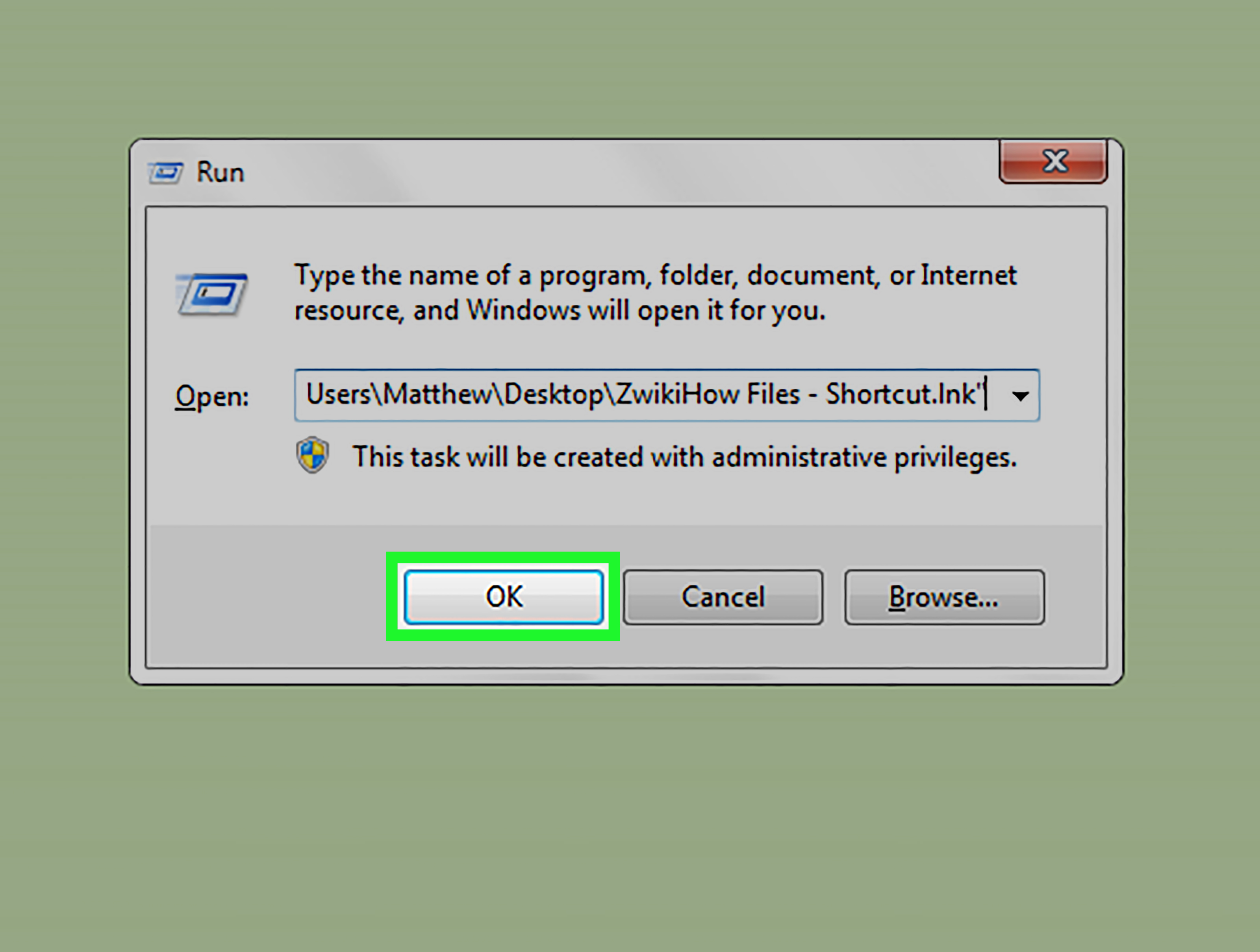
Windows has a tiny productivity doorway hiding in plain sight: the Run dialog. Press Windows + R, type a short command, hit Enter, and boomyour computer jumps straight to a program, folder, website, script, or system tool. No mouse safari. No digging through folders like a digital raccoon. Just one clean command and you are there.
Learning how to create your own Run command is one of those small tricks that makes Windows feel more personal, faster, and a little bit cooler. Instead of opening File Explorer, clicking five folders, searching for an app, or wandering through the Start menu, you can create a custom shortcut such as work, notes, budget, design, or server. Type it into Run, and Windows opens exactly what you want.
This guide explains how to create your own Run command in five practical steps. It focuses on Windows 10 and Windows 11, using safe, beginner-friendly methods first, then showing more advanced options such as PATH folders and App Paths for users who want a cleaner setup. Bring your keyboard. Leave the cape at homealthough after this, you may feel like a desktop wizard.
What Is a Run Command in Windows?
A Run command is a short instruction typed into the Windows Run dialog. You open the dialog with Windows + R, enter a command, and Windows launches the matching program, file, folder, control panel item, or system feature.
Many built-in Run commands already exist. For example, notepad opens Notepad, mspaint opens Paint, cmd opens Command Prompt, control opens Control Panel, and appwiz.cpl opens Programs and Features. Windows can find these because they live in known system locations, are registered with the operating system, or are accessible through environment paths.
A custom Run command works the same way, except you choose what the command launches. The easiest way is to create a shortcut, give it a simple name, and place it somewhere Windows checks when you type into Run. More advanced users can also register applications through the Windows Registry using App Paths, which is cleaner for software-style command launching.
Why Create Your Own Run Command?
Custom Run commands are useful because they reduce repetitive clicking. If you open the same folder, tool, script, or document every day, a short command can save time and mental energy. It is the Windows equivalent of putting your favorite snack on the front shelf instead of behind six jars of mystery sauce.
You can create Run commands for:
- Frequently used apps, such as browsers, editors, or design tools
- Project folders, including work, school, finance, or client folders
- Specific files, such as spreadsheets, templates, notes, or checklists
- Batch files and PowerShell scripts for routine tasks
- Websites or local dashboards used every day
The main keyword here is simple: create your own Run command. But the real benefit is bigger than the keyword. You are building a faster Windows workflow, one tiny command at a time.
How to Create Your Own Run Command: 5 Steps
Step 1: Decide What Your Run Command Should Open
Before creating anything, decide exactly what you want your custom Run command to launch. This matters because the setup can vary depending on whether you are opening an app, a folder, a file, a script, or a website.
For example, you might want:
blogto open your writing folderinvoiceto open an Excel invoice templateeditto open your favorite code editorbackupto run a safe backup scriptsiteto open a local development dashboard
Choose a command name that is short, memorable, and unlikely to conflict with existing Windows commands. Avoid names such as cmd, control, explorer, or notepad because Windows already uses them. Also avoid spaces. A command like workfiles is cleaner than open my work files please. Windows is powerful, but it is not your butler.
A good naming rule is to use lowercase words, numbers only when necessary, and no special characters. Examples include tax2026, clienta, photos, admin, and daily. Simple commands are easier to remember and faster to type.
Step 2: Create a Shortcut for the App, Folder, File, or Website
The easiest way to make a custom Run command is to create a Windows shortcut. A shortcut is a small file that points to something else. It can point to a program, folder, file, script, or even a web address.
To create a shortcut for an app, folder, or file:
- Right-click on your desktop or inside a folder.
- Select New, then choose Shortcut.
- Browse to the item you want to open, or paste its full path.
- Click Next.
- Name the shortcut with your chosen Run command, such as
workornotes. - Click Finish.
For a folder, the target may look like this:
For a program, it may look like this:
For a website, type the URL into the shortcut target field:
Windows will open that website in your default browser. This is handy for dashboards, admin panels, school portals, writing platforms, analytics tools, or any page you visit so often that your browser probably knows it by smell.
After the shortcut is created, rename it carefully. If the shortcut is named work, your Run command will usually be work. If Windows shows the file extension, it may appear as work.lnk, but you normally type only work in the Run box.
Step 3: Move the Shortcut to a Folder Windows Can Find
Creating the shortcut is only half the job. Windows also needs to find it when you type the command into Run. The simplest classic method is to move the shortcut into the Windows folder:
Once a shortcut is placed there, pressing Windows + R and typing the shortcut name should launch it. For example, if you place a shortcut named work inside C:\Windows, typing work in Run should open your work folder.
However, there is an important caution: C:\Windows is a system folder. Windows may ask for administrator permission before letting you copy files into it. Do not delete, rename, or move anything else inside that folder unless you know exactly what you are doing. The Windows folder is not a junk drawer. Treat it more like the engine room of a spaceship.
A cleaner alternative is to create your own command folder, such as:
Then place all your custom Run command shortcuts inside that folder. This keeps your commands organized and avoids cluttering a system directory. To make Windows find that folder from Run, you need to add it to the PATH environment variable, which we cover in the next step.
Step 4: Add Your Shortcut Folder to the Windows PATH
The PATH environment variable is a list of folders Windows checks when you type a command without giving the full location. If your custom shortcut folder is added to PATH, Windows can find your shortcuts from Run, Command Prompt, and other launch areas.
To add your shortcut folder to PATH in Windows 10 or Windows 11:
- Press Windows and search for environment variables.
- Choose Edit the system environment variables.
- Click Environment Variables.
- Under your user variables, select Path, then click Edit.
- Click New.
- Add your folder path, such as
C:\Shortcuts. - Click OK to close each window.
After changing PATH, close and reopen the Run dialog, Command Prompt, PowerShell, or any app that needs to recognize the new path. Some changes only apply to new sessions, not windows that were already open.
You can also set environment variables from the command line with tools such as setx, but beginners should be careful. Editing PATH through the Windows interface is easier to review and less likely to cause accidental mistakes. PATH is extremely useful, but if you overwrite it carelessly, some apps may stop launching correctly from the command line. That is not “productivity.” That is “why is my computer giving me side-eye?”
Once C:\Shortcuts is in PATH, test your command. Press Windows + R, type the shortcut name, and hit Enter. If everything is set correctly, your custom Run command should open the target.
Step 5: Test, Troubleshoot, and Improve Your Custom Command
Now comes the satisfying part: testing. Press Windows + R, type your custom command, and press Enter. If your shortcut opens the correct app, folder, file, website, or script, congratulationsyou have created your own Run command. Please enjoy your tiny victory fanfare.
If it does not work, check these common issues:
The Shortcut Name Is Wrong
Make sure the shortcut is named exactly what you are typing. If the shortcut is named workfiles, typing work will not magically guess your intention. Computers are fast, not psychic.
The Shortcut Is in the Wrong Folder
If you placed the shortcut in C:\Shortcuts, confirm that this folder has been added to PATH. If you placed it in C:\Windows, confirm the shortcut actually copied there and did not remain on the desktop.
The Target Path Has Changed
If the shortcut points to a file or program that was moved, renamed, or deleted, the command will fail. Right-click the shortcut, choose Properties, and check the Target field.
You Need a New Session
If you just edited PATH, close old command windows and try again. Environment variable changes often apply to new sessions. Logging out and back in can also help if Windows is being stubborn.
The Command Conflicts With an Existing Command
If your custom command has the same name as a built-in command or existing executable, Windows may open the wrong thing. Rename your shortcut to something more unique. For example, use mywork instead of work if another program already uses that name.
Advanced Option: Use App Paths for Cleaner Custom Run Commands
For users who are comfortable with the Windows Registry, App Paths can provide a more formal way to register an application so Windows can launch it by name. This is commonly used by software installers because it lets Windows find an executable without adding the entire application folder to PATH.
The App Paths registry area usually lives under:
A user-level approach may also be possible under:
Inside App Paths, you can create a key such as myapp.exe and set its default value to the full path of the program you want to launch. This method is best for executable files, not ordinary documents or folders. It is also best for people who understand registry editing.
Before editing the Registry, create a restore point or export the key you plan to change. The Registry is powerful, but it is not a playground. One wrong edit can cause real problems, and Windows will not pop up with a gentle “Are you sure, champion?” for every bad decision.
Best Practices for Custom Run Commands
Once you create one custom Run command, it is tempting to create twenty. That is fine, but organize them properly so your productivity system does not become a junkyard with a keyboard shortcut.
Use One Dedicated Folder
Create one folder such as C:\Shortcuts or C:\RunCommands. Put all custom shortcut files there. Add that folder to your user PATH. This keeps your commands portable, visible, and easy to back up.
Use Clear Names
Name commands based on what they do. A command called budget should open your budget file or finance folder. A command called dev might open your development folder or code editor. Avoid mystery names like x1, unless you enjoy leaving puzzles for your future self.
Document Your Commands
Create a simple text file inside your shortcut folder called commands.txt. List each custom Run command and what it opens. This is especially useful if you manage many commands or set up similar workflows on multiple computers.
Be Careful With Scripts
Custom Run commands can launch scripts, including batch files and PowerShell scripts. That can be extremely useful for safe automation, but do not run scripts from unknown sources. Use scripts only when you understand what they do, and avoid commands that delete, overwrite, or modify important files without confirmation.
Back Up Your Shortcut Folder
If your custom commands become part of your daily workflow, back up the folder. A tiny folder full of shortcuts can represent hours of saved time. Losing it is not tragic, but it is annoying in the same way as losing one sock from every pair.
Practical Examples of Custom Run Commands
Here are some useful examples you can adapt.
Open a Work Folder
Create a shortcut named work that points to:
Now Windows + R, work, Enter opens your work folder.
Open a Daily Notes File
Create a shortcut named notes that points to:
This is great for journaling, task tracking, meeting notes, or the sacred list of things you were supposed to remember before walking into another room.
Open a Website
Create a shortcut named dash with this target:
Typing dash into Run opens the page in your default browser.
Open a Portable App
If you keep a portable app in a tools folder, create a shortcut named tool pointing to its executable file. This is useful for utilities that do not have traditional installers.
Custom Run Commands vs. PowerToys Command Palette
Microsoft PowerToys includes modern launcher tools such as Command Palette, which can open apps, search files, run commands, and improve keyboard-based workflows. It is more visual and flexible than the classic Run dialog. However, the Run dialog remains fast, built into Windows, and perfect for simple command launching.
Use custom Run commands when you want lightweight shortcuts that work with Windows itself. Use PowerToys Command Palette when you want a richer launcher with search, extensions, and a more modern interface. There is no need to choose only one. Like coffee and breakfast, they can peacefully coexist.
Common Mistakes to Avoid
The most common mistake is placing a shortcut somewhere Windows cannot find. The second most common mistake is choosing a command name that already exists. The third is editing PATH or the Registry too aggressively without writing down what changed.
To stay safe, start with the shortcut method. Create a dedicated folder, add it to your user PATH, and test one command at a time. Do not modify system-wide settings unless you need to. Do not edit the Registry unless you are confident. And do not name your command notepad unless you enjoy confusing both Windows and yourself.
Experience-Based Tips: What You Learn After Using Custom Run Commands Daily
After using custom Run commands for a while, you begin to notice something interesting: the biggest benefit is not just speed. It is reduced friction. Every repeated click, folder search, and Start menu scroll is tiny on its own, but together they create drag. Custom Run commands remove that drag from tasks you perform every day.
For example, a writer might create commands like drafts, ideas, and publish. A student might create homework, notes, and classes. A developer might create code, local, logs, and repo. None of these commands are complicated, but they turn a scattered desktop into a fast command-driven workspace.
One useful habit is to create commands around workflows, not just apps. Instead of making a command that only opens a text editor, create a command that opens the folder where the actual work lives. This keeps your attention on the task rather than the tool. If you are writing, open the writing folder. If you are reviewing invoices, open the invoice folder. If you are editing images, open the project folder. The app will follow when you open the file.
Another lesson: fewer commands are better than too many commands. At first, it is fun to create shortcuts for everything. Then you forget half of them. A small set of meaningful commands is easier to remember and more useful. Think of them like speed-dial contacts. You do not need a speed dial for every person you have ever met. You need it for the people you actually call.
It also helps to use consistent naming patterns. If you work with clients, use names like client-acme, client-nova, or client-river. If you work by category, use names like finance, media, school, or projects. Consistency prevents the classic problem of staring at the Run box thinking, “Did I call it pics, photos, images, or that-folder-with-the-cat-memes?”
For users who move between computers, keeping all custom shortcuts in one folder is a lifesaver. You can back up that folder to cloud storage or an external drive. On a new machine, restore the folder, add it to PATH, and your command system is mostly back. This is much easier than rebuilding random shortcuts scattered across the desktop, Start menu, and forgotten corners of File Explorer.
Finally, custom Run commands teach a useful mindset: personalize your computer around your real habits. Windows is full of features, but the best setup is the one that fits the way you work. If you open something daily, it deserves a shortcut. If you open something once a year, it does not need a custom command. The goal is not to show off. The goal is to make the computer disappear a little so you can get to the actual work faster.
Conclusion
Creating your own Run command in Windows is simple, practical, and surprisingly satisfying. You choose what you want to open, create a shortcut, place it in a searchable folder, add that folder to PATH if needed, and test the command through Windows + R. For most users, the shortcut method is the safest and easiest approach. Advanced users can explore App Paths for a cleaner application-style setup.
Whether you want to open a work folder, launch a favorite app, jump to a website, or start a safe script, custom Run commands can make Windows feel faster and more personal. Start with one command you will use every day. Once it becomes muscle memory, add another. Before long, you will wonder why you spent so much of your life clicking through folders like it was a treasure hunt with no treasure.
Note: This article is written for Windows 10 and Windows 11 users. Always be careful when changing system folders, environment variables, or Registry settings, and create backups before making advanced changes.











