
Converting text to outline in Photoshop sounds like one of those tiny design tasks that should take three secondsright until you open the menus and discover that “outline” can mean about four different things. Are you trying to turn editable text into a vector shape? Add a visible stroke around letters? Make hollow text with only the border showing? Prepare a file for print so fonts do not misbehave like rebellious toddlers? Good news: Photoshop can handle all of that, and you do not need to be a design wizard wearing a black turtleneck to do it.
In this guide, we will focus on the most useful meaning of the phrase: how to convert text to outline in Photoshop by turning a text layer into a shape layer. Once converted, the letters become editable vector paths. You can adjust anchor points, reshape individual letters, create custom typography, and send the artwork to another designer or printer without worrying as much about missing fonts. We will also cover stroke outlines, transparent text effects, rasterizing, saving backup layers, and practical workflow tips.
The process is simple, but there is one important rule: finalize your wording first. Once you convert text to a shape, it is no longer editable as normal text. In other words, Photoshop will not let you casually fix “SALE” after you accidentally typed “SNALE.” So proofread twice, convert once, and let’s get those letters into shapeliterally.
What Does “Convert Text to Outline” Mean in Photoshop?
In Photoshop, converting text to an outline usually means changing a live type layer into a vector shape layer. A type layer is editable: you can change the words, font, size, tracking, leading, color, and alignment. A shape layer is different. It is made of paths and anchor points. After conversion, each letter becomes a custom shape that can be resized cleanly and edited with path tools.
This is useful for logo design, poster text, stickers, social media graphics, packaging mockups, and print-ready artwork. Designers often convert text to outlines when they want to customize letterforms, prevent font-substitution problems, or create effects that are difficult to achieve with live type alone.
There is another common meaning: adding a visible border around text. That is done with a Stroke layer style. Stroke is great when you want bold headline text, sports-poster lettering, YouTube thumbnails, neon-style typography, or readable text over a busy image. The two techniques often work together: you may add a stroke first, duplicate the layer, then convert the text to a shape when the design is final.
Before You Start: Prepare Your Photoshop Text Layer
Before converting text to outline in Photoshop, take a minute to set up your file properly. This tiny preparation step can save you from future pain, panic, and dramatic sighing at your monitor.
Check the spelling and wording
Once text becomes a shape, it cannot be edited with the Type Tool like normal text. Read every word carefully. If the design includes a brand name, date, price, address, or product claim, check it against the original brief. A beautiful outline is still not helpful if it says “Grand Openign.”
Choose the final font
Pick your font before conversion. Make sure the weight, style, capitalization, and spacing feel right. If you are designing professionally, also confirm that the font license allows the intended commercial use. Photoshop will convert the letter shapes, but licensing is still your responsibility.
Duplicate the original type layer
Always keep an editable copy. In the Layers panel, select the type layer and press Ctrl + J on Windows or Command + J on Mac. Hide the original layer and convert the duplicate. This gives you a safety net in case the client, boss, or your future self asks for a wording change five minutes later.
How to Convert Text to Outline in Photoshop: 8 Simple Steps
Step 1: Open your Photoshop document
Start by opening the file that contains your text, or create a new document by choosing File > New. For web graphics, common sizes include 1080 x 1080 pixels for square social posts or 1920 x 1080 pixels for wide banners. For print, choose the correct trim size, resolution, and color mode before you begin. A clean setup now prevents blurry exports later.
If your project already includes background images, shapes, or effects, organize your Layers panel. Rename your text layer something obvious, such as “Headline Editable” or “Logo Text.” Future you will appreciate this small act of kindness.
Step 2: Create your text with the Type Tool
Select the Horizontal Type Tool from the toolbar, or press T on your keyboard. Click once on the canvas for point text, which is best for short headlines, logos, labels, and buttons. Click and drag to create paragraph text if you are working with longer copy inside a text box.
Type your wording, then choose a font, size, color, and alignment from the Options bar or Character panel. For example, a bold condensed font works well for a poster headline, while a clean sans-serif may be better for a tech logo. Keep the design goal in mind: text that looks elegant on a wedding invitation may not have enough muscle for a gym flyer.
Step 3: Finalize your typography
Before you convert text to outline in Photoshop, polish the typography. Adjust tracking if the letters feel too cramped or too loose. Fine-tune the line spacing if you are using multiple lines. Consider whether the text needs to be centered, angled, arched, or placed inside a layout grid.
This is also a good moment to test readability. Zoom out and look at the design at the size people will actually see it. If the headline disappears into the background, increase contrast or add a stroke. If the spacing looks awkward, fix it now while the layer is still editable.
Step 4: Duplicate the text layer for safety
In the Layers panel, click your text layer and duplicate it with Ctrl + J or Command + J. Rename the original layer “Editable Text Backup” and hide it by clicking the eye icon. This backup layer is your emergency parachute.
Why is this step so important? Because converting text to a shape changes the layer’s nature. You gain vector path control, but you lose normal text editing. If you later need to change “Summer Sale” to “Spring Sale,” the hidden backup layer lets you make the edit quickly instead of rebuilding the entire design from scratch.
Step 5: Convert the text to a shape
Now comes the main event. Select the duplicated type layer in the Layers panel. Then choose Type > Convert to Shape. You can also right-click the text layer and choose Convert to Shape from the context menu.
After conversion, the layer icon changes from a type icon to a shape icon. The letters are no longer live text; they are now vector shapes. This is the key step when people ask how to convert text to outline in Photoshop for custom design or print preparation.
If the option is unavailable, make sure you have selected a real type layer, not a rasterized image, smart object, or merged layer. Photoshop can convert editable type to shape, but it cannot magically recover editable type from a flattened screenshot. Sadly, even Photoshop has limits.
Step 6: Edit the outline with the Direct Selection Tool
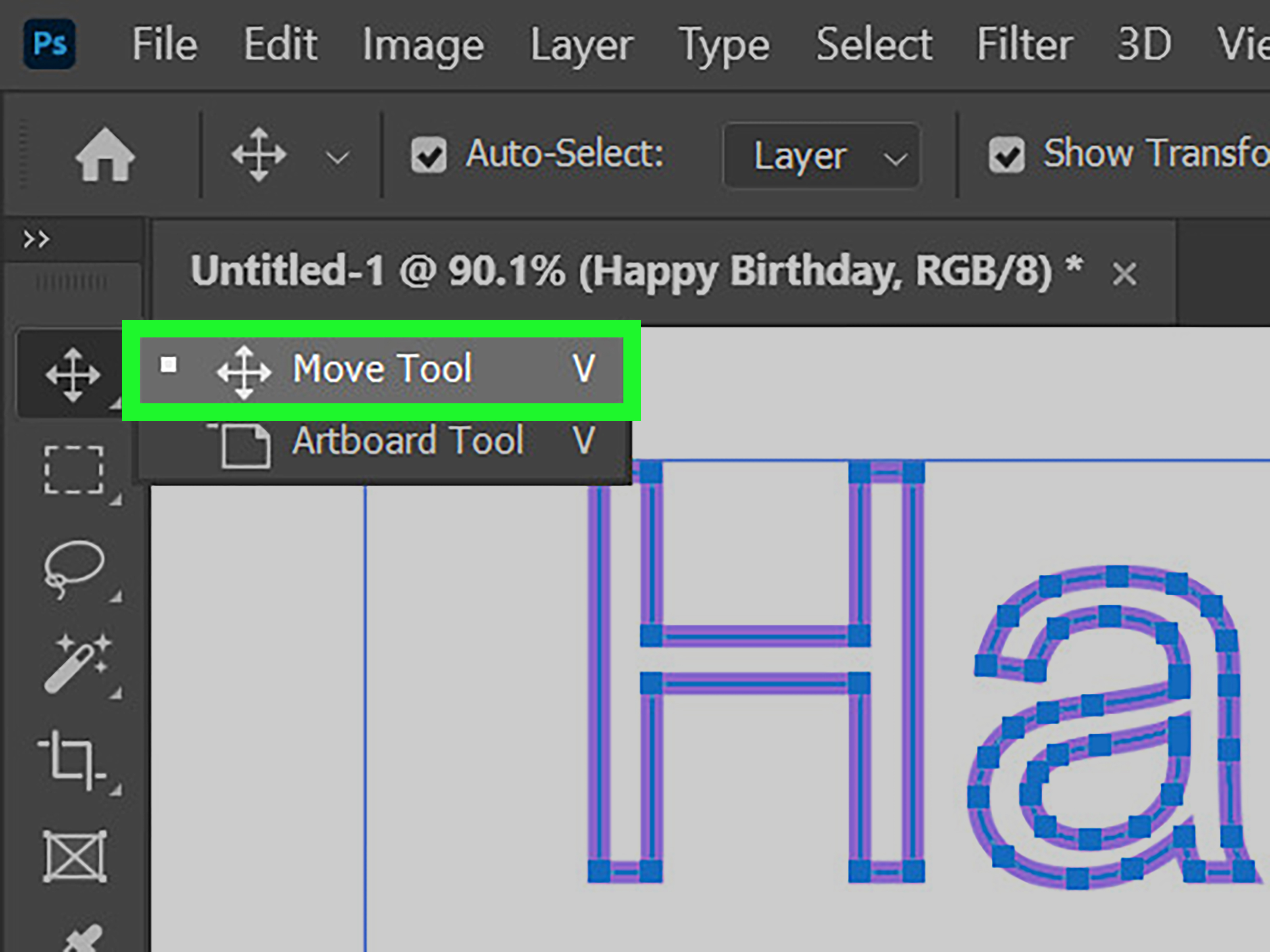
Select the Direct Selection Tool, which looks like a white arrow. You can find it grouped with the Path Selection Tool in the toolbar. Click on the converted text shape, and you will see anchor points around the letters.
Now you can customize the outline. Drag anchor points to reshape letters, adjust curves, stretch decorative terminals, or create a hand-lettered effect. For example, you could extend the tail of a lowercase “y” under the rest of a word, sharpen the corners of a bold headline, or slightly modify a letter to make a logo feel more unique.
Be careful with readability. Small changes can add personality; wild changes can make your word look like it lost a fight with a spaghetti machine. Zoom in for precision, but zoom out often to judge the overall design.
Step 7: Add a visible stroke outline if needed
If your goal is a visible border around the text, use a Stroke effect. Select the text or shape layer, then click the fx icon at the bottom of the Layers panel and choose Stroke. Adjust the size, position, blend mode, opacity, and color.
For clean text outlines, set the stroke position to Outside when available. This helps preserve the interior shape of the letters. A black stroke around white text is classic for thumbnails and posters. A white stroke around dark text can improve readability over photos. For a sticker-style look, use a thick white stroke, then add a subtle shadow.
To create hollow outline text, lower the layer’s Fill value to 0% while keeping the Stroke visible. This removes the interior fill but leaves the border. It is a simple trick that looks stylish on fashion graphics, music covers, sports posters, and minimalist banners.
Step 8: Save and export the outlined text properly
When the design is complete, save a layered PSD first. This preserves your backup type layer, converted shape layer, effects, and adjustment layers. Next, export a copy for the final destination.
For web use, export as PNG, JPEG, or WebP depending on the project. PNG is useful when you need transparency, while JPEG is fine for full-background images. For print, ask your printer what format they prefer. If you need to preserve editable layers and vector-like shape information, a Photoshop PDF or layered PSD may be appropriate. Avoid flattening too early unless the printer specifically requests a flattened file.
Common Problems and Easy Fixes
The text looks pixelated after export
If your outlined text looks blurry, check the document resolution and export size. Vector shapes inside Photoshop remain crisp while editing, but exported raster formats like JPEG and PNG are still pixel-based. Export at the correct final dimensions, and avoid enlarging small exported files later.
You cannot edit the words anymore
That is expected after converting text to shape. Use your hidden backup type layer, update the wording, duplicate it again, and convert the new duplicate to shape. This is why backup layers are not optional; they are design insurance.
The Convert to Shape command is missing
Make sure the selected layer is an editable type layer. If the text was already rasterized, merged, flattened, or imported as part of an image, Photoshop sees it as pixels, not type. In that case, you may need to retype the text manually or use selection tools to trace it, depending on the quality of the image.
The stroke makes the letters look crowded
Reduce the stroke size or increase the spacing between letters before converting. Thick strokes can fill in counters, which are the interior spaces of letters like “o,” “e,” “a,” and “p.” If those spaces disappear, your design may become harder to read.
Best Practices for Clean Photoshop Text Outlines
Use bold fonts when the outline needs to be visible from a distance. Thin fonts can work beautifully, but they require more delicate stroke settings. Keep contrast high, especially when placing outlined text over photographs. If the background is busy, add a subtle shadow, glow, or semi-transparent shape behind the text.
Work non-destructively whenever possible. Keep the original type layer hidden. Save a layered PSD. Use Smart Objects when experimenting with effects. Name your layers clearly. These habits may sound boring, but they are the difference between a smooth revision and a two-hour archaeological dig through “Layer 37 copy final FINAL v2.”
For logos and serious vector work, consider whether Adobe Illustrator may be a better long-term tool. Photoshop can convert text to shapes and edit paths, but Illustrator is built specifically for vector drawing. Still, for posters, web graphics, photo composites, social media designs, and quick typography effects, Photoshop is more than capable.
When Should You Convert Text to Shape Instead of Using Stroke?
Use Convert to Shape when you need to edit letter outlines, customize anchor points, prepare text as shapes, or reduce font dependency in a shared design file. This method is ideal for logo-style artwork, custom lettering, and print graphics where the exact letter appearance matters.
Use Stroke when you simply want a visible border around editable text. Stroke is faster, flexible, and easier to revise. You can change the wording, font, or stroke size at any time. For many everyday projects, a Stroke layer style is the better choice until the design is completely final.
Use Rasterize Type only when you need pixel-level edits, such as painting, smudging, filtering, or erasing directly on the text. Rasterizing turns type into pixels. That can be useful for certain effects, but it also removes the clean scalability of vector type and shapes.
Real-World Experience: What Actually Happens When You Outline Text in Photoshop
The first time many designers convert text to outline in Photoshop, they do it for a very practical reason: something needs to be printed, uploaded, or sent to someone else, and they do not want the font to break. Maybe it is a flyer for a local event, a restaurant menu, a product label, a birthday banner, or a social media graphic that must look exactly the same on another computer. Converting text to shape gives a sense of security because the artwork no longer depends on whether the next person has the same font installed.
In real projects, the best workflow is usually a mix of caution and creativity. For example, imagine you are designing a bold coffee shop poster that says “Fresh Brew Daily.” You choose a chunky serif font, tighten the tracking, add a cream-colored fill, and place it over a dark roasted-coffee background. At first, the letters look good, but the headline still blends into the image. You add a dark brown stroke, then a thin light stroke outside it. Suddenly the text has that hand-painted café sign feeling. At this stage, keeping the text editable is smart because the owner may still decide that “Daily Fresh Brew” sounds more poetic. Clients do enjoy discovering new opinions after seeing the final version.
Once the wording is approved, duplicate the layer and convert the duplicate to a shape. Now you can customize the letterforms. You might extend the crossbar of the “F,” slightly curve the bottom of the “y,” or adjust awkward corners where the stroke feels too heavy. These tiny changes can make the design feel custom instead of like plain typed text. The trick is restraint. A small adjustment says “professional lettering.” Too many adjustments say “I found the anchor points and nobody stopped me.”
Another practical lesson: always check the design at the final viewing size. Outlined text may look amazing while zoomed in at 300%, but most people will see it on a phone screen, printed on a table tent, or taped to a window. Thin outlines can disappear. Thick outlines can close up small letter spaces. A stroke that looks stylish on a large poster may look muddy as a small web banner. Testing at real size helps you catch these issues before export.
For print work, communication matters. Some print providers prefer PDF files with layers preserved; others request flattened files. Some want fonts outlined; others want editable text left intact inside a PDF. Before final delivery, ask for file specifications. It is much better to ask one boring production question than to re-export fifteen files while a deadline breathes heavily down your neck.
The biggest experience-based tip is simple: never destroy your only editable layer. Keep a clean PSD with live text, converted shapes, and final export layers organized in folders. That way, you can handle revisions quickly. Photoshop rewards people who plan ahead, and it mildly punishes people who flatten everything at 2 a.m. while naming the file “final-final-really-final.psd.” Be kind to your future self: duplicate, label, save, and then outline.
Conclusion
Learning how to convert text to outline in Photoshop is a small skill with big design benefits. By turning a type layer into a shape layer, you can customize letterforms, prepare artwork for sharing, and create more polished typography. The essential workflow is easy: create your text, finalize the style, duplicate the layer, choose Type > Convert to Shape, edit with the Direct Selection Tool, add strokes if needed, and save the right file format for your destination.
The most important habit is to protect your editable text. Converting text gives you creative control, but it also removes normal text editing. Keep a backup layer, proofread carefully, and export with purpose. Whether you are making a logo mockup, a poster headline, a sticker graphic, or a dramatic YouTube thumbnail, outlined text can make your design cleaner, bolder, and more professionalwithout requiring a degree in mysterious Photoshop sorcery.












