
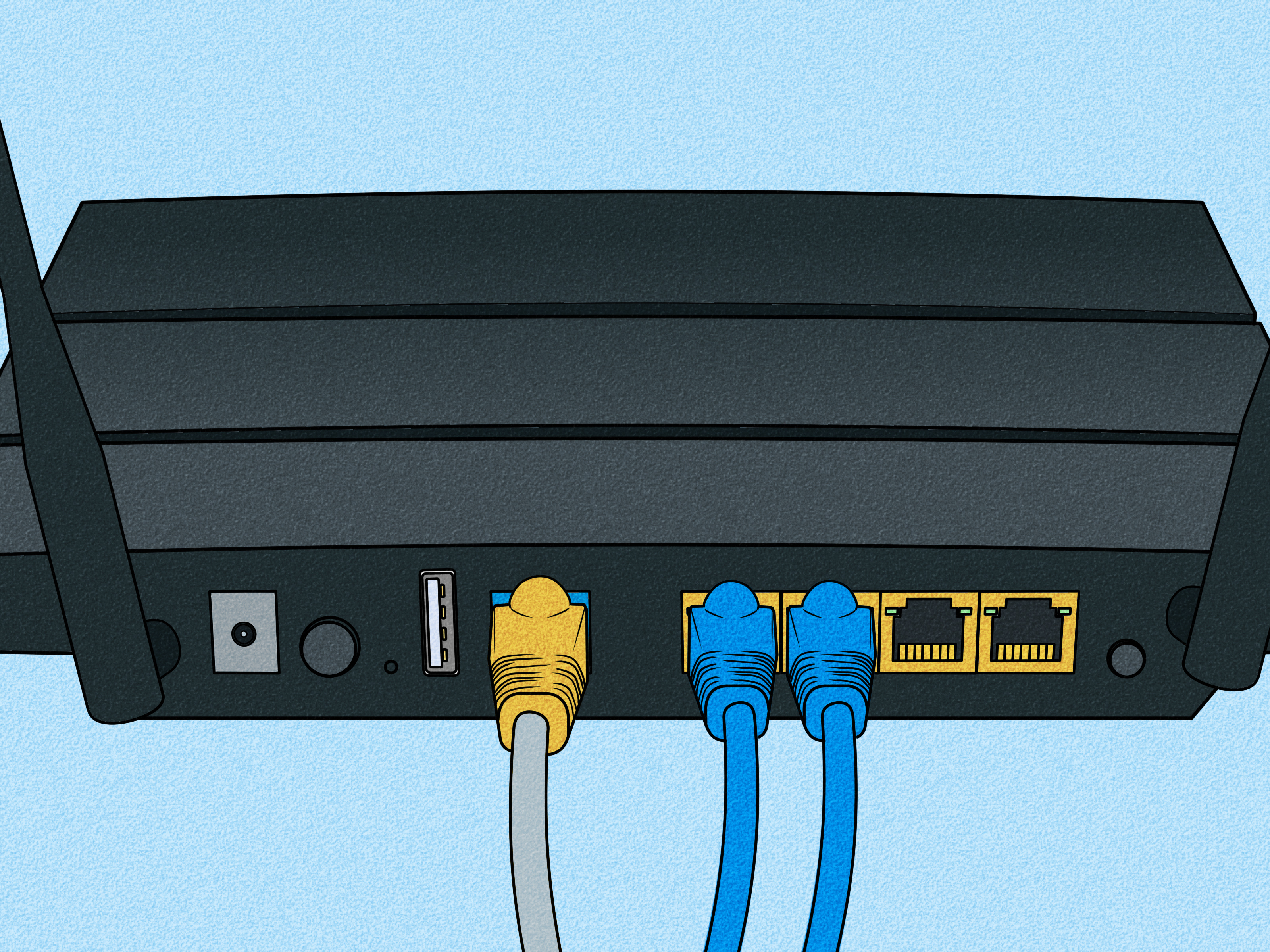
A weak Wi-Fi signal has a special talent for appearing exactly where you need the internet most: the upstairs office, the backyard, or that mysterious corner of the bedroom where videos buffer like it is still 2007. Fortunately, you may not need to buy an entirely new mesh system. An unused router can often be connected to your main router to expand network coverage, add Ethernet ports, or create a separate network for guests and smart devices.
The best approach is usually to configure the second router as a wired access point. This allows the main router to remain in charge of internet routing, IP addresses, and network security while the second device provides additional Wi-Fi coverage. Other configurations are possible, but choosing the right one can mean the difference between a smooth network and two plastic boxes arguing over who gets to be the boss.
What Happens When You Connect Two Routers?
A home router normally performs several jobs at once. It routes traffic between your home and the internet, assigns local IP addresses through DHCP, protects the network with a firewall, and broadcasts Wi-Fi. When adding a second router, you must decide whether it should perform all those jobs or simply extend the existing network.
For most homes, the second router should function as an access point. Devices connected to either router then remain on the same local network, making it easier to use printers, network storage, streaming devices, and smart-home equipment.
You can also configure the second router as a separate router. That creates another network behind the first one. This arrangement can provide useful separation, but it also creates double NAT, which may complicate online gaming, remote access, VPN connections, port forwarding, and some peer-to-peer applications.
Choose the Right Router-to-Router Configuration
Option 1: Wired Access Point Mode
This is the recommended configuration whenever you can run an Ethernet cable between the two locations. The main router handles DHCP, NAT, and firewall duties. The second router operates in access point mode and provides Wi-Fi and wired connections.
A wired connection provides the most consistent speed because wireless devices do not have to share their radio connection with the link between routers. It is ideal for extending a network to another floor, a home office, a detached workspace, or the opposite side of a large house.
Option 2: Manual LAN-to-LAN Configuration
Older routers may not have a setting labeled Access Point Mode. You can often create the same basic arrangement manually. Assign the second router a suitable local IP address, disable its DHCP server, and connect one of its LAN ports to a LAN port on the primary router.
This method keeps both routers on the same subnet. The second router behaves more like a network switch with Wi-Fi attached than a separate internet gateway.
Option 3: LAN-to-WAN for a Separate Network
Connecting a LAN port on the primary router to the WAN or Internet port on the second router allows both devices to remain in router mode. Each router uses its own subnet and DHCP service.
This arrangement can be useful when you intentionally want a secondary network for guests, testing equipment, renters, or certain smart devices. However, the second network sits behind two layers of routing, so it is not the best default choice for a simple Wi-Fi extension.
Option 4: Wireless Bridge or Repeater Mode
If installing Ethernet is impossible, some routers can connect wirelessly through bridge, repeater, extender, WDS, or mesh-compatible modes. The exact terminology varies by manufacturer.
Wireless connections are convenient, but performance depends heavily on signal quality and router capabilities. A single-radio repeater must receive and retransmit traffic over the same wireless channel, which can substantially reduce usable speed. Use this approach when convenience matters more than maximum performance.
What You Need Before Starting
- A working primary router connected to the internet
- A compatible second router
- An Ethernet cable, preferably Cat5e or better
- The administrator credentials for both routers
- A computer or phone for opening the router settings
- The primary router’s local IP address and DHCP range
Common router addresses include 192.168.0.1, 192.168.1.1, and 10.0.0.1. Do not assume those values are correct for your equipment. Check the network details on a connected device or sign in to the primary router to confirm them.
How to Connect a Second Router as a Wired Access Point
Step 1: Record the Primary Router’s Network Settings
Sign in to the main router and locate its LAN or local network settings. Write down its IP address, subnet mask, and DHCP address pool.
For example, suppose the primary router uses these settings:
- Router IP address:
192.168.1.1 - Subnet mask:
255.255.255.0 - DHCP range:
192.168.1.100through192.168.1.250
In this example, you could assign the second router the address 192.168.1.2. It is on the same subnet but outside the automatic DHCP pool, reducing the risk of an IP address conflict.
Step 2: Reset the Second Router When Necessary
If the second router was previously used elsewhere, consider resetting it to factory defaults. Old internet, DHCP, VLAN, firewall, or wireless settings can make troubleshooting unnecessarily exciting.
A reset erases saved settings, so confirm that you do not need the existing configuration. The reset button usually must be held for several seconds, but the exact procedure varies by model.
Step 3: Connect Directly to the Second Router
Before attaching the routers to each other, connect a computer to a LAN port on the second router. You may also join its default Wi-Fi network if the model supports wireless setup.
Open the router’s administration page and change the administrator password. Install current firmware if an update is available for the exact model and hardware revision.
Step 4: Enable Access Point Mode
Look for a setting called Access Point Mode, AP Mode, Bridge Mode, or Operation Mode. Select the access point option and follow the manufacturer’s instructions.
Many modern routers automatically disable NAT, firewall routing, and DHCP when AP mode is enabled. The primary router then assigns an IP address to the access point. Some models allow you to reserve or manually specify that address, which makes the administration page easier to find later.
Pay close attention to the port instructions. Some routers use the WAN or Internet port as the uplink while operating in AP mode. Others require a LAN-to-LAN connection. The label on the port is less important than the instructions for your specific model.
Step 5: Configure Manually When AP Mode Is Unavailable
If the second router lacks a dedicated access point option, change its LAN address to an unused address on the primary router’s subnet. Using the earlier example, set it to 192.168.1.2.
Next, disable the DHCP server on the second router. Only the primary router should distribute addresses on this shared network. Two active DHCP servers can hand devices conflicting network information, producing intermittent failures that seem random but are actually just networking’s version of a practical joke.
Save the settings and reconnect to the second router using its new IP address. Finally, connect a LAN port on the primary router to a LAN port on the secondary router. Leave the secondary router’s WAN port unused unless its manual specifically says otherwise.
Step 6: Configure the Wi-Fi Networks
You can give both access points the same Wi-Fi name, password, and security type. This creates a more consistent user experience because devices recognize both access points as the same saved network.
However, identical names do not automatically turn ordinary routers into a coordinated mesh system. Phones and laptops decide when to leave one access point and join another, and some devices stubbornly remain connected to a weak signal. Different Wi-Fi names make manual troubleshooting easier, while matching names offer greater convenience.
Use WPA2-AES or WPA3 security when supported. Avoid obsolete options such as WEP and WPA-TKIP. If the routers have significantly different security capabilities, choose settings that provide secure compatibility for the devices you actually use.
Step 7: Select Appropriate Wireless Channels
Nearby access points should avoid competing unnecessarily on the same channel. On the 2.4 GHz band in the United States, channels 1, 6, and 11 are the standard non-overlapping choices. For example, the main router might use channel 1 while the second access point uses channel 6 or 11.
On 5 GHz, use separate available channels or let the routers select channels automatically if their automatic channel management works reliably. Channel availability may differ according to router model, channel width, and regional regulations.
Step 8: Reboot and Test the Network
Restart both routers after saving the configuration. Connect a phone or laptop near the second router and confirm that it receives an IP address from the primary router.
Test internet access, local printer access, streaming, and file sharing. Walk between coverage areas while running a video call or audio stream to see how smoothly your devices transition between access points.
How to Create a Separate Network With LAN-to-WAN
To keep the second router as an independent router, connect a LAN port on the primary device to the second router’s WAN port. The two routers must use different subnets.
For example:
- Primary network:
192.168.1.0/24 - Primary router:
192.168.1.1 - Secondary network:
192.168.50.0/24 - Secondary router:
192.168.50.1
Leave DHCP enabled on the second router so it can provide addresses to its clients. Its WAN interface will receive an address from the primary router, while its LAN clients receive addresses from the secondary subnet.
This design is easy to create but introduces double NAT. Everyday browsing and streaming may work normally, while applications requiring inbound connections can become harder to configure. Port forwarding may need to be configured on both routers. A cleaner alternative is to place one device in bridge or access point mode so only one router performs NAT.
Connecting Two Routers Without Ethernet
Open the second router’s operation-mode settings and look for repeater, wireless bridge, media bridge, WDS, or mesh-node options. Select the primary Wi-Fi network, enter its password, and position the second router where it still receives a strong signal.
Do not place a wireless repeater directly inside the dead zone. It cannot repeat a signal it barely receives. A better location is roughly between the primary router and the area needing coverage.
Compatibility can be limited when mixing brands, particularly with proprietary mesh features. Standard repeater or bridge functions may work across brands, but coordinated roaming and centralized management usually require equipment from the same product family.
Router Placement and Performance Tips
- Place both routers in open, elevated locations rather than inside cabinets.
- Keep them away from large metal objects, thick concrete walls, and major appliances.
- Use wired Ethernet backhaul whenever practical.
- Do not place the routers extremely close together unless a specific design requires it.
- Use gigabit ports and Cat5e or better cabling for connections above 100 Mbps.
- Test speeds with both wired and wireless devices before blaming the internet provider.
Common Problems and How to Fix Them
The Second Router Has No Internet
Check the Ethernet cable and confirm that it is connected to the correct ports. Verify that the primary router is online and that the secondary device is actually in AP mode. If configured manually, make sure DHCP is disabled only on the second router, not the primary one.
You Cannot Open the Second Router’s Settings
The access point may have received a new address from the primary router. Check the primary router’s connected-device or DHCP-client list. If you assigned a static address, confirm that it belongs to the correct subnet and does not conflict with another device.
Connected Devices Receive No IP Address
Confirm that the main router’s DHCP server is enabled. Check that the secondary router is connected through the correct uplink port and that client isolation, VLANs, or guest-network restrictions are not blocking DHCP traffic.
Devices Keep Connecting to the Farther Router
Ordinary routers do not always provide seamless roaming. Reduce transmit power if that option is available, reposition the access points, or use different Wi-Fi names so users can choose manually. A coordinated mesh system may be better when fast roaming is essential.
Gaming or Port Forwarding Stops Working
Double NAT is the likely suspect when both devices remain in router mode. Convert the second device to AP mode, place the ISP gateway in bridge or passthrough mode, or configure forwarding rules through both routing layers.
Wi-Fi Is Available but Surprisingly Slow
Check whether the second router has only 100 Mbps Ethernet ports. Examine cable quality, wireless channel congestion, channel width, signal strength, and the capabilities of the client device. In wireless repeater mode, some performance loss is normal because backhaul and client traffic share radio resources.
Security and Maintenance
Change the administrator passwords on both routers, install supported firmware updates, and disable remote administration unless it is genuinely required. Turn off WPS when you do not use it, review connected devices periodically, and replace equipment that no longer receives security updates.
Remember that AP mode may disable router-specific features such as parental controls, VPN services, traffic filtering, or advanced quality-of-service tools on the second device. Those responsibilities should remain on the primary router.
Conclusion
The most reliable way to connect one router to another is to use Ethernet and configure the second router as an access point. Keep DHCP and NAT active on only one device, assign the access point a manageable IP address, and use sensible Wi-Fi channels. A LAN-to-WAN connection or wireless repeater can work, but each introduces additional trade-offs. Plan the network first, and the blinking lights will have far fewer opportunities to mock you.
Real-World Experience: Lessons From Expanding a Home Network
In practical home-network installations, the biggest improvement usually comes from choosing the right location rather than buying the most expensive router. A powerful router placed behind a television, inside a metal cabinet, or beside a concrete support column may perform worse than a modest router sitting in an open hallway. Before changing settings, test the second router temporarily in several positions. A long Ethernet cable stretched across the floor is not an interior-design triumph, but it is an excellent diagnostic tool. Once the best position is identified, the cable can be routed through a wall, ceiling, baseboard channel, or attic.
A common real-world mistake is connecting both routers first and configuring them later. If both devices use the same default address, such as 192.168.1.1, the administrator may suddenly lose access to one or both interfaces. The cleaner approach is to configure the second router while it is isolated. Change its LAN address, disable DHCP or enable AP mode, save the configuration, and only then connect it to the main network. Writing the new management address on a label underneath the router can save considerable detective work six months later.
Using the same Wi-Fi name and password on both routers is convenient, but results depend heavily on client behavior. Newer phones often move between strong signals reasonably well. Older laptops, inexpensive smart plugs, and some security cameras may cling to the first access point they see until the connection becomes nearly unusable. In homes with troublesome devices, separate names such as Home-Downstairs and Home-Upstairs can be easier to manage. This is less elegant than a unified network, but reliability occasionally deserves to win an argument with elegance.
Another lesson is that speed tests do not tell the entire story. A second access point may deliver slightly lower peak numbers yet provide a dramatically better experience because the connection is stable. Video calls, cloud backups, online games, and security-camera feeds benefit from low packet loss and consistent latency. Test the activities that matter rather than chasing the largest speed-test result. Also test with more than one device, since an older phone may be the bottleneck rather than the router, cable, or internet service.
Finally, wired access-point installations tend to require less maintenance than wireless repeaters. Repeaters are useful when cabling is impossible, but their performance can change when furniture moves, neighboring networks change channels, or doors are closed. Ethernet backhaul removes much of that uncertainty. When a cable truly cannot be installed, a modern mesh system with a dedicated wireless backhaul may be more predictable than repurposing two unrelated routers. Reusing an old router is an excellent low-cost solution, but the router should still support secure encryption, stable firmware, and speeds appropriate for the internet plan. Saving money is satisfying; running an unsupported security antique is considerably less charming.
Note: Router menus, supported operating modes, and uplink-port requirements vary by manufacturer and model. Check the official manual for your exact hardware before changing network settings.













