A slow computer has a special talent: it can make a five-minute task feel like a dramatic life event. One minute you are opening a browser tab, and the next minute you are staring at a spinning wheel like it owes you money. The good news is that most sluggish PCs and Macs are not doomed. They are just cluttered, overheated, overloaded, or trying to launch 27 things before you have even finished your coffee.
If you want to know how to clean up a slow performing computer, the smartest approach is not random clicking and desperate uninstalling. It is targeted cleanup. In most cases, performance problems come from too many startup items, low free storage, malware, outdated software, bloated browsers, or heat. Sometimes the issue is hardware. Sometimes it is one misbehaving app acting like the main character.
This guide breaks down 18 expert tips that actually help speed up a sluggish computer, whether you use Windows or macOS. You will learn what to clean, what to disable, what to update, what to ignore, and when it is finally time to stop negotiating with your old hard drive and install an SSD.
Why Computers Slow Down in the First Place
Before you start cleaning, it helps to know what you are fighting. A slow computer usually suffers from one or more of these problems: too many apps running at once, too many programs launching at startup, too little free storage, background sync jobs, browser overload, malware, heat buildup, or aging hardware. Think of it like trying to run a marathon while carrying a backpack full of bowling balls, old receipts, and a browser with 46 open tabs.
The fix is not always dramatic. Often, a handful of smart adjustments can make a computer feel noticeably faster within an hour.
How to Clean Up a Slow Performing Computer: 18 Expert Tips
-
1. Start With a Real Restart
Yes, really. Restarting clears temporary processes, frees up memory, finishes pending updates, and gives the system a clean slate. A lot of people only put their computer to sleep for weeks at a time, which means background clutter just keeps piling up. Before you do anything fancy, restart the machine and see if performance improves. It is the least glamorous fix, but it often punches above its weight.
-
2. Find Out What Is Actually Slowing the Computer Down
Do not guess. Open Task Manager on Windows or Activity Monitor on a Mac and look at CPU, memory, disk, and startup impact. If one app is consuming absurd resources, you have found a suspect. This matters because a slow computer and a slow browser are not always the same problem. If your disk usage is pinned, storage may be the issue. If memory pressure is high, your computer may be short on RAM. If one program is chewing through resources, that program needs attention, not the entire operating system.
-
3. Disable Unnecessary Startup Apps and Login Items
This is one of the biggest performance wins. Many apps decide they are essential and must launch at startup, which is adorable and completely false. Messaging apps, game launchers, update helpers, cloud tools, printer utilities, and random “assistant” software can all slow boot times and stay active in the background. Disable anything you do not need immediately after signing in. Keep security software and core system tools, but be ruthless with everything else.
-
4. Uninstall Programs You Never Use
If you have not opened it in a year, ask yourself whether it deserves rent-free space on your computer. Unused software can consume storage, add startup entries, run background processes, and create update noise. Go through installed apps and remove old trials, duplicate utilities, outdated games, forgotten toolbars, and manufacturer extras you never touch. The goal is not minimalism for its own sake. The goal is to stop carrying digital dead weight.
-
5. Delete Temporary Files and Junk the Safe Way
Temporary files are useful until they are not. Over time, they pile up and steal storage. Use built-in tools such as Disk Cleanup, Storage Sense, or the storage recommendations in your operating system to remove temporary data, old caches, and other disposable clutter. Also check your Downloads folder. It is often a museum of forgotten PDFs, installers, screenshots, and files named something like “final_final_REALfinal2.”
-
6. Free Up More Disk Space Than You Think You Need
A nearly full drive can make a computer crawl. Operating systems and apps need breathing room for updates, temporary files, virtual memory, and normal operation. If your main drive is almost packed, start deleting or moving large videos, installers, duplicate files, and other space hogs. Empty the Recycle Bin or Trash too. Many people clear files and forget the bin, which is like cleaning a closet by moving everything onto the floor.
-
7. Update the Operating System, Drivers, and Major Apps
Performance problems are sometimes bug problems wearing a fake mustache. Install available Windows or macOS updates, plus important driver and app updates. Browsers, creative software, and graphics drivers are frequent trouble spots. Updates can improve stability, close security holes, fix known glitches, and help apps work more efficiently. Skip the myth that updates always slow computers down. Bad updates happen, but running ancient software is rarely the winning strategy.
-
8. Run a Malware Scan With Trusted Security Tools
Malware can absolutely make a computer feel slower by consuming CPU, disk, bandwidth, and memory. Run a scan with Windows Security or another trusted antivirus solution you already use. If your machine suddenly became slow, started showing pop-ups, or redirected your browser, a malware check should jump to the front of the line. Also remember that fake security warnings and sketchy “call this number now” pop-ups are a scam, not a service.
-
9. Clean Up Your Browser Cache, Cookies, and Downloaded Data
If the slowness mostly happens online, your browser may be the problem child. Clear cached files, site data, and other browsing clutter, especially if web pages load badly, freeze, or behave strangely. This will not magically transform a seven-year-old laptop into a race car, but it can make browsing smoother and fix odd website issues. Just remember that clearing cookies can sign you out of some sites, so maybe do not do it two minutes before an important meeting.
-
10. Remove Unused Extensions, Toolbars, and Browser Add-Ons
Extensions are great until they become a parade of tiny performance taxes. Some consume memory, some conflict with websites, and some quietly turn your browser into a confused carnival ride. Review what is installed in Chrome, Firefox, Edge, or Safari and remove anything you do not actively use. If you do not remember installing it, that is already a bad sign. A lean browser is usually a faster browser.
-
11. Turn On Memory-Saving Browser Features or Reset the Browser
Modern browsers now include performance tools that can reduce the strain from inactive tabs. Features like memory-saving modes can help when you are the kind of person who believes closing tabs is a personal attack on productivity. If your browser is still unstable or painfully slow after cleanup, consider resetting it to default settings. That can remove broken configurations without requiring a full operating system reset.
-
12. Optimize Storage the Right Way
Storage maintenance matters, but it has to be done correctly. Traditional hard drives benefit from optimization, while SSDs should be handled through the operating system’s built-in tools rather than old-school manual defrag habits. Let the system manage optimization and avoid random “tune-up” utilities that promise miracles. A sensible storage routine is helpful. A mystery cleaner called UltraMegaTurboBoost 9000 is not.
-
13. Reduce Visual Effects and Choose the Right Power Mode
Fancy animations, transparency effects, and power-saving settings can make a modest computer feel more sluggish than it really is. If performance matters more than visual sparkle, reduce unnecessary effects and choose a more balanced or performance-focused power mode when plugged in. This is especially useful on older Windows laptops. Your computer does not need to animate every menu like it is auditioning for a sci-fi movie.
-
14. Pause Heavy Background Tasks Like Syncing and Backups
Cloud sync tools, large backups, file indexing, photo libraries, and background content downloads can hammer a drive for hours. If your computer slows down at specific times, check whether OneDrive, iCloud, Dropbox, backup apps, or media tools are working overtime. You do not have to remove them. You just need to know when they are causing drag. Sometimes the system is not “broken.” It is just trying to upload 38 gigabytes of vacation footage while you are attempting to open a spreadsheet.
-
15. Disconnect Problematic External Drives and Peripherals
External hard drives, hubs, printers, old USB gadgets, and other peripherals can sometimes slow startup or trigger weird delays. If your Mac or PC suddenly behaves better when a device is unplugged, you have learned something important. Test the computer with only the essentials connected. This is a surprisingly effective troubleshooting move and one that many people overlook because they do not suspect that dusty old USB drive from 2017 is contributing to the chaos.
-
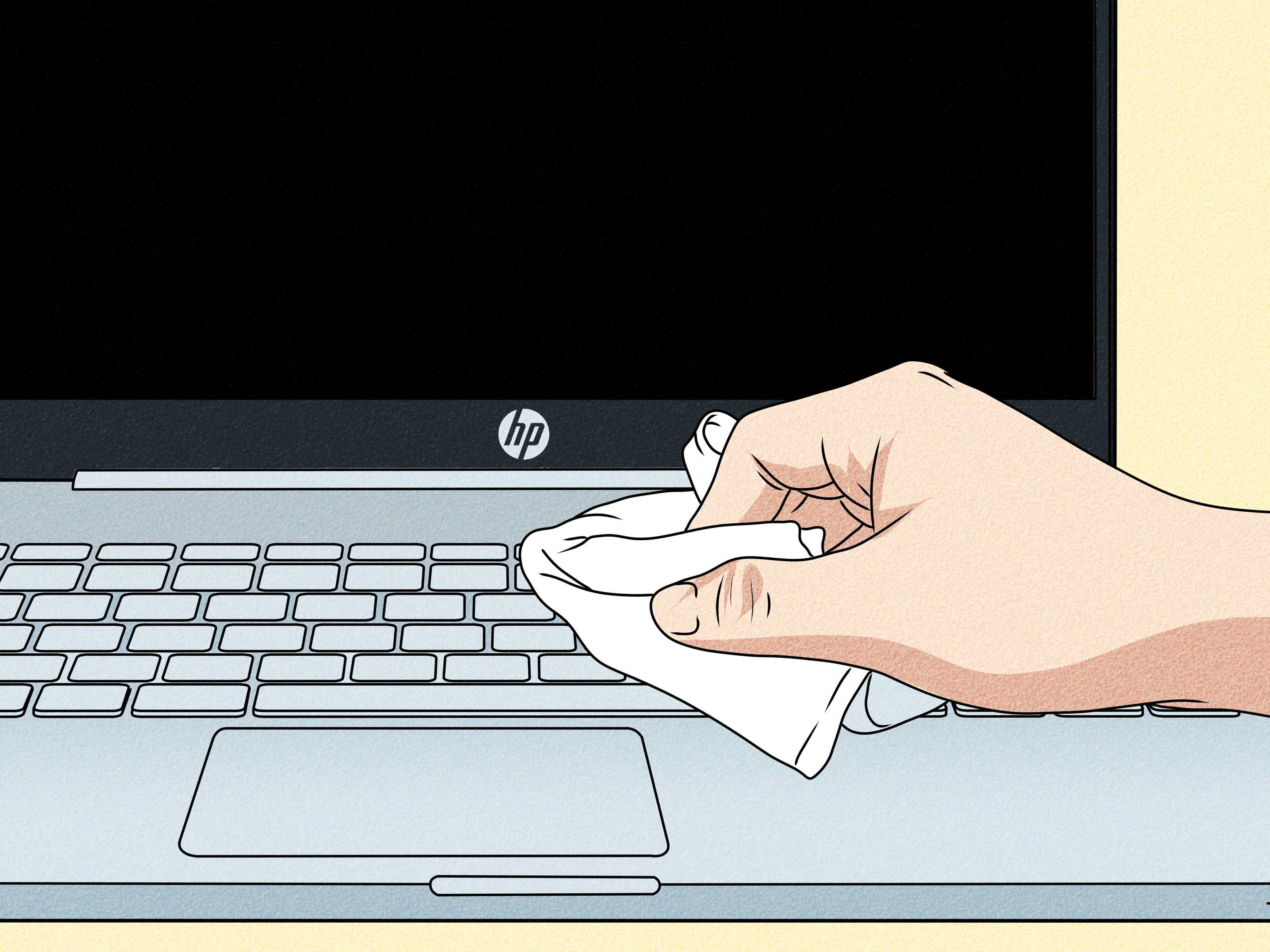
16. Clean Dust, Vents, and Fans
Heat hurts performance. If airflow is blocked by dust, the system can throttle itself to stay safe, which makes everything feel slower. Clean vents and fans carefully, make sure air can move properly, and use the computer on a hard surface instead of a blanket, pillow, or your lap during a heat wave. This is not just a cleanliness issue. It is a performance issue. Your computer cannot do its best work while wearing a sweater made of lint.
-
17. Use Safe Mode or a Clean Boot to Isolate Conflicts
If the computer is still slow after the obvious fixes, test it in Safe Mode or perform a clean boot. This helps you figure out whether third-party software, services, or startup items are causing the slowdown. If the computer runs fine in a stripped-down environment, the problem is likely software conflict, not failing hardware. This step is less exciting than buying new gadgets, but it often saves money because it tells you where the real problem lives.
-
18. Upgrade Smart: SSD First, Then RAM, or Reset the System
Sometimes cleanup is not enough. If the computer still uses an old hard drive, upgrading to an SSD can feel like time travel. Boot times improve, apps launch faster, and the whole system feels less grumpy. Adding RAM can also help if you regularly run into high memory usage. If hardware is fine but software remains messy, a system reset or clean reinstall may be the clean slate you need. It is the digital equivalent of finally cleaning the garage instead of just moving the same box around for six years.
A Quick Action Plan for an Extremely Slow Computer
If your computer is crawling right now and you want the highest-impact fixes first, do these in order:
- Restart the computer.
- Open Task Manager or Activity Monitor and identify the biggest resource hog.
- Disable unnecessary startup apps.
- Free up storage space and delete temporary files.
- Run a malware scan.
- Update the operating system and major apps.
- Clean the browser and remove unnecessary extensions.
- Check heat, dust, and airflow.
That sequence solves a surprising number of everyday performance problems without spending a dime.
Real-World Experiences: What These Fixes Actually Feel Like
One of the most common slow-computer stories starts the same way: “It was fine last year.” Then you look closer and find a laptop with 91% storage used, a dozen startup apps, three cloud-sync services, and enough browser tabs to qualify as a second operating system. After a restart, startup cleanup, a malware scan, and some storage recovery, the machine is suddenly usable again. Not brand new, not magical, but normal. That is often the point. People do not always need perfection. They just need the laptop to stop sounding like it is preparing for liftoff every time they open email.
Another common experience comes from people who assume they need a new computer when the real villain is the hard drive. An older desktop with a traditional HDD can feel painfully slow even when everything else is fine. Menus lag, apps hesitate, and boot times feel like a slow-motion documentary. Then the same machine gets an SSD upgrade and suddenly boots fast enough to make its owner suspicious. It is one of those rare tech changes that feels immediately obvious. No placebo. No “I think it is a bit better.” Just straight-up, “Why did I not do this sooner?”
Browsers create their own genre of drama too. Plenty of people complain that “the whole computer is slow,” but the truth is that the browser is doing most of the damage. Heavy extensions, stale cache data, auto-playing tabs, and dozens of open windows can make even a decent machine act overwhelmed. I have seen computers perk up after nothing more than trimming extensions, clearing junk, and turning on memory-saving features. It is humbling. We like to blame the computer, but sometimes the browser is the one acting like it owns the place.
Then there is the heat issue, which people often miss because it feels too physical to be the answer. Yet dusty vents and fans can absolutely drag performance down. A laptop used on bedding, cushions, or soft furniture can run hot constantly, and that heat pushes the system to throttle performance for self-protection. Once the vents are cleaned and the machine gets proper airflow again, the improvement can be obvious. Not glamorous, but effective. Dust has ruined many good afternoons.
And finally, there is the emotional side of cleanup. A slow computer creates bad habits. People stop updating things, avoid restarting, ignore warnings, hoard files, and leave every problem for “later.” A cleanup session can break that cycle. Once the system is faster, people start maintaining it better. They remove junk sooner, uninstall nonsense faster, and stop treating startup apps like collectible souvenirs. In that sense, learning how to clean up a slow performing computer is not just about speed. It is about restoring trust in the machine you already have.
Conclusion
If your computer has been slow, laggy, or annoyingly dramatic, do not assume it is finished. Most systems get bogged down by clutter, background processes, storage pressure, browser overload, heat, or outdated software long before they truly wear out. Start with the easy wins: restart, check resource usage, trim startup apps, free up storage, scan for malware, and clean the browser. Then move to deeper fixes like Safe Mode testing, better cooling, and smart hardware upgrades. In many cases, the difference between a miserable computer and a useful one is not luck. It is maintenance.