Changing your wallpaper in Windows 10 is one of the easiest ways to make your computer feel less like a rented cubicle and more like your own digital command center. Maybe you want a clean solid color for focus, a vacation photo that reminds you why you work, or a rotating slideshow of your dog looking judgmental in twelve different poses. Good news: Windows 10 gives you several simple ways to customize your desktop background without needing design skills, tech wizardry, or a secret handshake from Microsoft headquarters.
This complete guide explains how to change wallpaper in Windows 10 using Settings, File Explorer, the Photos app, themes, slideshows, multiple monitors, and lock screen options. You will also learn what to do when your wallpaper will not change, which image sizes work best, and how to make your desktop look sharp instead of stretched, blurry, or accidentally cursed.
What Is Windows 10 Wallpaper?
In Windows 10, wallpaper is the image, color, or slideshow that appears behind your desktop icons, taskbar, folders, and open windows. Microsoft also calls it the desktop background. While it may seem like a small detail, your wallpaper affects the visual personality of your PC every single day. A calm mountain scene can make your workspace feel peaceful. A plain dark background can reduce distractions. A family photo can make your laptop feel personal. A neon dragon breathing fire over a cyberpunk skyline can say, “Yes, I have strong opinions about keyboard lighting.”
Windows 10 supports several background styles, including a single picture, a solid color, and a slideshow. You can also adjust how the image fits your screen using options such as Fill, Fit, Stretch, Tile, Center, or Span. These settings are especially useful if your wallpaper does not match your display resolution perfectly.
How to Change Wallpaper in Windows 10 Using Settings
The most reliable method is through the Windows 10 Settings app. This gives you full control over the background type, image selection, fit style, and slideshow behavior.
Step 1: Open Personalization Settings
Right-click an empty area of your desktop and select Personalize. This opens the Personalization section of Windows Settings. You can also open it manually by selecting Start > Settings > Personalization > Background.
Step 2: Choose Your Background Type
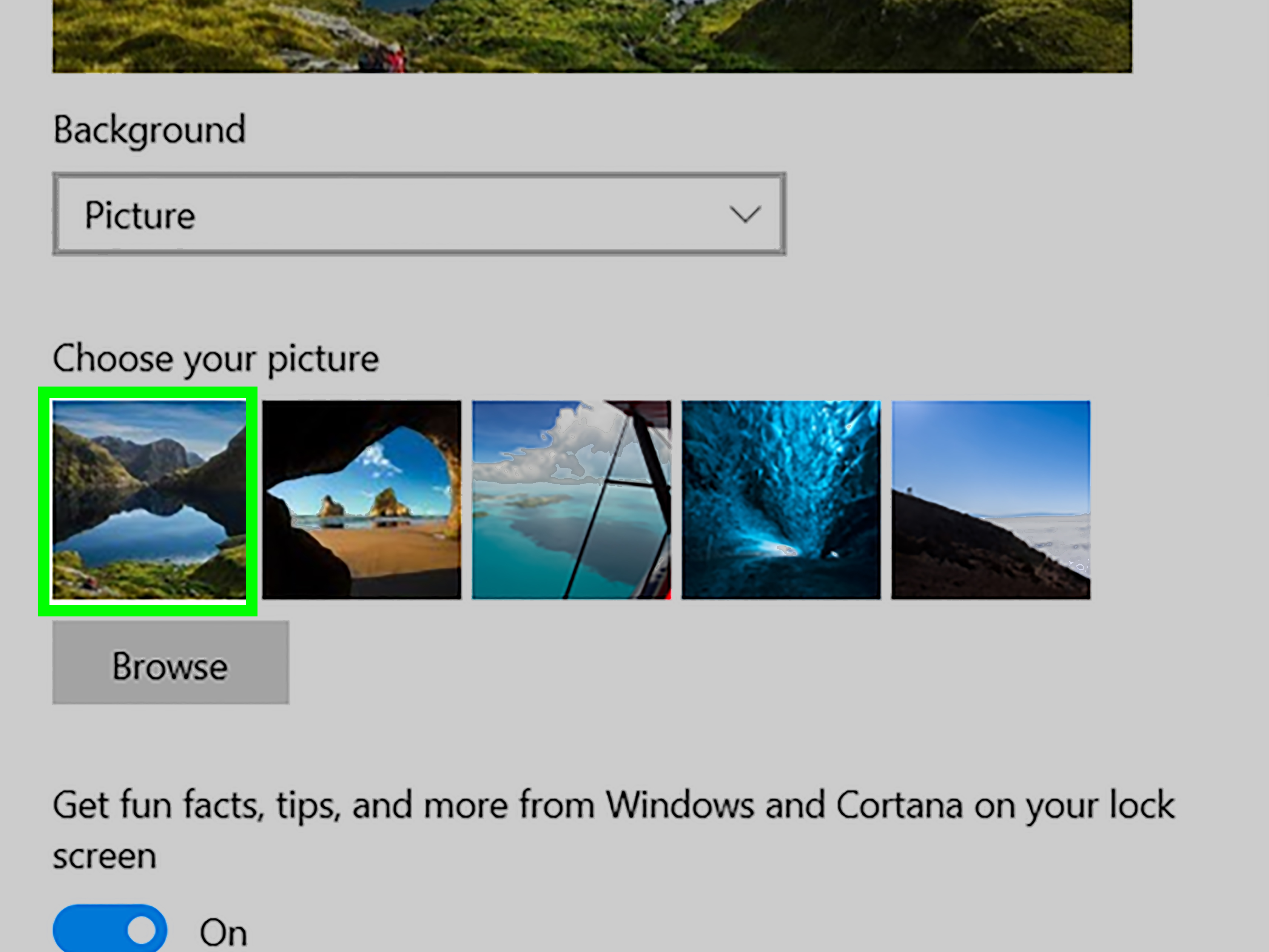
Under Background, open the drop-down menu. You will usually see three main choices:
- Picture: Choose one image as your desktop wallpaper.
- Solid color: Use one clean color as your background.
- Slideshow: Rotate through multiple images from a folder.
For most users, Picture is the simplest option. Choose it when you want one favorite image to stay on your desktop until you change it again.
Step 3: Select a Picture
After choosing Picture, Windows will show a few recently used backgrounds. Click one if you like it. If you want to use your own image, click Browse, locate the picture on your computer, and select it. Windows will apply the wallpaper automatically. No Save button is required, which is both convenient and slightly dramaticone click and your desktop has a new personality.
Step 4: Choose a Fit
Use the Choose a fit menu to control how the wallpaper appears on your screen. This matters because not every photo has the same shape as your monitor.
- Fill: Enlarges the image to cover the screen. Some edges may be cropped.
- Fit: Shows the whole image, but may leave borders.
- Stretch: Forces the image to match the screen, which can distort it.
- Tile: Repeats a small image across the desktop.
- Center: Places the image in the middle without resizing it.
- Span: Spreads one wide image across multiple monitors.
For most desktop backgrounds, Fill gives the cleanest result. For artwork, logos, or images you do not want cropped, Fit or Center may work better.
How to Change Wallpaper from File Explorer
If you already have the image saved on your computer, File Explorer is the fastest route. Open the folder where your image is stored, right-click the file, and choose Set as desktop background. That is it. Windows immediately uses the selected image as your wallpaper.
This method is perfect when you have just downloaded a wallpaper, saved a photo, or moved images into a custom folder. It skips the Settings app entirely and gets straight to the good part. Think of it as the drive-thru lane for desktop customization.
How to Change Wallpaper from the Photos App
You can also set wallpaper while viewing an image in the Windows Photos app. Open the picture, select the three-dot menu, choose Set as, and then select Set as background. This is useful when you are browsing photos and suddenly discover one that deserves desktop fame.
The Photos app method is especially helpful for personal pictures because you can preview the image before applying it. If the photo is too dark, too busy, or includes your cousin blinking in the background, you will notice before it becomes the first thing you see every morning.
How to Use a Solid Color Background in Windows 10
Not everyone wants a photo as a desktop background. Some people prefer a minimalist workspace where icons are easy to see and distractions are low. To use a solid color, go to Settings > Personalization > Background, open the Background menu, and choose Solid color.
Windows will display a palette of colors. Select one, or choose a custom color if you want something more specific. A solid black, gray, navy, or muted green background can make the desktop feel cleaner and more professional. It can also help if you frequently share your screen during meetings and do not want coworkers analyzing your vacation photos like a detective board.
How to Create a Wallpaper Slideshow in Windows 10
A slideshow lets Windows rotate through multiple desktop backgrounds automatically. This is ideal if you cannot choose just one photo or if your wallpaper folder is basically a museum of landscapes, pets, cars, food, and “cool images I downloaded in 2014.”
Step 1: Create a Wallpaper Folder
First, create a folder for the images you want in the slideshow. You might name it Wallpapers, Desktop Slideshow, or Pictures That Spark Joy. Place only the images you want Windows to rotate through in that folder.
Step 2: Select Slideshow in Settings
Go to Settings > Personalization > Background. Under Background, choose Slideshow. Then click Browse and select your wallpaper folder.
Step 3: Set the Change Interval
Use the timing menu to decide how often Windows should change the background. You can choose a short interval for variety or a longer interval if you prefer a calmer desktop. You can also turn on Shuffle so Windows displays images in random order.
Step 4: Choose Battery-Friendly Settings
If you are using a laptop, consider whether you want the slideshow to run on battery power. A constantly changing background is not usually a huge battery drain, but every little bit matters when your battery icon is giving you that “please find a charger” look.
How to Change Lock Screen Wallpaper in Windows 10
Your desktop wallpaper is not the same as your lock screen background. The lock screen is what you see before signing in, after waking your PC, or when locking the computer. To change it, open Settings > Personalization > Lock screen.
From there, you can choose:
- Windows spotlight: Shows rotating images from Microsoft.
- Picture: Lets you choose one lock screen image.
- Slideshow: Rotates through images from selected folders.
Windows Spotlight is a popular choice because it displays polished photography and scenic images. If you prefer something personal, use Picture or Slideshow. You can also control which apps show quick status details on the lock screen, such as calendar or mail notifications.
How to Use Themes to Change Wallpaper
Windows 10 themes are bundles of personalization settings. A theme can include wallpapers, accent colors, sounds, and cursor settings. To explore themes, go to Settings > Personalization > Themes.
You can choose a built-in theme or browse additional themes from the Microsoft Store. Themes are useful when you want a coordinated look without manually picking every detail. For example, a nature theme may include several scenic wallpapers and matching colors. A dark theme can create a more focused, low-glare setup.
If you customize your background, colors, and sounds, you can save your setup as a custom theme. This makes it easy to return to your favorite look later, even after experimenting with other styles.
How to Set Different Wallpapers on Multiple Monitors
If you use more than one monitor, Windows 10 gives you extra flexibility. Go to Settings > Personalization > Background. Under Choose your picture, right-click a wallpaper thumbnail. You may see options to set that image for a specific monitor.
For example, you can set a city skyline on Monitor 1 and a forest scene on Monitor 2. Or, if your monitors are arranged side by side, you can choose Span to stretch one panoramic wallpaper across both screens. This works best with ultra-wide images designed for multi-monitor setups.
For the sharpest result, use wallpapers that match your monitor resolution. A 1920 x 1080 image works well for a standard Full HD display. A 2560 x 1440 image suits a QHD monitor. A 3840 x 2160 image is ideal for 4K screens. If your wallpaper looks blurry, the image may simply be too small for your display.
Best Image Formats and Sizes for Windows 10 Wallpaper
Windows 10 works well with common image formats such as JPG, JPEG, PNG, and BMP. For most users, JPG is a practical choice because it offers good quality with smaller file sizes. PNG is excellent for crisp graphics, screenshots, illustrations, and images with text.
When choosing wallpaper, pay attention to resolution. A small image stretched across a large monitor can look fuzzy. A properly sized image looks clean, sharp, and intentional. If you are downloading wallpaper, look for versions that match your display resolution or are larger than your screen size. Windows can scale a large image down more gracefully than it can stretch a tiny image up.
Why Your Windows 10 Wallpaper Might Look Blurry
Blurry wallpaper usually comes from one of three problems: the image is too small, the fit setting is wrong, or the image has been heavily compressed. Start by checking the image resolution. Right-click the image file, select Properties, and look for details such as dimensions. If the dimensions are much smaller than your screen resolution, choose a larger image.
Next, check Choose a fit. If the image looks distorted, avoid Stretch. Try Fill or Fit instead. If you are using a logo or small design, Center or Tile may preserve the original proportions better.
How to Fix Windows 10 Wallpaper Not Changing
Sometimes Windows 10 refuses to change wallpaper, because even operating systems have moody days. Try these fixes:
Check Windows Activation
Some personalization features may be limited if Windows is not activated. If you see activation messages in Settings, activation may be affecting your customization options.
Try File Explorer
If Settings is not cooperating, right-click an image in File Explorer and select Set as desktop background. This can sometimes work when the Personalization screen is acting stubborn.
Switch Background Type
Go to Settings > Personalization > Background and switch from Picture to Solid color, then switch back to Picture. This refreshes the setting and may clear a temporary glitch.
Restart Windows Explorer
Press Ctrl + Shift + Esc to open Task Manager. Find Windows Explorer, select it, and choose Restart. Your taskbar and desktop may briefly disappear and return. After that, try changing the wallpaper again.
Check Company or School Policies
If your PC is managed by an employer, school, or organization, wallpaper settings may be controlled by policy. In that case, you may not be allowed to change the desktop background manually.
Wallpaper Tips for a Better Desktop Experience
A great wallpaper should look good and help you use your computer comfortably. Avoid overly busy images if you keep many desktop icons. Text-heavy wallpapers can also make icons hard to read. If you want a photo background, choose one with open space where your icons sit.
Dark wallpapers can reduce glare in dim rooms. Bright wallpapers can make a desktop feel fresh and energetic. Neutral wallpapers are great for work laptops because they look professional during screen sharing. And yes, a tasteful cat wallpaper is acceptable in nearly every situation, unless the cat looks like it is judging your quarterly report.
Security and Support Note for Windows 10 Users
Windows 10 still allows wallpaper customization, but users should know that standard support for Windows 10 ended on October 14, 2025. PCs running Windows 10 can continue to function, but Microsoft recommends moving to Windows 11 or using available security options where appropriate. This does not stop you from changing your wallpaper, but it is worth remembering if you plan to keep using Windows 10 for the long term.
Experience Notes: Real-World Tips for Changing Wallpaper in Windows 10
After helping many everyday users personalize Windows desktops, one lesson stands out: people usually want wallpaper to be simple, attractive, and not annoying. The technical steps are easy, but choosing the right setup can make a surprising difference in how your PC feels.
For work computers, I usually recommend a clean background with soft colors or a high-quality landscape. It looks polished during screen sharing and does not compete with open windows. A cluttered wallpaper may look exciting for five minutes, but after a week, it can feel like trying to read email on top of a fireworks show.
For home computers, personal photos work beautifully, but they need the right crop. A family photo may look great in the Photos app and awkward on the desktop if someone’s face ends up behind the Recycle Bin. Before setting a personal picture as wallpaper, check where your desktop icons sit. If your icons are on the left, choose a photo with empty space on that side or move your icons to a less crowded area.
For laptops, I prefer wallpapers that are not too bright. A very white or neon background can feel harsh at night and may make the screen seem brighter than necessary. A darker image with gentle contrast is easier on the eyes and often makes desktop icons easier to see.
For multiple monitors, the best experience comes from matching image resolution to the display layout. If you have two monitors side by side, panoramic wallpapers can look fantastic. But if one monitor is vertical and the other is horizontal, separate wallpapers usually look better than trying to span one image across both. Windows 10 can handle different wallpapers, but you may need to experiment with the fit setting to avoid awkward cropping.
One underrated tip is to create a dedicated wallpaper folder. Do not point your slideshow at your entire Pictures folder unless you are emotionally prepared for random screenshots, receipts, memes, and blurry food photos to appear during a meeting. A curated folder gives you control and keeps your desktop from turning into a surprise slideshow of your digital life.
Another helpful habit is naming wallpaper folders by mood or purpose. For example, you might create folders called “Work Minimal,” “Nature Calm,” “Travel,” or “Dark Mode Backgrounds.” Then you can switch between them depending on your routine. Monday morning spreadsheet battle? Use Work Minimal. Friday afternoon planning session? Maybe Travel. Late-night writing session? Dark Mode Backgrounds has entered the chat.
If your wallpaper keeps changing unexpectedly, check for theme settings, slideshow settings, or third-party wallpaper apps. Some wallpaper tools can override Windows settings. Themes can also change your background when applied. If you want total control, use a single Picture background and avoid automatic wallpaper apps.
The best Windows 10 wallpaper setup is not necessarily the flashiest one. It is the one that makes your computer feel comfortable, organized, and yours. Whether you choose a solid color, a rotating slideshow, a professional background, or a photo of your dog wearing sunglasses, the goal is the same: make the desktop a place you do not mind seeing a hundred times a day.
Conclusion
Learning how to change wallpaper in Windows 10 is simple, but the right settings can make your desktop look much better. You can use Settings for full control, File Explorer for speed, the Photos app for convenience, themes for a complete visual refresh, and slideshows for variety. You can also customize the lock screen, adjust image fit, and create different looks for multiple monitors.
For the best result, choose a high-resolution image, match it to your screen size, and use the right fit option. Keep work desktops clean, personal desktops meaningful, and slideshow folders carefully curated. Your wallpaper may not make your computer faster, but it can make it feel friendlierand honestly, that counts.