Changing the email address on your Amazon account sounds like one of those “two-minute tasks” that somehow turns into a detective movie, complete with verification codes, password prompts, and one suspiciously quiet inbox. The good news? Updating your Amazon email address is usually simple when you know where to click, what to expect, and how to avoid common mistakes.
Your Amazon email address is more than just a login detail. It is the front door to your orders, Prime membership, delivery alerts, returns, digital purchases, account recovery, Kindle content, subscriptions, and customer service messages. In other words, it is not the place to use an email address you abandoned sometime around the era of flip phones.
This guide explains how to change the email address on your Amazon account using a desktop browser or the Amazon mobile app. You will also learn what to do if you cannot access your old email, how verification works, whether your Prime membership is affected, and how to keep your account secure after the update.
Why You Might Need to Change Your Amazon Email Address
There are plenty of normal reasons to update your Amazon email address. Maybe you created a new Gmail account that is more professional than “pizza_legend_2009.” Maybe your old email is full of spam, no longer accessible, or tied to a school, job, or internet provider you no longer use. Or maybe you simply want your shopping notifications to land somewhere you actually check.
Changing your Amazon email address helps you:
- Receive order confirmations and delivery updates on time.
- Recover your account more easily if you forget your password.
- Protect your Amazon account if your old email was compromised.
- Keep Prime, Kindle, Audible, Alexa, and subscription notifications organized.
- Separate personal shopping from business or family account activity.
Since Amazon uses your email address for login and communication, keeping it current is a smart housekeeping move. Think of it as changing the oil in your digital engineless greasy, but equally useful.
Before You Change Your Amazon Email Address
Before you start, make sure you have access to the new email account. Amazon may send a one-time password, confirmation message, or verification prompt to that address. If you type the new email incorrectly, the verification message may go on a little vacation to nowhere.
Checklist Before Updating Your Email
- Confirm that the new email address is active and spelled correctly.
- Make sure you know your current Amazon password.
- Keep your phone nearby if your account uses two-step verification.
- Use a secure internet connection, not random public Wi-Fi.
- Log out of shared or public devices after making the change.
If your Amazon account has two-step verification enabled, you may need to enter a code sent to your phone, email, or authenticator app. This extra step may feel like Amazon asking, “Are you really you?” but it is there to protect your account from unwanted visitors.
How to Change the Email Address on Your Amazon Account on Desktop
The desktop method is the easiest for most people because the account settings are easier to see on a larger screen. Here is the step-by-step process.
Step 1: Go to Amazon and Sign In
Open your browser and go to Amazon.com. Sign in with your current email address or mobile number and your password. If you are already signed in, it is still a good idea to confirm you are using your own account, especially if you share a computer with family members.
Step 2: Open “Your Account”
Hover over or click “Account & Lists” near the top-right corner of the Amazon homepage. From the menu, choose “Account” or “Your Account.” This takes you to the main account dashboard, where Amazon keeps the important stuff: orders, addresses, payments, Prime settings, and login information.
Step 3: Select “Login & Security”
On the account page, choose “Login & Security.” Amazon may ask you to sign in again before showing sensitive account details. That is normal. It is similar to a bank asking for your password before letting you change personal information.
Step 4: Click “Edit” Next to Your Email
In the Login & Security section, find your current email address. Click the “Edit” button beside it. Amazon will then guide you through the process of entering a new email address.
Step 5: Enter Your New Email Address
Type your new email address carefully. Check every letter, number, dot, and underscore. A single typo can keep you from receiving the verification message. For example, “[email protected]” and “[email protected]” may not always point to the same inbox depending on the email provider.
Step 6: Complete Verification
Amazon may send a one-time password or confirmation code to your new email address. Open your inbox, find the message from Amazon, and enter the code when prompted. If you do not see the message, check your spam, junk, promotions, or updates folder.
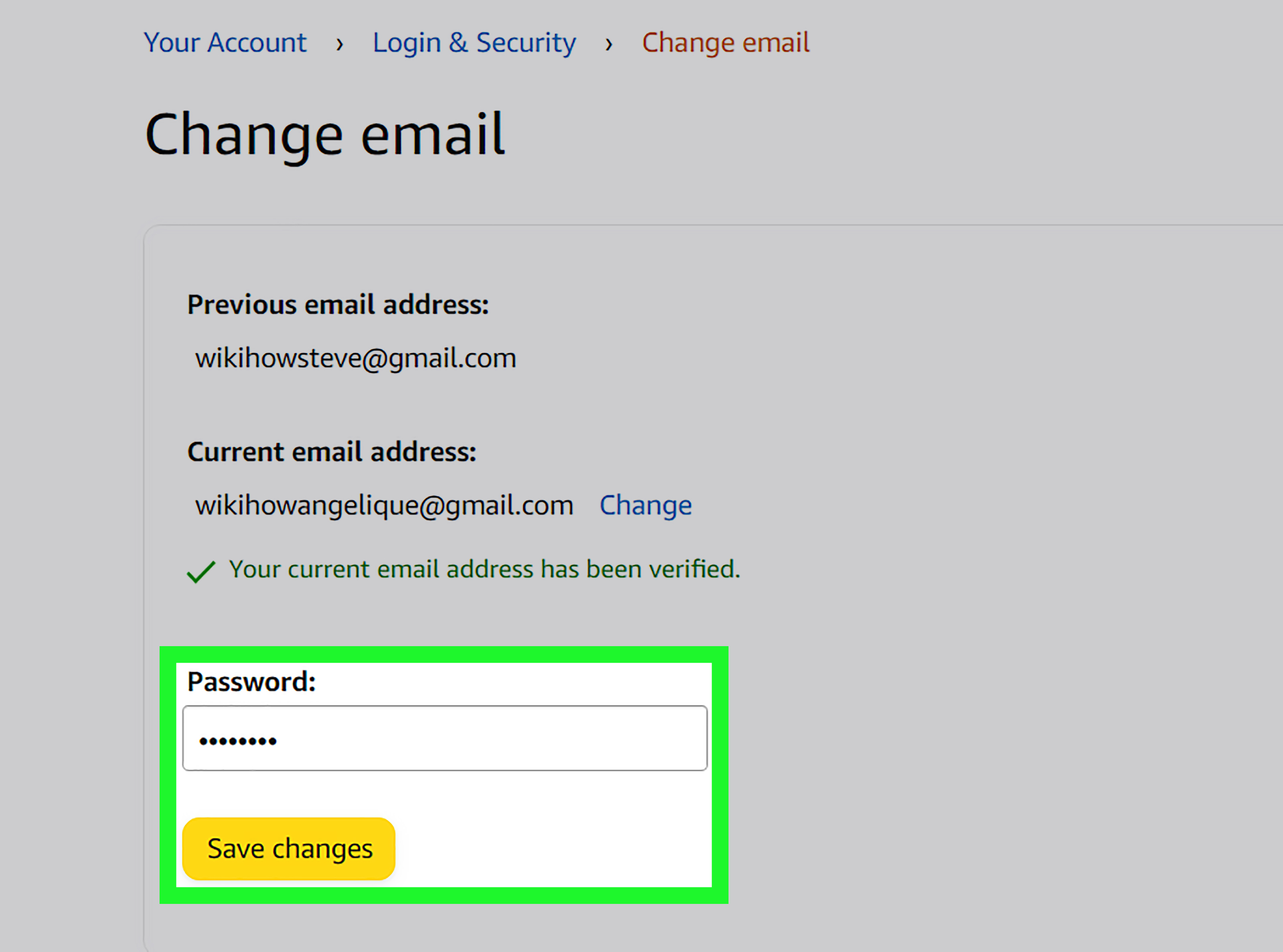
Step 7: Save Your Changes
After verification, Amazon may ask for your password again. Enter it, save your changes, and confirm that the new email appears in your Login & Security settings. You should also receive a notification confirming that your account email was changed.
How to Change Your Amazon Email Address in the Mobile App
If your phone is basically your command center for life, you can change your Amazon email address from the mobile app too. The labels may vary slightly depending on your device and app version, but the general path is similar.
Step 1: Open the Amazon App
Open the Amazon Shopping app on your iPhone or Android device. Sign in if needed.
Step 2: Tap the Profile or Account Icon
Look for the person-shaped icon or menu icon near the bottom of the screen. Tap it to open your account area.
Step 3: Go to “Your Account”
Scroll until you see “Your Account.” Tap it. This section contains your orders, payments, addresses, memberships, and account settings.
Step 4: Choose “Login & Security”
Tap “Login & Security.” Amazon may ask you to verify your identity with your password, phone number, or two-step verification code.
Step 5: Edit Your Email Address
Tap “Edit” next to your email address. Enter your new email address, follow the verification instructions, and save the changes.
After the update, close and reopen the app, then sign in with the new email address to make sure everything works. This is the digital version of jiggling the doorknob after locking it.
Will Changing Your Amazon Email Affect Prime, Orders, or Subscriptions?
No, changing your email address should not cancel your Amazon Prime membership, delete your order history, remove payment methods, or erase subscriptions. Your Amazon account remains the same account; only the login email changes.
Your saved addresses, order history, Prime benefits, Subscribe & Save items, Kindle library, Audible membership, gift card balance, and payment methods should remain connected to the account. Still, after updating your email, it is smart to review important account areas to confirm everything looks right.
Check These Areas After Changing Your Email
- Your recent orders
- Prime membership status
- Payment methods
- Shipping addresses
- Subscribe & Save settings
- Digital content and devices
- Communication preferences
If everything looks normal, congratulations. You have successfully performed a small but important act of digital adulthood.
What to Do If You Do Not Receive the Amazon Verification Email
Verification emails usually arrive quickly, but sometimes they take a few minutes. Before panic-refreshing your inbox like it owes you money, try these fixes.
Check the Email Address for Typos
Go back to the email field and confirm that the new address is spelled correctly. A misplaced letter is one of the most common reasons verification emails disappear.
Look in Spam or Junk Folders
Email filters occasionally get dramatic and send legitimate messages to spam. Check spam, junk, promotions, social, and updates folders.
Search Your Inbox
Search for “Amazon,” “verification,” “one-time password,” or “account change.” This is faster than scrolling through newsletters, coupons, and that one recipe blog you accidentally subscribed to in 2018.
Resend the Code
If Amazon offers a “Resend” option, use it. Avoid requesting too many codes in a row because it can cause confusion over which code is newest.
Try Another Browser or Device
If the page is not loading correctly, switch browsers, clear your cache, or try the Amazon app. Sometimes the problem is not your account; it is your browser having a tiny tantrum.
What If You Cannot Access Your Old Email Address?
If you can still sign in to Amazon with your password and complete any required verification, you may still be able to update your email through Login & Security. However, if Amazon requires a code from your old email and you cannot access it, the process becomes harder.
In that case, try these options:
- Use your registered mobile number to sign in or recover your account.
- Use Amazon’s password reset process if you forgot your password.
- Check whether you are signed in on another trusted device.
- Contact Amazon Customer Service through the official Amazon website or app.
- Be ready to verify your identity using account information, recent orders, or other recovery details.
Do not trust random phone numbers or support links found in suspicious emails, pop-ups, or social media comments. Scammers love pretending to be customer support. Real support will not ask you to share your password, gift card codes, or banking login details.
What If Your Amazon Account Was Hacked and the Email Was Changed?
If you receive a message saying your Amazon email address was changed and you did not make the change, act quickly. Try signing in immediately. If you still have access, change your password, review your email address and phone number, remove unknown devices, and enable two-step verification.
If you are locked out, use Amazon’s account recovery options and contact Amazon Customer Service through official channels. Also check your email account, because attackers often start there. Change your email password, enable multi-factor authentication on your email, and review recent login activity if your email provider offers it.
Warning Signs of a Compromised Amazon Account
- You receive confirmation emails for changes you did not make.
- Your email address, phone number, or password was changed unexpectedly.
- You see orders you did not place.
- Your saved address list includes unfamiliar locations.
- You receive password reset emails you did not request.
- Your gift card balance or payment methods show suspicious activity.
If you see unauthorized charges, contact your bank or card issuer. Also review your Amazon orders, archived orders, subscriptions, and digital purchases. Sometimes suspicious activity hides in places people forget to check.
How to Keep Your Amazon Account Secure After Changing Your Email
Once your new email address is in place, take a few extra minutes to strengthen your Amazon account. Security is not glamorous, but neither is explaining to your bank why someone bought twelve blenders with your card.
Use a Strong, Unique Password
Your Amazon password should not be reused from another site. If another company suffers a data breach and your reused password is exposed, attackers may try it on Amazon. Use a long, unique password with a mix of words, numbers, and symbols, or use a reputable password manager to create and store one.
Turn On Two-Step Verification
Two-step verification adds another layer of protection by requiring a code in addition to your password. Even if someone gets your password, they still need the second verification method to sign in.
Protect Your Email Account Too
Your Amazon account is only as secure as the email connected to it. If someone can access your email, they may be able to reset passwords or intercept verification messages. Use a strong email password and enable multi-factor authentication on your email account.
Watch for Phishing Messages
Phishing emails often pretend to be urgent Amazon alerts. They may claim your account is locked, your Prime membership is expiring, or a strange order was placed. Instead of clicking links in suspicious messages, open Amazon directly through the app or by typing the address into your browser.
Review Your Communication Preferences
After changing your email, visit your communication preferences. This lets you control marketing emails, deal alerts, shipment updates, and other messages. Your inbox deserves boundaries too.
Common Mistakes to Avoid When Changing Your Amazon Email
The process is simple, but a few mistakes can make it annoying. Avoid these common problems:
- Using an email address you cannot access.
- Typing the new email address too quickly and missing a typo.
- Ignoring the verification email or one-time password.
- Changing your email while using public Wi-Fi.
- Forgetting to update password manager records.
- Not checking whether your phone number is still current.
- Clicking Amazon links from suspicious emails instead of going directly to Amazon.
Also remember to update any saved login information in your browser or password manager. Otherwise, your device may keep trying to sign in with the old email address, which can make you think the change failed when it did not.
Frequently Asked Questions
Can I have two email addresses on one Amazon account?
Your Amazon account uses one primary email address for login and account communication. You may be able to manage communication preferences separately, but your login email is the main address tied to the account.
Can I change my Amazon email without my password?
Usually, no. Amazon may require your password or another verification method before allowing changes to login information. If you forgot your password, use the password reset process first.
Can I use the same email address for two Amazon accounts?
Generally, an email address is tied to one Amazon account for login. If the email is already associated with another account, you may need to use a different address or resolve the existing account issue.
Will my order history disappear after I change my email?
No. Your order history should remain connected to your Amazon account. Changing the email address changes how you sign in, not the account’s purchase history.
Should I change my Amazon password when I change my email?
It is a good idea, especially if your old email was compromised or you have reused your Amazon password elsewhere. A fresh email and a strong unique password make a much better security pair.
Real-World Experience: What It Feels Like to Change Your Amazon Email
Changing an Amazon email address is usually straightforward, but the experience can feel slightly different depending on your account history, security settings, and how organized your inbox is. In a perfect world, you sign in, go to Login & Security, click Edit, enter the new email, verify the code, save changes, and ride off into the sunset with your delivery notifications safely redirected. In the real world, you may spend five minutes wondering why the verification email is hiding under the Promotions tab.
One common experience is realizing that your Amazon account is connected to more services than expected. Many people think of Amazon as “the place where I buy batteries and emergency birthday gifts,” but the account may also connect to Prime Video, Kindle, Audible, Alexa devices, Amazon Photos, Ring, Whole Foods orders, gift cards, and household memberships. That is why changing the email address should be done carefully rather than casually during a commercial break.
For example, imagine someone named Sarah who used an old college email for Amazon. Years later, she no longer has access to that inbox. She can still sign in because her browser remembers the password, but she realizes that order alerts and account notices are going to an email address she cannot open. Sarah updates her Amazon email to her current personal address. After the change, she also updates her password manager, checks her phone number, turns on two-step verification, and confirms that Prime Video still works on her TV. The whole process takes a few minutes, but it prevents a much bigger headache later.
Another example is a small business owner who uses Amazon Business for office supplies. If that person changes the account email without telling the team, invoices, shipment notices, and approval messages may go to a different inbox than expected. In that case, the best experience comes from planning the update: choose the right email address, notify anyone who relies on the account, and review business settings after the change.
The most frustrating experience happens when someone no longer has access to the old email and also forgot the Amazon password. That situation can require account recovery, identity verification, or help from Amazon Customer Service. It is not impossible, but it is slower. The lesson is simple: update your email while you still have access, not after the old inbox vanishes into the digital swamp.
From a practical standpoint, the best time to change your Amazon email is when you are calm, signed in on a trusted device, and able to check both your old and new inboxes. Do not do it while rushing through airport Wi-Fi, borrowing someone else’s laptop, or half-awake at midnight because you suddenly remembered your old email password is “probably something with a cat.”
After the update, test the new login. Sign out, then sign back in using the new email address. Check that your orders, Prime membership, addresses, and payment settings are still there. If you use a password manager, update the saved username immediately. If you use Amazon on multiple devices, such as a phone, tablet, smart TV, or Kindle, you may need to sign in again with the new email.
The biggest takeaway from real user experience is this: changing your Amazon email is not just an account-editing chore. It is a small security upgrade. A current email address helps you receive alerts, recover access, spot suspicious activity, and keep your online shopping life organized. It is not exciting, but neither is dental flossand both save you from future pain.
Conclusion
Changing the email address on your Amazon account is simple when you follow the right path: sign in, open Your Account, choose Login & Security, edit your email, verify the new address, and save the update. The most important part is making sure your new email is active, secure, and easy for you to access.
Once the change is complete, review your account details, update your password manager, check your phone number, and enable two-step verification if you have not already done so. Your Amazon account holds a lot more than shopping receipts, so treating it like a valuable account is worth the extra few minutes.
In short, do not wait until your old inbox disappears, your password fails, or a delivery alert gets lost in email limbo. Update your Amazon email now, keep your login details secure, and let your future self enjoy fewer account headaches.