If your PC currently looks like it was decorated by a hyperactive rainbow with no supervision, good news: changing your RGB colors is usually much easier than people think. You do not need a degree in electrical engineering, a secret gamer handshake, or a three-hour YouTube rabbit hole. In most cases, you just need to identify which software or controller is in charge of your lights and then tell it, politely but firmly, that today is a blue day.
Modern PC RGB lighting can live in several places at once: the motherboard, the case hub, the fans, the RAM, the GPU, the keyboard, the mouse, and sometimes even the desk mat because apparently subtlety has left the building. That is why so many people get confused. They open one app, change the color, and only half the setup listens. The other half keeps glowing neon green like it pays rent.
This guide breaks the process down into ten easy ways so you can actually change your PC RGB colors without turning the whole project into a weekend-long side quest. Whether you want a clean all-white setup, a cool purple-and-cyan gaming theme, or warm amber lighting that says “I am productive now,” these tips will help you get there.
Before You Change Anything, Know What You Are Controlling
Before you start clicking color wheels like a DJ at a motherboard convention, take two minutes to figure out what kind of RGB gear you have. This step saves a lot of frustration.
Know the difference between RGB and ARGB
Traditional RGB usually uses a 12V 4-pin connection and changes one color at a time across the whole strip or fan. Addressable RGB, often called ARGB, usually uses a 5V 3-pin connection and can light individual LEDs separately for effects like waves, gradients, and chasing patterns. If you mix those up, your lighting plan can go from stylish to silent very quickly. So always match the right header, the right hub, and the right software.
Find the boss of your lighting
Ask yourself a few simple questions. Are your fans plugged into the motherboard RGB headers? Is there a controller hub behind the case panel? Are your keyboard and mouse from a different brand than your motherboard? If the answer is yes to that last one, congratulations: your lighting probably has multiple managers and none of them are speaking to each other.
Use one main control method when possible
A lot of RGB weirdness happens when multiple apps are fighting over the same LEDs. One app says “blue,” another says “rainbow wave,” and your hardware decides to split the difference with chaos. When possible, choose one primary lighting app for each group of devices.
1. Use Your Motherboard RGB Software First
If your fans, light strips, or case LEDs are connected directly to the motherboard, the easiest way to change PC RGB colors is usually the motherboard manufacturer’s software. This is the most common control path for internal PC lighting.
Depending on your hardware, that might be ASUS Aura Sync in Armoury Crate, MSI Mystic Light in MSI Center, GIGABYTE RGB Fusion, or ASRock Polychrome Sync. Open the app, look for a lighting tab, select the device or zone, and then choose a static color, gradient, or effect. Most of these tools also let you adjust brightness, speed, and synchronization across supported components.
This route is ideal if your build is centered around one motherboard brand and most of your RGB accessories are certified to work with that ecosystem. It is the closest thing RGB has to “one remote, one couch, no drama.”
2. Try Windows 11 Dynamic Lighting
If you are using Windows 11 and your hardware supports it, Dynamic Lighting is one of the easiest ways to change RGB colors from inside Windows Settings. No separate control panel maze, no seven-brand software relay race, no mystery tabs named something like “Aura Vision Engine Pro Ultra.”
Go to Settings > Personalization > Dynamic Lighting. From there, you can change brightness, choose effects, and select colors for supported LED devices. It is especially handy for people who want a quick, clean way to set a single color theme without installing a bunch of extra utilities.
The catch is compatibility. Not every RGB device supports Dynamic Lighting yet, and some manufacturers still offer more advanced controls in their own apps. Still, if you want simple control and your setup cooperates, this is one of the easiest modern solutions.
3. Change Colors Through a Case Hub or RGB Controller
Many prebuilt PCs and custom cases include a separate RGB controller or fan hub. If your lighting is plugged into that hub instead of the motherboard, the controller may be the real boss of your color settings.
Some hubs are software-controlled through USB, while others use physical buttons on the case, a remote, or a tiny controller tucked away somewhere inconveniently clever. If your RGB colors are not responding to motherboard software, this is one of the first places to check.
In real life, this solves a very common problem: someone keeps opening Aura Sync, Mystic Light, or another app, but nothing changes because the lights are actually controlled by a separate hub. It is like yelling at the TV remote while someone else has the batteries.
4. Use Brand-Specific Software for Internal Components
Some parts need their own software even when they live inside the same PC. Corsair iCUE is a classic example. If your RGB RAM, fans, AIO cooler, keyboard, mouse, or light strips are from Corsair and connected through Corsair hardware, iCUE is often the most reliable way to change colors, build scenes, and save profiles.
The same goes for brands like NZXT CAM for supported coolers and controllers, Thermaltake software for supported ecosystems, and OMEN Light Studio or Alienware Command Center on branded gaming systems. These apps often offer deeper control than Windows can, including layered effects, device grouping, and saved profiles for different moods.
So if you changed your motherboard software and your cooler ring still looks like it belongs in a sci-fi nightclub, use the component brand’s app instead.
5. Use Peripheral Software for Keyboard, Mouse, and Headset RGB
Your PC tower lighting and your peripherals do not always follow the same rules. A motherboard app may control case fans and light strips, but your keyboard and mouse often need their own software.
That means Razer Synapse for Razer gear, Logitech G HUB for LIGHTSYNC devices, SteelSeries GG Prism for compatible SteelSeries peripherals, and similar apps for other brands. Open the device settings, go to lighting or illumination, and then choose your preferred color, pattern, and brightness.
This is also where you can create a theme that actually feels intentional. For example, set your PC fans to deep blue, your keyboard to icy white, and your mouse wheel to matching blue accents. Suddenly your setup looks coordinated instead of accidentally assembled during a power outage.
6. Sync Everything Inside One Ecosystem
If you want the easiest long-term RGB experience, the secret is not magic. It is consistency. The more of your hardware lives in one ecosystem, the easier it is to change your PC RGB colors in one place.
For example, a mostly Corsair build is easier to sync in iCUE. A mostly ASUS build is easier to manage in Aura Sync. A Razer-heavy desk setup plays nicely in Synapse and Chroma. When your parts were built to talk to the same software, they usually stop acting like roommates with unresolved tension.
If you are building or upgrading a PC, this is worth thinking about before you buy. Mixed-brand RGB can work, but same-brand RGB is usually simpler, faster, and far less dramatic.
7. Use a Universal RGB App for Mixed-Brand Builds
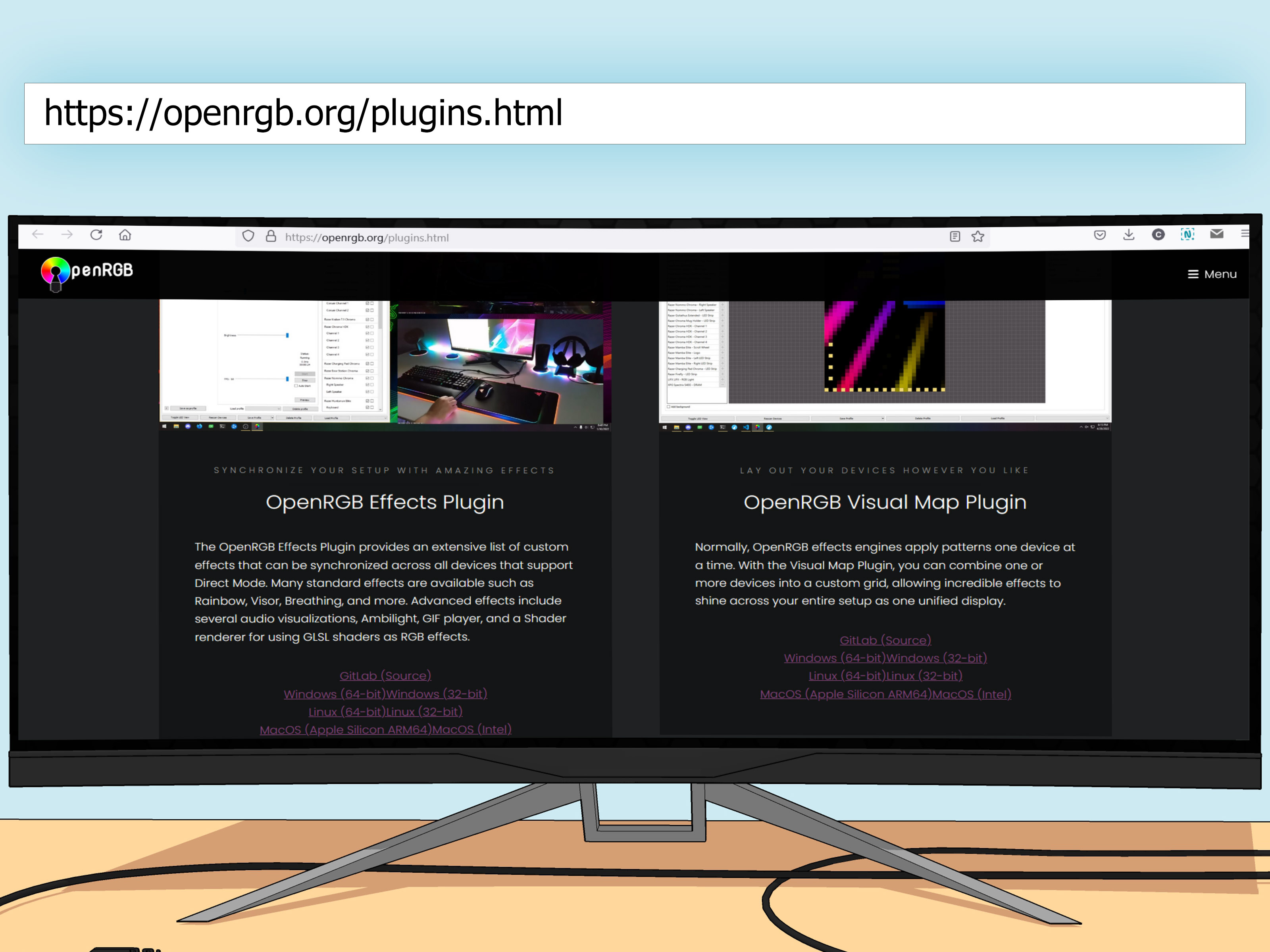
If your build is a glorious mash-up of different brands, a universal RGB app can be a lifesaver. This is where tools like SignalRGB and OpenRGB come in. They aim to control multiple supported devices from a single interface, which is great when your setup includes parts from different ecosystems.
SignalRGB is especially popular for people who want synchronized effects across many supported brands. OpenRGB is another option for users who prefer an alternative approach and broader experimentation, especially on mixed systems.
This method is great when you are tired of juggling six apps just to make everything the same shade of purple. The trade-off is that compatibility varies by device, and some advanced vendor-specific features may still work better in the original software. But for many builders, the convenience is worth it.
8. Create and Save RGB Profiles
One of the easiest ways to make RGB feel useful instead of chaotic is to create profiles. Most modern lighting apps let you save presets so you can switch looks in seconds.
You might create:
- Work Mode: soft white or warm amber, low brightness
- Gaming Mode: bold red, blue, or purple with stronger effects
- Night Mode: dim static orange or lights off entirely
- Show-Off Mode: rainbow wave for the five minutes your friends are visiting
Profiles make RGB practical. Instead of redoing settings every time, you just switch to the one that fits your mood, your room lighting, or your current level of keyboard heroics.
9. Fine-Tune Zones, Brightness, and Effect Speed
Changing RGB colors is not just about picking blue instead of red. The details matter. Once you choose a color, take another minute to adjust brightness, effect speed, and zones.
If your setup feels too loud, reduce brightness first. That single change often improves the look more than changing the color itself. If your effects feel distracting, switch from rainbow or strobe to static, breathing, or a slow gradient. If your hardware has multiple zones, use them intentionally. A two-color theme often looks more premium than a full chaos palette.
A clean setup might use white on the front fans, soft blue on the RAM, and no effect at all on the keyboard. That looks polished. A setup using six bright colors at maximum speed looks like your desktop is trying to summon a boss battle.
10. Fix Common RGB Problems When Colors Will Not Change
Sometimes the issue is not choosing a new color. It is getting the hardware to listen in the first place. If your PC RGB colors will not change, run through this checklist:
- Close or uninstall extra RGB software that may be conflicting.
- Update the lighting software to the latest version.
- Check firmware updates for the motherboard, controller, or device.
- Verify that the RGB device is plugged into the correct header or hub.
- Make sure ARGB and RGB connections are not mixed up.
- Restart the PC after installing or removing lighting software.
- Confirm the device is actually supported by the app you are using.
This troubleshooting step is boring, yes. It is also where many RGB problems get solved. Most lighting failures come down to software conflicts, unsupported devices, outdated firmware, or a connection issue. In other words, not a cursed motherboard. Usually.
Best Color Ideas for Different PC Setups
For a clean minimalist desk
Use soft white, cool white, or dim amber. These colors look modern, photograph well, and do not reflect aggressively off every shiny surface in the room.
For a gaming setup
Try deep blue, purple, crimson, or teal. These colors feel dramatic without becoming visually exhausting when used in moderation.
For content creation or streaming
Use coordinated brand colors or complementary pairs. Blue and pink, purple and cyan, or white and gold can look sharp on camera.
For late-night use
Lower brightness and use warmer shades. Your eyes will thank you, and your room will stop looking like a spaceship parking garage.
What the Experience Is Actually Like When You Change PC RGB Colors
The first time most people try to change PC RGB colors, they expect it to be one click. In reality, it often starts as a small detective story. You open one app, only the RAM changes. You open a second app, now the keyboard obeys. You touch a third app, and suddenly the fans decide they miss rainbow mode and return to it like nothing happened. It is a very humbling introduction to the glamorous world of PC lighting.
Once you get past that first awkward phase, though, the experience becomes surprisingly fun. There is something satisfying about watching a setup go from random mismatched colors to a coordinated theme that actually feels intentional. A plain desk suddenly looks sharper. A black case gains depth. Tempered glass panels stop looking like fingerprints with LED backlighting and start looking like part of a design.
A lot of people discover they do not even want wild RGB after all. They begin with the dream of a full rainbow cyclone and end up loving a dim static white or a soft icy blue. Others go in the opposite direction. They start with a safe single-color setup, then realize they enjoy animated gradients, reactive effects, or game-linked lighting. That is part of the charm: RGB is one of the easiest ways to make a PC feel personal without changing actual performance hardware.
There is also a practical side to the experience. Different profiles can subtly change how your setup feels during the day. Brighter cool tones can make a desk feel energetic in the afternoon. Warmer, dimmer colors help at night when you do not want your computer throwing a tiny laser concert across the room. Some people even match RGB to wallpapers, room lights, or seasonal themes. That may sound extra, but honestly, if you already spent time building a PC, you might as well let it dress for the occasion.
The funniest part is how quickly RGB preferences become weirdly specific. Suddenly you are saying things like, “This blue is too electric,” or “The keyboard white is a little too refrigerator.” You start noticing brightness balance between the fans and the RAM. You care about whether the front intake lights are slightly greener than the light strip. You become, against all odds, a person with strong opinions about magenta.
In the end, changing PC RGB colors is rarely about the lights alone. It is about ownership. A customized setup feels more like your space, your machine, and your style. Even when the process is occasionally silly, the result can make a desk feel cleaner, cozier, cooler, or more fun. And that is not bad for a feature that began, for many of us, as “I just wanted the fans to stop being green.”
Conclusion
If you want to change PC RGB colors the easy way, start by identifying what controls your lighting: motherboard software, a dedicated hub, brand-specific apps, or Windows Dynamic Lighting. From there, choose one main control method, save a few useful profiles, and keep software conflicts to a minimum. The goal is not just more color. The goal is control.
Whether you prefer a clean white setup, a moody purple glow, or a fully synchronized gaming desk, the best RGB theme is the one that feels intentional and easy to manage. Your PC does not need to look like a rainbow exploded in a server closet. Unless that is your thing. In that case, respectfully, carry on.