
There are few modern panic moments quite like standing at a pharmacy counter, doctor’s office, urgent care desk, or traffic stop and realizing your insurance card is sitting peacefully at home, probably next to a coffee mug and your abandoned grocery list. Thankfully, your iPhone can save the day. In many cases, you can add an insurance card to Apple Wallet and keep your health, dental, vision, or auto insurance ID card just a double-click away.
Apple Wallet is not only for credit cards, boarding passes, and concert tickets. It can also store eligible digital passes, including insurance ID cards offered by participating insurance companies. The key word is “eligible.” You usually cannot open Apple Wallet, tap the plus button, and manually create an insurance card from scratch. Instead, the insurance company, employer benefits portal, or member app must support Apple Wallet. When it does, the process is usually simple: log in, find your digital ID card, tap “Add to Apple Wallet,” and confirm.
This guide explains exactly how to add an insurance card to Apple Wallet, what to do when the button does not appear, how health insurance cards differ from auto insurance ID cards, and how to avoid common mistakes. Consider this your friendly, pocket-sized rescue mission for the next time someone asks, “Do you have your insurance card?”
Can You Add an Insurance Card to Apple Wallet?
Yes, you can add an insurance card to Apple Wallet if your insurance provider supports Apple Wallet passes. Many major health and auto insurance companies now offer digital ID cards through their mobile apps or member websites. Examples may include UnitedHealthcare, Aetna, Blue Cross and Blue Shield plans, Blue Shield of California, Kaiser Permanente in some regions, and GEICO for auto insurance cards.
However, not every plan, employer group, state, region, or insurance app supports the same feature. One Blue Cross plan may offer an “Add to Apple Wallet” button, while another may only let you download a PDF or view the card inside the app. That does not mean you are doing anything wrong. Insurance technology sometimes moves with the speed of a sleepy turtle wearing reading glasses.
What Types of Insurance Cards Can Work?
Depending on your provider, Apple Wallet may support several types of insurance-related cards:
- Health insurance member ID cards
- Dental insurance cards
- Vision insurance cards
- Prescription benefit cards
- Auto insurance ID cards
- Medicare Advantage or health plan member cards, depending on the insurer
The card stored in Apple Wallet is typically a digital pass. It may show your name, member ID, group number, plan name, Rx information, vehicle policy details, or a barcode. Some cards include only a simplified “medical pass” version, while the full detailed card remains inside the insurer’s app.
Before You Start: What You Need
Before adding your insurance card to Apple Wallet, make sure you have the basics ready. First, use an iPhone that supports the Wallet app and is updated to a recent version of iOS. Second, install your insurance company’s official mobile app from the App Store or sign in through its official member website. Third, create or recover your online member account so you can access your digital ID card.
You should also check that your insurance coverage is active. If your plan just started, the digital card may take a little time to appear. If your employer recently changed carriers, your old card may still show up but no longer be valid. Nothing says “administrative adventure” like presenting last year’s card and discovering your deductible has moved to a new planet.
How to Add an Insurance Card to Apple Wallet: Step-by-Step
The exact steps vary slightly by insurance company, but most follow the same pattern. Use these instructions as a general roadmap.
Step 1: Download Your Insurance Provider’s Official App
Open the App Store and search for your insurance provider’s official app. For health insurance, this may be an app such as UnitedHealthcare, Aetna Health, Blue Cross NC, Blue Shield of California, Kaiser Permanente, or your local Blue Cross and Blue Shield plan. For auto insurance, it may be GEICO Mobile, Progressive, State Farm, Allstate, or another carrier app.
Be careful to choose the official app. Insurance apps contain sensitive information, so avoid look-alike apps, random wallet scanner tools, or third-party apps that ask for unnecessary personal details. When in doubt, go to your insurer’s official website first and use its app download link.
Step 2: Sign In to Your Member Account
Open the app and sign in with your username and password. If this is your first time, create an account using your member ID, date of birth, ZIP code, email address, or other verification details. Some insurers may require two-factor authentication, especially if you are accessing health plan information.
This step matters because Apple Wallet usually receives the card from the insurer’s secure system. Apple Wallet is the place where the pass lives; your insurer is the source that creates and authorizes it.
Step 3: Find the Digital ID Card Section
Look for menu labels such as “ID Card,” “Member ID Card,” “Insurance Card,” “Digital ID Card,” “My Card,” “Coverage,” “Policy,” or “Documents.” UnitedHealthcare, for example, directs members to member cards in its app. Blue Cross NC tells members to open the account menu and select ID Card. Blue Shield of California places the Apple Wallet option near the ID card inside its mobile app. GEICO lets users view digital auto insurance ID cards and add them to Apple Wallet when supported.
If you cannot find the card, use the app’s search bar if available. Try typing “ID card,” “wallet,” or “proof of insurance.” Insurance apps often hide important features behind innocent-looking menus, like a digital scavenger hunt nobody asked to join.
Step 4: Tap “Add to Apple Wallet”
Once your insurance card appears, look for a button that says “Add to Apple Wallet,” “Add to Wallet,” or shows the Apple Wallet icon. Tap it. Your iPhone should open a preview of the pass. Review the details carefully before adding it.
Check your name, member ID, group number, effective date, plan type, vehicle information, and any prescription or policy details. If something looks wrong, do not ignore it. Contact your insurer or employer benefits administrator before relying on the card.
Step 5: Confirm by Tapping “Add”
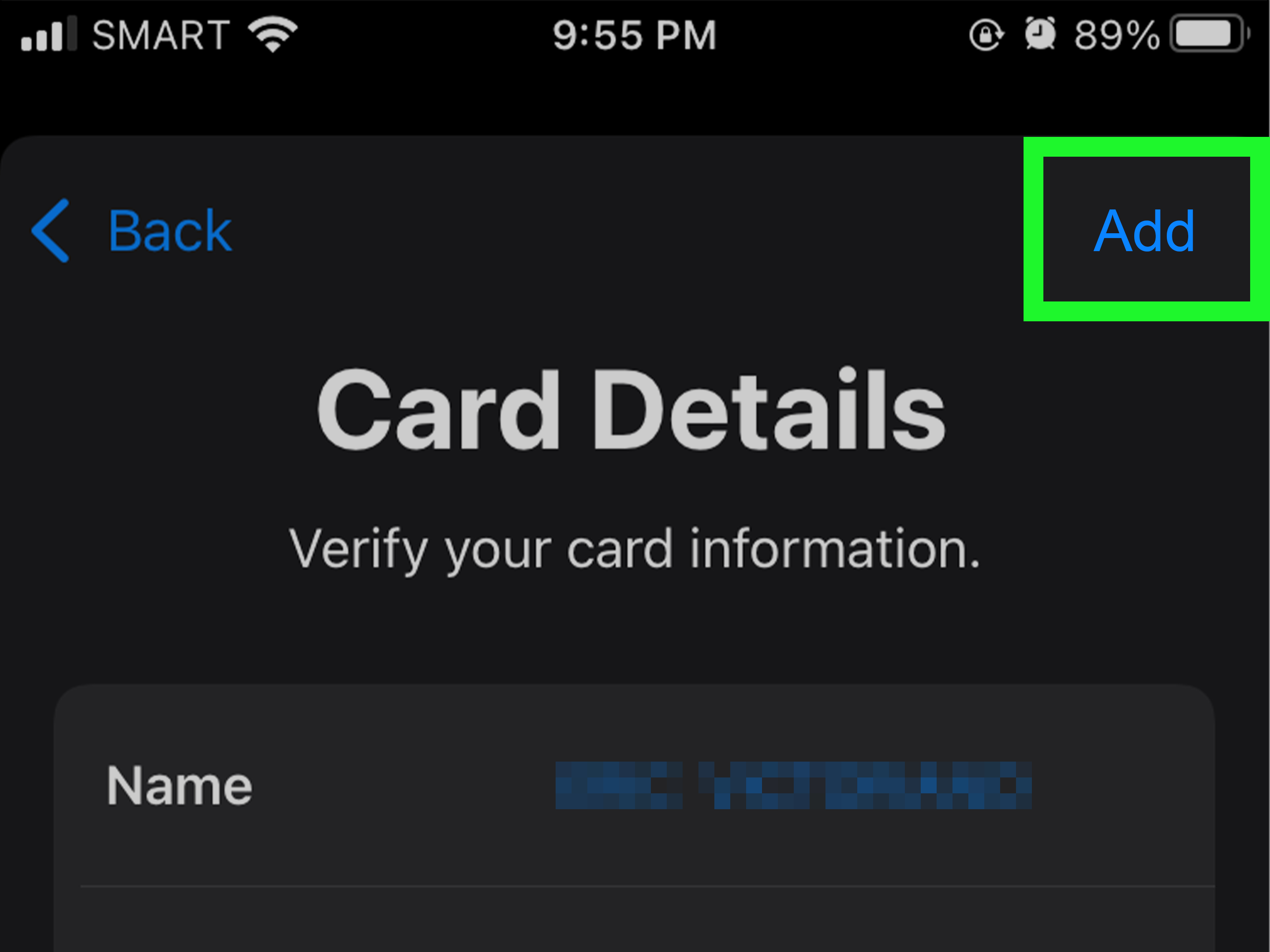
After the Apple Wallet preview appears, tap “Add” in the upper-right corner. The card should then be saved in your Wallet app. Open Apple Wallet to confirm that it appears correctly. You may see the card listed alongside boarding passes, loyalty cards, event tickets, and other passes.
Step 6: Test Access Before You Need It
Do not wait until you are standing in front of a receptionist with a clipboard to test your new digital card. Open Apple Wallet, tap the insurance card, and make sure the front and back details are visible. Some passes have an information button or three-dot menu that shows additional details.
Testing is especially important for auto insurance cards because you may need proof quickly during a traffic stop or accident. Even if your state generally accepts electronic proof of insurance, carrying a paper backup is still smart. Phones lose battery. Screens crack. Apps update at the worst possible moment. Paper is boring, but boring can be useful.
How to Add a Health Insurance Card to Apple Wallet
Health insurance cards are usually added through your insurer’s member app. The typical path is: open the app, sign in, select your ID card, and tap “Add to Apple Wallet.” UnitedHealthcare, Aetna, several Blue Cross and Blue Shield plans, and other insurers provide digital member ID card tools for many members.
A health insurance card in Apple Wallet may include your member ID, plan name, group number, provider service phone number, pharmacy benefit information, and sometimes a barcode or QR code. Doctors’ offices and pharmacies may still ask to see the full card in the insurer’s app, especially if they need the back of the card or detailed claims addresses.
Adding Cards for Dependents
If your spouse, child, or other dependent is covered under your plan, the app may let you view and add their card as well. Some insurers require you to switch profiles or select a covered family member before tapping “Add to Apple Wallet.” If your college student, babysitter, or spouse may need the card, check whether the app supports sharing or downloading a copy.
Be careful when sharing health insurance cards. A member ID card can contain personal information. Send it only through trusted methods and only to people who need it.
How to Add an Auto Insurance Card to Apple Wallet
Auto insurance cards work a little differently. Instead of a health plan member ID, the card usually proves that your vehicle has active liability coverage. Many insurers let you access proof of insurance inside their mobile apps. Some, including GEICO, advertise Apple Wallet support for digital ID cards.
To add an auto insurance card, open your insurer’s app, sign in, choose your auto policy, select “ID Cards” or “Proof of Insurance,” and look for “Add to Apple Wallet.” Review the vehicle, policy number, named insured, effective dates, and insurer details before saving.
Nearly every U.S. state accepts some form of electronic proof of auto insurance, but rules can vary. A paper copy is still a wise backup, especially if you travel across state lines, drive in areas with poor signal, or share the vehicle with someone who may not have access to your phone.
What If There Is No “Add to Apple Wallet” Button?
If you do not see the Apple Wallet button, do not panic. There are several possible reasons.
Your Insurer May Not Support Apple Wallet
Some insurers provide digital cards only inside their app or website. They may let you download a PDF, print a card, email a copy, or show the card on screen, but not add it to Apple Wallet.
Your Specific Plan May Not Be Eligible
Insurance companies often support different features for different employer groups, states, subsidiaries, or plan types. The app may support Apple Wallet for some members but not for others.
Your App May Need an Update
Open the App Store and update your insurer’s app. Then sign out, sign back in, and check the ID card section again. Sometimes a feature appears only after the latest app version is installed.
You May Be Using the Website Instead of the App
Some insurers make Apple Wallet available only through the mobile app on an iPhone. If you are signed in on a laptop or desktop computer, you may see a download option instead of an Apple Wallet button.
Your Card May Not Be Active Yet
If your coverage starts in the future, the wallet option may appear closer to your effective date. New plans, renewed policies, and recently added dependents can take time to update.
Can You Manually Add a Screenshot of an Insurance Card to Apple Wallet?
Not directly through Apple Wallet. Apple Wallet is designed for supported cards and passes, not ordinary images. You can save a screenshot in Photos, Files, Notes, or your insurer’s app, but that is not the same as adding an official Wallet pass.
Some third-party apps claim to create custom Wallet passes from images or barcodes. Use caution. Insurance cards may contain sensitive personal, medical, or policy information. Uploading that data to an unknown service can create privacy risks. For health insurance cards especially, the safest route is your official insurance app or member website.
How to Use Your Insurance Card in Apple Wallet
After your card is added, open Apple Wallet and tap the card when you need it. For quick access, double-click the iPhone side button on supported models, authenticate with Face ID, Touch ID, or your passcode, and choose the card. Depending on the pass design, you may be able to tap an information icon to see more details.
At a doctor’s office, pharmacy, or repair shop, show the card on screen just as you would a paper card. For auto insurance, show the digital ID card when asked for proof of coverage. Remember that handing your unlocked phone to someone is not ideal. Hold the phone yourself whenever possible and let the person read or scan the card.
Privacy and Security Tips
Apple Wallet is convenient, but your insurance card is still personal information. Treat it with care. Use a strong iPhone passcode, enable Face ID or Touch ID, and avoid sharing screenshots unless necessary. If you lose your iPhone, use Find My to mark it as lost and protect your device.
Also remember that insurance cards can change. Your policy may renew, your group number may change, your employer may switch plans, or your vehicle coverage may update. Review your Apple Wallet card after every renewal period. Delete old cards so you do not accidentally present outdated information.
Troubleshooting Common Problems
The Card Added, But the Information Looks Wrong
Contact your insurer. Do not try to edit the Wallet pass yourself. The insurance company controls the card data.
The Card Disappeared After I Got a New iPhone
Reinstall your insurer’s app, sign in, and add the card again. Some passes transfer through iCloud, but insurance cards may need to be reissued from the provider app.
The Office Will Not Accept My Digital Card
Ask whether they need the full card details, the back of the card, or a printed copy. Some offices have older systems and may prefer a PDF or physical card.
I Added the Wrong Dependent’s Card
Open Apple Wallet, select the card, tap the menu or information button, and remove it. Then return to your insurance app and choose the correct family member.
Real-Life Experience: Why Adding an Insurance Card to Apple Wallet Is Worth It
Adding an insurance card to Apple Wallet sounds like a tiny digital chore, but in real life, it can save an impressive amount of stress. Think about the average medical visit. You arrive a little early, congratulate yourself for being a responsible adult, and then the front desk asks for your insurance card. Suddenly, your brain opens twelve tabs at once. Is the card in your physical wallet? Did you leave it in the car? Is it the old one from last year? Why are there three blue cards in your purse, and why do they all look official?
That is where Apple Wallet becomes genuinely useful. When the card is stored properly, you can pull it up in seconds. No digging through receipts. No scrolling through blurry screenshots. No dramatic backpack excavation in a waiting room full of people pretending not to watch. The card is in one predictable place.
For families, the benefit is even bigger. Parents often manage insurance details for children, spouses, and sometimes elderly relatives. Having the correct member ID card available can make urgent care visits, pharmacy pickups, school forms, and specialist appointments smoother. If your insurer supports dependent cards, adding each one to Apple Wallet can turn a chaotic stack of plastic cards into a neat digital lineup.
Auto insurance is another practical example. Many drivers only think about proof of insurance when they are already under pressure: after a fender bender, during a traffic stop, or while registering a vehicle. Having your auto insurance card in Apple Wallet does not remove the need to understand your state’s rules, and a paper backup is still smart. But it does reduce the chance that your valid proof of coverage is trapped in a glove compartment, another vehicle, or a filing cabinet labeled “Important Stuff” that has not been opened since 2021.
The best experience comes from doing the setup before you need the card. Add it on a quiet day. Open the card. Check the details. Make sure the effective dates are current. If your insurer also offers a PDF, save that too. If you have a physical card, keep it somewhere sensible. Digital convenience works best when it has a backup plan.
One small habit helps: review your Wallet cards whenever your policy renews. Health plans often renew annually, and auto insurance may renew every six or twelve months. Old cards can linger like expired coupons. Deleting outdated insurance cards keeps Apple Wallet clean and prevents awkward moments at check-in.
In short, adding an insurance card to Apple Wallet is not flashy technology. It will not make your deductible lower or convince your pharmacy line to move faster. But it does make everyday insurance moments easier. And when life is already serving paperwork with a side of confusion, easier is a beautiful thing.
Final Thoughts
Learning how to add an insurance card to Apple Wallet is simple once you understand the main rule: the card must usually come from your insurer’s official app or member website. Open the app, sign in, find your digital ID card, tap “Add to Apple Wallet,” and confirm. If the button is missing, your provider, plan, app version, or region may not support the feature yet.
Apple Wallet can be a convenient home for health insurance cards, prescription benefit cards, and auto insurance ID cards, but it should not be your only safety net. Keep your insurer’s app installed, save a backup PDF if available, and carry a paper card when required or when traveling. Your future self, standing at a counter with three people behind you, will be extremely grateful.











