Losing an Apple Watch is a special kind of modern panic. One minute it is counting your steps, judging your sleep, and reminding you to stand like a tiny wrist coach. The next minute it has vanished into the laundry basket, couch cushions, gym bag, car seat gap, or the mysterious alternate dimension where single socks retire.
So, can you find a dead Apple Watch? The honest answer is: sometimes. If your Apple Watch battery is completely dead, it cannot actively ring, update its live location, or respond like a fully powered device. However, Apple’s Find My system may still show its last known location, and that clue is often enough to turn a stressful search into a successful rescue mission.
This guide explains how to find a dead Apple Watch, how Find My Apple Watch works, what to do when the watch is offline, how to use Lost Mode, and how to troubleshoot charging issues once you recover it. No magnifying glass required, though a flashlight and a calm attitude help.
Can You Find a Dead Apple Watch?
Yes, you may be able to find a dead Apple Watch by checking its last known location in the Find My app or at iCloud.com/find. If the watch sent its location before the battery died, Find My can display where it was last detected. That does not mean the watch is currently reporting from beyond the battery grave. It simply means Find My remembers where it last checked in.
If your Apple Watch is powered off, out of battery, or disconnected from Wi-Fi, cellular, and your paired iPhone, it cannot play a sound or send a fresh location. In that case, your best move is to use the last known location as a search radius. Think of it as a digital breadcrumb, not a live GPS tracker.
The Short Answer
You can find a dead Apple Watch if Find My was enabled before it went missing and the watch had recently shared a location. If Find My was not turned on before the watch disappeared, Apple does not offer another service that can track it afterward.
How Find My Works With Apple Watch
Find My is Apple’s built-in location system for devices such as iPhone, iPad, Mac, AirPods, AirTag, and Apple Watch. When your Apple Watch is paired with an iPhone that has Find My enabled, Find My is usually set up automatically on the watch. That is good news because most people do not want to complete a technology scavenger hunt before losing something. Life is already spicy enough.
When your Apple Watch is online, Find My can show its location on a map. If the watch is nearby, you can use Play Sound to make it ring. This is especially useful when the watch is hiding under a pillow like it has rent to avoid. If the watch is offline, Find My may show “No location found,” “Offline,” or a last known location.
The most important detail is timing. If the battery died recently, the last known location may still be useful. If too much time has passed, or if the watch never had a chance to send its location, Find My may not have anything helpful to show.
Step-by-Step: How to Find a Dead Apple Watch
1. Open the Find My App
Start with your iPhone. Open the Find My app, tap the Devices tab, and select your Apple Watch from the list. If your watch appears on the map, check the location, the time it was last seen, and whether it says online or offline.
If the map shows a location, tap Directions to open Apple Maps and navigate there. If the watch was last seen at home, do not underestimate boring places. Check nightstands, bathroom counters, jacket pockets, gym bags, laundry piles, car cup holders, couch cracks, and the exact spot where you said, “I’ll remember where I put this.” Famous last words.
2. Use iCloud.com/find If You Do Not Have Your iPhone
If your iPhone is not available, use a computer, tablet, or another phone and go to iCloud.com/find. Sign in with your Apple Account, open the device list, and choose your Apple Watch. This is useful when your iPhone is also missing, dead, or currently being borrowed by someone who says they are “just checking one thing.”
3. Check the Last Known Location Carefully
If your Apple Watch is dead, the location shown may not be current. Look at the timestamp. A location from five minutes ago is much more useful than one from last Tuesday. If the last known location is your house, search room by room. If it is a gym, school, office, café, airport, hotel, or rideshare drop-off, contact the place quickly and describe the watch model, band color, case size, and any engraving or identifying detail.
4. Try Play Sound Anyway
If Find My offers Play Sound, tap it. If the Apple Watch is online, it will ring. If it is offline, the sound may stay pending and play the next time the watch connects to a network. This will not wake a truly dead battery, but it is still worth trying because many “dead” devices are actually just offline, disconnected, or quietly sitting somewhere with a little charge left.
5. Turn On Notify When Found
If Find My says the watch cannot be located, turn on Notify When Found. This tells Find My to alert you if the Apple Watch appears again. For example, if someone finds it, charges it, or it reconnects near a known network, you may receive a notification. It is the tech version of telling your watch, “Text me when you stop being dramatic.”
Use Lost Mode to Protect Your Apple Watch
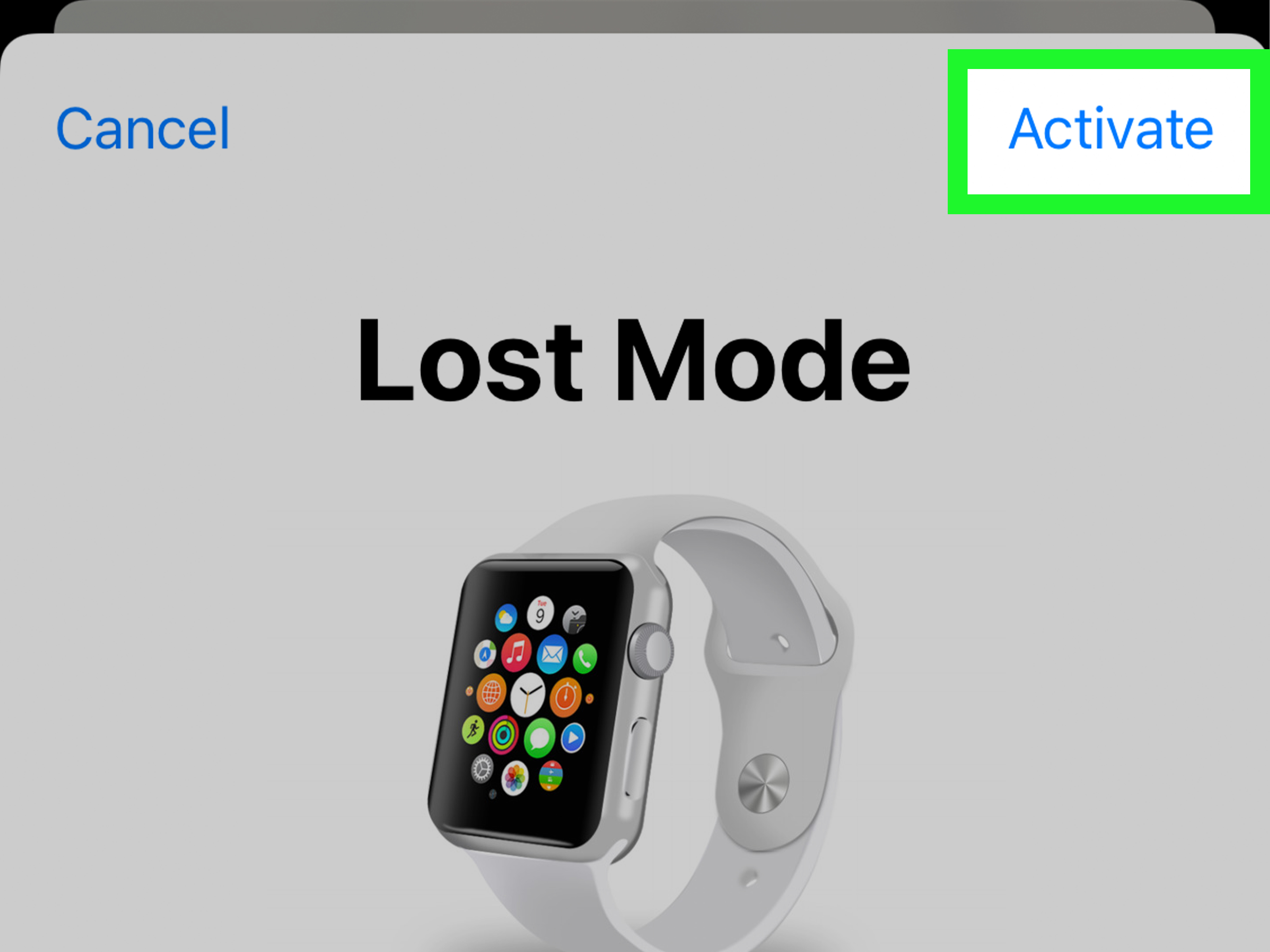
If your Apple Watch is missing and you cannot recover it immediately, turn on Lost Mode. Lost Mode locks the watch and lets you display a custom message with contact information. That message can appear when the watch comes back online, making it easier for an honest finder to return it.
To turn on Lost Mode from your iPhone, open Find My, tap Devices, choose your Apple Watch, and select Lost Mode. Follow the prompts to enter a phone number and message. Keep the message short and practical, such as: “This Apple Watch is lost. Please call or text this number. Thank you!” Avoid putting sensitive personal details in the message.
Lost Mode is especially important if you think the watch was lost in public. Even if the battery is dead now, the feature can activate when the device reconnects. Apple Watch also works with Activation Lock when Find My is enabled, which helps prevent someone else from pairing and using your watch without your Apple Account credentials.
What If the Apple Watch Does Not Appear in Find My?
If your Apple Watch does not appear in Find My at all, first make sure you are signed in with the same Apple Account used with the watch. Many people have more than one Apple Account floating around, usually created during a moment of password confusion years ago.
If you are signed in correctly and the watch still does not appear, Find My may not have been enabled before it went missing. Unfortunately, Find My must be turned on before the device is lost. You cannot activate tracking after the watch has disappeared. That would be convenient, but so would a fridge that texts you when you are out of snacks.
In that situation, focus on physical search steps: retrace your route, call locations you visited, check lost-and-found desks, review photos or videos from the day to see when you last wore it, and ask friends or family if they saw it. If you believe the Apple Watch was stolen, report it to local law enforcement and provide the serial number if requested.
Easy Troubleshooting Tips After You Find It
Charge It for at Least 30 Minutes
If your recovered Apple Watch looks completely dead, place it on its magnetic charger and leave it there. A deeply drained Apple Watch may need time before the charging symbol appears. Do not panic after thirty seconds. Give it up to 30 minutes, especially if the battery was fully drained.
Check the Charger and Power Source
Use the Apple Magnetic Charging Cable or USB-C Magnetic Fast Charging Cable designed for Apple Watch. Make sure the cable is firmly connected to the power adapter, the adapter is plugged into a working outlet, and the back of the watch is centered on the charger. Apple Watch charging is magnetic, but it is not magic. Alignment matters.
Clean the Watch and Charger
Dust, sweat, lotion, lint, and tiny mystery crumbs can interfere with charging. Wipe the back of the watch and the charging puck with a clean, dry, soft cloth. Also make sure any plastic wrap has been removed from the charger. Yes, this sounds obvious. Yes, it has absolutely happened to real people.
Try Another Cable or Adapter
If the Apple Watch still will not charge, test a different Apple Watch charging cable and a different USB power adapter. A failed cable can make a perfectly healthy watch look like it has retired from public life.
Force Restart the Apple Watch
If the watch is charged but frozen, press and hold both the side button and the Digital Crown for at least 10 seconds, or until the Apple logo appears. Do not force restart during a software update. If the watch remains unresponsive after charging and trying another cable, it may need service.
Common Places a Dead Apple Watch Hides
A dead Apple Watch does not move, but humans do. That means the watch is usually near a transition point: where you changed clothes, took a shower, packed a bag, charged devices, exercised, cleaned, slept, or rushed out the door.
Search these spots first:
- Under pillows, blankets, and fitted sheets
- Inside laundry baskets and washing machines
- Between couch cushions and under recliners
- In gym bags, backpacks, handbags, and jacket pockets
- On bathroom shelves, sinks, and towel racks
- In car seat gaps, cup holders, and center consoles
- Near chargers, power strips, and bedside tables
- At school, work, locker rooms, hotels, cafés, and gyms
Use a flashlight even in daylight. Apple Watch cases and bands can blend into dark furniture, clothing, and bags. If the band is black, congratulations: you are now playing hide-and-seek on expert mode.
What Not to Do When Your Apple Watch Is Missing
Do not remove the Apple Watch from your Apple Account too quickly. Removing it may also remove protections connected to Find My and Activation Lock. If you still hope to recover the watch, keep it linked and use Lost Mode instead.
Do not share your Apple Account password with anyone claiming they need it to return your watch. A real finder does not need your password. Also be careful with messages that say your device has been found and ask you to sign in through a suspicious link. Go directly to Find My or iCloud.com/find instead.
Do not erase the watch unless you have tried other recovery options and you are more concerned about protecting your data than locating the device. Erasing is a serious step and may limit what you can do afterward depending on the device and software conditions.
How to Prevent Losing Your Apple Watch Again
Once you recover your Apple Watch, take five minutes to make the next search easier. First, confirm Find My is enabled. On your paired iPhone, open the Apple Watch app, tap All Watches, tap the information button next to your watch, and check for Find My Apple Watch. You can also check Find My settings from the watch itself.
Next, set a consistent charging location. A single charging spot sounds boring, but boring is beautiful when your watch is not missing. Place the charger somewhere obvious, not behind a stack of receipts, lip balm, cables, and emotional clutter.
Finally, build a small habit: when you remove your Apple Watch, put it in one of three places only. For example, charger, nightstand tray, or gym bag pocket. The human brain loves routines. It does not love “I placed it somewhere safe,” because that phrase has personally caused millions of household search parties.
Real-World Experience: What Usually Works Best
In real life, finding a dead Apple Watch is less about dramatic spy-movie tracking and more about patient detective work. The most successful searches usually start with Find My, but they do not end there. The last known location gives you the zone. Your memory gives you the timeline. Your eyes, flashlight, and willingness to look under embarrassing piles of laundry do the rest.
One common experience is the “dead at home” scenario. Find My shows the Apple Watch was last seen at your address, which feels both helpful and insulting. Great, it is somewhere in the building. Thanks, technology. In this case, the best tactic is to recreate your previous routine. Did you remove the watch before showering? Check the bathroom. Did you take it off while typing? Check the desk, keyboard tray, and floor near your chair. Did you charge it before bed? Check behind the nightstand, because charging cables love to drag small devices into the shadow realm.
Another common situation is the “lost after workout” mystery. Apple Watch owners often remove the watch after running, swimming, lifting, or playing sports. The watch may end up in a locker, towel, hoodie pocket, shoe compartment, or gym bag side pocket. If Find My last shows the gym, call quickly. Give specific details: “Apple Watch with a midnight case and blue sport band” is better than “a watch.” Staff members are more likely to help when the description is clear.
Travel creates its own chaos. Hotels, airports, rideshares, and restaurants are prime Apple Watch disappearance zones. If your last known location points to a hotel, contact housekeeping and the front desk. Ask them to check bedding, bathroom counters, desk areas, and lost-and-found. If the watch disappeared during a rideshare or taxi trip, contact the service promptly and include the time, route, and seat area where you were sitting.
The funniest but painfully realistic experience is finding the watch exactly where you already looked. This happens because people search too fast when stressed. A slow second search often works better than a frantic first one. Lift objects completely instead of patting around them. Shake out clothing. Empty bags fully. Move cushions instead of pressing them. Look inside shoes, folded towels, and the pocket you “never use.” The watch is small, dark, and weirdly talented at camouflage.
The biggest lesson: Find My is a tool, not a miracle worker. It narrows the search and protects your information, but the final recovery often comes from combining digital clues with old-fashioned searching. Use the map, activate Lost Mode, turn on Notify When Found, then search like a calm raccoon with a system.
Conclusion
So, can you find a dead Apple Watch? Yes, if Find My was enabled and the watch sent a recent last known location. A dead Apple Watch cannot actively ring or update its live location, but Find My can still provide valuable clues. Start with the Find My app or iCloud.com/find, check the timestamp, use Lost Mode, turn on Notify When Found, and search the last known area carefully.
Once you get the watch back, charge it properly, clean the charger, test the cable, and force restart it if needed. Then do your future self a favor: keep Find My enabled, use a consistent charging spot, and stop placing expensive wrist computers in “safe places” known only to yesterday’s version of you.
Note: This article is written for general troubleshooting and SEO publishing purposes. Apple features may vary by watchOS version, model, region, network connection, and whether Find My was enabled before the Apple Watch went missing.