
Microsoft Word gets unfairly typecast as “the place where essays go to become PDFs.” But Word can also crank out a surprisingly good-looking calendarone you can print, share, and customize without learning any fancy design software or selling your soul to a spreadsheet. (No shade to spreadsheets. Okay, a little shade.)
In this guide, you’ll learn three practical ways to make a calendar in Word: start with a template (fastest), build a calendar from a table (most flexible), and turn your masterpiece into a reusable template (so Future You can chill). Along the way, we’ll cover printing tips so your calendar doesn’t come out looking like it got cropped by a paper shredder.
What You Can Create in Word (And What Word Is Actually Good At)
Word shines when you want a printable monthly calendar, a simple weekly planner, or a clean one-page schedule you can hand to a team. It’s especially handy if your calendar needs text-heavy detailslike deadlines, meeting notes, or “Pay rent (again?!)” reminders. For automatic date calculations and heavy-duty scheduling, Excel is usually betterbut Word is perfect when the end goal is a polished, printable layout.
Method 1: Use a Built-In Calendar Template (Fastest and Easiest)
If you want a calendar in minutes (not hours), templates are the move. Word and Microsoft’s template gallery include layouts like photo calendars, academic calendars, minimalist monthly grids, and weekly planners. You just pick one, swap text, and pretend you designed it yourself.
Option A: Find Calendar Templates in Word Desktop (Windows or Mac)
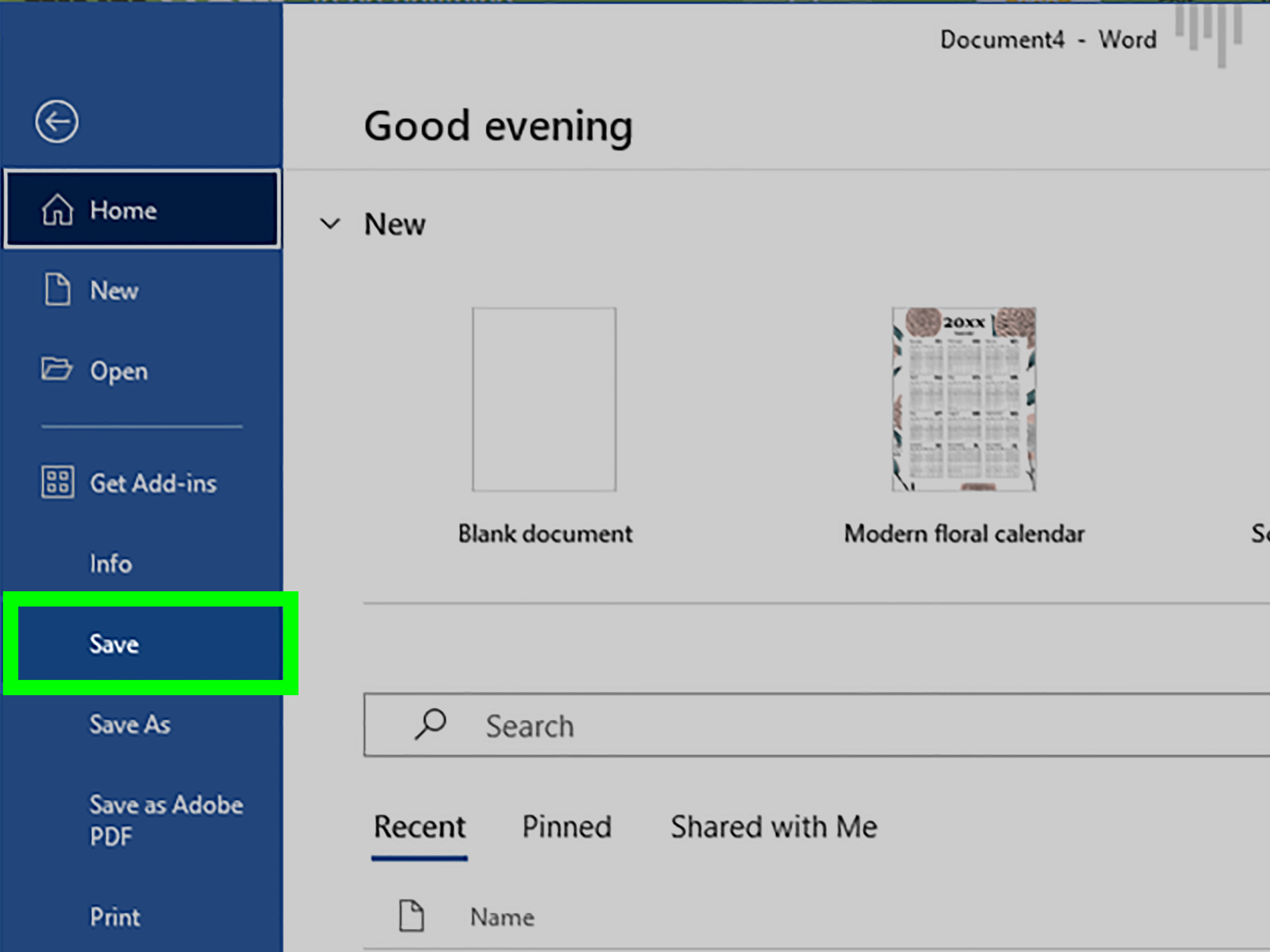
- Open Word and go to File > New.
- In the template search box, type calendar.
- Pick a Word calendar template you like and click Create.
- Replace any placeholder text/images with your own events, notes, or goals.
Tip: Choose templates labeled for “any year” if you want something reusable. If the template is year-specific, you can still edit ityou’ll just do more manual updating.
Option B: Make a Calendar in Word for the Web
Word for the web is great when you want to start from a template and share it quickly. The flow is basically: open Word online, browse templates, customize, then print or export.
- In Word for the web, go to File > New.
- Select Explore all templates (or browse template categories).
- Search for Calendars and choose a design.
- Edit the calendar directly in the browser.
- Use Ctrl+P to print; if prompted, open the PDF version and print from there.
How to Customize a Template Without Breaking It
- Change fonts with restraint: One font for headings, one for dates. If you use six fonts, your calendar starts looking like a ransom note.
- Use the ruler for alignment: Turn on View > Ruler to position text boxes or headers more precisely.
- Swap photos safely: Click the photo placeholder and replace it using Word’s picture toolsavoid dragging images around like you’re rearranging furniture during an earthquake.
Method 2: Build a Calendar From Scratch Using a Table (Most Flexible)
Want total control? Build a calendar grid using a Word table. This method is ideal for a monthly calendar in Microsoft Word where you want your own layout, your own notes section, your own everything.
Step 1: Set Up the Page (So It Actually Looks Like a Calendar)
- Open a blank document in Word.
- Go to Layout > Orientation and choose Landscape for a roomier grid.
- Go to Layout > Margins and start with Normal or Narrow.
- Turn on View > Ruler for easier alignment and spacing.
Landscape is a crowd favorite because calendar boxes can be closer to square. If you’re printing on US Letter (8.5″ x 11″), landscape often gives your dates space to breathe.
Step 2: Insert a 7×6 Table (The Classic Monthly Grid)
Most months fit neatly into a grid with 7 columns (days of the week) and 6 rows (enough weeks to cover any month). Here’s how:
- Place your cursor where you want the calendar.
- Go to Insert > Table.
- Select a 7 x 6 table (seven columns, six rows).
Step 3: Make the Cells Even (So Your Calendar Doesn’t Look Lopsided)
Click inside the table and you’ll see the contextual Table Layout options. Use them like a tiny interior designer for rectangles.
- Distribute columns: Select the table, then choose Layout > Distribute Columns.
- Distribute rows: Select rows (or the whole table), then choose Layout > Distribute Rows.
- AutoFit: If the table is too wide, try Layout > AutoFit > AutoFit Window.
Step 4: Add Day Names (And Decide Whether Your Week Starts on Sunday)
In the top row, type your day headers: Sunday, Monday, Tuesday, Wednesday, Thursday, Friday, Saturday. Prefer Monday-first? Go for ityour calendar, your rules.
- Center the header text with Layout > Align Center.
- Make it slightly bold so it reads like a header, not a date trying to cosplay as one.
Step 5: Fill In Dates Quickly (Without Losing Your Weekend)
Word won’t auto-generate dates like Excel, but you can still work efficiently:
- Start with the first day: Put “1” in the correct weekday cell for the month.
- Type across with tabs: Click a cell, type the number, then press Tab to move to the next cell.
- Keep it consistent: Put dates in the top-right or top-left of each cell, then leave room underneath for events.
Example: March 2026 starts on a Sunday, so you’d place “1” under Sunday and continue across. If you’re working with a month that starts mid-week, leave the earlier cells blank and begin numbering on the correct day.
Step 6: Add a Title Row (So People Know What Month They’re Staring At)
- Select the first row of your table.
- Right-click and choose Insert > Insert Rows Above.
- Select the new top row, then choose Layout > Merge Cells.
- Type the month and year (e.g., March 2026) and center it.
Step 7: Make It Look Good (Without Going Full Craft Store Aisle)
- Borders: Use Table Design > Borders to set inside and outside lines.
- Shading: Lightly shade weekends or the header row so the grid is easier to scan.
- Font sizes: Slightly smaller for dates, slightly larger for the month title.
- Line spacing: If cells feel cramped, reduce paragraph spacing in the cells (Home > Line and Paragraph Spacing).
Bonus: Add a Notes Section (Because Life Does Not Fit in a Tiny Square)
If you want a notes area above or beside your calendar:
- Go to Insert > Text Box (or Shapes > Text Box).
- Draw a box and label it Notes, Goals, or Stuff I’ll Totally Remember Later.
- Use the ruler to align it neatly with the calendar grid.
Method 3: Save Your Calendar as a Reusable Template (So You Don’t Redo This Next Month)
Once you’ve created a calendar layout you love, save it as a template so you can reuse it for different months, projects, or teams.
- Click File > Save As.
- Choose Word Template (*.dotx) as the file type.
- Name it something searchable like Monthly Calendar – Table Grid.
- Next time, open it, update the month/year, and you’re off to the races.
Printing and Sharing (Without the “Why Is It Cropped?!” Moment)
Calendars are meant to be printed, pinned, or taped to somethingusually a wall, sometimes a fridge, occasionally a coworker’s monitor (with permission… probably). Either way, printing is where many Word calendars go to get their edges mysteriously chopped.
1) Preview Before You Print
Use File > Print to preview pages. Flip through pages with the arrows and zoom in to confirm nothing is getting cut off. If something looks tight in the preview, it will look even tighter on paper.
2) Confirm Paper Size Matches Your Printer Settings
A very common culprit for cut-off edges is a mismatch between the document’s paper size and the printer’s paper size. For U.S. printing, you’ll usually want Letter (8.5″ x 11″) selected consistently in both Word and the print dialog.
3) Respect the “Unprintable Area” (Printers Are Not Edge-to-Edge Wizards)
Many printers can’t print all the way to the edge of the page. If your margins are too small, the printer will clip your calendarusually the right edge, because printers enjoy drama. If you see cropping, try slightly larger margins or adjust scaling (like “Fit to page”) in the print dialog.
4) Export to PDF for Consistent Printing
If prints look inconsistent, save as PDF and print the PDF. PDFs tend to preserve layout more reliably across different printers and devices.
Troubleshooting: Common Word Calendar Problems (And Quick Fixes)
Problem: The Table Jumps to a New Page
- Reduce top/bottom margins slightly (but don’t go extreme).
- Try AutoFit Window or reduce row height.
- Right-click the table > Table Properties > Row, then consider turning off “Allow row to break across pages” to keep rows together.
Problem: Borders Look Uneven or Messy
- Select the whole table, then reapply borders from Table Design.
- Use a consistent border weight for the inside lines and a slightly heavier outside border.
Problem: Dates Won’t Align the Same Way in Every Cell
- Select the date cells and use Layout alignment (top-left or top-right).
- Keep paragraph spacing consistent (Home > Paragraph settings).
Problem: The Right Side Gets Cut Off When Printing
- Double-check paper size in Word and printer settings.
- Increase right margin slightly or reduce table width (AutoFit Window).
- Use Print Preview and test-print to PDF first.
Conclusion
If you want the quickest win, start with a Word calendar template. If you want full control, build a calendar with a 7×6 table and customize it into a layout that matches your life (or at least your deadlines). And if you want to be kind to your future self, save the final result as a reusable Word template.
The secret to a calendar that looks professional is boring but true: consistent spacing, sane margins, and a quick Print Preview before you commit ink to paper. Do those three things and your calendar will look intentionalnot like it survived a copier jam.
Real-World Tips & Lessons Learned (So Your Calendar Doesn’t Become a Cautionary Tale)
People usually mess up Word calendars in three places: spacing, printing, and over-customizing. Let’s save you from all threebecause your time is valuable and your printer is already doing its best.
First: spacing. The most common regret is building a beautiful grid and then realizing the text inside the cells feels cramped. That usually happens when paragraph spacing (before/after) is silently adding extra “air” inside each cell. If your dates look like they’re floating away from the top edge, go to paragraph settings and reduce spacing before/after. Also, pick a consistent alignment rule for dates (top-left or top-right) and stick to it. Calendars are scanning tools. Consistency is the whole point.
Second: printing. Word calendars often look perfect on screen and then come out slightly cut off or shifted on paper. It’s rarely because Word woke up and chose chaos (though it has those days). More often, the issue is that the printer can’t print to the very edge, or the document’s paper size doesn’t match what the printer thinks it’s using. Before you chase the problem for an hour, check: Letter vs. A4, orientation, and margins. Then open Print Preview and zoom in. If it looks tight there, it will be tighter in real life. If you need a simple “works on most printers” approach, use margins that aren’t aggressively tiny and keep your table a little inside the page boundary. Your calendar doesn’t need to be edge-to-edge to be useful.
Third: over-customizing. Word gives you a lot of design toysborders, shading, shapes, fonts, icons and it’s easy to go from “clean calendar” to “scrapbook page that screams.” A good rule: one accent color, subtle shading, and a readable font. If you want flair, add it to the month title or the header row, not every single cell. And if you add a notes section, keep it aligned using the ruler so it looks like part of the layout, not a sticker slapped onto the page.
Here’s a practical workflow that tends to keep everything sane: build one month using a table, format it until it’s exactly what you want, print-preview it, then save it as a template. Next month, duplicate the page and update only the dates and the title. If you’re making a full-year calendar, don’t try to finish all twelve months before you print-test even one. Test printing early. The earlier you catch margin issues, the fewer “why is Saturday missing?” moments you’ll have later.
Finally, remember what you’re making: a tool you’ll actually use. Leave enough whitespace in each day cell to write (or type) real events. If your calendar boxes are so small you can only fit “Gym” and not “Gym (cancelled, again),” you’re not planningyou’re playing a tiny-font game. Make the layout readable, printable, and forgiving. That’s the difference between a calendar that helps your life and one that becomes digital clutter.











