
Your iPhone can protect your banking app, your photos, your passwords, and even that one Notes list titled “Definitely Not Gift Ideas.” But when it comes to locking individual text conversations inside the Messages app, Apple still does not offer a simple “put a password on this chat” button. Annoying? A little. Surprising? Not really. Apple tends to protect privacy at the device, app, and notification level rather than turning every conversation into a mini safe deposit box.
The good news is that you still have several solid ways to lock Messages on iPhone or make your texts much harder for curious eyes to see. Depending on your iOS version, you can lock the Messages app with Face ID, hide message previews from the Lock Screen, use Screen Time as a passcode-style workaround, or lock your iPhone into a single app before handing it to someone else.
This guide breaks down four practical methods, explains what each one actually protects, and points out the limitations before you trust your privacy to a setting that sounds stronger than it is. Because “privacy” should not depend on how fast you can snatch your phone off the table.
Can You Lock Messages on iPhone?
Yes, but with an important clarification: you can lock access to the Messages app on newer iPhones, but you cannot lock one specific iMessage or SMS conversation with a separate password inside Apple Messages. In other words, you can put a gate in front of the whole house, but you cannot put a different lock on the kitchen, garage, and suspiciously messy guest room.
On iOS 18 and later, Apple added a built-in option to require Face ID, Touch ID, or your device passcode before opening many apps, including Messages. This is the cleanest and most direct way to lock text messages on iPhone. On older versions of iOS, or if you want extra layers, you need workarounds such as notification privacy, Screen Time restrictions, Shortcuts automation, and Guided Access.
Before choosing a method, decide what you are trying to protect. Are you worried about someone opening the Messages app? Seeing incoming texts on the Lock Screen? Borrowing your phone and wandering into conversations? Or accidentally displaying a private message while screen sharing? Each situation needs a slightly different privacy setup.
1. Lock the Messages App with Face ID, Touch ID, or Passcode
The best way to lock Messages on iPhone is to use Apple’s app locking feature. This feature is available on supported iPhones running iOS 18 or later. Once enabled, anyone who taps Messages must authenticate with Face ID, Touch ID, or the iPhone passcode before the app opens.
How to lock Messages on iPhone
- Go to your iPhone Home Screen or App Library.
- Find the Messages app.
- Touch and hold the Messages icon until the quick actions menu appears.
- Tap Require Face ID, Require Touch ID, or Require Passcode, depending on your device.
- Confirm the choice when prompted.
After that, Messages will ask for authentication whenever it is opened. When you leave the app, it relocks automatically. This is useful if you hand your phone to someone to look at a photo, scan a QR code, or check a restaurant menu and do not want them taking a scenic tour through your conversations.
What this protects
This method protects the Messages app from casual snooping. It can also reduce the chance that message content appears in system areas such as search or previews, depending on your notification settings. For most people, this is the strongest built-in answer to “how do I lock my text messages on iPhone?”
What it does not protect
It does not create separate locks for individual chats. It also does not help much if someone already knows your iPhone passcode. If your passcode is “123456,” your privacy strategy is basically a welcome mat wearing sunglasses. Use a strong six-digit passcode at minimum, or better yet, a custom alphanumeric passcode if you handle sensitive information.
Also note that built-in iPhone apps cannot usually be hidden the same way downloaded apps can. You may be able to lock Messages, but you should not expect it to disappear completely from the device like some third-party apps can when hidden.
2. Hide Message Previews from the Lock Screen
Sometimes the problem is not that someone opens Messages. The problem is that your Lock Screen proudly announces a private text while your phone is sitting face-up on a desk. This is the digital equivalent of your iPhone clearing its throat and reading your diary out loud.
Hiding message previews is one of the most important iPhone message privacy settings. It does not lock the Messages app, but it stops incoming texts from displaying their contents before the phone is unlocked.
How to hide message previews
- Open Settings.
- Tap Notifications.
- Tap Messages.
- Tap Show Previews.
- Select When Unlocked or Never.
When Unlocked is a balanced choice. You still get useful previews after Face ID or Touch ID recognizes you, but strangers cannot read the message from the Lock Screen. Never is stricter. It shows that a message arrived, but not the content.
How to remove Messages from the Lock Screen
If you want more privacy, go to Settings > Notifications > Messages and turn off alerts for the Lock Screen. You can still receive messages, but they will not appear where nearby people can casually glance at them.
How to mute one conversation
For a specific chat, open Messages, swipe left on the conversation, and tap the mute icon. You can also open the conversation, tap the contact or group name at the top, and turn on Hide Alerts. This is great for noisy group chats, sensitive conversations, or any thread that behaves like it has had three espressos.
What this protects
This method protects your incoming texts from being exposed through notifications. It is especially helpful at work, school, airports, restaurants, rideshares, and family gatherings where one badly timed message can become the evening’s entertainment.
What it does not protect
It does not stop someone from opening the Messages app if your iPhone is already unlocked. For better protection, combine hidden previews with Face ID app locking.
3. Use Screen Time as a Messages Lock Workaround
Screen Time was designed mainly for digital wellbeing and parental controls, not secret-agent message protection. Still, it can work as a passcode-style workaround if your iPhone does not support app locking or if you want another layer of friction.
The idea is simple: set an app limit or downtime rule for Messages, then protect Screen Time settings with a passcode. When the limit is reached, iOS can block access unless the Screen Time passcode is entered.
How to set up Screen Time restrictions
- Open Settings.
- Tap Screen Time.
- Turn on App & Website Activity if needed.
- Tap Lock Screen Time Settings and create a Screen Time passcode.
- Go to App Limits.
- Tap Add Limit.
- Choose Messages if it appears as an individual app, or select the relevant communication category depending on your iOS version.
- Set a very short daily limit, such as one minute.
- Make sure blocking at the end of the limit is enabled.
You can also use Downtime to block apps during a schedule. During downtime, only allowed apps and contacts remain available. This is more commonly used for children’s devices, but adults can use it too. No judgment. We are all one notification away from checking our phones during a movie’s most emotional scene.
Why Screen Time is only a workaround
Screen Time is not as smooth as Face ID app locking. App limits may behave differently depending on your iOS version, Family Sharing settings, Always Allowed apps, and whether the Screen Time passcode is separate from the main device passcode. It can also feel awkward because it was built to limit usage, not to act as a private message vault.
Best use case
Use Screen Time if you are managing a child’s device, reducing distractions, or using an older iPhone that does not have the newer app locking feature. It is also useful as a backup layer when you want Messages to be less instantly accessible.
4. Use Guided Access When Letting Someone Borrow Your iPhone
Guided Access is one of the most underrated iPhone privacy features. It lets you lock your iPhone to one app so another person cannot leave that app and browse through Messages, Photos, Mail, Safari, or anything else. It is perfect for those moments when someone says, “Can I use your phone for one second?” which, in real life, can mean anything from checking a website to conducting an amateur forensic investigation.
How to set up Guided Access
- Open Settings.
- Tap Accessibility.
- Tap Guided Access.
- Turn on Guided Access.
- Tap Passcode Settings.
- Set a Guided Access passcode and enable Face ID or Touch ID if available.
How to use Guided Access
- Open the app you want the other person to use.
- Triple-click the side button or Home button.
- Adjust options if needed, such as disabling touch, keyboard, motion, or hardware buttons.
- Tap Start.
To end the session, triple-click the button again and authenticate. Until then, the person using your phone stays inside the app you selected. If you opened Safari, they stay in Safari. If you opened Photos to show one picture, they do not get a free backstage pass to Messages.
What this protects
Guided Access protects your entire iPhone when lending it to someone. It does not specifically lock Messages, but it prevents the borrower from reaching Messages in the first place. This makes it one of the most practical privacy tools for real-world situations.
What it does not protect
It only works after you intentionally start a Guided Access session. It will not automatically protect your phone if you forget to enable it before handing the device over. Like sunscreen, it works best when applied before the problem begins.
Bonus Workaround: Use Shortcuts Automation on Older iPhones
Before Apple added native app locking, many users created a Shortcuts automation that instantly locked the iPhone when a selected app was opened. This can still be useful on some devices, but it is less elegant than the built-in iOS 18 method.
The general idea is to open the Shortcuts app, create a personal automation triggered when Messages is opened, and add an action that locks the screen. When someone taps Messages, the iPhone locks, forcing Face ID, Touch ID, or the passcode before continuing.
This method can be clever, but it can also be clunky. It may interrupt you more than expected, and automation behavior can vary by iOS version. If your iPhone supports native app locking, use that instead. The Shortcuts method is more of a “duct tape and determination” solution.
Should You Delete Messages for Privacy?
Deleting sensitive texts may seem like the obvious solution, but it is not the same as locking Messages. On recent iOS versions, deleted messages may remain recoverable for a limited time in the Recently Deleted section. If Messages in iCloud is enabled, deleting or recovering conversations may also affect other Apple devices using the same Apple Account.
If you truly need to remove a conversation, delete it and then check the Recently Deleted area in Messages. For everyday privacy, however, locking the app and hiding previews is usually safer and more convenient than constantly deleting threads like a nervous magician hiding cards.
Best Privacy Setup for Most iPhone Users
For the strongest everyday protection, combine multiple settings instead of relying on one. Start by locking the Messages app with Face ID or Touch ID. Then set message previews to When Unlocked or Never. Mute sensitive conversations with Hide Alerts. Finally, use Guided Access before lending your phone to anyone.
This layered approach protects against the most common privacy leaks: someone opening Messages, someone reading notifications, someone borrowing your phone, and someone seeing a message pop up at the worst possible moment. It is simple, reversible, and does not require installing sketchy “message locker” apps that promise too much and ask for too many permissions.
Common Mistakes to Avoid
Using a weak passcode
Face ID and Touch ID are only as strong as the passcode behind them. If someone knows your iPhone passcode, they may be able to access locked apps. Avoid birthdays, repeated numbers, and anything that could be guessed by someone who has seen your phone more than twice.
Leaving notification previews on
Many people lock their apps but forget notifications. If private texts still appear on the Lock Screen, your Messages app may be locked while your secrets are standing outside waving.
Handing over an unlocked phone
If you give someone your unlocked iPhone without Guided Access, they may be able to move around freely. Locking Messages helps, but Guided Access gives better control when lending the device.
Trusting third-party vault apps too quickly
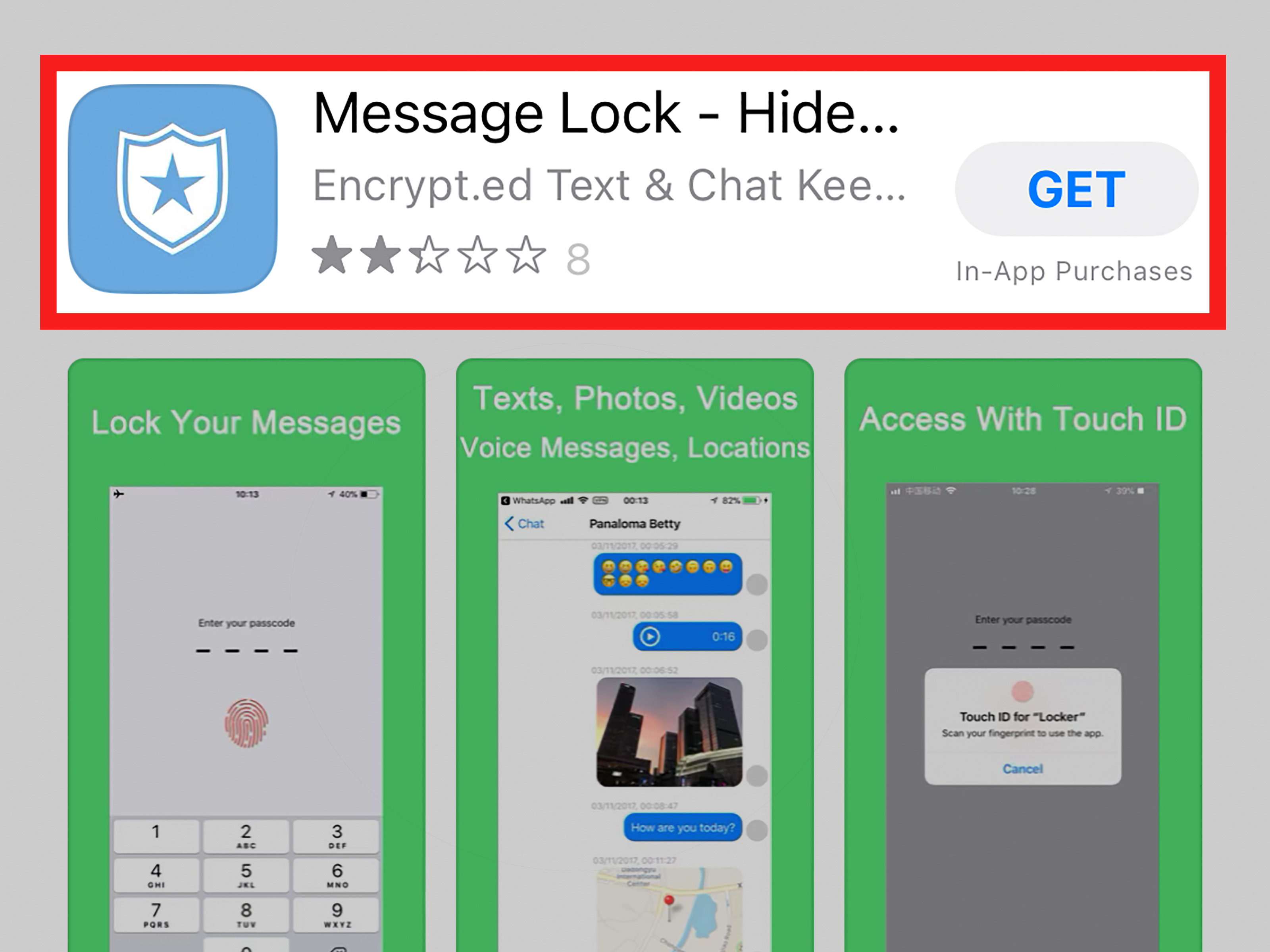
Be cautious with apps that claim to lock or hide iPhone messages. Apple does not allow third-party apps to place a true password inside the native Messages app. Some apps may store separate notes, photos, or copied content, but they cannot securely lock your real iMessage conversations inside Apple Messages.
Real-Life Experiences: What Actually Works When You Want Message Privacy
In real life, message privacy is rarely about spy-movie drama. It is usually about normal, slightly awkward moments. You hand your phone to a friend to show one vacation photo, and suddenly your thumb develops Olympic-level speed because a private text appears. You pass your iPhone to a coworker to scan a document, and your group chat decides that exact moment is perfect for chaos. You place your phone on the dinner table, and a notification preview pops up like it paid rent there.
The most useful lesson is that locking Messages is not only about keeping secrets. It is about controlling context. A message that is harmless in private can be uncomfortable in public. A doctor’s appointment reminder, a banking alert, a family argument, a job interview update, or a goofy inside joke can all feel too exposed when they appear on a bright Lock Screen in front of other people.
For most users, the best experience comes from combining Face ID app lock with hidden previews. Face ID app lock protects the actual Messages app, while hidden previews stop incoming texts from becoming tiny billboards. This setup feels natural because you do not have to change how you text. You still receive messages, reply normally, and use iMessage as usual. The difference is that other people cannot casually open the app or read the preview while your phone is locked.
Guided Access is the sleeper hit. Many iPhone users ignore it because it sits under Accessibility, but it is incredibly practical. If a child wants to watch a video, start Guided Access. If a friend needs to make a call, start Guided Access in Phone. If someone wants to check a website, start it in Safari. It avoids the socially awkward dance of saying, “Please do not open anything else,” while silently wondering if they will open everything else.
Screen Time is useful, but it feels more like a workaround than a clean privacy feature. It can help parents, shared-device users, and people with older iPhones, but it is not as smooth as native app locking. The Shortcuts automation trick is clever too, especially for people who enjoy tinkering. But for everyday users, it can become irritating if it locks the phone when you are the one trying to open Messages.
The biggest practical tip is simple: test your setup. Lock your iPhone, send yourself a message from another device, and see what appears. Then open Messages and confirm whether Face ID is required. Try lending your phone in Guided Access mode to a trusted friend or family member and make sure you know how to exit. Privacy settings are like umbrellas: you want to test them before the storm, not during the downpour.
And finally, remember that privacy works best with boundaries. Technical locks help, but they are not a substitute for a strong passcode, updated iOS software, and careful phone sharing. Your iPhone is a pocket-sized diary, wallet, mailbox, camera roll, and occasional argument machine. Treat it like something worth protecting.
Conclusion
Locking Messages on iPhone is possible, but the best method depends on your iOS version and privacy goal. If your iPhone supports it, the built-in Require Face ID option for Messages is the strongest and easiest choice. For better protection, pair it with hidden notification previews, muted sensitive conversations, and Guided Access when someone else uses your phone. Screen Time and Shortcuts can help as workarounds, but they are less polished than native app locking.
The bottom line: Apple does not currently provide a built-in lock for individual iMessage conversations, but you can still build a very effective privacy shield around Messages. Think of it as layering a front door lock, curtains, and a polite but firm “no wandering around my phone” sign.
Note: iPhone features can vary by iOS version, device model, region, and managed-device settings. For best results, update iOS, use a strong passcode, and test your Messages privacy settings after making changes.











