
Note: Clean body-only HTML, ready for publishing.
If Alexa has ever whispered when you needed her to shout, or shouted when you were trying not to wake the whole house, welcome to the club. One of the most common Echo complaints is not that Alexa is wrong, but that she is dramatically wrong at the wrong volume. The good news is that changing Alexa volume is easy once you know where the controls live. The better news is that you have more than one way to do it, so you can fix the problem whether you’re across the room, holding your phone, or half-asleep in the kitchen wondering why your timer sounds like a polite apology.
In this guide, we’ll walk through four practical ways to adjust Alexa volume, explain when each method works best, and cover a few smart settings that can save you from constant volume battles. If you use an Amazon Echo, Echo Dot, Echo Show, or another Alexa-enabled device, this article will help you make Alexa louder, quieter, and a lot less annoying.
Why Alexa Volume Matters More Than People Think
Changing Alexa volume sounds like a tiny task, but it affects almost everything about the experience. If the volume is too low, you miss timers, alarms, recipe steps, weather updates, and reminders. If it’s too high, Alexa becomes that one houseguest who thinks every sentence deserves a microphone.
There’s also an important detail many users don’t realize at first: your Alexa device may have different audio-related settings for general responses, music playback, and alarms or timers. So if your music sounds fine but your morning alarm is still trying to gently tiptoe into your consciousness, the issue may not be the main speaker volume at all.
That’s why the best approach is not just knowing how to turn Alexa up or down, but knowing which control to use for the situation in front of you.
1. Use Voice Commands to Change Alexa Volume Fast
The easiest way to adjust Alexa volume is the oldest-school smart-speaker trick of them all: just ask. Voice commands are perfect when your hands are full, your phone is somewhere between the couch cushions and another dimension, or you simply want the fastest fix.
Useful voice commands to try
- “Alexa, volume 5.”
- “Alexa, set the volume to 3.”
- “Alexa, turn it up.”
- “Alexa, lower the volume.”
- “Alexa, increase the volume by 2.”
- “Alexa, mute.”
- “Alexa, unmute.”
On many Echo devices, Alexa’s voice volume scale works in levels, usually from 0 to 10. That makes it easy to make quick changes without fiddling around. If you already know your sweet spot, saying “Alexa, volume 4” is usually faster than tapping through menus.
This method is best when you want a quick adjustment in the moment. Maybe music is too loud during dinner. Maybe the timer is too soft while you’re vacuuming. Maybe Alexa decided that 6 a.m. is the ideal time to sound like a stadium announcer. Voice commands let you fix the issue instantly.
When voice control works best
Voice control is ideal for day-to-day changes, especially if you’re standing near the speaker. It also feels the most natural because, well, that’s kind of the whole point of a voice assistant. For most users, this is the default method they’ll use most often.
The only downside is that it’s not always precise enough if you’re trying to fine-tune volume in tiny increments. Telling Alexa to go from volume 4 to volume 5 is simple. Telling her to be just a hair less dramatic than volume 5 is where other methods start to shine.
2. Press the Buttons or Use the Device Controls on Your Echo
If you’re right next to the speaker, the physical controls are often the quickest and most satisfying option. There’s something deeply reassuring about pressing an actual button when technology is acting like it has opinions.
How on-device controls usually work
Most Echo devices include physical volume up and volume down controls. On many models, these are simple plus and minus buttons on the top of the device. Some older Echo models use a rotating volume ring. If you have an Echo Show or another model with a screen, you may also have touch-based ways to access settings depending on the device.
This method is great for small, immediate changes. If a podcast is a little too loud, one tap usually does the job. If your music needs more energy while you clean the kitchen like you’re in a montage scene, hit the volume up button a few times and carry on.
Why people like physical controls
The biggest advantage is control. You don’t have to say the wake word. You don’t have to phrase a command correctly. You don’t have to wait for Alexa to process anything. You just press a button and the device responds.
It’s also useful in noisy environments. Ironically, one of the times you may most want to adjust Alexa volume is when the room is loud, which is also when Alexa might have more trouble hearing you. In those moments, the buttons can save a lot of repetition and a little bit of your dignity.
A small but useful tip
If more than one person in your home uses Alexa, physical controls are also the least confusing method for guests and family members. Everyone understands a volume button. No tutorial needed. No dramatic reading of commands like you’re casting a spell.
3. Change Alexa Volume in the Alexa App
If you want more precise control, the Alexa app is where things get interesting. It’s not always the fastest option, but it can be the most flexible, especially when you’re not in the same room as the Echo device.
How to adjust Alexa volume in the app
- Open the Alexa app.
- Tap Devices.
- Select Echo & Alexa.
- Choose the device you want to control.
- Use the volume slider to raise or lower the sound.
This is a handy method when you have multiple Echo devices around the house. Maybe the Echo Dot in the bedroom is too quiet, but you’re already downstairs. Maybe you want to change the living room speaker without yelling across the house like a medieval town crier. The app makes remote adjustment easy.
Why the app is worth using
The app gives you finer control than simple voice levels. That matters when the difference between “comfortable” and “why is Alexa trying to start a nightclub?” is very small. It also helps when you’re troubleshooting. If a device seems quieter than usual, the app lets you confirm the current setting instead of guessing.
The Alexa app also becomes more useful as your setup gets more complicated. If you have multiple Echo devices, speaker groups, routines, alarms, or other smart-home gear tied to Alexa, the app gives you a clearer view of what’s going on than voice commands alone.
Best use cases for app control
- Adjusting a device in another room
- Fine-tuning the volume more precisely
- Checking settings on multiple Echo devices
- Managing audio when you want visual confirmation
4. Adjust Alarm, Timer, Notification, and Adaptive Volume Settings
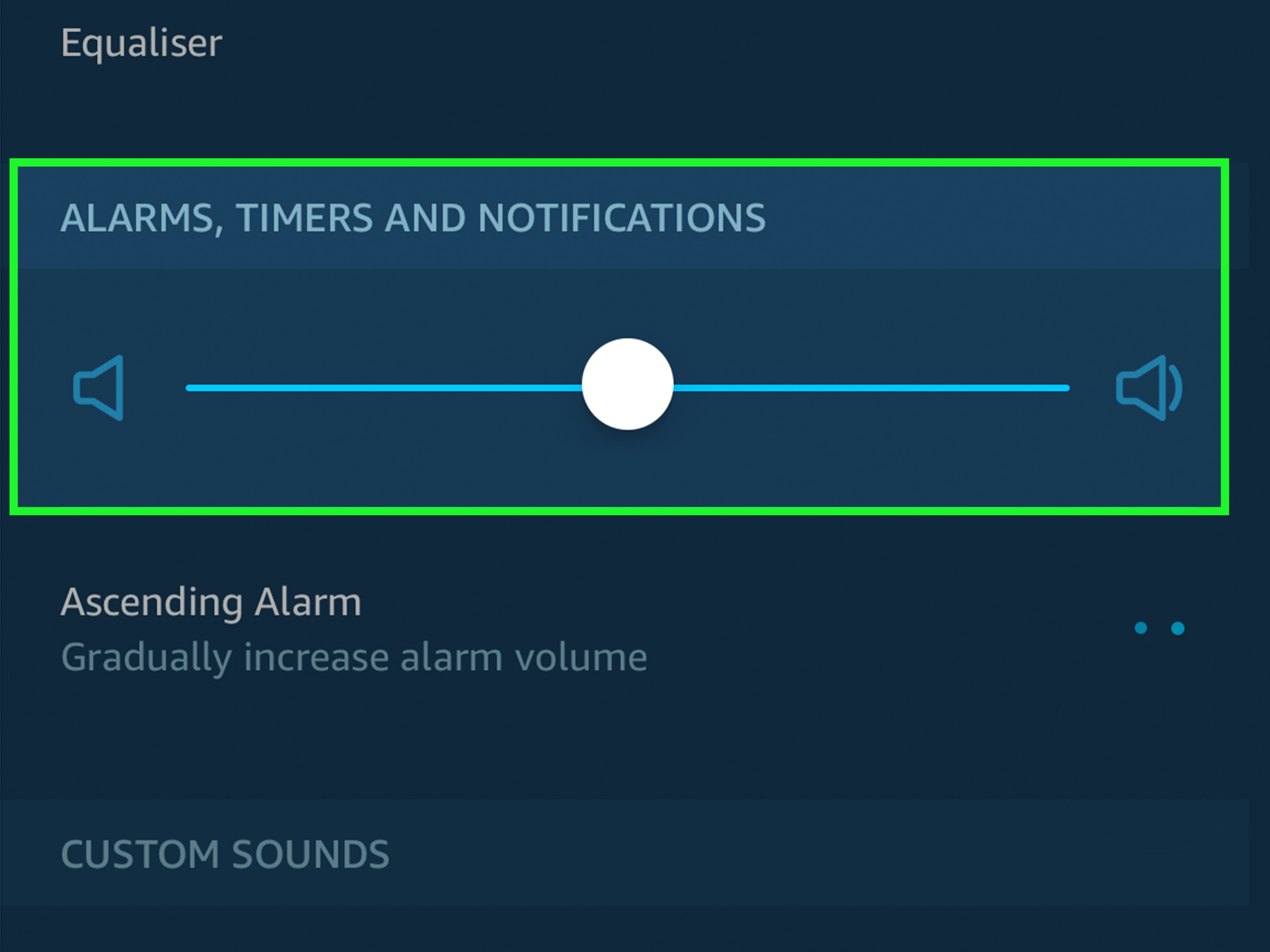
This is the method many users discover late, usually after wondering why Alexa’s music volume seems fine but the alarm still sounds either too timid or too aggressive. The truth is that some Alexa sound settings are separate from your general speaker volume.
How to change alarm and timer volume
If alarms, timers, or notifications are the real issue, head into the Alexa app and adjust those settings directly. On many Echo devices, these sounds can be controlled separately from regular playback. That means your music can stay mellow while your morning alarm is strong enough to do its job.
This is especially useful for people who use Alexa in the bedroom, kitchen, or home office. A timer for pasta water needs a very different personality than ambient jazz at midnight.
What is Adaptive Volume?
Adaptive Volume is a useful Alexa feature that can make Alexa’s responses easier to hear when your room gets noisy. Think barking dog, sizzling skillet, loud TV, blender, vacuum, or children experiencing life at maximum volume. Instead of forcing you to repeat yourself or strain to hear Alexa, the device can respond more loudly when the environment is loud.
If you regularly use Alexa in busy spaces, this feature can feel surprisingly smart. It’s less about making your speaker louder all the time and more about helping Alexa respond appropriately when the room turns chaotic.
When this fourth method matters most
This is the method to use when the problem is not general volume, but specific types of sound. If your reminders are too loud, your timer is too soft, or Alexa seems hard to hear only when the room gets noisy, you’ll want to check these settings instead of only changing the main volume.
In other words, if method one through three feel like you’re fixing the wrong problem, this is probably the section you needed all along.
Extra Tips to Make Alexa Volume Work Better for You
Create routines for predictable volume changes
If you tend to use Alexa the same way every day, routines can save time. For example, you can build a morning routine that starts with a higher volume for alarms and updates, then a calmer level later in the day. This is particularly useful if your household has different noise levels at different times.
Check the room before blaming the speaker
Sometimes the problem isn’t Alexa at all. Soft furniture, distance, kitchen noise, fans, or the speaker’s position in the room can affect how loud Alexa seems. A small Echo tucked behind a plant on a crowded shelf is not exactly set up for acoustic greatness.
Remember that music and voice experience can feel different
Even when the device is technically at the same volume level, spoken responses and streaming audio may feel different to your ears. Voices cut through differently than music. That’s another reason alarm and response settings can be worth checking separately.
Use mute when you need silence, not just lower volume
If the goal is total peace, use mute or the microphone-off option instead of chasing the perfect low setting. Sometimes the right volume is simply no volume at all. Revolutionary, I know.
Common Alexa Volume Problems and Simple Fixes
Alexa keeps sounding too loud in the morning
Check your alarm volume settings, not just your main volume. If needed, enable a gentler wake-up option or adjust your alarm behavior in the app.
Alexa is hard to hear in the kitchen
Try Adaptive Volume if your device supports it. Kitchen noise is one of the most common reasons users feel like Alexa volume is inconsistent.
You have more than one Echo and they all sound different
Open the Alexa app and review each device individually. Volume settings may not match across all Echo units, especially if different people have been adjusting them over time.
The speaker seems quiet even when the volume is high
Check placement, background noise, and whether you’re adjusting the correct device. If you’re using an Alexa-enabled device connected to another speaker, the external speaker setup can also affect what you hear.
Real-Life Experiences With Adjusting Alexa Volume
Living with Alexa volume settings is a lot like living with thermostat settings in a shared home: nobody agrees, everyone notices, and someone is always convinced the machine is personally targeting them. In real-world use, the best Alexa volume method usually depends on the moment.
Take the early-morning crowd. If your Echo lives on a nightstand, the wrong volume can ruin your whole relationship with mornings. Too low, and you sleep through your alarm like a champion. Too high, and you launch out of bed feeling like you’ve been summoned by a game show host. For bedroom setups, users often find that adjusting alarm volume separately makes the biggest difference. It lets the speaker stay calm at night while still doing its job when it’s time to wake up.
Then there’s the kitchen experience, which is where Alexa volume often turns into a contact sport. You’re cooking, water is boiling, the vent hood is roaring, somebody is unloading dishes, and Alexa is trying to tell you the next recipe step in what feels like an indoor voice. In that situation, yelling “Alexa, volume 7” is usually the fastest fix. But for people who cook often, Adaptive Volume can be a surprisingly helpful setting because the room noise changes constantly.
Families also tend to have a love-hate relationship with Echo volume. One person wants music loud enough for a weekend cleaning spree. Another wants the news at a respectable level. A child may discover the volume buttons and decide every setting should be “concert.” In these homes, the Alexa app becomes the secret weapon because it lets you adjust a device without marching into the room and starting a negotiation.
People who work from home have their own version of the problem. During the day, Alexa might be useful for timers, reminders, weather checks, and short music breaks. But on meeting days, the same speaker can suddenly feel too loud, especially in a quiet office. Physical controls are often best here because they’re fast, silent, and don’t interrupt the flow of work. One quick tap, problem solved, no awkward “Sorry, my speaker thinks it’s part of the meeting” moment.
Another common experience is using Alexa in shared living spaces where volume needs change by the hour. Morning routines call for something clear and energetic. Late-night use demands a softer touch. People who really get the most out of their devices usually stop thinking of Alexa volume as a single setting and start treating it as a flexible tool. Voice commands are great for instant changes, buttons are great for in-person control, the app is great for precision, and advanced settings are great for making the whole setup feel smarter.
That’s really the lesson from day-to-day use: there isn’t one perfect Alexa volume method for every moment. The best setup is the one that matches your routine, your space, and your tolerance for being loudly informed that your pasta timer is done.
Conclusion
If you want to adjust Alexa volume quickly, start with voice commands. If you’re standing next to the device, use the physical controls. If you need more precision or want to control a speaker in another room, use the Alexa app. And if your problem is alarms, timers, or noisy-room responses, check the separate sound settings and Adaptive Volume options.
That four-part approach covers just about every everyday Alexa volume situation. Once you know which tool matches which problem, your Echo becomes a lot easier to live with. Alexa may still have opinions, but at least now she’ll share them at a volume you can tolerate.












