
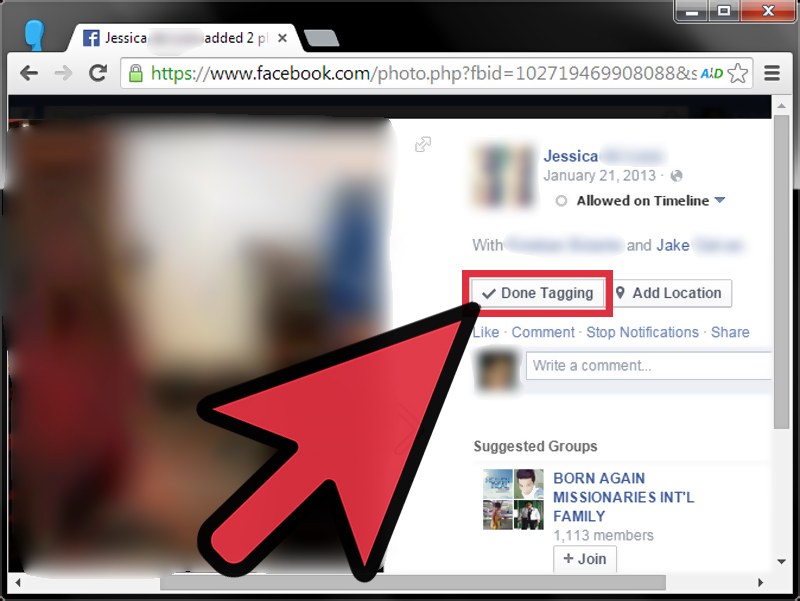
Tagging photos on Facebook is one of those tiny social media features that feels simple until the exact button disappears, moves, changes shape, or hides behind a menu like it is training for a spy movie. Still, the idea is straightforward: when you tag someone in a Facebook photo, you connect that person, Page, or profile to the image so viewers can understand who is in the picture or what the photo is about.
Whether you are uploading vacation photos, organizing a family reunion album, promoting a small business event, or trying to help friends find themselves in a group shot where everyone is squinting into the sun, knowing how to tag photos on Facebook can save time and make posts more useful. It can also make your photo collection easier to navigate, especially when albums start multiplying like phone chargers in a junk drawer.
This guide explains three practical ways to tag photos on Facebook: tagging while uploading a new photo, tagging an existing photo, and tagging photos in albums or business-related posts. You will also learn how Facebook tag review works, what to check when tagging does not behave as expected, and how to tag thoughtfully without becoming that person who tags everyone in a blurry picture of a sandwich.
What Does It Mean to Tag Photos on Facebook?
A Facebook photo tag is a clickable connection between a photo and a person or Page. If you tag a friend, their name may appear on or near the photo, and depending on privacy settings, the photo may also appear in places connected to that person’s profile. If you tag a Page, such as a business, organization, public figure, or brand, the photo can become easier for viewers to associate with that Page.
Tagging is not the same as simply mentioning someone in a caption. A caption mention might say, “Had a great lunch with Sarah,” while a photo tag marks Sarah in the image itself. In other words, the caption tells the story; the tag points to the cast list.
Facebook tagging also depends heavily on privacy settings. The person you tag may have review settings turned on, meaning your tag may need approval before it appears on their profile. Likewise, you can adjust your own settings to review posts and tags before they show on your profile. This is useful because, let’s be honest, not every photo taken at a party deserves a lifetime achievement award on your timeline.
Way 1: Tag Photos While Uploading a New Facebook Post
The easiest time to tag a Facebook photo is often before you publish it. If you are creating a new post and adding photos, Facebook usually gives you tagging options during the posting process. This works well for casual updates, event pictures, birthday photos, travel snapshots, school memories, team photos, and small business behind-the-scenes posts.
How to Tag a New Photo on Desktop
On a desktop browser, start by opening Facebook and selecting the option to create a post. Add your photo or photos, then look for the tagging option. Depending on the current interface, you may see a tag icon, a “Tag Photo” option, or the ability to click directly on the image. After you click the person in the photo, begin typing their name. Facebook will usually show matching profiles or Pages. Select the correct one, finish editing your post, choose your audience, and publish.
For example, imagine you are posting a photo from a weekend barbecue. You upload the picture, click your friend Ben’s face, type “Ben,” choose the right Ben from the list, and repeat the process for anyone else in the photo. If you know three Bens, please choose carefully. The wrong Ben does not need to be digitally invited to your cousin’s cookout.
How to Tag a New Photo in the Facebook Mobile App
In the Facebook mobile app, create a post, tap the photo option, and select the image you want to upload. Look for a tagging icon or “Tag people” option. Tap the photo, type the name of the person or Page, select the correct result, and tap done before publishing. Menus can vary slightly between iPhone and Android, but the basic flow is usually the same: choose photo, tap tag, search name, select, post.
Mobile tagging is especially helpful when you are posting in the moment. If you are at a graduation, concert, family dinner, or community event, you can add tags before the memory gets buried under 47 other photos and a screenshot of your grocery list.
Best Practices When Tagging Before Posting
Before you hit publish, pause for three seconds and ask: does everyone in the photo want to be tagged? This matters for privacy, professional boundaries, and plain old courtesy. A friend may be fine appearing in your private album but not thrilled about being tagged in a public post. If the photo includes minors, private family moments, medical situations, workplaces, or sensitive locations, be extra careful.
Also check your post audience. A tag can increase visibility depending on privacy settings, so tagging someone in a public post is different from tagging them in a friends-only post. If the photo is personal, “Friends” or a custom audience may be more appropriate than “Public.” The tag is the label; the audience setting is the front door.
Way 2: Tag Someone in a Photo That Is Already on Facebook
Sometimes you publish first and remember later. Maybe you forgot to tag your sister in a birthday photo. Maybe a friend messaged, “Hey, tag me in that group picture.” Maybe you looked at an old album and realized half the people are unidentified, like a social media cold case. Fortunately, Facebook usually allows you to add tags to photos after they have already been posted.
How to Tag an Existing Photo on Desktop
Open the photo you want to edit. Look for “Tag Photo,” a tag icon, or a menu with tagging options. Click the area of the photo where the person appears, type their name, select the correct profile or Page, and save or finish tagging. If the photo belongs to someone else, your ability to tag may depend on their settings, the post audience, and whether they allow others to add tags.
This method is useful for older photos and albums. For example, if you uploaded a batch of wedding reception photos and later want to tag the people in each table shot, you can open each image and add tags one at a time. It is not exactly thrilling, but neither is sorting socks, and both tasks make life easier later.
How to Tag an Existing Photo on Mobile
In the Facebook app, open the photo and look for the tag icon or menu. Tap the photo, enter the person’s name, choose the correct result, and confirm the tag. If you do not see tagging options, check whether you are viewing the photo from your own profile, another person’s post, a group, or a Page. Facebook features can appear differently depending on where the photo lives.
If the person does not show up when you search, several things may be happening. You may not be friends with them, their privacy settings may limit tagging, the Page may not allow tags, or Facebook may simply be having one of those days when technology stares back at you blankly. Try searching the full name, checking spelling, or tagging from desktop instead of mobile.
How to Remove or Correct a Tag
If you tag the wrong person, open the photo and select the tag. Facebook usually offers an option to remove it. If someone tags you in a photo and you do not want the tag, you can remove the tag from your profile options or manage tagged activity through Facebook’s activity tools. Removing a tag does not always delete the photo itself; it simply removes the connection between you and the image.
This distinction matters. If a photo is inappropriate, offensive, or violates your privacy, removing the tag may not be enough. You may need to ask the uploader to remove the photo or report it through Facebook’s tools. Think of untagging as taking your name off a package; the package may still be sitting on the porch.
Way 3: Tag Photos in Albums, Pages, and Group-Style Posts
The third way to tag photos on Facebook is through albums, Page posts, or larger photo collections. This is where tagging becomes more than a quick “that’s my friend” action. It can help organize memories, identify event attendees, credit collaborators, highlight a business, or connect a photo to a community.
Tagging Photos in a Facebook Album
Albums are useful when you have multiple photos from one event. Instead of uploading 80 pictures as separate posts and creating a news feed traffic jam, you can group them into one album. After uploading the album, open individual photos and add tags where appropriate. Some versions of Facebook may let you tag during the upload process; others may require opening photos one by one after the album is created.
Albums work especially well for weddings, school events, sports teams, reunions, charity drives, conferences, and travel collections. A properly tagged album helps people find photos of themselves without scrolling through every image like they are searching for a lost contact lens.
Tagging Pages in Photos
You may also be able to tag Facebook Pages in photos. This is useful when a photo includes a business, venue, organization, product, artist, public figure, restaurant, nonprofit, or local event. For example, if you post a picture from a community fundraiser at a local café, tagging the café’s Page can help viewers identify the location and give credit.
For businesses, Page tagging can be valuable but should be used naturally. Do not tag random Pages just to chase attention. Tagging a bakery in a photo of its cupcakes makes sense. Tagging a bakery in a photo of your car’s flat tire does not, unless the cupcake caused the tire problem, in which case we have bigger questions.
Tagging in Groups and Community Spaces
Facebook Groups may have their own rules for tags, mentions, and photo posts. Some groups allow members to tag people freely, while others limit tagging to reduce spam or protect privacy. If you are posting photos in a school group, hobby group, neighborhood group, or professional community, read the rules before tagging several people.
In some cases, tagging can be helpful: identifying volunteers in an event recap, crediting a photographer, or helping members find photos from a meetup. In other cases, it can feel intrusive. A good rule is simple: tag when the tag adds clear value, not just because the button is available.
Facebook Tag Review and Privacy Settings You Should Know
Tagging is not only about how to add a name to a picture. It is also about control. Facebook includes profile and tagging settings that let users manage who can see posts they are tagged in, whether tagged posts appear on their profile automatically, and whether tags added to their own posts need review.
What Is Tag Review?
Tag review lets you review tags people add to your posts before those tags appear. This can help prevent inaccurate, spammy, or unwanted tags from being attached to your photos. If you post a group photo and someone tries to tag the wrong person, tag review gives you a chance to approve or dismiss it.
This setting is especially useful if you post public content, manage community photos, or have friends who enjoy tagging people with the enthusiasm of a game show buzzer. It gives you a little more control over your content without requiring you to stop sharing photos altogether.
What Is Profile Review?
Profile review is slightly different. It lets you review posts you are tagged in before they appear on your profile. The post may still exist elsewhere on Facebook, depending on the uploader’s audience settings, but profile review helps you decide whether it belongs on your own profile.
For example, a friend may tag you in an old school photo. With profile review on, you can decide whether that post appears on your profile. This is helpful for keeping your timeline polished, relevant, or at least free from photos involving unfortunate haircuts from the early 2010s.
Who Can See Photos You Are Tagged In?
Visibility depends on several settings: the original post audience, the uploader’s privacy choices, your tagging settings, and sometimes the settings of the person being tagged. A photo does not automatically become public just because someone is tagged, but tagging can expand who may encounter it. That is why it is smart to check the audience selector before posting photos with tags.
If you want tighter control, review Facebook’s Profile and Tagging settings. You can adjust who sees tagged posts on your profile, whether you review tags, and how tagged content appears. These settings are worth checking every few months because social platforms change layouts, features, and defaults over time.
Troubleshooting: Why Can’t I Tag a Photo on Facebook?
If tagging is not working, do not panic. Facebook features can fail for several very normal reasons. The person may have privacy settings that limit tags. You may not be connected to the person. The photo may be in a group or Page where tagging is restricted. The app may need an update. Or Facebook may be temporarily glitching, which is the internet’s way of reminding us to drink water and look out a window.
Common Fixes
First, check spelling. Facebook search can be picky, especially with nicknames, middle names, special characters, or duplicate profiles. Next, try tagging from a desktop browser if the mobile app does not show the option. You can also update the Facebook app, log out and back in, or check whether the photo is in a location where you have permission to tag.
If you manage a Facebook Page, check Page and tagging settings. Some Page settings control whether others can tag photos or mention the Page. If you are posting in a Group, review the group rules and admin settings. If a tag is pending, the tagged person or post owner may need to approve it before it appears.
Smart Etiquette for Tagging Facebook Photos
Good tagging is part technical skill, part social awareness. The best Facebook users tag people in ways that are useful, respectful, and not annoying. Before tagging someone, consider the context. Is the photo flattering? Is the setting private? Could the tag reveal someone’s location, job, relationship, or personal situation? Would you be comfortable if someone tagged you in the same way?
For personal photos, tag close friends and family when the photo is clearly meant to be shared. For professional or public photos, tag people only when it supports the purpose of the post. For business content, tag partners, venues, sponsors, or clients only when the relationship is real and appropriate. Random tagging may look spammy and can reduce trust.
When in doubt, ask. A quick “Can I tag you?” message is better than creating awkwardness later. Consent may not sound like a glamorous social media strategy, but it is one of the easiest ways to keep friendships intact and comment sections peaceful.
Experiences and Practical Lessons from Tagging Photos on Facebook
After years of watching how people use Facebook photos, one lesson stands out: tagging is most helpful when it solves a real problem. At a family reunion, tagging helps relatives identify cousins they have not seen in years. At a school event, it helps parents find pictures of their kids. At a business event, it helps attendees remember who they met. At a volunteer project, it gives credit to the people who showed up and did the work.
One common experience is the “giant album problem.” Someone uploads 150 photos from an event, and everyone comments, “Can you send me the ones with me?” Tagging can reduce that chaos. Instead of manually sending dozens of images, the uploader can tag people in the best shots and let them find the photos more easily. This is especially useful for reunions, weddings, sports tournaments, charity runs, and conferences.
Another lesson is that tagging works best when photos are selected carefully. You do not need to tag every image. In fact, tagging too many photos can annoy people quickly. Choose clear, useful, positive photos. Skip duplicates, blurry images, awkward expressions, and pictures where someone is half-hidden behind a lamp. The goal is to help people enjoy the memory, not make them wonder why the internet has betrayed them.
For small businesses, tagging can be a simple relationship-building tool. A local restaurant might tag a musician who performed there. A photographer might tag a venue, stylist, or planner. A nonprofit might tag partner organizations after a community event. These tags can extend the reach of the post naturally because the content is genuinely connected to the people or Pages mentioned.
However, the business side of tagging also teaches an important warning: do not overdo it. Tagging unrelated Pages or people can feel like spam. It may also make your brand look desperate for attention. A better approach is to tag only when the tag gives credit, adds context, or helps the audience. A thoughtful tag says, “This person was part of the story.” A random tag says, “Please look at me,” and audiences can smell that from three news feed scrolls away.
Privacy is another major experience-based lesson. Many users forget that tagging can change how content travels. A harmless photo among friends may reach more people once names are attached. This is not always bad, but it should be intentional. Before tagging coworkers, children, clients, teachers, or people at private events, slow down and think about the audience. The internet rewards speed, but relationships reward judgment.
It is also worth learning where your own tag review settings are before you need them. Many people only discover these controls after someone tags them in an unflattering or irrelevant post. Turning on review options ahead of time can save stress later. Think of it as installing a screen door before the mosquitoes arrive.
The most useful habit is to treat tagging as a form of digital courtesy. Tag the people who clearly belong in the photo. Credit Pages when they are genuinely part of the moment. Avoid tagging people in sensitive, embarrassing, or overly personal situations. Review your own tagged activity from time to time. Remove tags that no longer fit your profile or comfort level.
In daily use, tagging photos on Facebook is not complicated, but doing it well takes a little awareness. The button adds the name; your judgment adds the value. When you combine both, Facebook tagging becomes more than a feature. It becomes a better way to organize memories, share moments, give credit, and keep your social media presence from turning into a chaotic scrapbook with Wi-Fi.
Conclusion
Learning how to tag photos on Facebook is simple once you understand the three main methods: tag during upload, tag an existing photo, and tag within albums, Pages, or community posts. The process usually involves opening the photo, choosing the tag option, typing a name, selecting the right profile or Page, and saving the tag. The smarter part is knowing when tagging is helpful, when privacy settings matter, and when it is better to ask first.
Used well, Facebook photo tagging makes memories easier to find, gives people proper credit, and helps posts reach the right audience. Used carelessly, it can create confusion, privacy concerns, or mild social media chaos. The good news is that tag review, profile review, and audience controls give you more control than many people realize. So tag wisely, check your settings, and remember: not every photo needs a name attached, especially if it was taken mid-sneeze.












