
A laptop is a loyal little machine. It handles work emails, late-night streaming, video calls, school projects, shopping tabs you swear you will close someday, and the occasional snack attack. Unfortunately, it also collects fingerprints, dust, crumbs, skin oils, pet hair, mystery specks, and enough keyboard debris to suggest you have been using it as a dinner plate. That is why learning the right ways to clean a laptop matters.
The good news: you do not need a professional repair bench, a white lab coat, or a dramatic soundtrack. You need patience, gentle tools, and a healthy respect for the fact that laptops and liquid are not best friends. The safest laptop cleaning routine focuses on three areas: the screen, the keyboard and touchpad, and the outer case with vents and ports. Clean those correctly, and your laptop will look better, feel better, and may even run cooler if dust has been blocking airflow.
This guide explains 3 ways to clean a laptop safely, using practical steps based on common manufacturer recommendations and electronics-care best practices. Whether you own a Windows laptop, MacBook, Chromebook, gaming laptop, or work-issued machine that has seen too many coffee shops, these methods will help you remove grime without turning your computer into a very expensive paperweight.
Before You Start: Laptop Cleaning Supplies You Actually Need
Before attacking your laptop like it owes you money, gather the right supplies. Using the wrong cleaner can damage screen coatings, discolor plastic, or push moisture into places moisture should never go. A laptop is not a kitchen counter. Please do not treat it like one.
Recommended supplies
- Soft microfiber cloths
- Distilled water
- 70% isopropyl alcohol for certain exterior surfaces and keyboards, used sparingly
- Cotton swabs
- Soft brush or clean makeup brush
- Compressed air or manual air blower
- Screen-safe cleaning solution, if approved for your laptop model
Supplies to avoid
- Paper towels, napkins, or tissues that can scratch screens
- Bleach, ammonia, window cleaner, and harsh household sprays
- Soaking wet cloths
- Direct sprays onto the laptop
- Sharp objects for cleaning ports or keyboard gaps
- High-pressure air compressors
The golden rule is simple: apply liquid to the cloth, never directly to the laptop. If a cloth is dripping, it is too wet. Wring it out until it is barely damp. Your laptop should receive a polite wipe, not a bath.
Way 1: Clean the Laptop Screen Without Scratches or Streaks
The screen is the part everyone notices first. Fingerprints, dust, sneeze dots, and smudges can make even a high-resolution display look like it has been lightly buttered. Cleaning a laptop screen is easy, but it requires a delicate touch because many displays have anti-glare, touchscreen, or protective coatings.
Step 1: Shut down and unplug the laptop
Turn the laptop off completely. Unplug the charger and disconnect accessories. A dark screen makes dust and smudges easier to see, and turning the device off reduces the risk of accidental clicks, electrical issues, or heat-related streaking while you clean.
Step 2: Dust with a dry microfiber cloth
Use a clean, dry microfiber cloth to wipe the screen gently. Move in one direction or use small circular motions with very light pressure. Do not press hard on the panel. Laptop screens are thinner than they look, especially on modern slim models.
If the screen only has dust, this may be enough. Congratulations: your laptop has been promoted from “foggy cave wall” to “usable display.”
Step 3: Use a barely damp cloth for smudges
For fingerprints or stubborn spots, dampen a microfiber cloth with a small amount of distilled water. Distilled water is preferred because it does not contain minerals that may leave marks. Wipe gently, then use a second dry microfiber cloth to remove moisture and polish away streaks.
If your laptop manufacturer allows a screen-safe cleaner or a specific alcohol solution, follow the official instructions for your model. Some glass-covered screens tolerate certain wipes better than matte or coated displays. When in doubt, start with water and microfiber only.
Step 4: Let the screen dry before closing or powering on
Wait until the screen is completely dry. Closing the laptop while moisture remains can transfer dampness to the keyboard, and turning the laptop on too soon may reveal streaks you missed. Give it a minute. This is a good time to admire your reflection and wonder why you waited so long.
Common laptop screen cleaning mistakes
Never spray cleaner directly on the display. Liquid can run down the screen edges and seep behind the bezel. Avoid paper towels because they can create tiny scratches. Do not use glass cleaner unless your laptop manufacturer specifically says it is safe. Many household cleaners contain ammonia or other chemicals that can damage display coatings.
Also, do not scrape dried spots with a fingernail. If a mark refuses to leave, hold a lightly damp microfiber cloth against it for several seconds, then wipe gently. Patience is safer than panic-cleaning.
Way 2: Clean the Keyboard, Touchpad, and Palm Rest
The keyboard is where laptops get personal. It is the place where coffee steam, hand oils, cookie crumbs, pet fur, dust, and “I definitely washed my hands” meet. Cleaning a laptop keyboard is not just about appearance; debris under keys can affect typing, and sticky residue can make a good laptop feel old before its time.
Step 1: Power off, unplug, and open the laptop
Shut down the laptop and unplug it. Open the screen so the keyboard is exposed. If you have a detachable keyboard, remove it. If the laptop has a removable battery, and the manufacturer instructions allow it, remove the battery before deeper cleaning.
Step 2: Remove loose crumbs and dust
Hold the laptop securely and tilt it slightly or turn it upside down over a trash can. Gently tap the bottom or edges to dislodge crumbs. Do not shake it like a maraca at a beach party. A few gentle taps are enough.
Next, use compressed air or a manual air blower to clean between the keys. Keep the can upright if using compressed air, and spray in short bursts from an angle. The goal is to move debris out, not blast it deeper into the laptop. A soft brush can also help loosen dust around the keys.
Step 3: Wipe the keys safely
Lightly dampen a microfiber cloth with water or a small amount of 70% isopropyl alcohol, depending on what your laptop manufacturer allows. The cloth should be damp, not wet. Wipe the keys, touchpad, and palm rest gently. For narrow spaces, use a cotton swab lightly dampened with the same safe cleaning liquid.
Do not pour alcohol onto the keyboard. Do not spray the keyboard. Do not let liquid pool around the keys. Laptop keyboards often sit above delicate electronics, and even small amounts of moisture can cause trouble if they seep inside.
Step 4: Clean sticky spots with patience
If a key feels sticky because of residue, use a cotton swab with minimal moisture and clean around the edges. Work slowly. Some laptop keycaps can be removed, but many are fragile and easy to break. Unless your manufacturer specifically provides instructions for key removal, leave the keys attached. A broken key mechanism is much more annoying than a dusty one.
Step 5: Dry everything before use
Use a dry microfiber cloth to remove any remaining moisture. Let the laptop sit open for several minutes before turning it back on. If you used any alcohol, it should evaporate quickly, but the waiting period is still smart.
What about disinfecting a laptop keyboard?
For everyday laptop cleaning, removing oils and debris is usually enough. If you want to disinfect the keyboard or palm rest, many manufacturers allow limited use of 70% isopropyl alcohol on a soft cloth. However, repeated heavy cleaning with strong alcohol can affect some plastics, coatings, or printed key labels over time. Use the least aggressive method that gets the job done.
A sensible routine is to wipe the keyboard weekly if you use your laptop daily, more often if it is shared, used in public spaces, or regularly exposed to food. Speaking of food: eating over a laptop is convenient until a sesame seed moves into the spacebar and starts a new life.
Way 3: Clean the Laptop Exterior, Vents, and Ports
The outside of your laptop collects fingerprints, dust, sticker residue, table grime, and bag lint. The vents and ports collect even more exciting things, including dust bunnies with dreams of blocking airflow. Cleaning the exterior helps the laptop look professional, while cleaning vents can support better cooling and quieter fan performance.
Step 1: Wipe the outer case
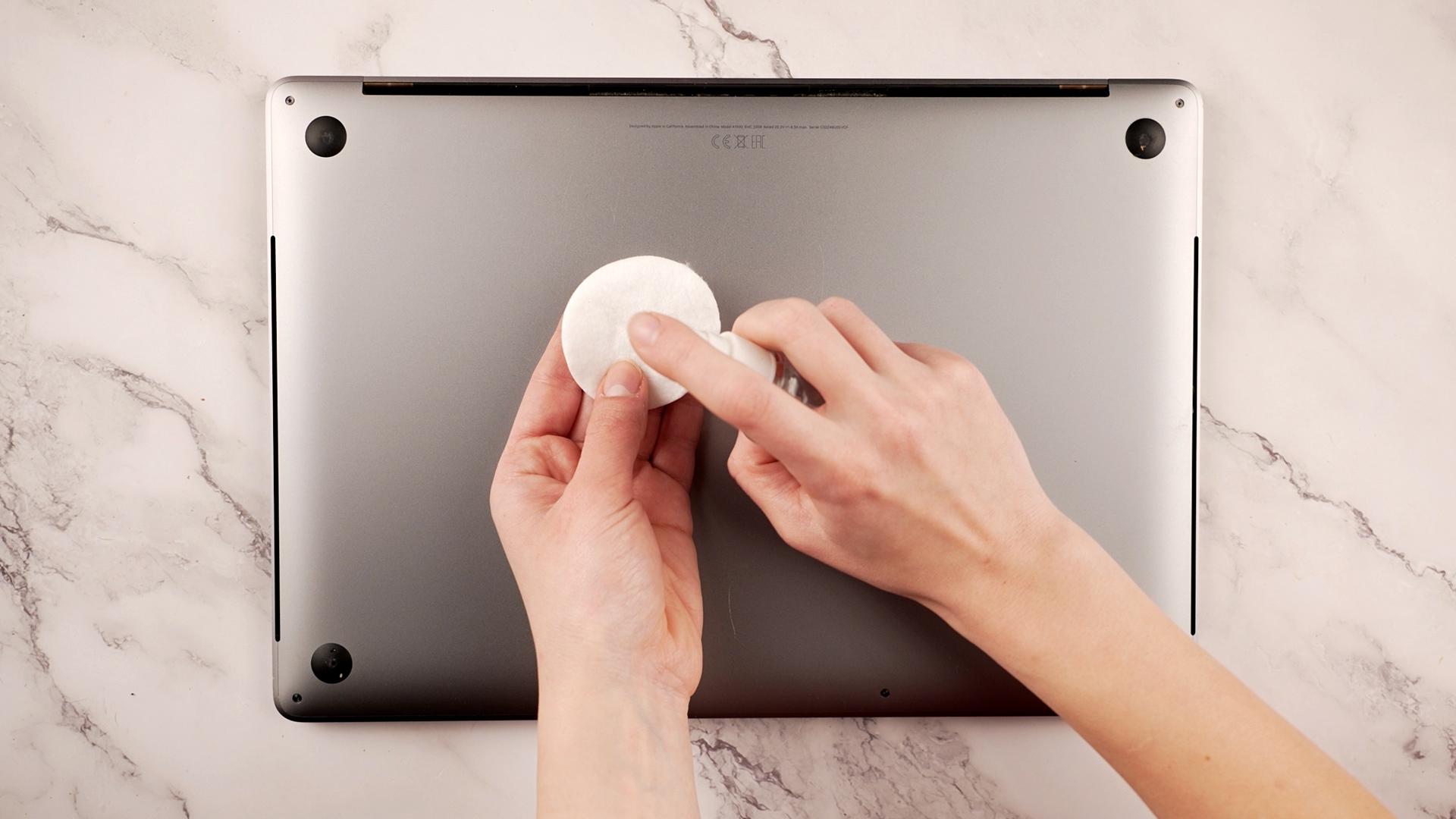
With the laptop powered off and unplugged, close the lid and wipe the top, bottom, and sides with a lightly damp microfiber cloth. For metal surfaces, plastic shells, and palm areas, a small amount of 70% isopropyl alcohol on the cloth may be suitable if the manufacturer permits it. Avoid logos, labels, rubber feet, and decorative finishes if you are unsure how they will react.
For stubborn dirt, make several light passes instead of scrubbing hard. Laptop finishes can scratch or become shiny from aggressive rubbing. Gentle cleaning wins.
Step 2: Clean cooling vents carefully
Locate the vents, usually on the sides, back, bottom, or near the hinge. Use compressed air in short bursts at an angle to blow dust away from the vent openings. Do not hold the nozzle too close, and do not use a high-powered air compressor. Too much force can damage internal fans or push dust deeper inside.
If you can see dust on the vent grille, loosen it with a soft brush first. Then use air to move it away. For gaming laptops or older machines that run hot, cleaning vents can make a noticeable difference. If the laptop still overheats after external vent cleaning, internal cleaning may be needed, but that is better handled by someone comfortable opening the device or by a repair professional.
Step 3: Clean ports without damaging them
USB ports, charging ports, HDMI ports, and headphone jacks collect lint and dust. Use a soft brush or gentle air to clear debris. Avoid toothpicks, paper clips, metal tools, and anything sharp. Ports contain tiny contacts that can bend or break. A clean port is good; a “cleaned” port that no longer charges is not good.
If a port is packed with debris and gentle tools do not work, stop. Professional help is cheaper than replacing a motherboard because you went spelunking with a safety pin.
Step 4: Remove residue from stickers or labels carefully
If you removed old stickers and have adhesive residue, use a small amount of isopropyl alcohol on a cloth and test a hidden area first. Rub gently. Avoid using oily removers near seams, vents, or ports. Any liquid that creeps into the laptop can create bigger problems than a sticky rectangle.
How Often Should You Clean a Laptop?
A practical laptop cleaning schedule depends on how and where you use it. If your laptop stays on a clean desk, a quick wipe every week or two and a deeper clean every month may be enough. If you travel, eat nearby, share the laptop, have pets, or work in dusty places, clean it more often.
Here is a simple schedule:
- Daily or every few days: Wipe fingerprints from the screen and touchpad with a dry microfiber cloth.
- Weekly: Clean the keyboard, palm rest, and exterior surfaces.
- Monthly: Use gentle air on the keyboard gaps, vents, and ports.
- Every few months: Inspect vents for dust buildup and check whether the laptop runs hotter or louder than usual.
Cleaning does not have to be a grand ceremony. A two-minute wipe-down can prevent the kind of grime that later requires a full archaeological dig.
Extra Safety Tips for Cleaning Any Laptop
Check the manufacturer’s instructions
Different brands and models may have different screen coatings, keyboard materials, and case finishes. Apple, Microsoft, HP, Dell, Lenovo, Samsung, ASUS, Acer, and other manufacturers publish cleaning guidance for many devices. Use those instructions when available, especially for touchscreens, OLED displays, matte screens, and premium finishes.
Never let liquid enter openings
Moisture should never drip into the keyboard, vents, ports, speakers, or hinge area. Even fast-evaporating alcohol can cause problems if used carelessly. Always dampen the cloth, not the laptop.
Do not clean while the laptop is hot
If the laptop has been running hard, let it cool before cleaning. Heat can cause cleaning liquid to evaporate unevenly, leaving streaks. It can also make the device less comfortable to handle.
Be careful with touchscreens
Touchscreens collect more fingerprints and may need more frequent wiping. Use a screen-safe microfiber cloth and avoid harsh chemicals that can damage oleophobic or anti-glare coatings.
Do not vacuum directly with a powerful household vacuum
A small electronics-safe vacuum or brush attachment may be fine for surface debris, but strong suction and static are concerns. For most users, a soft brush plus controlled compressed air is safer.
My Real-World Laptop Cleaning Experience: What Actually Works
After cleaning many laptops in everyday situations, one lesson stands out: the best laptop cleaning method is usually the least dramatic one. People often wait until the keyboard looks shiny, the screen has visible fingerprints from across the room, and the vents look like they are growing a winter coat. Then they want a miracle cleaner. But laptops respond better to small, regular cleaning sessions than occasional heroic scrubbing.
The most useful habit is keeping a microfiber cloth nearby. A dry cloth can solve half the problem before any liquid is needed. A quick screen wipe at the end of the day prevents smudges from layering into cloudy streaks. The same cloth can remove fresh fingerprints from the palm rest before skin oils settle in. It sounds too simple, but it works.
Another lesson: compressed air is helpful, but only when used carefully. Short angled bursts are better than long blasts. I have seen people hold the nozzle straight down into the keyboard as if they are pressure-washing a driveway. That can push debris deeper under the keys. Tilting the laptop slightly and encouraging crumbs to leave is more effective. Think of it as politely showing dust the exit.
For keyboards, patience matters more than force. Sticky keys often tempt people to pry off keycaps. On many modern laptops, that is risky. Thin key mechanisms can crack, bend, or refuse to snap back correctly. Unless the laptop manual clearly explains key removal, it is safer to clean around the key edges with a barely damp cotton swab and repeat the process slowly.
For screens, less liquid is almost always better. A microfiber cloth lightly dampened with distilled water can remove most fingerprints. If a mark is stubborn, holding the damp cloth against it for a few seconds helps soften it. Scrubbing harder is not the answer. Laptop screens are not chalkboards, and nobody wins a strength contest with a display panel.
One surprisingly common mistake is closing the laptop immediately after cleaning the screen. Even a little moisture can transfer to the keyboard or leave new marks. Leaving the laptop open for a few minutes avoids that problem. It is a tiny step, but it makes the final result look cleaner.
I have also learned that laptop vents deserve more attention than they get. A laptop that runs loud or warm may not be “old”; it may simply be dusty. Cleaning the vent openings will not fix every overheating problem, but it can improve airflow when dust is visible. If the fan noise remains intense, internal dust may be the issue, and opening the laptop may be necessary. For users who are not comfortable with repairs, a technician is the safer choice.
The biggest experience-based tip is this: do not eat over your laptop. Everyone says they will be careful. Everyone believes the cracker will not crumble. The cracker always crumbles. If snacks are unavoidable, close the laptop or move it aside. Your spacebar does not need trail mix.
A clean laptop also changes how the device feels. The keyboard feels newer, the screen looks brighter, and the whole machine seems more pleasant to use. It is not magic; it is just the removal of fingerprints, dust, and yesterday’s lunch. Still, the effect is real. A well-cleaned laptop can make work feel a little less chaotic, which is impressive for a chore that takes only a few minutes.
Conclusion
Cleaning a laptop safely comes down to three simple methods: clean the screen gently, clean the keyboard and touchpad carefully, and clean the exterior, vents, and ports without forcing moisture or debris into the device. Use microfiber cloths, distilled water, limited approved alcohol when appropriate, soft brushes, and controlled air. Avoid harsh cleaners, direct sprays, abrasive towels, sharp tools, and impatient scrubbing.
Your laptop does not need to sparkle like a showroom model every day, but it should not look like it survived a snack avalanche either. With a light weekly routine and a deeper monthly cleaning, you can keep your laptop cleaner, more comfortable to use, and better protected from dust buildup. Treat it gently, keep liquids away from openings, and remember: the best laptop cleaning tool is not power. It is restraint.
SEO Tags
Note: This article is written for general laptop cleaning guidance. Always check your device manufacturer’s care instructions before using any cleaner on screens, keyboards, touchpads, vents, or exterior finishes.











