
A paper jam on an HP inkjet printer has a special talent for appearing five minutes before a deadline, right when your boarding pass, homework packet, tax form, or “I swear this will only take one second” document needs to exist in the physical world. The printer blinks. The screen says “Paper Jam.” You stare into the tray and see nothing. The printer wins round one.
Good news: most HP inkjet paper jams are fixable at home without tools, drama, or a tiny printer exorcism. Whether you own an HP DeskJet, ENVY, OfficeJet, OfficeJet Pro, or Smart Tank-style inkjet, the basic process is the same: stop printing, remove loose paper, check the paper path, clear torn scraps, reset the printer, and reload paper correctly. The exact doors and trays vary by model, but the logic stays wonderfully boringand boring is exactly what we want from printer repair.
This guide walks you through how to clear a paper jam on an HP inkjet printer safely, how to handle a “paper jam” error when no paper is visible, and how to prevent future jams by loading paper like a person who has made peace with office equipment.
Before You Start: Safety First, Heroics Last
Before reaching inside your HP inkjet printer, turn it off and unplug the power cord. If a USB or Ethernet cable is connected, unplug that too. This prevents the carriage, rollers, or internal mechanisms from moving while your hand is inside the printer. Your printer may be small, but it still contains moving parts, and moving parts do not care about your weekend plans.
Also, avoid sharp objects such as knives, tweezers, screwdrivers, or needle-nose pliers unless your printer manual specifically says otherwise. Scratching a roller or damaging a sensor can turn a five-minute paper jam into a full-blown repair bill. Use your hands, a flashlight, and patience. Patience is free, though admittedly not always in stock.
Common Signs of an HP Inkjet Paper Jam
An HP inkjet printer may report a paper jam in several ways. You might see an “E4” error on some HP DeskJet models, a “Paper Jam” message in the HP Smart app, a blinking attention light, a stuck print queue on your computer, or a printer that starts pulling paper and then suddenly stops with the confidence of a machine that has chosen chaos.
Sometimes there is a visible sheet stuck halfway in the output tray. Other times, the paper has torn inside the printer, leaving behind a tiny scrap that blocks a sensor. In many cases, the printer is not technically jammed at all; dirty rollers, curled paper, an overloaded tray, or misaligned paper guides can trigger the same warning.
Step 1: Cancel the Print Job and Let the Printer Try Automatically
Start with the easiest fix. Press the Cancel, OK, or Resume button on the printer, depending on your model. Many HP inkjet printers will attempt to eject the jammed page automatically. If the printer pushes the page out cleanly, remove it, reload the paper, and print a test page.
If the error returns, do not keep pressing print like you are negotiating with a vending machine. Repeated attempts can push the sheet deeper into the paper path or tear it. Move to manual clearing.
Step 2: Remove Loose Paper from the Input and Output Trays
Take all paper out of the input tray. Then check the output tray for any stuck, wrinkled, or half-printed sheets. If you can see jammed paper, hold it with both hands and pull slowly in the direction the paper normally travels. Pulling evenly helps prevent tearing.
If the sheet resists, stop. Tugging hard may rip the page and leave fragments around the rollers. A torn corner the size of a cornflake can be enough to keep the printer complaining. Printers are dramatic like that.
Step 3: Check the Input Tray Area
On many HP DeskJet, ENVY, and OfficeJet models, the jam begins where paper feeds into the printer. Open or extend the input tray and use a flashlight to inspect the feed area. Look for folded corners, scraps, labels, paper clips, sticky notes, dust clumps, or anything that does not belong inside a printer. If your printer has a removable input tray, pull it out carefully and check the cavity behind it.
Remove any paper by pulling it straight out with both hands. Avoid pulling at an angle. The goal is not to win a wrestling match; it is to guide the paper out along the same path it entered.
Step 4: Open the Ink Cartridge Access Door
Next, open the ink cartridge access door. On many HP inkjet printers, the carriage may move when the printer is powered on, which is one reason unplugging the printer matters. Wait until the carriage is fully still before touching anything.
Look inside the cartridge area for paper blocking the carriage path. If the carriage is parked in the center or on one side, gently slide it only if it moves freely. Never force it. Remove any paper or objects you find. Pay special attention to the far left and far right sides, where small scraps often hide like tiny office goblins.
Step 5: Remove the Paper Path Cover or Rear Access Door
Some HP inkjet printers include a paper path cover, cleanout door, rear access door, or duplexer. The name depends on the model, but the purpose is similar: it lets you access the paper path from another angle. If your printer has one, remove it according to the model’s instructions and inspect the rollers and passageway.
Pull out any jammed paper slowly and evenly. If a page is wrapped around a roller, rotate the roller gently with your fingers while easing the paper out. Do not scrape the rollers. They need a slightly grippy surface to feed paper correctly, and scratches can cause repeat jams.
Step 6: Check Underneath the Printer if Your Model Allows It
Some HP DeskJet and ENVY models may require checking underneath the printer for jammed paper. If your model’s support instructions mention this, remove the paper tray, close all doors, and carefully tilt the printer as directed. Do not flip an inkjet printer upside down unless the official instructions for your exact model say to do so. Ink cartridges and ink tanks are not fans of gymnastics.
Use a flashlight to inspect the bottom paper path. Remove any visible paper scraps, then return the printer to its normal position.
Step 7: Inspect the ADF if Your Printer Has One
If your HP OfficeJet or OfficeJet Pro includes an automatic document feeder, or ADF, remember that the scanner feeder can jam separately from the main printer. Open the ADF cover and remove any stuck originals. Pull slowly, following the direction the paper feeds. Check under the ADF rollers for scraps, torn edges, or curled sheets.
ADF jams often happen when originals are wrinkled, stapled, damp, curled, or loaded beyond the feeder’s capacity. Before scanning a stack, fan the pages and remove staples. Your ADF is helpful, but it is not a paper-eating goat.
Step 8: Reset the Printer
After removing paper from all visible areas, close every access door and reinstall any paper path cover or tray. Plug the power cord back in and turn the printer on. Wait until the printer becomes quiet and idle. If the paper jam message clears, print a test page.
If the error remains, turn the printer off again, unplug it, and recheck every access point with a flashlight. The most common reason a jam warning persists is a small torn piece of paper or a door that is not fully closed.
What to Do When Your HP Printer Says “Paper Jam” but There Is No Paper
A false paper jam error can be more annoying than a visible jam because there is nothing obvious to blame. In this case, think beyond the sheet itself. The printer may be detecting a feed problem, a blocked carriage, dirty rollers, or a stuck sensor.
Check for Tiny Paper Scraps
Use a flashlight and inspect the input tray, output tray, cartridge access area, rear paper path, and underside if applicable. Torn paper can hide behind rollers or along the side walls. Look for white scraps, gray paper dust, pieces of labels, or bits of envelope flap adhesive.
Clean the Paper Feed Rollers
Dust, paper fibers, and dried residue can make rollers slippery. When rollers cannot grip a sheet, the printer may misfeed or report a jam. Turn off and unplug the printer. Lightly dampen a lint-free cloth with distilled or bottled water, squeeze out extra moisture, and wipe accessible rollers while rotating them gently with your fingers. Let the rollers dry completely before closing the printer and reconnecting power.
Do not soak the rollers. The cloth should be damp, not auditioning for a car wash.
Make Sure the Carriage Moves Freely
Open the cartridge access door and check whether the ink carriage is blocked by paper, packaging material, or an object that fell into the printer. If the carriage can slide gently from side to side, move it carefully and inspect both ends of the track. If it does not move, do not force it. A stuck carriage may require model-specific troubleshooting.
Clear the Print Queue
Sometimes your computer continues sending the same failed print job after the printer is physically cleared. Open your printer queue in Windows or macOS and cancel stuck jobs. Then restart the printer and try printing one simple page. If you are using Windows, a full printer restart and queue refresh can help remove the software side of the error.
How to Reload Paper Correctly After Clearing the Jam
Reloading paper is not glamorous, but it is one of the best ways to prevent another jam. Start with clean, flat, undamaged paper. Do not use sheets that are curled, torn, damp, stuck together, or previously jammed. That last sheet already had its adventure; let it retire.
Fan the stack gently to separate the pages, then tap it on a flat surface to align the edges. Load the paper in the correct orientation for your model. On many HP inkjet printers, plain letter-size paper loads with the short edge first. Photo paper often has a specific printable side that must face up or down depending on the tray design, so check your printer’s tray markings or manual.
Slide the paper-width guides until they touch the edges of the stack. They should be snug, not squeezing. If the guides are too loose, pages can skew. If they are too tight, the printer may grab the paper unevenly. Also, do not overload the tray. Stay below the stack-height indicator if your tray has one.
Why HP Inkjet Paper Jams Happen
Paper jams are usually caused by one of four things: paper condition, loading mistakes, roller problems, or blocked paper paths. Cheap or poorly stored paper can curl, absorb moisture, or stick together. Overloaded trays cause multiple sheets to feed at once. Misaligned paper guides let pages enter crooked. Dirty rollers lose grip. Small scraps or foreign objects block sensors.
Humidity matters more than people think. Paper absorbs and releases moisture from the air. In humid rooms, sheets can become wavy or cling together. In very dry rooms, static can make pages stick. Store printer paper flat in its wrapper, away from windows, floors, bathrooms, kitchens, and direct sunlight. Your printer wants boring paper: flat, dry, clean, and ordinary.
Paper Types That Can Cause Trouble
HP inkjet printers can handle a variety of media, but not every printer supports every thickness, finish, or size. Plain office paper is usually safest. Heavy cardstock, glossy photo paper, envelopes, labels, and specialty media should be used only if your model supports them. Before printing on thicker media, check the printer specifications for supported weight and tray capacity.
Labels deserve special caution. A peeling label can stick inside the printer and create a jam that is much more annoying than a plain sheet of paper. Use only inkjet-compatible labels in good condition, and never run a partially used label sheet through the printer.
Preventing Future HP Inkjet Paper Jams
Use Fresh, Flat Paper
Wrinkled, curled, damp, or bent sheets are jam magnets. Use paper from a sealed ream when possible, and keep opened paper in its wrapper or a resealable container.
Do Not Overfill the Tray
More paper does not mean more convenience if the printer grabs three sheets at once. Load a moderate stack and keep it under the tray’s maximum fill line.
Adjust the Guides Every Time
If you switch from letter paper to envelopes or photo paper, reset the paper-width guides. Crooked loading is one of the fastest ways to invite a jam.
Keep the Printer Clean
Paper dust builds up over time. Periodically remove loose paper, check the tray, and wipe accessible rollers with a lightly dampened lint-free cloth. Let everything dry before printing.
Use the Printer Regularly
Inkjet printers like occasional exercise. Long idle periods can lead to dust buildup, dried ink issues, and stiff paper stacks sitting in the tray for too long.
When to Contact HP Support or Consider Service
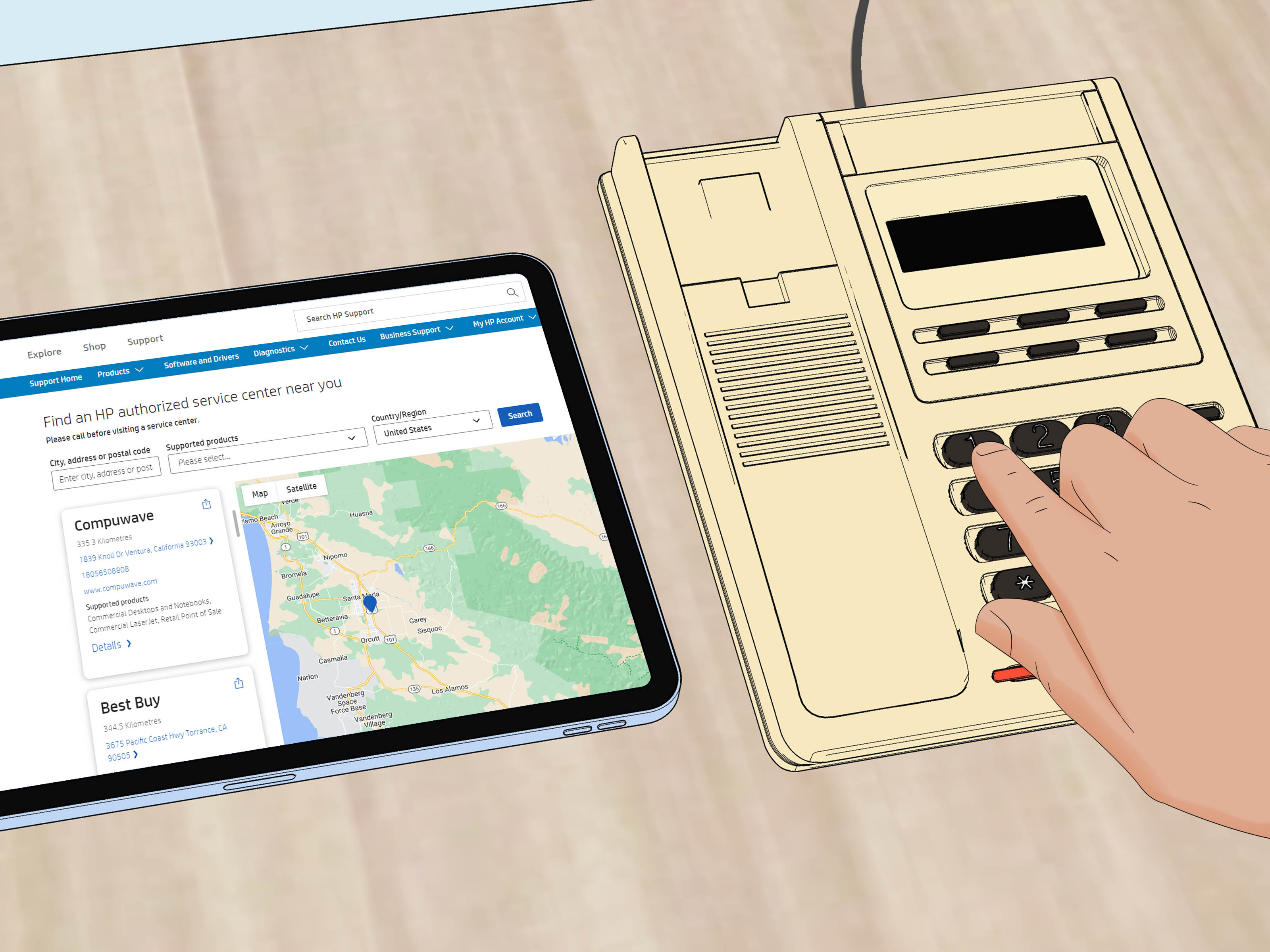
Call HP support or seek service if the paper jam error returns immediately after every reset, the carriage will not move, a door or paper path cover is broken, rollers are visibly damaged, or you hear grinding noises. Also stop troubleshooting if ink leaks, the printer smells hot, or a foreign object is lodged somewhere you cannot safely reach.
If your printer is under warranty, do not disassemble it beyond normal access doors and removable trays. Opening panels that are not meant for users can void coverage or create new problems. In printer repair, bravery is less useful than restraint.
Real-World Experience: What Usually Works When an HP Inkjet Jams
In everyday home and small-office use, HP inkjet paper jams tend to follow a pattern. The first jam is usually obvious: a sheet sticks halfway out of the output tray, everyone points at it like it committed a crime, and the fix is simple. Hold the page with both hands, pull slowly, reload paper, and carry on. The second kind is sneakier. The printer says there is a jam, but the tray looks empty. This is where most people get frustrated and start opening and closing things with increasing theatrical energy.
The most useful habit is slowing down. A flashlight is often the hero of the story. Many “mystery” jams come from a tiny torn corner near the feed rollers or inside the cartridge access area. It may be so small that you miss it during a quick glance. Move the carriage gently if it slides freely, look along both side walls, and check behind any removable paper path cover. A scrap can sit exactly where a sensor expects clean movement, and the printer will refuse to continue until that little paper confetti villain is gone.
Another common experience is the repeat jam after the paper has been removed. This usually points to loading conditions rather than a hidden sheet. For example, a stack of paper that has been sitting in an open tray for weeks can curl slightly at the edges. It may still look “fine” to a human, but printer rollers are picky. Replacing the stack with fresh, flat paper often solves the problem. The same goes for paper guides. If the guides are left too wide, the sheet enters crooked. If they are pushed in too tightly, the paper bows just enough to feed badly. Snug-but-not-crushing is the sweet spot.
Roller cleaning is another practical fix that feels almost too simple. When rollers collect paper dust, they may spin without grabbing the page. Users sometimes interpret this as a jam because the printer reports a feed error or stops mid-cycle. A lint-free cloth dampened with distilled water can restore enough grip to make the printer behave again. The key is moderation: no dripping cloth, no alcohol bath, no aggressive scrubbing. Wipe, rotate, dry, test.
One more lesson from real-world troubleshooting: do not reuse the sheet that jammed. Even if it looks mostly okay, it may have a bent leading edge or a tiny tear that catches again. Toss it into the recycling bin with dignity. Also, avoid mixing paper types in the same tray. A few sheets of glossy photo paper hiding under plain paper can confuse feeding and create uneven pickup. Printers are not great at surprises.
Finally, remember that an HP inkjet paper jam is not always a sign that the printer is dying. Often it is a small maintenance issue: dusty rollers, curled paper, an overloaded tray, or a forgotten scrap. Work through the paper path patiently, reload carefully, and test with one plain sheet. Most of the time, the printer returns to normal and everyone can stop glaring at it from across the room.
Conclusion
Clearing a paper jam on an HP inkjet printer is mostly about following a calm sequence: cancel the job, turn off and unplug the printer, remove loose paper, inspect every access area, pull jammed sheets slowly with both hands, clear tiny scraps, clean rollers if needed, reset the printer, and reload paper correctly. The process is simple, but the details matter. One torn corner, one overstuffed tray, or one crooked paper guide can keep the jam error alive.
For the best results, use clean, flat paper; store it in a dry place; adjust the guides each time you change paper size; and keep the rollers free of dust. Your HP inkjet printer may never become your favorite household appliance, but with the right care, it can at least stop behaving like a tiny plastic drama club.












