Backgrounds are among the first styling features most people try after creating their first HTML page. One minute, the page is plain white and quietly judging you. The next, it has a polished color palette, a dramatic hero photograph, or a gradient that makes the website look as though it hired a design agency.
Although people often search for how to set a background in HTML, modern websites normally handle backgrounds with CSS. HTML provides the page structure, while CSS controls presentation, including colors, images, gradients, positioning, repetition, and responsive behavior.
This guide explains how to add a background color, use a background image, create gradients, build readable overlays, control image sizing, and troubleshoot the most common problems. The examples work for complete pages as well as individual elements such as sections, cards, headers, and buttons.
How HTML and CSS Work Together to Create Backgrounds
HTML describes what appears on a page. It defines elements such as headings, paragraphs, navigation menus, articles, and sections. CSS tells the browser how those elements should look.
For example, this HTML creates a simple content section:
The background is then applied through CSS:
Older HTML versions allowed presentational attributes such as bgcolor and background directly in markup. These methods are obsolete for modern development. CSS is more flexible, easier to maintain, and much less likely to leave your future self muttering at code written six months earlier.
How to Set a Background Color in CSS
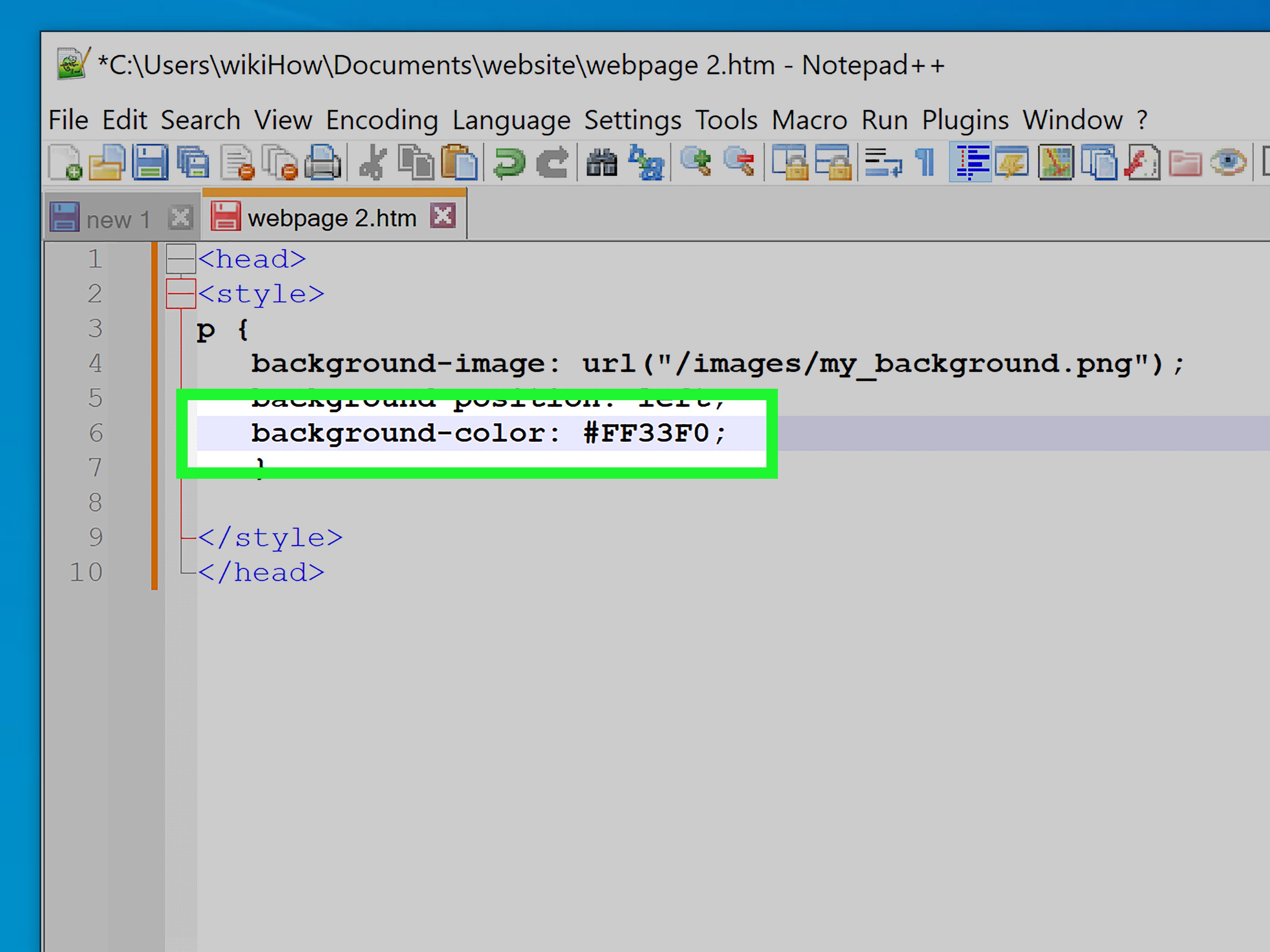
The simplest way to create a background is with the background-color property. It accepts named colors, hexadecimal values, RGB values, HSL values, and colors with transparency.
Set the background color of the entire page
This rule applies a soft gray-blue background to the page body. You can also set the text color at the same time to maintain readable contrast:
Set the background color of one element
The background applies only to elements with the notice class. Padding gives the content breathing room, while the rounded corners prevent the box from looking like an emergency spreadsheet.
Use transparent background colors
The final percentage controls opacity. In this case, the background is 75% opaque, allowing some of the content behind it to remain visible.
How to Add a Background Image in CSS
Use background-image with the CSS url() function to place an image behind an element:
The path inside url() can point to a local file or an externally hosted image. Relative paths are resolved from the location of the stylesheet, not necessarily from the HTML file.
For example, imagine this structure:
Because the stylesheet sits inside the css folder, it must move up one directory before entering the images folder:
A missing background image is often nothing more mysterious than a confused file path wearing a fake mustache.
Always include a fallback color
The color appears behind the image and remains visible if the image fails to load. Choose a fallback that works with the section’s text color.
Control Background Repetition
Background images repeat horizontally and vertically by default. This behavior is useful for seamless textures but rather alarming when a large portrait suddenly becomes an army of identical faces.
Common background-repeat values include:
repeat: Repeats the image in both directions.no-repeat: Displays one copy of the image.repeat-x: Repeats horizontally.repeat-y: Repeats vertically.space: Repeats complete copies with space between them.round: Resizes repeated copies so they fit the available space.
Small patterns, icons, and textures are good candidates for repeating backgrounds. Large photographs usually need no-repeat.
Resize a Background with Cover and Contain
The background-size property determines how an image fits inside its element.
Use cover for full-width sections
cover scales the image until the entire element is filled. The original proportions are preserved, but parts of the image may be cropped. It is usually the best option for hero banners and full-screen backgrounds.
Use contain when the complete image must remain visible
contain scales the image as large as possible without cropping it. Empty space may remain if the image and container have different aspect ratios.
Set an exact background size
You can use pixels, percentages, or other CSS units. The first value sets width, and the second sets height.
Position a CSS Background Image
Use background-position to decide which part of the image remains visible:
Useful keyword combinations include:
centertop centerbottom centerleft centerright center
You may also use percentages or exact measurements:
This is especially helpful when the important subject is not located in the center of the photograph.
Use the CSS Background Shorthand Property
Once you understand the individual properties, you can combine several of them with the background shorthand:
The slash separates background-position from background-size. Here, center is the position and cover is the size.
A practical hero section might look like this:
Be careful when replacing individual background properties with the shorthand. The shorthand can reset background values you do not explicitly include.
Create a Gradient Background Without an Image File
CSS gradients are generated by the browser, so they do not require a separate image download.
Linear gradient example
Gradient with more than two colors
Radial gradient example
Linear gradients move along a line, while radial gradients spread outward from a central point. CSS also supports conic and repeating gradients for charts, decorative patterns, and effects that may cause designers to whisper, “Just one more color stop.”
Add a Dark Overlay to a Background Image
Text placed directly over a photograph can become difficult to read. A semi-transparent gradient can darken the image without editing the original file.
CSS supports multiple background layers separated by commas. The first layer appears on top, so the transparent gradient overlays the photograph.
You can also create a directional overlay:
This version creates a darker area on the left, making it useful when text is aligned to that side.
Create a Full-Page Background
Apply the background to the body element and make sure the page can cover at least the viewport height:
Removing the browser’s default body margin prevents an unwanted white border around the page.
Make CSS Background Images Responsive
A large desktop photograph may waste bandwidth on a small phone. Media queries let you provide a smaller or differently cropped image for narrow screens.
Compress image files before publishing them, resize them to sensible dimensions, and consider efficient formats such as WebP or AVIF. A 6-megabyte photograph may look impressive, but visitors using mobile data will remember it for all the wrong reasons.
For meaningful content images, an HTML <img> element is often better because it supports alternative text, responsive source selection, dimensions, and native lazy loading. CSS background images are best suited to decoration because they do not provide an alt attribute.
Build Reusable Background Styles with CSS Variables
CSS custom properties make it easier to reuse and update background values:
Changing a variable updates every rule that uses it. This is helpful for design systems, dark themes, and websites where the brand color changes whenever somebody in marketing discovers a new shade of purple.
Common Background Problems and How to Fix Them
The background image does not appear
Check the file path, spelling, capitalization, and filename extension. Confirm that the element has visible dimensions. An empty element with no height may technically have a background while occupying zero visible space.
The image is stretched or distorted
Avoid forcing unrelated width and height values. Use cover when cropping is acceptable or contain when the entire image must remain visible.
The image repeats unexpectedly
Add background-repeat: no-repeat.
The important part of the image is cropped
Adjust background-position, such as 70% center, or use a differently cropped image at smaller breakpoints.
The text is difficult to read
Add a dark or light overlay and test the contrast between the text and every part of the background. Photographs contain changing colors, so checking only one spot is not enough.
The shorthand removed another background setting
The background shorthand resets omitted background properties. Keep related values in the same rule or use individual properties when later adjustments must remain independent.
Practical Experience: Lessons from Working with CSS Backgrounds
One of the first lessons I learned while building website backgrounds was that the image itself is rarely the difficult part. The real challenge is controlling what happens around it. A hero image can look perfect on a laptop and become an abstract collection of elbows on a phone. Testing several viewport sizes is therefore part of the design process, not an optional ceremony performed five minutes before launch.
I also learned to choose the focal point before writing the CSS. When a photograph contains a person, product, or landmark, I identify the area that must remain visible. I then adjust background-position rather than automatically using center. A position such as 65% center can produce a far better mobile crop with one small change.
Another useful habit is setting the background color before the image. That color acts as a fallback during slow loading, broken requests, or temporary server problems. I try to select a color that resembles the dominant tone of the image. This reduces the visual flash that can occur while the image downloads and keeps light text readable.
Overlays have saved more designs than I care to admit. Early in a project, a photograph often looks clean because it has been tested with a short heading. Later, someone replaces that heading with two lines, adds a paragraph, and places a button beneath it. Suddenly the text crosses bright clouds, white shirts, or reflective windows. A gradient overlay creates a predictable reading area without requiring a new photograph.
I prefer separate properties while experimenting because they are easier to inspect and change. Once the design is stable, I may combine them into the background shorthand. Writing the shorthand too early can make debugging harder, especially when the slash between position and size is forgotten or an omitted value resets a previous declaration.
Performance testing has also changed how I use backgrounds. Developers naturally focus on whether an image looks sharp, but a background does not need the dimensions of a roadside billboard. I export images close to their expected display size, compress them, and create smaller mobile versions when the visual occupies a major portion of the page. This improves loading without asking users to admire a blank rectangle.
I avoid CSS backgrounds for images that communicate essential information. A photograph used only for atmosphere belongs comfortably in CSS. A product diagram, event poster, chart, or instructional screenshot usually belongs in HTML with appropriate alternative text and nearby explanation. The distinction is simple: if losing the image would remove meaning, it should not quietly hide in a decorative CSS rule.
Finally, I test backgrounds with realistic content rather than polished placeholder text. Long headings, translated copy, browser zoom, narrow screens, and missing image files reveal problems quickly. A successful background is not merely attractive in a design mockup. It remains readable, responsive, efficient, and useful when the website meets the wonderfully chaotic conditions of the real world.
Final Takeaway
To set a background in HTML and CSS, use HTML for structure and CSS for visual styling. Start with background-color, add images with background-image, and control their appearance through background-size, background-position, and background-repeat.
For polished layouts, combine gradients and photographs as multiple background layers. Add responsive rules for smaller screens, optimize image files, provide a fallback color, and maintain strong text contrast. Most importantly, reserve CSS background images for decoration and use semantic HTML images when the visual carries meaningful information.
Note: The example image paths are placeholders. Replace them with filenames and directory paths that match your own project before publishing.