
If you have Microsoft Word, a deadline, and exactly zero interest in learning a full-blown design program before lunch, good news: you can absolutely make a solid poster in Word. Is Word the king of poster design? No. Is it the reliable cousin who shows up on time, brings snacks, and gets the job done? Absolutely.
This guide walks you through how to make a poster in Microsoft Word in a way that looks clean, readable, and actually worth printing. Whether you are creating a school poster, event flyer, classroom sign, church announcement, community notice, or a quick promotional piece for work, Word has enough tools to help you build something sharp without turning your screen into a crime scene.
The trick is not just knowing where the buttons live. It is knowing how to use page size, margins, text boxes, pictures, alignment, and white space together so your poster looks intentional instead of “assembled during a caffeine emergency.” Let’s build it step by step.
Why Use Microsoft Word for Poster Design?
Microsoft Word is easy to access, familiar to most people, and surprisingly capable for simple poster design. If you need a fast, editable layout with headlines, shapes, images, icons, and clear blocks of information, Word can handle it.
It is especially useful when you want to:
- Create a poster quickly without buying extra software
- Use a Word poster template or start from a blank document
- Edit text easily after someone says, “Oops, the event is actually next Thursday”
- Share the file with coworkers, teachers, or classmates who already use Word
- Export the poster for printing or save it as a PDF
For very large research posters or highly polished marketing graphics, tools like PowerPoint, Publisher, or dedicated design platforms may offer more flexibility. But for many everyday poster projects, Microsoft Word is more than enough.
Step 1: Start With a Blank Document or a Template
You have two good options when making a poster in Word: start with a blank page or use a built-in template. If you want full control, begin with a blank document. If you want a head start, search for a flyer or poster-style template and customize it.
Templates are helpful when you want structure fast. They already include placeholder text, image areas, and a layout that saves you from staring at an empty page like it personally offended you. Starting from scratch, though, gives you more room to create your own poster design in Word from the ground up.
When to Use a Template
Use a Word poster template if your poster is for an event, sale, club, community board, or classroom announcement and you mainly need to swap in your own text, colors, and images.
When to Start From Scratch
Go blank if you need a custom layout, unusual dimensions, or a more original look. This is also the better route if you already have a visual plan in mind.
Step 2: Set Up the Poster Page Size
This is the step many people skip, and then they wonder why the poster looks like a stretched handout. Before adding text or images, set up the page properly.
In Word, go to the Layout tab and choose your poster orientation. For many poster designs, Landscape works best because it gives you more room for wide layouts, images, and bold headings. Portrait can work beautifully for announcements, motivational posters, and vertically oriented designs.
Next, check the page size. If your version of Word offers the size you want, choose it from the Size menu. For simple posters, standard letter size can work. If you plan to print larger, choose a larger paper size or prepare the design in proportions that match your final print size.
Then adjust margins. Narrow margins make more room for design elements and reduce the awkward “why is everything trapped in the middle?” look. In most cases, custom margins work better than Word’s default settings for poster design.
Helpful Rule of Thumb
If your poster is mostly visual, use more page space and smaller margins. If it is text-heavy, leave a little breathing room so the content does not feel packed like an overstuffed suitcase.
Step 3: Plan the Layout Before You Decorate Anything
Before you add colors, fancy fonts, or a dramatic photo of a sunset that has nothing to do with your bake sale, decide what belongs on the poster.
A good poster in Microsoft Word usually includes:
- A strong title or headline
- A short supporting message
- Key details such as date, time, location, or call to action
- One main image or a small set of visuals
- Optional footer information like contact details, website, or QR code
Think in zones: top, middle, and bottom. The title usually goes at the top. The main message or image sits in the center. Supporting details belong at the bottom or in a side block. This creates visual hierarchy, which is a fancy way of saying the reader can tell what to look at first without solving a puzzle.
Many university poster guides recommend a layout that reads from upper left to lower right, with strong visual flow and generous white space. That matters in Word, too. Your poster should guide the eye naturally, not make people zigzag across the page like they are hunting for hidden treasure.
Step 4: Add the Headline First
Your headline is the star of the show. If people cannot read it from a distance, the poster is basically a wall decoration with trust issues.
Use a large, bold font for the title. Keep it short and clear. A headline like Spring Book Fair This Saturday works better than We Would Like to Invite Members of the Community to Attend Our Upcoming Literary Gathering Event. That second version is not a headline. It is a hostage negotiation.
You can type the title directly onto the page or use a text box for more control. Text boxes are often better because you can move them, resize them, style them, and align them precisely with other elements.
Best Headline Tips
- Use one main font for the title
- Make it significantly larger than everything else
- Keep the wording short and punchy
- Make sure there is strong contrast between text and background
WordArt can also work for a poster title if you use it with restraint. A little style is great. A headline that looks like it escaped from a 2007 karaoke flyer is less great.
Step 5: Use Text Boxes for Clean, Flexible Poster Design
If you want your Word poster layout to behave, text boxes are your best friends. They let you separate chunks of content and position them exactly where you want.
Create text boxes for:
- The main headline
- Subheadings
- Event details
- Short descriptions
- Calls to action
This makes your design easier to manage than placing everything in the regular document flow. It also helps you align content neatly across the page. Once your text boxes are in place, you can change fill colors, remove outlines, adjust internal padding, and make the layout feel much more like a real poster and less like a school essay wearing a costume.
Step 6: Insert Images, Shapes, and Graphics
Now it is time to make the poster visually interesting. In Word, go to Insert and add pictures from your computer or another available source. You can resize images, move them around, and place text near them using layout options.
When using photos, choose images that are sharp, relevant, and easy to understand at a glance. A blurry image stretched to the size of a garage door will not suddenly become artistic. It will become a warning.
Shapes are also useful in Microsoft Word poster design. Use them for:
- Colored banners behind headlines
- Boxes around important details
- Simple icons or visual dividers
- Background accents that create hierarchy
If your poster explains a process, highlights steps, or compares options, SmartArt can help you present information visually. It works best when the content is short. SmartArt is not magic, and it will not rescue a paragraph that should have been three bullet points and a nap.
Step 7: Align Everything So It Looks Intentional
Great posters do not just contain the right elements. They line them up well. That is where Word’s alignment tools matter.
Select multiple shapes, images, or text boxes and use alignment and distribution tools to space them evenly. This creates a clean layout and keeps the design from feeling crooked or cluttered. Even a simple poster looks much more professional when edges line up and spacing feels consistent.
Try to keep these design habits:
- Align text boxes to a shared edge
- Use consistent spacing between sections
- Do not crowd every inch of the page
- Leave enough white space so the content can breathe
Some university poster design guides suggest keeping a significant portion of the layout open rather than filling the entire page. That advice is gold. Empty space is not wasted space. It is what keeps your poster readable.
Step 8: Choose Fonts and Colors That People Can Actually Read
This is where many posters go off the rails. You do not need twelve fonts, neon green body text, or a background image so busy it looks like your poster is trying to start an argument.
For most posters, stick with two fonts at most: one for headings and one for body text. Use bold weight, size, and color sparingly to create emphasis. High contrast is your friend. Dark text on a light background is usually easiest to read.
Poster design resources from U.S. universities often recommend body text that is much larger than normal document text, frequently around 24 points or more for larger poster formats. Titles and headings should be larger still. In plain English: if your poster body text is 11-point Calibri, your audience will need binoculars and emotional resilience.
Good Poster Color Habits
- Use two or three main colors
- Keep contrast strong
- Use one accent color for emphasis
- Avoid color combinations that strain the eyes
- Do not rely only on color to communicate important information
Step 9: Make the Poster Accessible
A better poster is not just attractive. It is usable. If you are sharing your poster digitally or converting it to PDF for online distribution, accessibility matters.
In Word, add alt text to meaningful images and graphics so screen readers can describe them. Make sure color contrast is strong enough for text to remain readable. If an image contains important words, do not make that image the only place those words appear.
Accessibility tools in Microsoft Word can help flag issues such as low contrast or missing alt text. That is helpful because your poster should not require perfect eyesight, guesswork, or supernatural intuition.
Step 10: Review Before Printing or Saving
Before you print your poster, zoom out and look at it as a whole. Ask yourself:
- Can I tell what the poster is about in three seconds?
- Is the most important information obvious?
- Are the title, date, time, and action steps easy to find?
- Does anything feel crowded, crooked, or oddly tiny?
- Do the colors and fonts feel consistent?
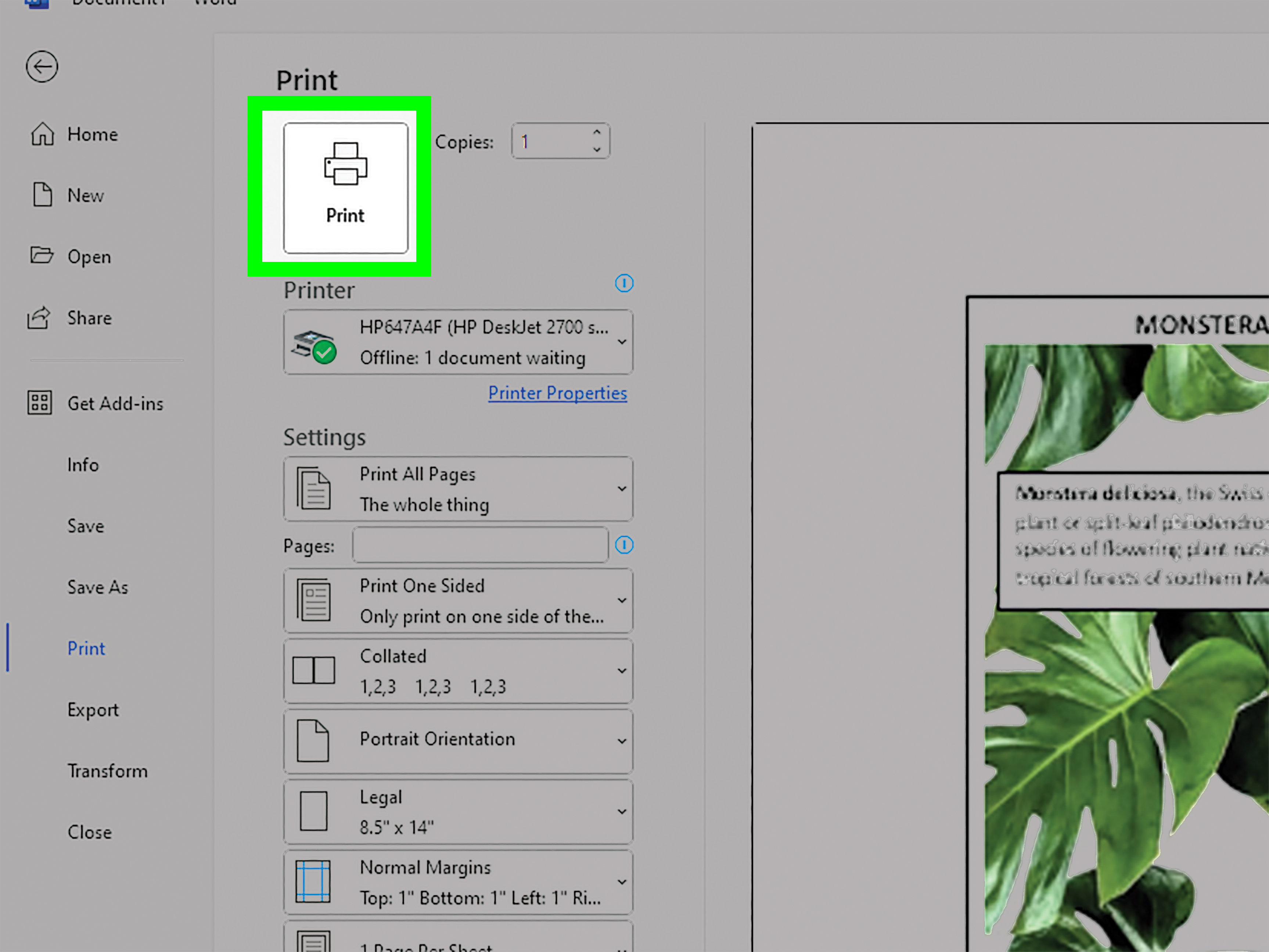
Then use print preview. This step catches strange spacing, clipped objects, weak contrast, and other tiny design betrayals before they become expensive paper mistakes.
If you plan to send the file to a printer or post it online, save a clean version as a PDF. That helps preserve formatting and makes sharing easier.
Simple Example of a Poster Layout in Word
Let’s say you are making a poster for a school food drive. Your layout might look like this:
- Top: “Community Food Drive” in large bold text
- Below Title: “Help us stock the pantry for local families”
- Center: One strong image of canned goods or donation boxes
- Side or Lower Section: Date, drop-off location, and accepted items
- Bottom: Contact email, website, or QR code
You could use a colored rectangle behind the headline, a text box for the event details, and a second text box for the call to action: Donate by April 30. Keep the fonts bold, the colors simple, and the message obvious.
Common Mistakes to Avoid When Making a Poster in Microsoft Word
- Using too much text
- Adding too many fonts or colors
- Stretching images out of proportion
- Ignoring alignment and spacing
- Making the title too small
- Using weak contrast between text and background
- Forgetting to check print preview
The best Word poster designs are usually the simplest ones. Clear message. Strong title. Good spacing. Useful image. Done. No smoke machine required.
Final Thoughts
If you have been wondering how to create a poster in Word without getting lost in menus or producing something that looks like a rebellious worksheet, the answer is simple: set up the page first, build the layout with text boxes and visuals, keep the typography readable, and let alignment and white space do some heavy lifting.
Microsoft Word may not be a dedicated poster design tool, but it can absolutely help you create a clean, effective, printable poster. The key is to treat it like a layout tool, not just a typing box. Once you do that, Word becomes surprisingly useful for posters that need to be fast, editable, and professional enough to earn compliments from people who never saw the version you almost ruined at 11:48 p.m.
Experiences and Lessons Learned From Making Posters in Word
One of the most useful things people discover when making a poster in Microsoft Word is that the process gets easier the second time, not because Word suddenly becomes charming, but because you start noticing what actually matters. The first poster usually begins with excitement, then confusion, then a dramatic showdown with text boxes. After that, you learn to respect layout before decoration.
A common experience is starting with a great idea and immediately jumping into colors, fonts, and pictures. That feels productive for about ten minutes. Then the page turns into a chaotic collage, nothing lines up, and the title somehow looks both gigantic and invisible. Most people eventually realize that posters work better when the content is organized first. Once the headline, supporting details, and image areas are placed, everything else becomes easier. It is less glamorous, but wildly more effective.
Another lesson comes from font size. On a normal document, small type feels perfectly reasonable. On a poster, tiny text becomes an act of hostility. Many people learn this the hard way after printing a draft and discovering that the details are readable only if you stand six inches away and squint like you are trying to identify a distant ship. After that moment, large type starts to feel less “too bold” and more “actually useful.”
Images teach their own lessons, too. A photo that looks fine on a laptop screen can look muddy once enlarged. A decorative background that seemed stylish can make the text hard to read. People often find that one strong image works better than five average ones, and that simple shapes or color blocks can create more polish than an overloaded page full of random extras. In other words, poster design in Word rewards restraint. Word is happiest when you stop asking it to become a Hollywood special effects studio.
There is also the issue of alignment. At first, many posters are built by dragging things around until they seem “close enough.” Then someone zooms out and realizes nothing shares the same edge, spacing is inconsistent, and the poster has the visual rhythm of a shopping cart with one bad wheel. Once you start using alignment tools, the entire design improves quickly. That is often the point where a homemade poster begins to look intentional.
Finally, people who make posters in Word more than once usually become loyal to one underrated habit: checking print preview before calling the job finished. That small step catches missing margins, clipped images, awkward spacing, and strange page behavior that can hide in plain sight during editing. It is the difference between confidence and surprise, and surprise is rarely fun when paper and ink are involved.
Overall, the experience of making a poster in Microsoft Word teaches a practical design truth: clarity wins. A clear message, readable type, clean structure, and a few well-chosen visual elements will outperform a cluttered masterpiece of confusion almost every time. And once you learn that, Word stops feeling like a compromise and starts feeling like a reliable, if slightly stubborn, design partner.













