
A garage door remote that refuses to cooperate can make a perfectly normal driveway feel like the entrance to a high-security bunker. Fortunately, programming a Chamberlain garage door opener is usually straightforward once you identify the correct buttons, accessory type, and setup method.
This guide explains how to program a Chamberlain remote, wireless keypad, vehicle HomeLink system, and myQ-enabled opener. It also covers resetting stored devices, solving common pairing problems, and avoiding the tiny mistakes that turn a five-minute task into an afternoon spent glaring at a blinking LED.
Important: Chamberlain has produced many opener and accessory models. The instructions below cover the most common configurations, but your model’s manual or current myQ app prompts should take priority when the steps differ.
What You Need Before Programming
Most programming jobs require only a few items:
- A compatible Chamberlain remote, keypad, or vehicle transmitter
- A fresh battery in the remote or keypad
- A stable stepladder
- The model number of the opener and accessory
- Your desired four-digit PIN for keypad programming
- A smartphone and home Wi-Fi connection for myQ setup
Park vehicles outside the garage, clear people and objects away from the door, and leave enough room to test the system safely. Garage doors are large moving objects, not oversized curtains, so treat the testing stage with appropriate respect.
Find the Chamberlain Learn Button
The Learn button is the key to programming most Chamberlain garage door opener accessories. It tells the motor unit to listen for a new remote, keypad, or compatible smart device.
Look on the side or back of the motor unit hanging from the garage ceiling. The Learn button is generally located near the antenna wire and the terminals where the wall control and safety-sensor wires connect. You may need to open or remove a light cover to see it. Common Chamberlain Learn button colors include green, red or orange, purple or faded brown, and yellow. The color helps determine which accessories and programming sequence are compatible with the opener.
Check the Model Number Too
The Learn button color is useful, but the model number is even better. Look for a label on the opener housing. Keypads and remotes usually have their model numbers under the battery cover, on the back, or beneath the visor clip.
Universal accessories may require several button presses to select the opener’s radio type. A remote designed only for a yellow Learn button, for example, may not pair with an older green-button opener. Compatibility is not a matter of positive thinking; the electronics must actually speak the same language.
How to Program a Chamberlain Garage Door Opener Remote
The following method works with many standard Chamberlain remotes and opener models.
- Close the garage door. Make sure the doorway and surrounding area are clear.
- Locate the Learn button. Use a stable ladder and open the opener’s light cover if necessary.
- Press and release the Learn button. Do not hold it down. The nearby indicator LED should illuminate, giving you a limited window to complete pairing.
- Press and hold the desired remote button. Do this within approximately 30 seconds.
- Wait for confirmation. Release the remote button when the opener lights flash or the unit makes two clicking sounds.
- Test the remote. Step away from the door and press the programmed button once.
Current Chamberlain guidance and widely used home-improvement instructions follow this basic pattern: activate programming mode, send the remote signal within the allowed time, and wait for a light flash or audible confirmation. Some newer remotes use a QR code or app-guided sequence, while certain multifunction wall controls require the Learn command to be pressed twice. Follow the accessory-specific instructions when they differ from the standard method.
Programming a Universal Chamberlain Remote
A universal remote may need to be configured for your opener type before it can be paired. This often involves opening the remote’s programming mode and pressing the selected remote button a specific number of times based on the Learn button color.
Do not guess the number of presses. Use the chart supplied with the remote or Chamberlain’s model-specific programming guide. Once the remote is set to the correct frequency or technology, press and release the opener’s Learn button and complete the pairing process.
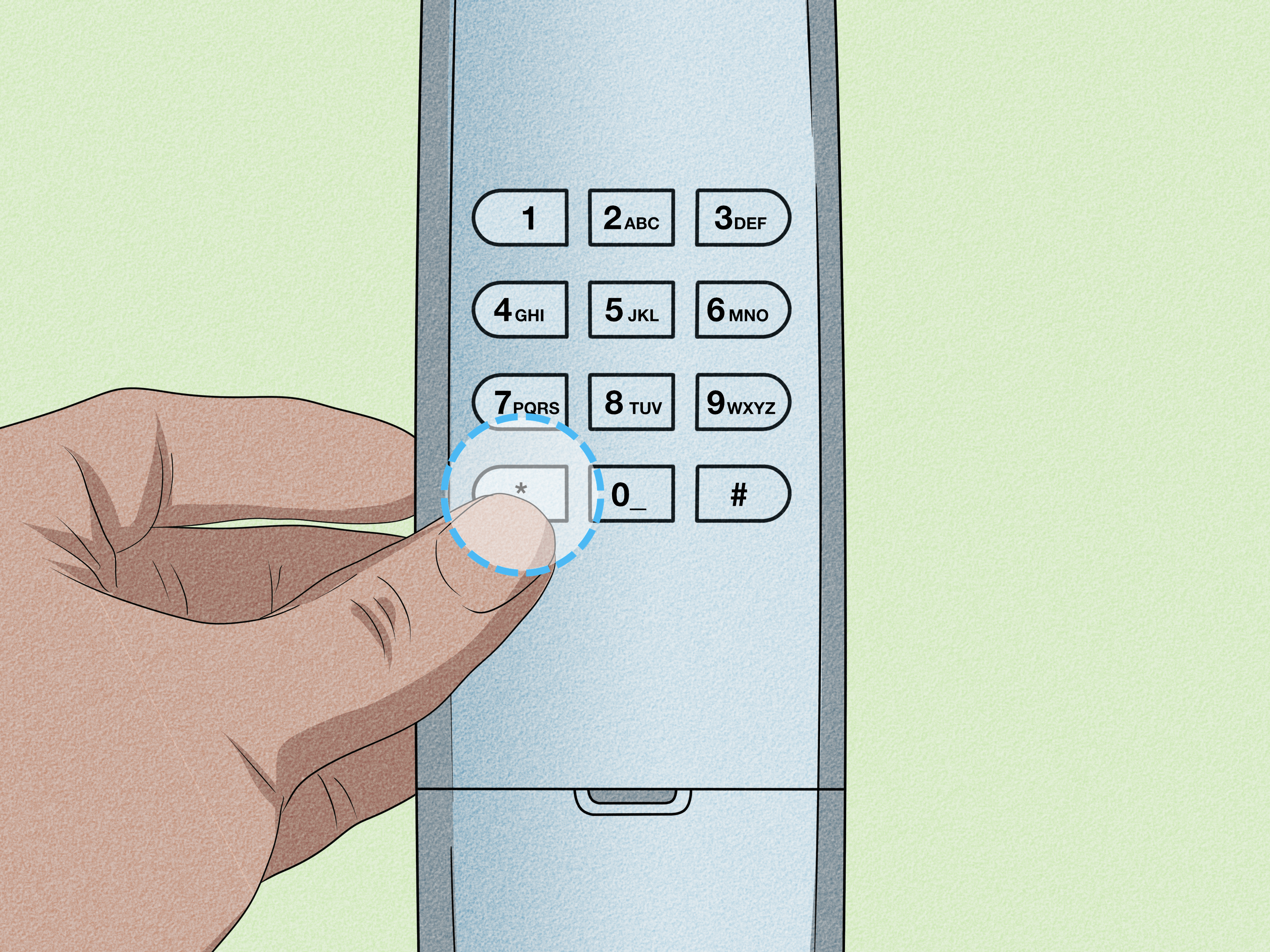
How to Program a Chamberlain Wireless Keypad
A wireless keypad lets family members enter the garage without carrying a remote. It is particularly useful when walking the dog, going for a run, or discovering that your house keys are relaxing comfortably on the kitchen counter.
- Choose a four-digit PIN that authorized users can remember but strangers cannot easily guess.
- Press and release the Learn button on the garage door opener.
- Within 30 seconds, enter the four-digit PIN on the keypad.
- Press and hold the ENTER button.
- Release ENTER when the opener lights flash or you hear two clicks.
- Wait several seconds, then test the keypad by entering the PIN and pressing ENTER.
Some Chamberlain wall controls also allow keypad programming from inside the garage. On compatible controls, pressing the wall control’s Learn button twice places the opener in keypad-programming mode. You can then enter the PIN and press ENTER. Chamberlain’s 940EV instructions use the motor-unit method and specify completing the keypad entry within the programming window.
Tips for Choosing a Keypad PIN
Avoid obvious codes such as 1111, 1234, your street number, or a birth year displayed on social media. Do not write the code directly on the keypad cover, unless your home-security strategy is based on generosity.
Change the PIN when a contractor, tenant, former employee, or previous homeowner should no longer have access. Some compatible keypads also support temporary access codes for guests or service providers.
How to Program a Chamberlain Opener with a Wall Control
Selected Chamberlain wall controls have a built-in Learn button or digital menu. This allows you to program a remote without climbing to the ceiling-mounted motor.
- Locate the Learn button or programming menu on the wall control.
- Press and release the Learn button twice if instructed by your control model.
- Press and hold the button on the remote that you want to program.
- Release it when the opener light flashes or two clicks are heard.
- Test the remote from outside the garage.
If your wall control has only a large door button and a light button, it may not support accessory programming. Use the Learn button on the motor unit instead.
How to Program HomeLink to a Chamberlain Garage Door Opener
HomeLink is built into many vehicles, typically in the mirror, overhead console, visor, or dashboard. Because most newer Chamberlain openers use rolling-code technology, HomeLink programming commonly has two stages.
Stage 1: Train the Vehicle
- Park the vehicle outside the garage.
- Install a fresh battery in the handheld Chamberlain remote.
- Turn the vehicle ignition on if required by the owner’s manual.
- Hold the handheld remote about one to three inches from the HomeLink buttons.
- Press and hold the desired HomeLink button and the handheld remote button simultaneously.
- Release both when the HomeLink indicator changes from slow flashing to rapid flashing or solid illumination.
Stage 2: Pair the Rolling Code
- Press and release the Learn button on the Chamberlain opener.
- Return to the vehicle within the required programming period.
- Press and release the trained HomeLink button.
- Repeat the press-and-release action up to three times if necessary.
- Test the programmed vehicle button.
HomeLink recommends using the vehicle owner’s manual as the primary reference because button locations and ignition requirements vary by model. Its general instructions also advise parking outside, clearing the door area, and using a stable ladder rather than standing on the vehicle.
How to Connect a Chamberlain Opener to myQ
Many Chamberlain openers include myQ connectivity, allowing homeowners to check door status and control compatible equipment through a smartphone app.
- Download the current myQ app and create or sign in to your account.
- Stand near the garage door opener with Bluetooth and Wi-Fi enabled on your phone.
- Select the option to add a device.
- Choose the appropriate garage door opener, hub, keypad, or video product.
- Scan the product QR code when prompted.
- Place the opener or accessory into Wi-Fi or programming mode as directed by the app.
- Select your home network and complete the connection prompts.
- Name the garage door and test its status and controls.
Do not assume every Chamberlain product uses the same setup path. A built-in Wi-Fi opener, Smart Garage Hub, video keypad, and newer Security+ accessory may each have a different workflow. Current Chamberlain support directs users through product-specific myQ screens and QR-code prompts. A weak garage Wi-Fi signal can also interrupt setup or cause the opener to appear offline later.
How to Erase Remotes and Keypads
You should erase the opener’s stored accessory memory after losing a remote, moving into a new home, experiencing unexplained door activity, or ending access for a former resident.
- Locate the Learn button on the motor unit or compatible wall control.
- Press and hold the Learn button for approximately six seconds.
- Release the button when the indicator LED turns off.
- Test an old remote to confirm that it no longer operates the door.
- Reprogram every remote, keypad, and vehicle control that should continue working.
Holding the Learn button is different from briefly pressing it. A quick press opens the accessory-programming window; holding it until the LED turns off clears stored access codes. Erasing the memory normally removes all paired remotes and keypads rather than one selected device, so gather the accessories you want to restore before beginning.
Troubleshooting Chamberlain Programming Problems
The Remote Does Nothing
Replace the battery and confirm that it is installed in the correct direction. Check whether the remote’s indicator light illuminates when pressed. Then verify that the accessory is compatible with the opener’s model and Learn button color.
Repeat the process while standing closer to the motor unit. Programming mode expires quickly, so a second person can press the Learn button while you operate the remote.
The Wall Button Works, but the Remote Does Not
Check the wall control’s Lock or Vacation feature. When lock mode is active, handheld remotes may be disabled while the wired wall button continues to operate the door. A depleted remote battery, lost programming, or an incompatible transmitter can produce the same symptoms.
The Remote Works Only at Very Close Range
Replace the remote battery first. If the problem remains, test the opener after temporarily removing nearby LED bulbs. Some LED bulbs emit radio-frequency noise that interferes with garage door remote signals. Use bulbs specifically recommended for garage door opener environments.
The Opener Will Not Accept Another Device
The programming window may have expired, the remote may be using the wrong universal setting, or the opener’s accessory memory may be full. Some systems automatically remove the oldest stored device when a new one is added. Clearing the memory and carefully reprogramming the required accessories can provide a clean start.
The Light Flashes, but the Door Will Not Close
This is usually not a remote-programming problem. Inspect the safety sensors near the bottom of the door tracks. Remove objects, clean the sensor lenses, and confirm that both sensors are aligned and receiving power. Sunlight, damaged wiring, or a loose sensor can also interrupt the safety circuit. Never bypass the sensors simply to make the door close.
Garage Door Opener Safety Rules
- Keep children and pets away while testing the door.
- Store remotes where children cannot use them as toys.
- Never walk or drive under a moving garage door.
- Do not stand on a vehicle to reach the opener.
- Use a stable ladder on a clean, level floor.
- Do not adjust torsion springs, extension springs, or lifting cables yourself.
- Test the photoelectric sensors and automatic reversal system regularly.
- Watch the door until it closes completely.
- Call a qualified garage door professional if the door is unusually heavy, crooked, noisy, or mechanically damaged.
U.S. safety requirements for residential garage door operators address entrapment risks, while industry guidance emphasizes keeping controls away from children and maintaining functional reversing systems. UL 325 covers safety concerns associated with powered door operators, and both the Consumer Product Safety Commission and DASMA warn against careless operation around a moving garage door.
Frequently Asked Questions
How long does it take to program a Chamberlain garage door opener?
A standard remote or keypad can often be programmed in less than five minutes. HomeLink and myQ setup may take longer because they involve additional vehicle, Wi-Fi, or app steps.
Can I program more than one remote?
Yes. Most Chamberlain openers can store multiple compatible accessories. Program each remote separately. The exact capacity depends on the opener model and accessory type.
Will unplugging the opener erase the remotes?
Normally, no. Stored programming generally remains in memory after a temporary power loss. Use the Learn button’s memory-clearing procedure when you intentionally want to remove paired accessories.
Can one remote control multiple garage doors?
A multibutton remote can often control several compatible openers. Program a different remote button to each motor unit.
Why did another remote stop working after I programmed a new one?
You may have accidentally held the Learn button long enough to erase the memory, or the accessory memory may have reached its limit. Reprogram every authorized remote and keypad.
Real-World Experiences When Programming a Chamberlain Opener
The most common homeowner experience is not that programming is technically difficult. The real challenge is that the task combines a ladder, a short countdown, several similar-looking buttons, and instructions that may have been stored in a “safe place” sometime during the previous presidential administration.
Consider a typical remote-replacement situation. A homeowner buys a Chamberlain remote, climbs the ladder, finds the yellow Learn button, and presses it. Nothing happens when the new remote is tested. After several attempts, the cause turns out to be timing: the homeowner spent most of the programming window climbing down, stepping around a bicycle, and opening the remote package again. Having another person press the remote immediately after the Learn button solves the problem in seconds.
Another common experience occurs after moving into a house. The existing remotes work, but nobody knows how many former owners, neighbors, contractors, or relatives still have access. The safest approach is to erase the opener’s memory and reprogram only the devices currently in use. This takes a little longer because every remote, keypad, and HomeLink button must be paired again, but it restores control over who can operate the door.
Keypad programming creates its own memorable moments. A family may successfully enter a new PIN, celebrate, close the garage, and then discover that nobody remembers the number. Choosing a memorable but nonobvious code before climbing the ladder prevents this. Testing the keypad twice while another entrance remains unlocked is also wise. Locking yourself outside immediately after installing keyless entry is a form of irony best enjoyed in television comedies.
HomeLink pairing often feels successful after the first stage because the vehicle indicator flashes exactly as expected. However, the door still does not move. This usually means the vehicle learned the handheld remote’s signal but has not completed the rolling-code handshake with the opener. Pressing the motor unit’s Learn button and completing the second stage usually resolves the mystery.
Smart setup introduces a different category of frustration. The opener may pair correctly with the remote but refuse to connect to myQ because the garage receives a weak Wi-Fi signal. Standing beside the opener with a strong phone connection does not guarantee that the opener itself has a reliable connection. Moving the router, repositioning a mesh access point, or improving garage coverage may make the setup work immediately.
Then there is the deceptive short-range problem. The remote works beside the garage but not from the driveway, leading the homeowner to reprogram it repeatedly. Replacing the battery may help, but radio interference from an unsuitable LED bulb can also reduce range. Removing the bulb temporarily is a fast diagnostic test that can save a great deal of unnecessary button pressing.
The best overall experience comes from preparing before starting: photograph the opener label, identify the Learn button color, confirm remote compatibility, install fresh batteries, keep the manual or app open, and clear the door area. These small steps turn the project from electronic detective work into a quick, predictable home-maintenance task.
Conclusion
Programming a Chamberlain garage door opener generally comes down to three actions: place the opener in learning mode, send a signal from the compatible accessory, and wait for confirmation. The same principle applies to handheld remotes, wireless keypads, and rolling-code vehicle controls, although the exact button sequence varies by model.
Identify your opener before beginning, press rather than hold the Learn button during normal pairing, and use the memory-clearing procedure when security requires a complete reset. When programming fails, check compatibility, batteries, timing, lock mode, Wi-Fi strength, and radio interference before assuming the opener needs repair.
Most importantly, keep the doorway clear and test every control carefully. A properly programmed opener should provide convenient access without sacrificing the safety systems that protect people, pets, vehicles, and whatever cardboard box has chosen to live beside the sensor.
Note: Programming sequences can change between Chamberlain models, remote generations, wall controls, and myQ accessories. Confirm the model number and follow the product manual or current in-app instructions whenever they differ from this general guide.













