There are few things more satisfying than gathering friends in one room, opening Age of Empires II HD, and realizing the only thing standing between you and medieval glory is a pile of snacks and someone who keeps forgetting to build houses.
A LAN game lets nearby players compete or cooperate through the same local network. In Age of Empires II HD, the process is slightly different from the old-school “plug in a cable and conquer Europe” method. You still play locally, but you generally need to sign in through Steam and create the multiplayer lobby online first. Once everyone joins from the same local network, the game can use the local connection for the match.
This guide walks through the entire process in 12 practical steps, including preparation, lobby setup, troubleshooting, and a few survival tips for preventing your LAN party from turning into a diplomatic incident before the Feudal Age.
What You Need Before Starting
Before launching a LAN match in Age of Empires II HD, make sure every player has a working installation of the same game version. Everyone should be using Age of Empires II: HD Edition, not the original CD version and not Age of Empires II: Definitive Edition. Those editions use different multiplayer systems, menus, updates, and compatibility rules.
You will also need a shared local network. That can be a home router, a portable router, a switch, or the same Wi-Fi network. Wired Ethernet is usually more stable than Wi-Fi, especially if four people are trying to launch a cavalry rush while another person is streaming videos in the next room.
For the smoothest experience, each computer should have:
- A legitimate, updated Steam installation of Age of Empires II HD.
- An active Steam account signed in normally.
- The same available expansions, mods, and game version as the other players.
- Access to the same local router or network.
- Windows Firewall permission for Steam and the game.
How to Play a LAN Game in Age of Empires 2 HD: 12 Steps
Step 1: Confirm That Everyone Is Using Age of Empires II HD
Start by checking the exact version on every computer. This guide is for Age of Empires II: HD Edition, commonly called AoE2 HD or AoE II 2013. Do not mix it with the original Age of Kings, The Conquerors, or the newer Definitive Edition.
Why does this matter? Because medieval empires may survive invasions, famine, and suspiciously aggressive monks, but they do not survive mismatched game clients. If one player launches a different edition, the lobby may not appear at all.
Step 2: Update the Game on Every Computer
Open Steam on each computer and allow it to finish any pending updates. Matching game files are essential for multiplayer stability. If one player has an outdated version or a missing update, the group may encounter connection failures, lobby errors, or a match that starts only to collapse faster than a town center without villagers.
It is also wise to disable or unsubscribe from unusual gameplay mods before the LAN session. Cosmetic mods are usually less troublesome, but gameplay-changing mods, custom data files, and different map packs can create compatibility problems.
Step 3: Make Sure Every Player Has the Same Required Expansions
Before creating the lobby, decide what content your group will use. If the host selects a civilization, campaign feature, map, or game setting connected to an expansion that other players do not own, someone may be unable to join or launch the match.
The simplest option is to use standard settings available to everyone. If your group owns the same HD expansions, confirm that all players have them installed. A quick check before the session can save you from spending 20 minutes debating whether the problem is the router, Steam, Windows, or Dave’s mysterious mod collection.
Step 4: Connect Every Computer to the Same Local Network
All players need to connect to the same local internet connection. In practical terms, that means the computers should use the same router, switch, or Wi-Fi network. The official AoE II HD guidance explains that players must join the match normally while connected to the same local connection; once everyone is in the game, the connection automatically becomes local.
For best results, use Ethernet cables whenever possible. Wi-Fi can work, but crowded wireless networks may create lag, dropped connections, or the classic situation where one player insists they are winning because “the game froze right before my attack landed.”
Step 5: Check Steam Status and Turn Off Offline Mode
AoE2 HD uses Steam’s multiplayer system to create and join lobbies. Each player should be signed into Steam and visible as online. Do not use Steam Offline Mode when setting up the session.
If a friend is showing as offline even though they are sitting directly across the table from you, check Steam’s Friends settings and account status. Also make sure Family View is not restricting multiplayer features. In some reported HD multiplayer cases, Family View prevented players from appearing correctly to friends until it was disabled.
Step 6: Set the Network Profile to Private
Windows treats private and public networks differently. For a trusted home network or temporary LAN party network, set the connection to Private. This makes it easier for devices and permitted apps to communicate locally.
On Windows 10 or Windows 11, open Settings, go to Network & Internet, choose your connected Wi-Fi or Ethernet network, and select Private under the network profile options. A private network is appropriate only when you trust the router and the people connected to it.
Step 7: Allow Steam and Age of Empires II HD Through Windows Firewall
Do not immediately turn off your firewall just because a lobby is acting moody. A better approach is to allow the relevant programs through Windows Firewall on private networks.
Open Windows Security, select Firewall & network protection, then choose Allow an app through firewall. Confirm that Steam and Age of Empires II HD are allowed on private networks. Microsoft recommends allowing specific trusted apps rather than broadly weakening firewall protection.
If you use third-party antivirus software with its own firewall, check that it is not blocking Steam or the game. You do not need to transform your computer into an unguarded medieval village; you simply need to permit the correct programs.
Step 8: Launch Age of Empires II HD from Steam
Once everyone is connected, updated, and signed in, launch Age of Empires II HD through Steam. Give the game a moment to connect to multiplayer services before trying to host or join a match.
If the multiplayer menu does not load, restart Steam first. If that does not work, restart the game. This may sound like the oldest support advice in the kingdom, but it remains surprisingly effective. Even kings reboot their castles occasionally.
Step 9: Open Multiplayer and Create a New Game
The host should select Multiplayer from the main menu and create a new game or lobby. Depending on the current interface and installed content, the exact wording may vary slightly, but the goal is the same: create a standard multiplayer room that friends can join.
Give the room an obvious name, such as:
- Friday LAN Battle
- No Rush Until Castle Age
- Definitely Not a 4v1 Against Chris
A clear lobby name prevents everyone from joining the wrong room and accidentally entering a match with strangers who have already perfected their Dark Age build order.
Step 10: Choose the Match Settings
Before inviting players, configure the match rules. Select the map, population limit, game speed, resources, victory condition, teams, civilizations, and any special settings your group wants.
For a relaxed LAN game, try these beginner-friendly settings:
- Map: Arabia, Black Forest, Arena, or a custom favorite.
- Game Type: Standard or Regicide.
- Starting Resources: Standard for traditional play, High for faster chaos.
- Game Speed: Normal.
- Population Limit: 200.
- Teams: Locked teams for friendly 2v2 or 3v3 matches.
If your group includes beginners, avoid overly competitive settings during the first round. A match is more fun when everyone gets to build an empire instead of discovering, three minutes in, that their town center has been surrounded by scouts.
Step 11: Have Friends Join the Lobby Normally
All other players should open the multiplayer browser and look for the host’s game. They can also join through Steam friend invitations when available. Once everyone joins from the same local network, AoE2 HD should automatically use the local connection for the match rather than relying on distant internet routing.
If the room does not appear, ask the host to make the game visible to friends or public with a password. Then refresh the lobby browser. Make sure every player is connected to the same router and signed into Steam.
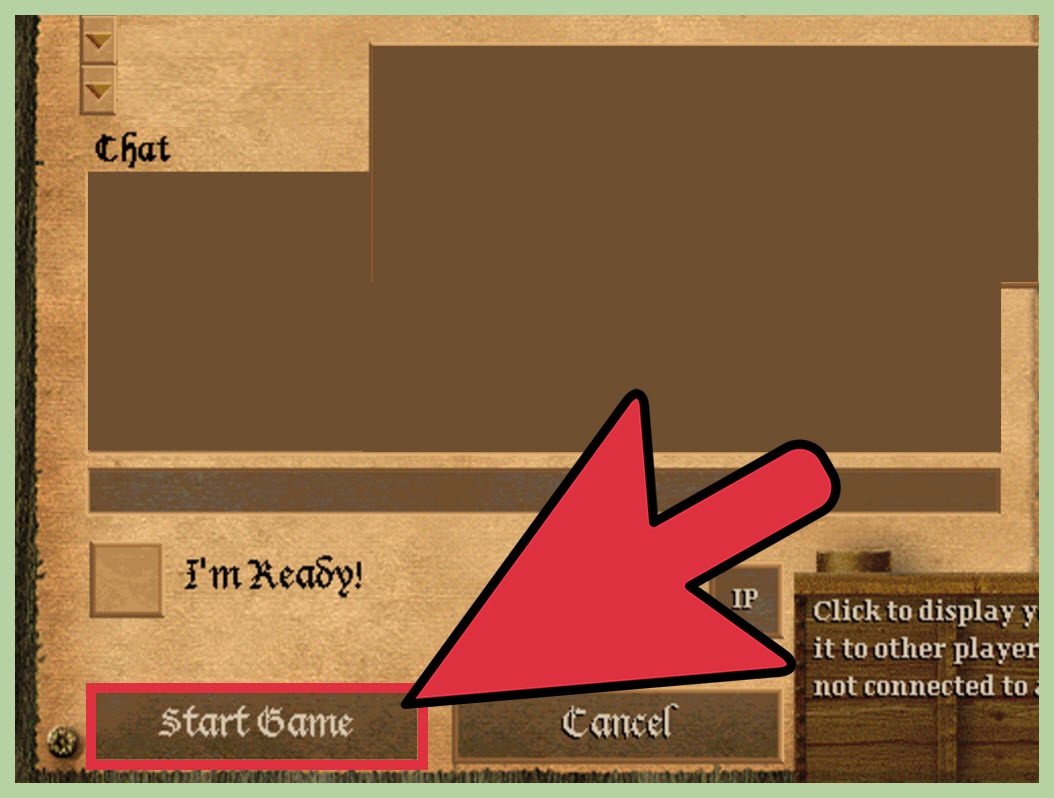
Step 12: Confirm the Lobby, Select Teams, and Start the Match
Before clicking Start Game, make sure every player is in the correct slot and has selected a civilization or random civilization. Confirm teams, colors, and game settings one last time.
Then start the game and enjoy the most important LAN party tradition of all: loudly accusing your friends of cheating when they somehow reach Castle Age before you have figured out where your sheep went.
Common AoE2 HD LAN Problems and Fast Fixes
The Lobby Does Not Appear
First, confirm that every player is on the same local network. A guest network can block devices from seeing one another, even when the Wi-Fi name looks similar. Make sure nobody is connected to a guest SSID, mobile hotspot, VPN, or separate router.
Next, verify that Steam is online for every player. AoE2 HD requires the normal multiplayer lobby process to establish the game, even when the actual players are in the same room.
One Player Cannot Join
Check that the affected player has the same game version, updates, expansions, and compatible mods. Then review their firewall permissions. Windows Firewall can allow trusted programs through private networks without requiring you to disable security entirely.
Restarting Steam and the game on the affected computer is often worth trying. If the problem continues, have the host recreate the room with a new name and password.
The Game Is Lagging Despite Being on LAN
Move players from Wi-Fi to Ethernet if possible. Pause downloads, cloud backups, streaming services, and large file transfers. A local game can still stutter if one computer has weak Wi-Fi, heavy background traffic, or a processor that is working harder than a villager assigned to three different resource types.
The Game Starts but Desynchronizes
Desync problems often point to mismatched versions, different mods, damaged files, or conflicting custom content. Verify the game files through Steam, remove nonessential mods, and restart the lobby. If everyone uses the same clean installation, the match should be more stable.
Best LAN Match Ideas for Age of Empires II HD
A LAN match is more entertaining when the group agrees on the mood before the first villager appears. Competitive friends may want classic ranked-style maps and strict rules. Casual groups may prefer high resources, team games, diplomacy matches, or ridiculous custom scenarios.
Try one of these formats:
- 2v2 Arabia: Fast, open, and perfect for friendly trash talk.
- Black Forest Team Game: Ideal for long games, walls, trade carts, and suspiciously large armies.
- Free-for-All Arena: Great for players who promise peace while quietly stockpiling siege weapons.
- Regicide: Protect the king or prepare for dramatic betrayal.
- High Resource Chaos: Best for beginners, parties, and anyone who wants castles before lunch.
LAN Party Experience: What Makes Age of Empires II HD So Memorable
Playing Age of Empires II HD over a LAN is not only about getting a lower-latency match. It is about the strange magic that happens when every player is physically in the same room. Online games are convenient, but LAN games turn every decision into a live event. You can hear the keyboard panic when someone realizes their economy has no wood. You can watch a friend confidently announce an attack and then immediately discover that their army has marched into a wall.
The best LAN sessions usually begin with confidence and end with excuses. At the start, everyone has a plan. One person has memorized a build order. Another says they will “just play casually,” which often means they have secretly practiced the Franks for two weeks. A third player claims they have not played in years, then somehow has a castle up before anyone else has researched Loom.
For beginners, the LAN environment can be much less intimidating than online matchmaking. Friends can pause briefly to explain what happened, point out useful hotkeys, or help someone understand why villagers should not all be assigned to berries forever. You can teach basic habits in real time: keep creating villagers, avoid population caps, scout early, build houses before the warning appears, and do not send every military unit on a heroic but doomed solo mission.
Team games are especially fun because they create instant cooperation. One player may focus on food and cavalry, another may build archers, and someone else may spend the entire match building walls so elaborate that they qualify as a historical landmark. The strategy is only part of the entertainment. The conversations matter too: warnings about incoming raids, requests for gold, declarations of revenge, and the inevitable question, “Who left this tiny opening in the wall?”
LAN games also make diplomacy more theatrical. In a free-for-all match, players can look each other directly in the eye and promise not to attack. Then, ten minutes later, a group of knights appears outside a town center. Suddenly, the room becomes a courtroom, and everyone is presenting evidence that the betrayal was “technically justified.”
Preparation improves the experience. Have everyone update the game before arriving. Bring Ethernet cables if possible. Decide whether the session is casual, competitive, or a complete circus before starting. It also helps to agree on basic rules, such as whether rushing is allowed, whether teams are locked, and whether everyone should choose random civilizations. Those small decisions prevent arguments and keep the match focused on what matters: trying to outsmart your friends with tiny armies, big plans, and absolutely unreasonable amounts of trebuchets.
Most importantly, do not measure a LAN game only by who wins. The memorable moments are usually the disasters: the accidental deletion of a town center, the ally who forgets their gate is open, the teammate who sends sheep to the enemy, or the player who builds a wonder and immediately announces it loudly enough for everyone to hear. Those are the stories people remember long after the final score screen disappears.
Conclusion
Setting up a LAN game in Age of Empires II HD is straightforward once every player is connected to the same local network, signed into Steam, using compatible game files, and able to access the multiplayer lobby. Create the match normally, have nearby friends join, confirm the settings, and let the game switch to a local connection.
With a stable network, matching versions, and a little patience, your group can spend less time troubleshooting and more time building empires, trading resources, launching raids, and discovering which friend becomes unexpectedly ruthless after researching Siege Engineers.
Note: This guide applies specifically to Age of Empires II: HD Edition. The newer Definitive Edition uses a different multiplayer interface and LAN setup process.