
Earthquakes are the ultimate uninvited guests: they show up whenever they want, make a mess, and leave without saying goodbye.
The good news? Your iPhone can give you a heads-upsometimes just a few seconds, but that can be the difference between
“I calmly got under a sturdy table” and “I dramatically became a human pinball.”
In this guide, you’ll learn two easy ways to enable earthquake alerts on an iPhone:
(1) Apple’s built-in Earthquake Alerts (part of Enhanced Safety Alerts on newer iOS versions), and
(2) a trusted ShakeAlert-powered app option commonly used on the U.S. West Coast.
Along the way, we’ll cover what these alerts actually are, when they work, and how to make sure you don’t sleep through
a notification that’s basically your phone yelling, “MOVE YOUR FEET!”
Quick Reality Check: What “Earthquake Alerts” Mean on iPhone
In the United States, earthquake notifications can come from a couple different pipelines:
-
Apple’s Enhanced Safety Alerts (Earthquake Alerts) delivered by Apple over Wi-Fi/cellular data on supported iOS versions,
designed to warn you about emergencies like earthquakes (and it can present different alert levels based on severity and proximity). -
Wireless Emergency Alerts (WEA) short, geographically targeted alerts sent by authorized public safety agencies
through your wireless carrier (the same system family as AMBER alerts and other urgent warnings). -
ShakeAlert-powered mobile apps especially relevant on the West Coast, where ShakeAlert earthquake early warning is available.
Apps can add customization and extra context.
You don’t have to choose just one. In fact, the safest setup is usually “belt + suspenders + an extra belt,” meaning:
turn on Apple’s built-in Earthquake Alerts and keep your emergency/government alerts enabled, then add an app if you’re in a region where it helps.
Way 1: Turn On Apple’s Built-In Earthquake Alerts (Enhanced Safety Alerts)
If you want the simplest “set it and forget it” option, start here. Apple’s iPhone settings include Enhanced Safety Alerts,
whichon supported devicesincludes Earthquake Alerts.
Step 1: Make sure you’re on a compatible iOS version
Apple states that Enhanced Safety Alerts are available in the United States and require iOS 26.2 or later.
If you’re not sure what you’re running, go to Settings > General > About and check “iOS Version.”
If you’re behind, update via Settings > General > Software Update.
Step 2: Enable Earthquake Alerts
- Open Settings.
- Tap Notifications.
- Scroll all the way to the bottom (yes, past everything).
- Under Enhanced Alerts, tap Enhanced Safety Alerts.
- Tap Earthquake Alerts and make sure it’s turned On.
Apple notes that Earthquake Alerts are on by default (and “Improve Alert Delivery” is off by default),
but it’s still worth checkingbecause phones are like kitchens: someone always changes a setting and swears they didn’t.
Step 3 (Optional but smart): Turn on “Improve Alert Delivery”
In the same Enhanced Safety Alerts screen, you may see Improve Alert Delivery.
When enabled, Apple says your approximate location may be shared with Apple to help improve timeliness and reliability,
and Apple says it does not store that approximate location data.
Translation: if you’re in a high-risk region, enabling this can help alerts land faster and more reliably.
What you’ll see when it works: Apple’s bi-level earthquake alerts
Apple describes a bi-level system:
-
Awareness Alert: “Heads upsomething was detected nearby.” It’s basically your iPhone saying,
“You might want to stop balancing that open soda on your laptop.” -
Action Alert: A more urgent alert labeled as critical when strong shaking is expected in your area.
This is the one where you don’t debate; you do the safety steps immediately.
Don’t skip this: Keep Government/Emergency alerts enabled too
Even with Apple’s Enhanced Safety Alerts, you’ll want your iPhone’s carrier-based alerts enabled because local authorities may also issue warnings.
Apple also notes that if Government Alerts are enabled and issued by local authorities via carrier networks, you might receive them
in addition to Enhanced Safety Alerts.
- Go to Settings > Notifications.
- Scroll to the bottom to Government Alerts.
- Make sure the relevant toggles (like Emergency Alerts and Public Safety Alerts, if available) are turned on.
Note: Apple explains Government Alerts depend on a supported carrier/SIM/eSIM, and some government alerts can’t be turned off in certain regions.
In the U.S., there’s also a Test Alerts option (off by default) used for official testing in some areas.
Way 2: Add a Trusted Earthquake Early Warning App (Best for the U.S. West Coast)
If you live, work, travel, or road-trip around the West Coast, an extra layer can be helpfulespecially because
the U.S. public earthquake early warning system, ShakeAlert, is focused on California, Oregon, and Washington.
That’s also where many phone-based early warnings and app features are most relevant.
Why an app can help (even if you already enabled Apple’s alerts)
- Extra control: app-level settings for sounds, locations, and notifications.
- More context: safety tips, maps, and educational info.
- Backup channel: redundancy is your friend when it comes to urgent alerts.
Recommended example: MyShake (ShakeAlert-powered)
One widely cited option is MyShake, developed with UC Berkeley and partnered with ShakeAlert.
The app is free and is designed to deliver ShakeAlert-powered earthquake early warnings in
California, Oregon, and Washington. It also includes preparedness tips and earthquake information features.
How to set up MyShake on iPhone (clean, practical steps)
- Install the app from the App Store (search “MyShake Earthquake Alerts”).
-
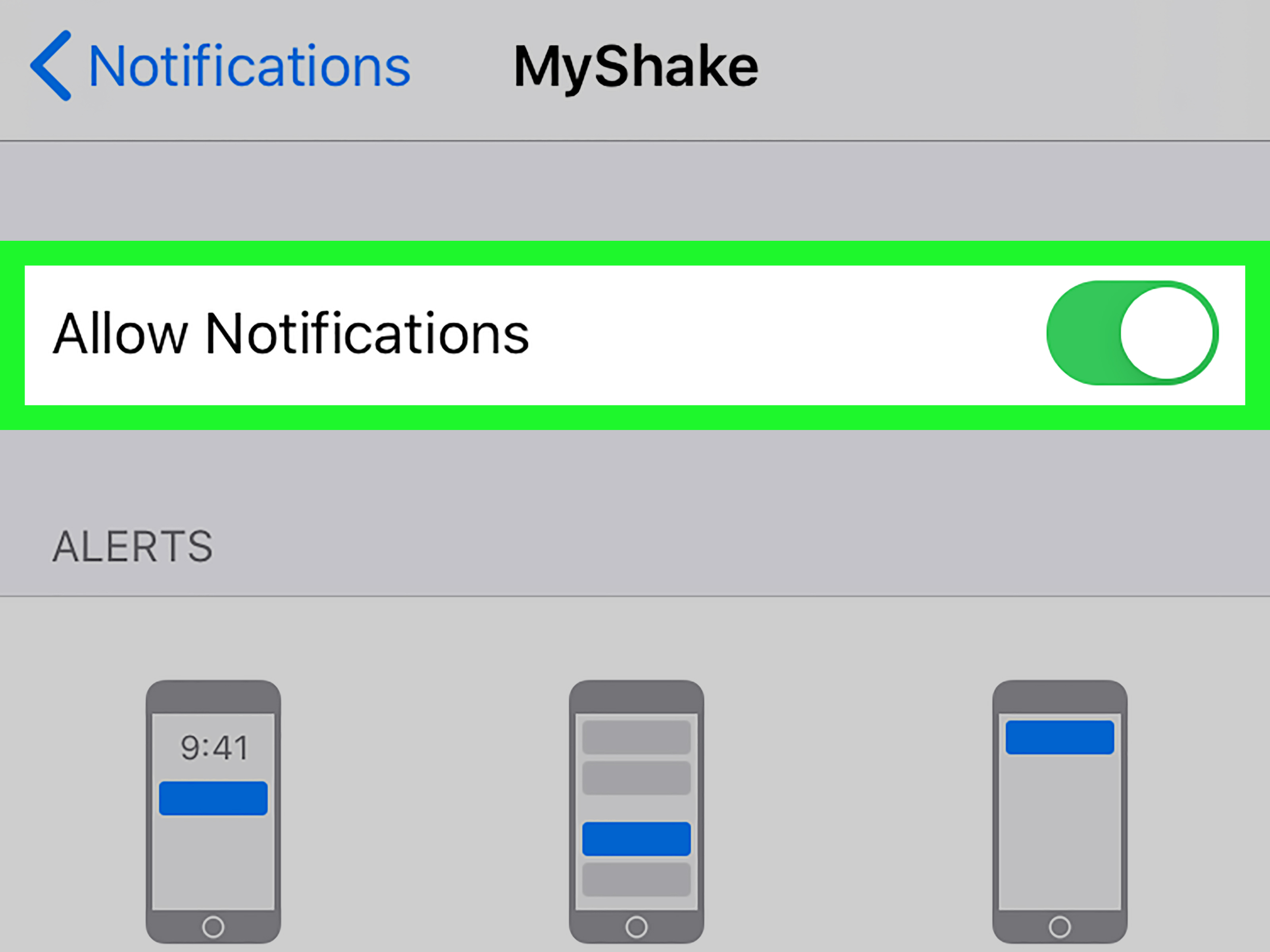
Allow notifications when prompted. If you tapped “Don’t Allow” in a moment of chaos:
go to Settings > Notifications > MyShake and turn on Allow Notifications. -
Enable location access if the app requests it, so it can determine whether you’re in an alert area.
(Many alert systems are location-dependent by design.) -
Check your iPhone Focus modes (Do Not Disturb/Sleep/Work). If you use Focus heavily,
make sure the app is allowed to notify you, or you may only see the alert when you wake upaka “post-earthquake.” -
Do a “practice check”: confirm you can hear your phone and feel vibration.
Earthquake warnings are not the time for stealth mode.
What to expect from ShakeAlert-style warnings
ShakeAlert detects significant earthquakes quickly enough that alerts can sometimes reach people seconds before strong shaking arrives.
Those seconds are designed for quick protective actionsthink: drop, cover, and hold on; move away from windows; secure what you can if you have time (usually you don’t).
Important: Early warning isn’t magic; it’s physics and distance. If you’re very close to the epicenter, you may get little or no warning.
If you’re farther away, you may get more time. The goal is to reduce injuries and improve response, not to predict earthquakes days in advance.
Make Sure You Actually Hear the Alert: Settings That Matter
1) Don’t rely on Silent Mode alone (and don’t assume your phone will “just know”)
Many emergency alert types are designed to be loud and attention-grabbing. But app notifications can still be affected by your normal notification setup,
including Focus modes and notification permissions. Do a quick audit:
- Settings > Notifications: confirm alerts are enabled at the bottom for Government/Enhanced Safety Alerts.
- Settings > Focus: ensure alerts/apps aren’t silenced into oblivion.
- Settings > Sounds & Haptics: keep ringer/haptics reasonable if you want to feel/hear urgent alerts.
2) Use “Local Awareness” if you see it
Apple’s guidance for emergency alerts also references Local Awareness (when available),
which can help tailor alerts based on where you are. If your device shows that option under emergency alert settings, it’s generally worth enabling.
3) Cellular and Wi-Fi matter
Carrier-based WEA alerts are delivered through the wireless network system, while Apple’s Enhanced Safety Alerts are sent over Wi-Fi and cellular data when available.
If you’re in Airplane Mode, have no service, or are in a dead zone, alerts may be delayed or not arrive at all.
The goal is to maximize your odds across different delivery methods.
FAQ: Common Questions (and Calm Answers)
Do iPhones in the U.S. have a dedicated “Earthquake Alerts” toggle?
Yeson supported versions. Apple’s documentation describes Earthquake Alerts as part of
Enhanced Safety Alerts in the United States, requiring iOS 26.2 or later.
If you don’t see it, update iOS and scroll to the very bottom of Notifications.
Are WEA alerts the same as Apple’s Earthquake Alerts?
Not exactly. WEA alerts are issued by authorized public safety agencies and delivered through carriers; Apple’s Enhanced Safety Alerts are delivered by Apple
over data networks and can supplement government alerts. You may receive both, and that’s a good thing.
Will I get earthquake early warnings everywhere in the U.S.?
Earthquake risk exists in many parts of the country, but public earthquake early warning availability and implementation vary.
ShakeAlert is the primary public earthquake early warning system on the West Coast (CA/OR/WA).
Other regions may have different alerting strategies and different hazard profiles.
Can I turn these alerts off?
Many alert categories can be toggled in iPhone settings (depending on country/region rules).
However, some government alerts can’t be disabled in certain jurisdictions, and the most critical alert categories may be restricted by design.
The safer choice is typically to leave them on and manage how you receive them (sound/vibration/focus), rather than disabling them entirely.
Conclusion: Two Easy Ways, One Safer You
If you do nothing else today, do these two things:
(1) enable Apple’s Enhanced Safety Alerts > Earthquake Alerts (and consider Improve Alert Delivery),
and (2) add a trusted earthquake early warning app like MyShake if you spend time in
California, Oregon, or Washington.
Earthquake alerts won’t prevent shakingbut they can give you a crucial moment to protect yourself.
And honestly, in the world of earthquakes, a few seconds is basically a luxury suite.
Real-World Experiences: What Earthquake Alerts Feel Like (and How to React)
You’ll know your setup worked the first time your phone makes a sound that feels like it was designed by a committee whose only goal was:
“Make humans move immediately.” If you’ve never experienced an earthquake alert, here are a few realistic scenarios
(based on common reports and how these systems are intended to be used), so you’re not mentally buffering when it matters.
Scenario 1: The “I Thought It Was My Alarm” Alert
You’re half-awake. Your iPhone erupts with an urgent tone. Your brain says, “Nope, too early,” and your hand reaches to snooze it.
This is why earthquake alerts are intentionally startling.
If the alert is labeled as an “Action” type (or otherwise indicates strong shaking is expected), your best move is simple:
drop, cover, and hold on. Don’t try to decide if it’s “real enough.” Don’t run outside in panic.
Don’t stand in a doorway like it’s 1987 and you’re in a school drill.
Instead, get low, get under something sturdy if possible, cover your head/neck, and hold on until the shaking stops.
Scenario 2: The “Everyone’s Phone Goes Off at Once” Moment
You’re in a coffee shop. Suddenly, multiple phones chirp/scream at the same timelike a flock of robotic birds discovered fear.
That herd effect is actually helpful: it confirms you’re not hallucinating and prompts group action.
The key is not to stampede. If you can safely move away from big windows and unsecured shelves in a step or two, do it.
Otherwise, get low and protect your head. If you’re seated, stay seated and cover. If you’re standing, drop and cover where you are.
The “best” reaction is the one you can do immediately without creating new hazards.
Scenario 3: The “Nothing Happened…Yet” Alert
This one messes with people: you get the alert, you brace yourself, and then… silence. No shaking. No drama.
Here’s what’s happening: early warning is about incoming waves of shaking.
If you’re farther from the epicenteror the quake is smaller than expected at your locationyou might feel little to nothing.
That doesn’t mean the alert was “fake.” It means it did its job: it warned the region where shaking was expected.
Your move is to stay aware for a short window, avoid risky behavior (like running to a glass balcony for “the view”), and be ready to protect yourself.
Scenario 4: The “I Was Driving” Alert
If you’re driving and receive an alert, don’t slam the brakes in the middle of traffic like you just saw a ghost.
Instead, slow down safely, keep control of the vehicle, and avoid bridges/overpasses if possible.
If you can pull over to a safe spot (away from power lines and structures that could drop debris), do so gradually.
Earthquakes can affect roads, signals, and surrounding structuresso defensive driving beats dramatic driving every time.
Scenario 5: The “My Phone Didn’t Alert Me” Post-Quake Mystery
After a noticeable shake, someone always says, “My phone didn’t warn me!” If that’s you, don’t just shrug and move on.
Check the usual suspects: were you in Airplane Mode, out of service, or did Focus silence an app?
Are your Government Alerts toggles on? Are Enhanced Safety Alerts available on your iOS version?
Did you deny notification permission to the earthquake app three months ago during a busy day and forget?
A two-minute settings check now is worth itbecause the next quake will not wait for your schedule to clear.
Bottom line: alerts are a tool, not a prophecy. When they arrive, treat them like a smoke alarmact first, analyze later.
Then, once things are calm, you can do the adulting: check for injuries, look for hazards, and follow local guidance.












