
Location sharing on an iPhone is one of those features that feels simple until you own more than one Apple device. Then suddenly your family sees you “at home” because your iPad is relaxing on the couch, while you are actually across town wondering why everyone thinks you have mastered teleportation.
The good news is that Apple lets you choose which device provides your shared location. Whether you are moving from an old iPhone to a new one, switching from an iPad to your phone, or cleaning up your privacy settings, the process is straightforward once you know where Apple tucked the switch.
This guide explains how to change the device sharing your location on an iPhone, how to confirm that the right device is active, what to do when the option is missing, and how to keep your location-sharing settings under control without turning your digital life into a detective show.
What “Sharing From” Means in Find My
Before changing anything, it helps to understand what Apple means by the device that is sharing your location. This is the Apple device selected as the primary source of your location in the Find My network.
People who can see your location through Find My, Messages, Maps, or Family Sharing may see the position reported by that selected device. If your iPad is set as your location source and it stays at home, your shared location can appear to remain at home even when your iPhone is in your pocket halfway across town.
Changing the location-sharing device does not automatically add new people to your sharing list. It simply changes which Apple device represents your current location. Think of it as changing the microphone at a press conference, not inviting more reporters into the room.
Find My Device vs. Share My Location
These two settings sound similar, but they do different jobs:
- Find My iPhone helps you locate a lost Apple device, lock it, play a sound, or use Lost Mode.
- Share My Location lets approved friends, family members, and contacts see your location.
- Location Services controls whether apps and system features can access location information.
You can keep Find My enabled for a device while choosing a different Apple device as the source of the location you share with people. That distinction is important, especially when you own an iPhone, iPad, Apple Watch, and perhaps a Mac that has developed a stronger social calendar than you have.
How to Change Which Device Shares Your Location
The simplest method is to make the change directly on the device you want to use as your new location source. In other words, pick up the iPhone or iPad that actually travels with you most often.
Method 1: Change the Location-Sharing Device in Settings
- Unlock the iPhone or iPad you want to use as your new location-sharing device.
- Open Settings.
- Tap your name at the top of the screen.
- Tap Find My.
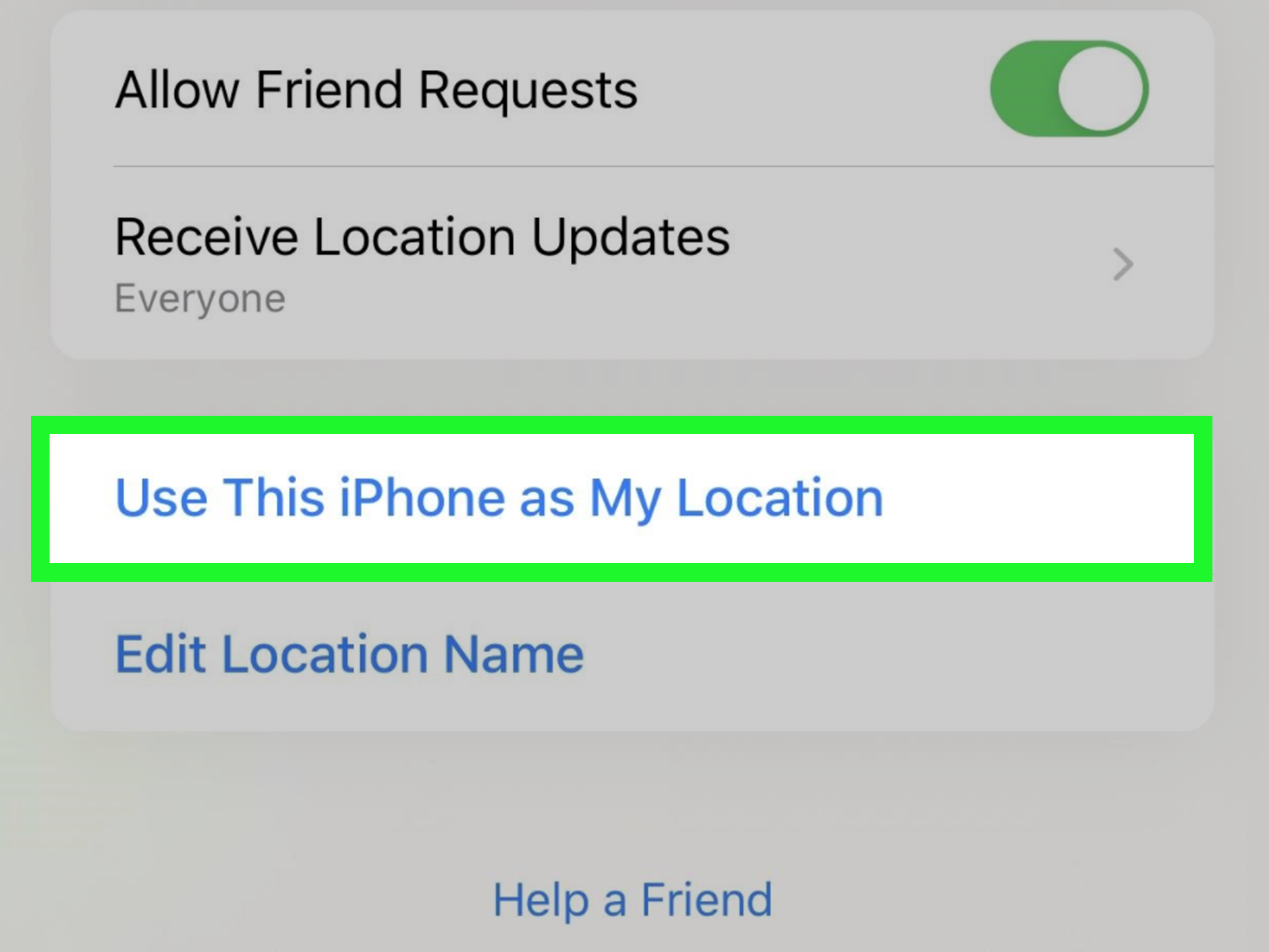
- Tap Use This iPhone as My Location or Use This iPad as My Location.
Once you select that option, the device becomes the primary source for your shared location. The wording may vary slightly depending on your device and iOS version, but it will clearly identify the device you are about to use.
Method 2: Change the Sharing Device in the Find My App
You can also make the switch inside the Find My app:
- Open the Find My app on the iPhone or iPad you want to use.
- Tap Me at the bottom of the screen.
- Make sure Share My Location is turned on.
- Look for Use This iPhone as My Location or a similar option.
- Tap it to make that device your active location source.
The Me screen is also useful because it shows the device currently listed under Sharing From. That is the fastest way to confirm which device is doing the location-sharing work.
How to Confirm Your iPhone Is Sharing the Right Location
After changing your sharing device, do a quick verification. Open Find My, tap Me, and look for the device listed beside Sharing From. If the name matches the iPhone in your hand, you are all set.
For an extra check, you can ask a trusted friend or family member who already has permission to view your location to refresh Find My. They should see your current position from the newly selected device.
Do not rely on an old location pin immediately after switching. Maps can take a moment to refresh, especially if the device has just connected to Wi-Fi or cellular service. Give it a few minutes before assuming your iPhone has joined a secret union for stubborn electronics.
When You Should Change the Device Sharing Your Location
There are several perfectly normal reasons to change your location-sharing device.
You Bought a New iPhone
When you upgrade to a new iPhone, your old phone may still be listed in your Apple Account for a while. After signing in to the new phone with the same Apple Account, set the new device as your location source so shared location updates come from the phone you actually carry.
Your iPad Is Accidentally Sharing Your Location
This happens more often than people expect. An iPad stays at home, remains connected to Wi-Fi, and quietly tells the world you have been sitting in the living room all afternoon. Switching to your iPhone fixes the issue.
You Travel With an iPhone but Leave Other Devices Behind
An iPhone is usually the best location-sharing device because it is more likely to stay with you. It has cellular connectivity, GPS capabilities, and a suspicious talent for appearing in your hand the moment you promise to stop checking it.
You Use an Apple Watch With Cellular
If your iPhone is paired with a GPS + Cellular Apple Watch, your location may be shared from the watch when your iPhone is out of range and the watch is on your wrist. This can be useful during walks, runs, or quick errands when you leave your phone behind.
What to Do If “Use This iPhone as My Location” Is Missing
If you cannot find the option to use your iPhone as your location source, work through the following checklist.
Make Sure You Are Signed In to the Correct Apple Account
Your iPhone and other Apple devices should be signed in to the same Apple Account if you want to switch the location-sharing source between them. Go to Settings and check the name and email address shown at the top.
Turn On Share My Location
Go to Settings > Your Name > Find My and make sure Share My Location is enabled. You can also check this in the Find My app by tapping Me.
Check Location Services
Find My needs location access to report your position accurately. Go to Settings > Privacy & Security > Location Services and make sure Location Services is turned on. Then check that Find My has permission to use location information.
While you are there, remember that app permissions and Find My sharing are not the same thing. Turning off location access for a weather app does not necessarily stop Find My from sharing your location with people you previously approved.
Check Your Internet Connection
Your iPhone needs a reliable connection to update location information in real time. Confirm that Wi-Fi or cellular data is working, and make sure Airplane Mode is not enabled. A device can still appear in Find My under some conditions through the Find My network, but location sharing may not refresh as quickly without a normal internet connection.
Restart and Update Your iPhone
If everything appears correct but the setting still refuses to cooperate, restart the device and check for a software update under Settings > General > Software Update. It is not glamorous advice, but restarting an iPhone has saved more settings than most people would like to admit.
How to Manage Who Can See Your Location
Changing the device that shares your location is only half of the privacy conversation. You should also review who has access to that location.
Stop Sharing With One Person
- Open Find My.
- Tap People.
- Select the person whose access you want to remove.
- Scroll down and tap Stop Sharing My Location.
This removes that person’s access to your shared location across Apple’s related location-sharing features. It is a cleaner solution than turning off every location setting on your phone and then wondering why Maps suddenly acts like it has never met you.
Stop Sharing With Everyone
To pause location sharing for everyone, open Find My, tap Me, and turn off Share My Location. Keep in mind that turning it back on may restore sharing with people you had previously approved, so review your People list afterward.
Review Family Sharing Settings
If you use Family Sharing, open Settings > Family > Location Sharing. From there, you can decide which family members can see your location and whether new family members should automatically receive access. Automatic sharing can be convenient, but convenience should not become a substitute for checking the guest list.
Use Safety Check When Privacy Is a Serious Concern
On iPhones running iOS 16 or later, you can use Safety Check by going to Settings > Privacy & Security > Safety Check. It lets you review sharing relationships, connected devices, app permissions, and other account access in one place.
Safety Check is especially useful when you need a broad privacy review rather than a one-person adjustment. It can help you understand who has access to your information without requiring you to hunt through every app like you are searching for one missing sock in a laundry room.
Important Privacy Tips for iPhone Location Sharing
Location sharing can be practical, reassuring, and occasionally essential. It can also reveal patterns about where you live, work, study, travel, and spend time. Treat it like sharing a house key: useful for trusted people, unnecessary for everyone else.
- Review your Find My People list regularly.
- Use time-limited sharing when you only need to share location for a short trip or meetup.
- Check Family Sharing permissions after adding or removing family members.
- Review apps that have access to your location under Privacy & Security settings.
- Turn off Precise Location for apps that only need a general area, such as some weather, shopping, or social apps.
- Keep Find My enabled on devices you own so you can locate them if they are lost.
One important rule: do not use a device-switching feature to create a misleading picture of where you are. The safest and healthiest use of location sharing is clear, consent-based communication with people you trust.
Frequently Asked Questions
Can I change my location-sharing device without changing who sees my location?
Yes. Changing the device that provides your location does not automatically add or remove people from your Find My sharing list. It changes the source device, while your sharing permissions remain separate.
Can I use my iPad as my location-sharing device?
Yes. If your iPad is signed in to your Apple Account and supports the required Find My settings, you can select it as your location source. However, an iPhone is usually more practical if you carry it more often.
Why does my location still show my house after I leave?
Your iPad, old iPhone, or another device may still be set as the location source. Open Find My, tap Me, and check the device listed under Sharing From.
Does turning off Location Services stop all location sharing?
Turning off Location Services can limit or stop location-dependent features, including Maps and Find My functionality. It is a broad setting, so it is usually better to first review Find My sharing, specific people, and individual app permissions.
Can I still find a lost iPhone if I stop sharing my location with people?
Usually, yes. Personal location sharing and Find My device tracking are related but separate features. Keeping Find My enabled can help you locate a lost device even if you decide not to share your location with friends or family.
Real-World Experiences: What Usually Happens When You Switch Location-Sharing Devices
The examples below are composite situations based on common iPhone setup experiences. They are designed to show how the settings work in everyday life.
One of the most common situations happens after someone upgrades to a new iPhone. The transfer process goes smoothly: photos appear, apps return, passwords sync, and the new phone starts feeling familiar within an hour. Then a friend checks Find My and asks why the person is apparently still at home. The answer is usually simple: the old iPhone is still the device sharing the location.
In that situation, the fix takes less than a minute. On the new iPhone, opening Settings, selecting the Apple Account name, tapping Find My, and choosing “Use This iPhone as My Location” solves the mystery. It is a small setting, but it prevents a surprising amount of confusion. Nobody wants to explain that they are not avoiding dinner plans; their retired phone is simply guarding the coffee table.
Another frequent experience involves an iPad. Many people use an iPad at home for streaming, schoolwork, recipes, video calls, or the highly demanding job of displaying a grocery list. Because the iPad is always connected to Wi-Fi, it can become the active location-sharing device without drawing much attention. The problem becomes obvious only when the person leaves home and their shared location remains frozen near the couch.
Switching the source to the iPhone makes much more sense for people who commute, travel, attend school, or run errands. The iPhone tends to be the device that goes everywhere: into backpacks, purses, jacket pockets, cup holders, and occasionally under a car seat where it becomes a tiny black rectangle of panic. Making it the sharing source means Find My is more likely to reflect the person’s actual movement.
Families often notice the setting during a busy day. A parent may be checking whether someone arrived at school, a teenager may be meeting friends after practice, or siblings may be coordinating a pickup. When a location appears wrong, the issue is often not a broken GPS system. It is simply that the wrong Apple device is reporting location. A quick look at the “Sharing From” label usually clears things up.
Privacy reviews are another important real-world use case. People sometimes share their location indefinitely during a vacation, a concert, a late-night ride home, or a trip to an unfamiliar area. Later, they forget the setting is still active. Reviewing the People tab in Find My can reveal old sharing relationships that no longer make sense. Removing outdated access is not rude; it is basic digital housekeeping, like deleting old delivery-app notifications or finally unsubscribing from a store that emails you seventeen times about socks.
Some users prefer temporary sharing for meetups. Sharing for an hour or until the end of the day can be more appropriate than indefinite access when the goal is simply helping someone find the right café, airport gate, parking lot, or concert entrance. It gives people useful coordination without turning a short-term plan into a permanent map subscription.
Apple Watch users may have a different experience. Someone might leave their iPhone in a locker or at home during a run while wearing a cellular Apple Watch. In certain conditions, the watch can provide the shared location when the paired iPhone is out of range and the watch is being worn. That can be useful, but it is still worth checking Find My afterward so you understand which device is reporting your location and why.
The best long-term habit is simple: after setting up a new Apple device, open Find My and check the Me tab. Confirm the right device is listed under “Sharing From,” review the people who can see your location, and check Family Sharing settings if you use them. A two-minute review can prevent weeks of confusing map pins, unnecessary messages, and the classic “Why does your location say you are at home?” conversation.
Final Thoughts
Changing the device sharing your location on an iPhone is easy once you know that the switch must be made on the device you want to become the source. Open Settings, go to your Apple Account, tap Find My, and select “Use This iPhone as My Location.” Then verify the “Sharing From” label in the Find My app.
More importantly, use the setting intentionally. Keep the right device selected, share only with people you trust, review your permissions from time to time, and remember that your location is personal informationnot a permanent group project.
Note: Apple may adjust menu labels or feature placement in future iOS updates. If a setting looks slightly different on your iPhone, use Settings search and type “Find My” or “Share My Location” to locate the current menu.











