
If you have ever stared at a giant PivotTable and thought, “Beautiful, but why is it showing me literally everything?” welcome to the club. A PivotTable is supposed to help you analyze data, not make you squint at 842 rows of regional snack sales from three fiscal years ago. That is where filters come in.
Learning how to add filter to Pivot Table reports in Excel is one of those small skills that pays off way bigger than it looks. With the right filter, you can focus on one region, one salesperson, one product line, one month, or one very suspicious expense category that definitely deserves a meeting. Better yet, you can do it without rebuilding the entire report from scratch.
In this guide, you will learn exactly how to add a filter to a PivotTable in 7 simple steps. You will also see the difference between a basic report filter, row and column filters, slicers, and timeline filters, plus how to troubleshoot common problems when Excel decides to be “creative.”
Why Filters Matter in a PivotTable
A PivotTable already summarizes data, but filtering makes that summary useful. Instead of showing every category at once, a filter narrows the report to only the information you actually need. That means faster analysis, fewer errors, and less time scrolling like you are trapped in a spreadsheet-themed escape room.
For example, imagine you have a sales PivotTable showing total revenue by product. That is helpful, sure. But what if your manager asks, “Can I see only the West region?” or “Show me Q1 only,” or “Which product categories earned more than $10,000?” A filter lets you answer those questions in seconds instead of rebuilding the report from scratch.
That is the real beauty of Excel PivotTable filters: they make one report flexible enough to answer many questions.
Before You Start
Before adding a filter, make sure your data is in decent shape. Your source data should have clear column headers, consistent data types, and no completely blank rows or columns inside the data range. If your date column is half real dates and half mysterious text gremlins, your filtering life will get weird fast.
You should also have either an existing PivotTable or source data ready to turn into one. Typical fields used for filtering include Region, Category, Date, Month, Sales Rep, Status, Department, and Customer Type.
How to Add Filter to Pivot Table: 7 Steps
Step 1: Click Anywhere Inside the PivotTable
Start by clicking any cell inside the PivotTable. This is important because Excel only shows the PivotTable tools and field options when the PivotTable is selected. If you click outside it, Excel acts like it has never met your PivotTable before and suddenly becomes deeply unhelpful.
Once selected, the PivotTable tools should appear on the ribbon. This is your signal that Excel is ready to cooperate.
Step 2: Open the PivotTable Fields Pane
When you click inside the PivotTable, the PivotTable Fields pane usually appears on the right side of the worksheet. If it does not, do not panic. Excel has not deleted your report; it is just hiding the controls.
To bring the field list back, right-click inside the PivotTable and choose Show Field List, or use the Field List command on the PivotTable Analyze tab.
This pane is where the magic happens. It contains all the fields from your source data and four areas where you can place them: Filters, Columns, Rows, and Values.
Step 3: Pick the Field You Want to Filter By
Now decide which field should control the filter. This depends on the question you want the PivotTable to answer.
- Use Region if you want to view one market at a time.
- Use Month or Date if you want a time-based view.
- Use Category if you want to isolate a product family.
- Use Sales Rep if you want to review one person’s results.
Choose a field that makes the report easier to read, not more complicated. If your filter field has 4,000 unique values, you may technically be filtering, but emotionally you are still lost.
Step 4: Drag the Field into the Filters Area
In the PivotTable Fields pane, click and drag your chosen field into the Filters area. Excel will immediately place that filter above the PivotTable.
This is the classic way to add a report filter to a PivotTable. Think of it as a top-level control that affects the whole report.
Let’s say your PivotTable shows Revenue by Product. If you drag Region into the Filters area, you can then switch the entire report to East, West, North, South, or All without changing the layout of the table itself.
That is why the Filters area is so useful: it changes the view without forcing you to redesign the report.
Step 5: Use the Filter Drop-Down to Select What You Want to See
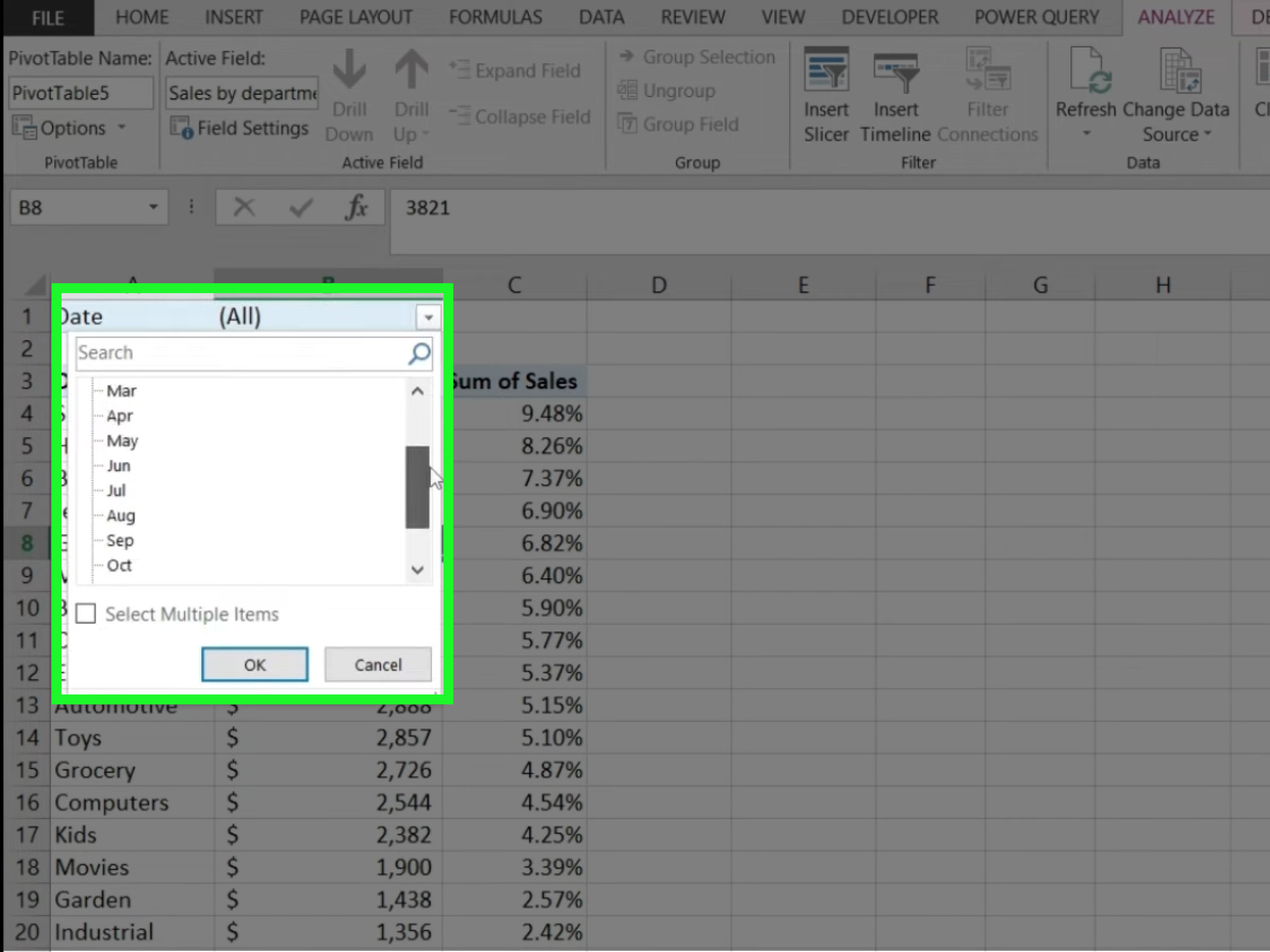
Once the field is in the Filters area, Excel creates a drop-down menu above the PivotTable. Click that drop-down, and you will see the available items for that field.
You can usually choose one item, multiple items, or all items. For example, if your filter is Region, you might select only West. If your filter is Month, you might show only January through March.
After making your selection, click OK. The PivotTable updates instantly to reflect your filtered view.
This is the step where your report stops being a giant data blob and starts becoming useful.
Step 6: Refine the Filter with Better Tools
Here is where many users stop, but Excel gives you better filtering options than a simple drop-down list.
First option: Label Filters. These are useful when you want text-based conditions, such as showing only items that contain a word or begin with a certain letter.
Second option: Value Filters. These are helpful when you want to display results based on numbers, such as items greater than $10,000, top 10 products, or values below a threshold.
Third option: Slicers. Slicers are visual filters with clickable buttons. They are easier to use, easier to read, and much better for dashboards. If your PivotTable is meant for other people, a slicer often feels more polished than a tiny drop-down menu hiding above the report like a secret lever.
Fourth option: Timelines. If your source field contains dates, a timeline filter is often the best choice. It lets you filter by year, quarter, month, or day with a slider, which feels much more civilized than opening a massive date list.
So yes, the report filter is the standard answer to how to add filter to Pivot Table reports, but slicers and timelines are often the upgrade once you are ready for a cleaner interface.
Step 7: Clear, Refresh, and Double-Check Your Results
After applying a filter, always do a quick sanity check. Make sure the numbers still make sense. If something looks wrong, it might not be the filter itself. It could be stale data, an outdated PivotTable cache, or a field that was placed in the wrong area.
If your source data changed after the PivotTable was created, right-click the PivotTable and choose Refresh. This updates the report so your filters work with the latest data.
Also remember to clear filters when needed. Nothing causes spreadsheet confusion faster than sending a report to someone else while forgetting it is still filtered to “West Region / March / Socks Only.” That is not a summary. That is a very specific cry for help.
Quick Example: Adding a Filter to a Sales PivotTable
Let’s say your raw data has these columns:
- Date
- Region
- Product
- Sales Rep
- Revenue
You build a PivotTable with Product in Rows and Revenue in Values. The report now shows total revenue by product for all records.
Now you want to analyze only one region.
- Click the PivotTable.
- Open the PivotTable Fields pane.
- Drag Region into the Filters area.
- Use the new drop-down above the PivotTable.
- Select West.
Done. Your PivotTable now shows West region revenue by product only.
If you later want to see East or South, use the same filter. No rebuilding required. No formulas harmed.
Types of Filters You Can Use in a PivotTable
1. Report Filter
This is the filter created when you drag a field into the Filters area. It controls the whole PivotTable and is ideal when you want one clean selector above the report.
2. Row or Column Label Filter
These appear in the row and column headers inside the PivotTable. They are great for hiding or showing specific items directly in the table layout.
3. Value Filter
Use this when the data should be filtered by numeric conditions, such as top performers, high-value categories, or items greater than a set amount.
4. Slicer
A slicer is the visual, button-based version of a filter. It is easy to click, easy to clear, and excellent for dashboards or shared reports.
5. Timeline
A timeline is designed for date fields. It makes time-based filtering dramatically easier, especially when you need to zoom from years down to months or days.
Common Problems and How to Fix Them
The Field List Is Missing
Click inside the PivotTable, right-click, and choose Show Field List. This is one of the most common issues, and luckily it is also one of the easiest fixes.
The Filter Does Not Show New Data
Refresh the PivotTable. If your source range has grown, make sure the PivotTable data source includes the new rows. Turning the source data into an Excel Table can make this easier over time.
The Date Filter Looks Wrong
Check that the source column contains real Excel dates, not text pretending to be dates. Excel is surprisingly polite about bad data right up until it ruins your timeline.
The Slicer Will Not Connect to Another PivotTable
The PivotTables usually need to share the same source data. If they do not, the slicer connection options may be limited or unavailable.
You Need Multiple Filters on the Same Field
In some PivotTables, Excel allows multiple filters per field through PivotTable options. Even then, the behavior can vary depending on the data source, so test it before promising your team a miracle.
Best Practices for Cleaner PivotTable Filtering
- Use clear field names. “Region” is better than “Col3.” Future-you will be grateful.
- Keep source data clean. Consistent entries make filters more reliable.
- Use slicers for shared reports. They are easier for non-Excel people to understand.
- Use timelines for dates. They are far less annoying than endless date drop-down lists.
- Refresh before presenting. Nothing kills credibility faster than last month’s numbers wearing this month’s shirt.
- Double-check filter state. Make sure the report is not hiding data you meant to include.
Final Thoughts
If you only remember one thing from this guide, let it be this: to add a filter to a PivotTable, click the PivotTable, open the field list, and drag the field you want into the Filters area. That is the core move. Everything else, from slicers to timelines to value filters, is just Excel giving you fancier ways to make the same idea more powerful.
Once you understand that simple workflow, PivotTables become much less intimidating. Instead of wrestling with giant reports, you start asking smarter questions and getting cleaner answers. That is when Excel stops feeling like a spreadsheet and starts feeling like a real analysis tool.
And honestly, that is a pretty nice upgrade for one tiny drop-down.
Practical Experiences with PivotTable Filters in Real Work
In real-world spreadsheet work, adding a filter to a PivotTable usually starts as a tiny request and turns into a major quality-of-life improvement. Someone asks, “Can you show just the Northeast?” and at first it sounds harmless. Then five minutes later they want Northeast only, for Q2 only, for one product line only, and now your once-clean report looks like it is being interrogated. This is exactly why filters matter. The moment you add a proper report filter or slicer, the conversation changes. Instead of rebuilding the PivotTable every time, you simply switch the view. That feels small until you realize how much repetitive work it removes.
One common experience is discovering that a report filter is perfect for solo analysis, but slicers are better when other people have to use the file. A drop-down above the PivotTable is efficient, but it is also easy to miss. Slicers, on the other hand, are obvious. They sit on the worksheet like friendly control panels and make it clear what is being filtered. That can save a lot of confusion in team files, especially when someone opens a workbook and says, “Why are half the categories missing?” With a slicer, the answer is visible immediately.
Another practical lesson is that filtering exposes data quality problems faster than almost anything else. You can build a beautiful PivotTable, add a filter, and then suddenly notice that “West,” “WEST,” and “West ” are being treated like different values. Nothing humbles a spreadsheet faster. The experience teaches you that PivotTable filters are not just for reporting; they are also great for spotting messy source data. If the filter list looks chaotic, the original table probably needs cleanup.
Date filtering is another place where experience changes your habits. Beginners often use a regular filter for dates and then spend too much time digging through long checklists. After working with enough monthly reports, most people eventually switch to timelines because they are simply easier. Sliding from one quarter to another feels faster, cleaner, and more intuitive. Once you get used to it, going back to a giant date drop-down feels like choosing to climb stairs while standing next to an elevator.
There is also the very real experience of forgetting a filter is still active. Almost everyone who works with PivotTables long enough has shared a report and later realized it was filtered to one region, one client, or one month. It is a rite of passage, just not a fun one. That is why experienced Excel users check the filter state before saving, printing, or presenting. It becomes part of the routine: refresh, review, clear what needs clearing, and then share.
Over time, the biggest shift is mental. At first, filters feel like optional extras. Later, they become the whole point. You stop thinking of a PivotTable as one static report and start seeing it as a flexible analysis tool that can answer multiple questions from the same dataset. That is the real experience behind learning how to add filter to Pivot Table reports. It is not just about one step in Excel. It is about turning one spreadsheet into something far more useful, interactive, and a lot less annoying to manage.












