Instagram Stories are fun, fast, and just a little dramatic. You post a photo of your latte art, your new product, your vacation sunset, or your dog doing something suspiciously humanand then, poof, it disappears after 24 hours. That is where Instagram Highlights come in like the responsible friend who says, “Maybe we should save this for later.”
If you have ever wondered how to make a Highlight on Instagram, the good news is that it is easier than choosing the right emoji for your bio. Instagram Highlights let you save selected Stories on your profile so visitors can watch them long after the original Story expires. They appear as small circular icons under your bio and above your posts, making them one of the first things people notice when they land on your page.
Whether you are a creator, small business owner, influencer, blogger, coach, photographer, or casual Instagram user who simply wants to preserve memories, Highlights help organize your best Stories into neat little collections. Think of them as mini albums, quick menus, or tiny billboards for your profileonly cuter.
In this guide, you will learn exactly how to create an Instagram Highlight, add Stories from your archive, customize covers, edit names, remove Stories, and use Highlights strategically. No confusing tech talk. No “just tap the thingy next to the other thingy.” Just clear, step-by-step instructions in plain English.
What Is an Instagram Highlight?
An Instagram Highlight is a collection of Instagram Stories that stays visible on your profile until you remove it. Regular Stories disappear from public view after 24 hours, but Highlights let you keep selected Stories available for followers, customers, friends, or curious profile visitors.
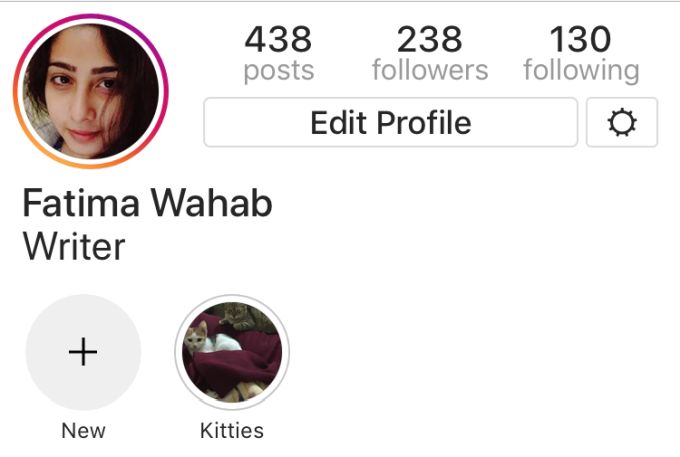
Highlights sit directly below your Instagram bio. Each Highlight appears as a tappable circle with a cover image and a short title. When someone taps it, they can watch the Stories you saved inside that Highlight, almost like a playlist.
Why Instagram Highlights Matter
Instagram Highlights are useful because they turn temporary Stories into evergreen profile content. Instead of letting your best Stories vanish, you can organize them by topic and make them easy to find. For example, a restaurant might create Highlights called “Menu,” “Reviews,” “Events,” and “Behind the Scenes.” A travel creator might use “Paris,” “Hotels,” “Tips,” and “Food Finds.” A personal account might keep Highlights for “Family,” “Trips,” “Pets,” and “Moments.”
For brands and creators, Highlights can work like a mini website. They help new visitors quickly understand who you are, what you offer, and why they should follow you. For everyday users, they are a simple way to preserve favorite memories without clogging the main feed.
Before You Start: Make Sure Story Archive Is Turned On
To create Highlights from old Stories, Instagram needs access to your Story Archive. The Story Archive automatically saves your past Stories privately after they disappear from public view. Only you can see archived Stories unless you choose to add them to a Highlight, reshare them, or otherwise make them visible.
Most accounts have Story Archive turned on by default, but it is smart to check before you start building your Highlight masterpiece. Nobody wants to hunt for an old Story only to discover it vanished into the digital fog.
How to Check Your Story Archive Settings
- Open the Instagram app.
- Tap your profile picture in the bottom-right corner.
- Tap the three-line menu in the top-right corner.
- Go to Archive.
- Make sure you are viewing your Stories Archive, not Posts or Live Archive.
- If needed, go into your settings and confirm that saving Stories to your archive is enabled.
Once Story Archive is active, Instagram can store your Stories after they expire. That gives you more flexibility when creating Highlights later.
How to Make a Highlight on Instagram from an Active Story
The fastest way to create a Highlight is from a Story that is currently live. This method is perfect when you have just posted something worth keeping, such as an announcement, tutorial, customer review, event clip, product demo, or personal memory.
Step 1: Open Your Instagram Story
Open Instagram and tap your profile picture or your active Story at the top of the app. Your current Story will begin playing. Find the Story you want to save as a Highlight.
Step 2: Tap “Highlight”
While viewing the Story, look for the Highlight option near the bottom of the screen. Tap it. Instagram will show you existing Highlights and may also give you the option to create a new one.
Step 3: Choose an Existing Highlight or Create a New One
If the Story belongs in a Highlight you already have, tap that Highlight. For example, if you posted a customer testimonial and already have a “Reviews” Highlight, add it there.
If you want to create a new Highlight, tap New. Then give your Highlight a short name. Instagram Highlight names display in a small space, so keep them simple. “Tips,” “FAQ,” “Travel,” “Menu,” “Work,” or “Pets” all work better than “My Extremely Fabulous Collection of Important Things.” Charming? Yes. Practical? Not so much.
Step 4: Tap “Add” or “Done”
After naming your Highlight, tap Add or Done, depending on your app version. The Highlight will appear on your profile under your bio.
Congratulations. You have officially rescued a Story from the 24-hour disappearing act.
How to Make a Highlight from Archived Instagram Stories
You can also create a Highlight from Stories that already expired, as long as they were saved in your Story Archive. This is the best method if you want to organize older content or build a polished profile from Stories you posted in the past.
Step 1: Go to Your Instagram Profile
Open Instagram and tap your profile picture in the bottom-right corner. This takes you to your profile page, where your bio, Highlights, posts, Reels, and tagged content appear.
Step 2: Tap “New” Under Story Highlights
Look under your bio for the Story Highlights section. If you already have Highlights, you may see a circle with a plus sign or a “New” option. Tap it to begin creating a new Highlight.
Step 3: Select Stories from Your Archive
Instagram will open your archived Stories. Scroll through and select the Stories you want to include. You can choose one Story or several. If you are creating a “Travel” Highlight, for example, select your best travel clips, scenic shots, hotel tours, food moments, and helpful tips.
Step 4: Tap “Next”
After selecting your Stories, tap Next. Instagram will take you to a screen where you can name your Highlight and choose a cover.
Step 5: Name Your Highlight
Enter a short, clear Highlight name. The best Instagram Highlight names are easy to understand at a glance. If you run a business, use practical labels like “Shop,” “FAQ,” “Reviews,” “Services,” “Events,” or “Tutorials.” If your account is personal, try “Trips,” “Food,” “Friends,” “Life,” “Home,” or “Pets.”
Step 6: Choose a Cover
Instagram automatically picks a cover from one of the Stories you selected, but you can change it. Tap Edit Cover and choose a different frame from your Highlight or upload a custom cover from your camera roll.
Step 7: Tap “Done”
Once the name and cover look right, tap Done. Your new Highlight will appear on your profile.
How to Add More Stories to an Existing Highlight
Your Highlights do not have to be frozen in time. You can add more Stories whenever you want. This is useful for ongoing categories like customer reviews, tutorials, recipes, travel diaries, events, product launches, or frequently asked questions.
- Go to your Instagram profile.
- Tap and hold the Highlight you want to update.
- Select Edit Highlight.
- Go to the Stories section or archive selection area.
- Select the additional Stories you want to include.
- Tap Done.
Now your Highlight contains the new Stories along with the old ones. Think of it like adding new chapters to a tiny visual book.
How to Edit an Instagram Highlight
Maybe your Highlight name no longer fits. Maybe the cover looks like it was chosen by a sleepy raccoon. Maybe you added too many Stories and now the Highlight feels longer than a documentary series. No problem. Instagram lets you edit Highlights after creating them.
To Edit a Highlight Name or Cover
- Open your Instagram profile.
- Tap and hold the Highlight you want to edit.
- Tap Edit Highlight.
- Change the title in the name field.
- Tap Edit Cover if you want to update the cover image.
- Tap Done to save changes.
A clean Highlight cover can instantly make your profile feel more organized. For brands, matching covers can strengthen visual identity. For personal accounts, custom covers can create a stylish, coordinated look without requiring a degree in graphic design.
How to Delete a Story from a Highlight
If one Story no longer belongs in a Highlight, you can remove it without deleting the entire Highlight. This is helpful when a promotion expires, information changes, or you simply realize that one blurry concert clip did not need to become part of your public legacy.
- Open the Highlight on your profile.
- Go to the Story you want to remove.
- Tap More or the three-dot menu.
- Select Remove from Highlight.
- Confirm your choice.
Removing a Story from a Highlight does not necessarily delete it from your archive. However, if you delete a Story from your archive, it can also disappear from places where it was shared, including Highlights. So if you want to keep the memory, remove it from the Highlight instead of deleting it completely.
How to Delete an Entire Instagram Highlight
If a Highlight is outdated or no longer useful, you can remove the whole thing from your profile.
- Go to your profile.
- Tap and hold the Highlight you want to delete.
- Tap Delete Highlight.
- Confirm by tapping Delete again.
This removes the Highlight from your profile. Your archived Stories may still remain in your Story Archive unless you delete those separately.
How to Create Custom Instagram Highlight Covers
Custom Highlight covers are optional, but they can make your profile look polished and intentional. A Highlight cover is the image people see before tapping the Highlight. Since the cover appears as a small circle, simple designs usually work best.
Best Practices for Highlight Covers
- Keep it simple: Tiny text and crowded images are hard to see.
- Use consistent colors: Matching covers make your profile look more professional.
- Center the icon or image: Instagram crops covers into circles, so important details should stay in the middle.
- Match your brand or personality: A bakery might use soft colors and dessert icons, while a fitness coach might choose bold icons and clean backgrounds.
- Use the Story size: A vertical 9:16 design, such as 1080 x 1920 pixels, works well for Story-style graphics.
You can design covers using tools like Canva or another design app. Create a vertical Story-sized canvas, add a simple background, place an icon or word in the center, download the image, and upload it as your Highlight cover through the Edit Cover option.
Instagram Highlight Ideas for Personal Accounts
If you use Instagram mainly for fun, Highlights can help organize your favorite memories. Here are some easy ideas:
- Travel: Save vacation clips, hotel tours, landmarks, and food adventures.
- Friends: Keep birthday parties, group outings, and funny moments.
- Pets: Because your dog deserves a public archive. Obviously.
- Food: Save restaurant visits, homemade meals, and coffee shop discoveries.
- Fitness: Track workouts, progress, routines, or motivational moments.
- Home: Share decorating ideas, room updates, or cozy corners.
The goal is not to save every single Story. Choose moments that still feel interesting, useful, or meaningful when someone watches them weeks or months later.
Instagram Highlight Ideas for Businesses and Creators
For businesses, Highlights can guide visitors toward important information. A strong Highlight strategy can answer common questions, show proof, explain services, and make your profile easier to navigate.
Useful Business Highlight Categories
- About: Introduce your brand, mission, team, or story.
- Products: Show product demos, bestsellers, launches, or restocks.
- Services: Explain what you offer and who it is for.
- Reviews: Save testimonials, customer feedback, and user-generated content.
- FAQ: Answer common questions about pricing, shipping, booking, returns, or process.
- Tips: Share educational content that helps your audience.
- Behind the Scenes: Show your workspace, process, team, or daily operations.
- Events: Save event recaps, pop-ups, launches, webinars, or workshops.
Good Highlights reduce confusion. If a visitor has to dig through posts, comments, and captions to understand what you do, they may leave. Highlights create a faster path. They say, “Here is the good stuff. Tap here.”
Tips to Make Your Instagram Highlights More Effective
1. Put Your Most Important Highlights First
Instagram displays Highlights in a row, and users usually notice the first few before anything else. Place your most useful categories first. For a business, that might be “Start Here,” “Shop,” “Reviews,” and “FAQ.” For a creator, it might be “About,” “Work,” “Travel,” and “Tips.”
2. Keep Highlight Names Short
Short names are easier to read under the small circular covers. Use one or two words when possible. Instead of “Frequently Asked Questions About My Services,” use “FAQ.” Instead of “Amazing Places I Have Traveled To,” use “Travel.”
3. Remove Outdated Information
Highlights should be helpful, not dusty. Review them regularly and remove expired sales, old prices, past event details, outdated policies, or anything that no longer reflects your account.
4. Use Storytelling
Do not just dump random Stories into a Highlight. Arrange them so they make sense. A product Highlight might start with the problem, show the product, demonstrate how it works, include customer reactions, and end with buying instructions. That is much more useful than a chaotic slideshow of “look, a thing!”
5. Make the First Story Count
The first Story in a Highlight sets the tone. Use it like an introduction. For example, an FAQ Highlight could begin with a simple slide that says, “Quick answers to our most common questions.” A travel Highlight could start with the destination name and date.
6. Use Branded or Consistent Covers
Matching Highlight covers can make your profile feel polished. You do not need anything fancy. A simple background color and clean icon can do the job beautifully.
7. Think Like a New Visitor
Look at your profile as if you have never seen it before. Can someone quickly understand who you are, what you post, what you offer, or what they should tap first? If not, your Highlights can help fix that.
Common Instagram Highlight Mistakes to Avoid
Adding Too Many Stories
A Highlight with 78 Stories can feel like homework. Keep it focused. If a Highlight gets too long, split it into smaller categories or remove weaker Stories.
Using Confusing Names
Creative names are fun, but clarity matters. A coffee shop could name a Highlight “Magic Beans,” but “Menu” is easier for customers to understand. You can still be playful, but do not make people solve a riddle before they find your information.
Forgetting to Update Highlights
Old information can frustrate followers. If your Highlight says a sale ends in March and it is now August, your profile may feel neglected. Refresh your Highlights as part of your regular Instagram maintenance.
Using Messy Covers
Highlight covers are small. Busy photos, tiny words, and off-center designs can look cluttered. Simple covers usually win.
Saving Everything
Not every Story needs to become a Highlight. Save the content that supports your profile, tells a story, answers a question, or preserves something meaningful. Your Highlights should feel curated, not like the junk drawer of your Instagram account.
Troubleshooting: Why Can’t I Make a Highlight on Instagram?
If you are having trouble creating a Highlight, here are a few common reasons and fixes.
Your Story Archive May Be Off
If Story Archive was disabled when you posted earlier Stories, those Stories may not be available to add later. Turn on Story Archive now so future Stories are saved.
Your App May Need an Update
Instagram features can behave strangely when the app is outdated. Check your app store for updates, install the latest version, and try again.
Your Internet Connection May Be Weak
If Instagram is loading slowly or buttons are not responding, switch between Wi-Fi and mobile data. A weak connection can make the app act like it had three espressos and no plan.
Instagram May Be Testing Layout Changes
Instagram often updates layouts and button placements. If your screen does not match a tutorial exactly, look for similar labels such as Highlight, New, Edit Highlight, Archive, or Edit Cover.
My Experience: What Actually Works When Creating Instagram Highlights
After working with Instagram content and studying how people interact with profiles, one thing becomes clear: Highlights work best when they are made for the viewer, not just the account owner. It is tempting to treat Highlights like a personal scrapbook, and that can be fine for personal accounts. But when the goal is engagement, trust, sales, bookings, or follower growth, the best Highlights answer one simple question: “What would a new visitor want to know first?”
For example, imagine landing on a hairstylist’s profile. You probably want to see examples of their work, prices, booking instructions, client reviews, and maybe salon location. If those are neatly organized into Highlights called “Work,” “Prices,” “Book,” “Reviews,” and “Location,” the profile instantly feels helpful. You do not need to scroll through six months of posts like a social media detective wearing a tiny trench coat.
The same idea applies to creators. A fitness creator might use Highlights for “Start Here,” “Workouts,” “Meals,” “Results,” and “Gear.” A travel blogger might use “Guides,” “Hotels,” “Food,” “Packing,” and destination-specific Highlights. A small boutique might create “New In,” “Sizing,” “Reviews,” “Shipping,” and “Sale.” The categories should match what people regularly ask about.
One practical lesson is to keep Highlights short enough to watch. People tap through Stories quickly. If a Highlight has too many slides, viewers may leave before reaching the most important part. A good Highlight feels like a quick tour, not a never-ending airport security line. For business profiles, I usually recommend placing the strongest or most useful Story first. Start with a title slide, a key benefit, or a clear explanation. Then arrange the remaining Stories in a natural order.
Another useful habit is auditing Highlights every month. This does not need to be complicated. Open your profile, tap through each Highlight, and ask: Is this still accurate? Is this still useful? Does it look good? Does it support my current goals? Remove old promotions, outdated announcements, blurry clips, and anything that no longer matches your brand. A Highlight from three years ago can still be valuable, but only if the information still makes sense today.
Custom covers are also worth considering, especially for business or creator accounts. They do not have to be overdesigned. In fact, the simpler they are, the better they usually look. A plain background, centered icon, and consistent color palette can make a profile appear more organized within minutes. The important thing is that the covers help people understand the categories. Pretty is nice; useful and pretty is better.
For personal accounts, my favorite approach is to use Highlights as memory shelves. Instead of saving every Story, choose moments that still make you smile later: a trip, a celebration, a pet’s funniest moments, a home project, or a year-in-review collection. Highlights can make your profile feel more personal without forcing every memory into the permanent feed.
Finally, remember that Instagram Highlights are not just decoration. They are navigation. They guide people through your profile and help them decide whether to follow, message, buy, book, or keep watching. When Highlights are clear, current, and well organized, they quietly do a lot of work for you. Tiny circles, big impact. Instagram really said, “What if your profile had buttons?” and honestly, it was onto something.
Conclusion
Learning how to make a Highlight on Instagram is simple, but using Highlights well takes a little strategy. You can create a Highlight from an active Story, build one from archived Stories, add more Stories later, edit the cover, rename the collection, or remove outdated content whenever needed.
The best Instagram Highlights are clear, organized, and useful. They help visitors quickly understand your personality, brand, services, memories, or content themes. Whether you are saving vacation moments, showcasing customer reviews, answering FAQs, or building a polished creator profile, Highlights give your best Stories a longer life.
Start with a few simple categories, choose clean covers, keep names short, and update your Highlights regularly. You do not need to make everything perfect on day one. Instagram profiles grow and change, and your Highlights can grow with them. The goal is to make your profile easier to exploreand maybe look a little more fabulous while doing it.