Starting a Spotify Jam on Discord sounds like it should require a DJ license, a neon-lit basement, and at least one friend who says, “Trust me, this next track is life-changing.” Thankfully, it is much easier than that. With Spotify and Discord connected, you can share what you are listening to, invite friends to listen along, and create a shared music moment without leaving your favorite chat space.
There is one important detail to understand right away: Spotify Jam and Discord Listen Along are related, but they are not exactly the same thing. Spotify Jam is Spotify’s shared listening feature that lets people add songs to a common queue. Discord Listen Along is Discord’s Spotify integration that lets friends join what you are currently playing through Discord. When people search for “how to start a Spotify Jam on Discord using Listen Along,” they usually want the smoothest way to get friends listening together through Discord while using Spotify as the music engine.
This guide explains how to connect Spotify to Discord, start a Listen Along session, use Spotify Jam when it makes more sense, fix common issues, and create a better group listening experience. Consider it your no-drama manual for turning “What are we listening to?” into “Okay, this playlist is actually dangerous.”
What Is Spotify Listen Along on Discord?
Spotify Listen Along on Discord is a feature that allows your friends to listen to the same Spotify music you are playing. When your Spotify account is connected to Discord, Discord can show your current listening activity on your profile. Friends can click your activity and choose to listen along with you.
This is especially useful for friend groups, gaming communities, study servers, online hangouts, and music discovery sessions. Instead of sending one song link at a time like a digital pigeon, you can let people join your listening session directly.
Spotify Jam vs. Discord Listen Along
Spotify Jam is built inside Spotify. It allows friends to join a shared queue, add tracks, and listen together either in person or remotely, depending on account type and availability. Discord Listen Along is built into Discord’s Spotify connection and focuses on letting people join what someone is already listening to.
The easiest way to think about it is this:
- Use Discord Listen Along when your group is already chatting on Discord and wants to quickly join your current Spotify session.
- Use Spotify Jam when you want a more collaborative queue where multiple people can add songs and shape the session together.
- Use both together when Discord is your social room and Spotify is your music control center.
Requirements Before You Start
Before starting a Spotify listening session on Discord, make sure the basics are ready. Most problems happen because one tiny setting is missing, and that tiny setting usually hides like a sock in a dryer.
You Need a Spotify Account
You need an active Spotify account connected to Discord. For the best experience, Spotify Premium is strongly recommended. Discord’s Listen Along feature generally requires Premium for invited listeners. If someone does not have Premium, they may run into errors or hear interruptions depending on the session and account setup.
You Need the Discord App
The Spotify connection works best through the Discord desktop app. Some features may appear differently on mobile, and mobile sessions can be less stable if the phone sleeps, switches networks, or closes Spotify in the background.
You Need Spotify Connected to Discord
Spotify must be linked through Discord’s Connections settings. Once connected, Discord can display your Spotify listening activity and allow friends to join through Listen Along.
How to Connect Spotify to Discord
Before you can start a Spotify Jam-style listening session on Discord, you need to link your Spotify account. This only takes a minute.
Step 1: Open Discord User Settings
Open Discord and look near the bottom-left corner beside your username. Click the gear icon to open User Settings. This is Discord’s control room, minus the dramatic red emergency button.
Step 2: Go to Connections
In the left-hand menu, select Connections. This section allows you to link external accounts such as Spotify, YouTube, Twitch, and other services.
Step 3: Choose Spotify
Click the Spotify icon. Discord will open a Spotify login page. Sign in to your Spotify account and approve the connection.
Step 4: Enable Display Options
After linking Spotify, return to Discord’s Connections page. You should see Spotify listed as a connected account. Turn on options such as Display on profile and Display Spotify as your status if you want friends to see what you are playing.
This is the key step many people miss. If Spotify is connected but not displayed, your friends may not see the listening activity they need to join.
How to Start Listening Along on Discord
Once Spotify and Discord are connected, starting a Listen Along session is simple. The host plays music on Spotify, and friends join from Discord.
Step 1: Start Playing Music on Spotify
Open Spotify and play a song, album, or playlist. Make sure Spotify is actively playing on the device you want to use. If Discord does not detect Spotify right away, pause and play the track again or select your active device inside Spotify.
Step 2: Open Discord
Return to Discord. Your profile should show that you are listening to Spotify. Friends may see your current track on your Discord profile or in the friend list, depending on your privacy settings and server context.
Step 3: Invite Friends to Listen Along
While Spotify is playing, go to a Discord text channel, direct message, or group DM. Click the plus button near the message box and look for the option to invite others to listen along. Discord creates an invite preview that friends can click.
Step 4: Friends Click Join
Once you send the invite, your friends can click Join to listen with you. The listening session follows your Spotify playback, so when you change songs, the session updates too.
Step 5: Keep Spotify Playing
If you stop playback, the listening invite may show that the session has ended. When you resume Spotify, Discord can update the session again. In other words, do not panic if the invite looks inactive after you pause the music to answer a message, stretch, or question your entire playlist strategy.
How to Start a Spotify Jam and Share It on Discord
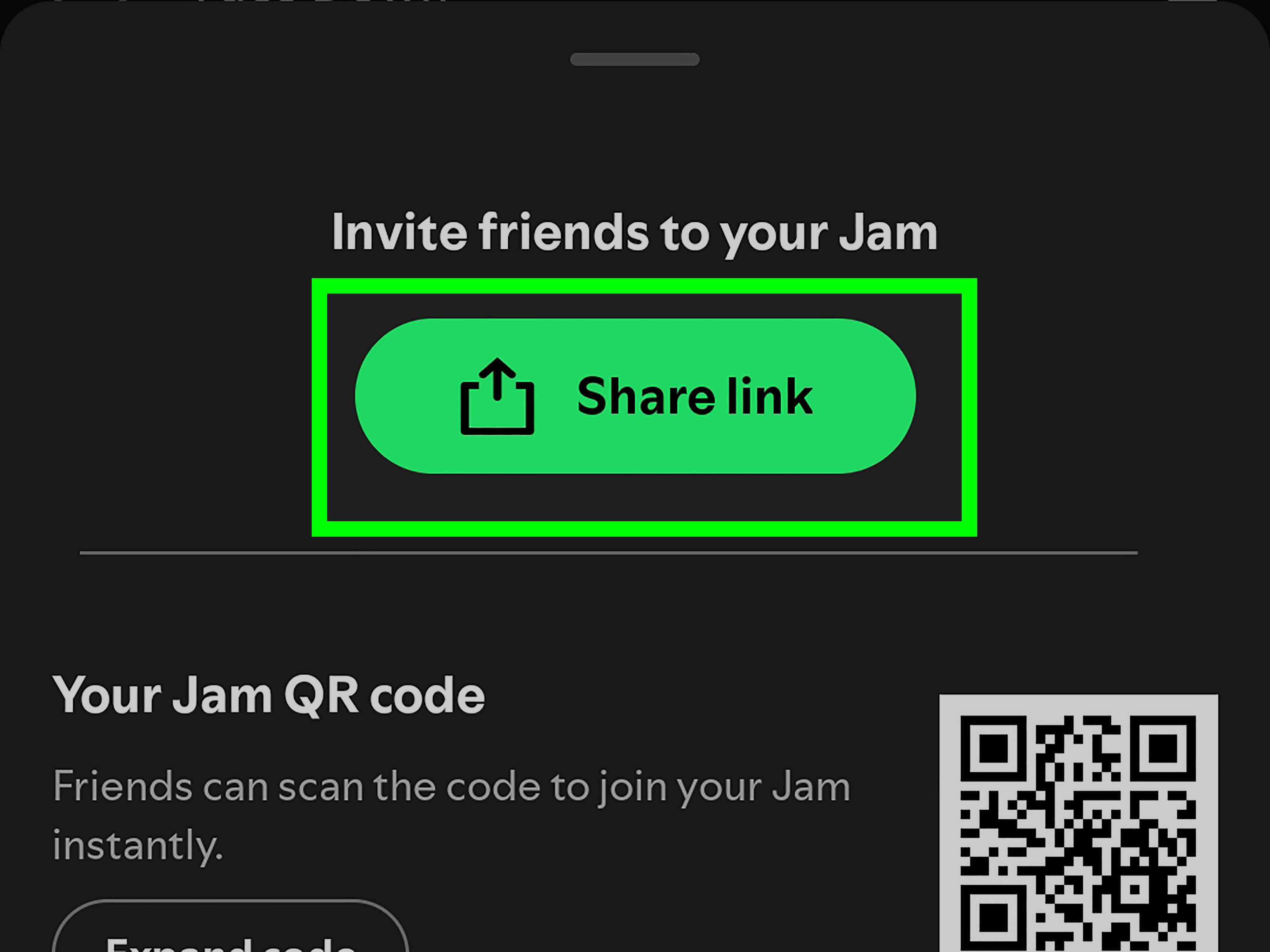
If your goal is a true Spotify Jam with a shared queue, start the Jam inside Spotify first, then share the Jam invite through Discord.
On Desktop
- Open Spotify on your computer.
- Choose a song, album, or playlist.
- Click the three-dot menu or right-click the music you want to start with.
- Select Start a Jam.
- Copy the invite link or show the QR code.
- Paste the link into a Discord DM, group DM, or server channel.
On Mobile
- Open the Spotify app.
- Start playing music.
- Tap the device or speaker icon near the Now Playing bar.
- Choose Start a Jam.
- Tap Invite or share the link.
- Send the Jam link in Discord.
This method is often better when everyone wants to add songs. Discord Listen Along is great for joining the host’s music, while Spotify Jam is better for building the queue together.
Which Method Should You Use?
The best method depends on your group’s goal. If you are hosting a casual hangout and just want friends to hear what you are playing, Discord Listen Along is fast and easy. If your friends are the type who cannot resist adding “just one more song,” Spotify Jam is the better choice.
Use Discord Listen Along For:
- Quick listening sessions
- One-person playlist hosting
- Music sharing during text chat
- Low-effort friend hangouts
- When you want the host to control the vibe
Use Spotify Jam For:
- Collaborative queues
- Group music discovery
- Parties, road trips, or study sessions
- Friends who want to add tracks
- Remote listening sessions inside Spotify
Common Problems and How to Fix Them
Spotify and Discord usually work well together, but when they misbehave, they do it with the confidence of a cat knocking a glass off a table. Here are the most common issues and fixes.
Spotify Is Not Showing on Discord
First, check whether Spotify is still connected under User Settings > Connections. Make sure the display options are enabled. Then play a song directly in Spotify. Discord sometimes needs active playback before it recognizes your Spotify status.
If that does not work, disconnect Spotify from Discord and reconnect it. This often refreshes the connection and fixes missing status problems.
The Listen Along Button Does Not Work
Make sure both the host and listener are using the correct Spotify accounts. If someone has multiple Spotify accounts, Discord may be linked to the wrong one. Also check that Spotify is open, playing, and assigned to an active device.
Friends Get a Premium Error
Discord Listen Along usually requires Spotify Premium for people joining the session. If a friend gets an error, the account type is often the reason. For Spotify Jam, Premium is needed to start and host a Jam, and Premium may also be needed for remote joining depending on the listening setup.
Music Stops During Song Changes
Crossfade settings can sometimes cause abrupt stops for listeners. If your group notices music cutting out between tracks, try turning off crossfade in Spotify settings.
Delay or Sync Problems
If the music sounds delayed between users, check system time settings. A device with incorrect time can create sync issues. Set your computer or phone to update time automatically, then restart Discord and Spotify.
Mobile Listen Along Keeps Ending
On mobile, the session can drop if the phone goes to sleep, loses connection, or closes Spotify in the background. Keep Spotify active, avoid aggressive battery-saving mode, and stay on a stable network.
Privacy Tips Before You Share Your Listening Activity
Showing Spotify on Discord is fun, but remember that your music activity may be visible to friends depending on your settings. If you are listening to motivational movie scores while pretending to be productive, that is your business. Still, it is smart to check your display settings.
Control What Appears on Your Profile
In Discord’s Connections settings, you can choose whether Spotify appears on your profile and whether your current track becomes your status. Turn these off if you want to keep your listening private.
Use Private Session on Spotify
Spotify also offers private listening options. If you do not want certain music to influence recommendations or show in activity areas, use a private session inside Spotify.
Choose the Right Discord Channel
If you share a Jam link in a large public server, more people may see it than you intended. For a small listening party, use a private channel, direct message, or group DM.
Best Practices for Hosting a Great Spotify Jam on Discord
A good listening session is more than clicking buttons. The difference between “fun music night” and “audio chaos buffet” is a little planning.
Start With a Clear Theme
Pick a theme before inviting friends. Examples include “late-night chill,” “gaming focus,” “2000s throwbacks,” “rainy day acoustic,” or “songs that make walking to the fridge feel cinematic.” A theme keeps the queue from jumping from soft jazz to battle metal to cartoon theme songs in three minutes.
Set Queue Rules
If you use Spotify Jam, decide whether everyone can add freely or whether the host should manage the order. For small groups, open contributions are fun. For larger groups, a little moderation helps.
Use Text Chat Instead of Voice Chat
Spotify’s Discord Listen Along is designed for text chatting while listening. Voice chat can interfere with the experience, and some setups do not support Listen Along while voice chatting. Use text reactions, comments, and emojis to keep the conversation going without covering the music.
Keep the Playlist Balanced
A good queue has variety without mood whiplash. If the group starts with mellow music, do not suddenly add a track that sounds like a robot falling down stairs unless that is the agreed theme. Match the room.
Example: Hosting a Friday Night Music Hangout
Imagine you run a small Discord server with friends from school, work, or a gaming group. Friday night arrives, nobody wants to plan anything complicated, and someone says, “Let’s just listen to music.” Here is a simple setup:
- Create a private text channel called “Friday Jam.”
- Connect Spotify to Discord and start playing a playlist.
- Send a Listen Along invite in the channel.
- If people want to add songs, start a Spotify Jam and paste the Jam link.
- Ask everyone to add two songs at a time so the queue stays fair.
- Use Discord chat for reactions, song ratings, and friendly roasting.
This setup works because it keeps Discord as the social space and Spotify as the music player. Nobody needs to jump through ten apps, and the group can focus on the songs instead of troubleshooting for half the night.
Experience Notes: What It Feels Like to Use Spotify Jam on Discord
In real use, starting a Spotify Jam on Discord using Listen Along feels best when the host treats it like a tiny radio show rather than a random link drop. The first few minutes matter. If you begin with a strong opener, people are more likely to join, stay, and add songs that match the energy. A weak first track is not the end of the world, but it can make the session feel like a group project where nobody read the instructions.
One practical experience is that Discord is excellent for conversation, while Spotify is better for music control. Trying to make Discord do everything can feel clunky. The smoother approach is to use Discord to gather people, announce the vibe, send the Listen Along or Jam invite, and chat. Then let Spotify handle playback, queue management, recommendations, and device control.
Another lesson: smaller groups usually work better. A Spotify Jam with three to six people can feel lively and personal. Everyone gets a chance to add music, react to tracks, and discover something new. Larger groups can still be fun, but they need rules. Without them, one person may add a twelve-minute experimental track, another may add a meme song, and suddenly your chill evening has become a musical escape room.
It also helps to choose the right time and purpose. For studying, instrumental playlists, lo-fi beats, soft electronic music, and acoustic tracks tend to work well. For gaming, energetic music can help, but avoid tracks that are too distracting if communication matters. For a casual Discord hangout, nostalgic playlists are almost unfairly effective. Someone will always say, “Wait, I forgot this song existed,” and now the chat is alive.
The best sessions often include a little structure. For example, you can do a “three-round queue”: each person adds one comfort song, one discovery song, and one wild-card song. The comfort song keeps the vibe familiar. The discovery song introduces something new. The wild card gives the group permission to be ridiculous. This format works surprisingly well because it avoids both boredom and total chaos.
Another useful experience is keeping troubleshooting simple. If Spotify does not appear on Discord, do not immediately uninstall your entire digital life. First, play a track in Spotify. Then check Discord Connections. Then disconnect and reconnect Spotify if needed. Most issues are caused by account linking, inactive playback, display settings, device selection, or Premium requirements.
For remote friends, Spotify Jam may feel more interactive than Discord Listen Along because the shared queue gives everyone a role. Listen Along is more like joining someone’s broadcast, while Jam feels like building the soundtrack together. That difference matters. If your friends like contributing, use Jam. If they prefer relaxing while one person hosts, use Listen Along.
Finally, the most underrated tip is to end the session well. Save the best discoveries into a shared playlist afterward. Name it something memorable, even if it is slightly silly. A good title turns a one-night listening session into a tiny archive of the group’s taste, jokes, and moods. That is the real magic of Spotify and Discord together: not just hearing the same music, but building a shared memory around it.
Conclusion
Learning how to start a Spotify Jam on Discord using Listen Along is mostly about understanding which tool does what. Discord Listen Along lets friends join your current Spotify playback from Discord, while Spotify Jam gives everyone a more collaborative queue inside Spotify. Connect your Spotify account to Discord, make sure your activity is visible, start playing music, and send a Listen Along invite. If your group wants more control, start a Spotify Jam and share the link in Discord.
For the best experience, use Spotify Premium, keep the session in text chat, check your privacy settings, and set a simple theme before everyone starts adding songs. With a little setup, your Discord server can become a shared listening lounge, a study room soundtrack, a gaming playlist hub, or a Friday night music party without the snack cleanup.
Note: This article is based on current Spotify and Discord feature behavior, including Spotify Jam, Discord Spotify Connection, Listen Along requirements, and common troubleshooting guidance available from official Spotify and Discord support resources as of April 2026.