Saving files in Linux sounds simple until you meet the terminal, a text editor with mysterious keyboard shortcuts, and a blinking cursor that seems to be judging your life choices. The good news? Linux is not trying to scare you. It simply gives you several ways to save files depending on what you are doing: editing a document, copying data, or protecting important work from accidental deletion, disk failure, or your own “I’ll remember where I put that” confidence.
This guide breaks down three practical ways to save Linux files: saving inside text editors, saving through command-line file operations, and saving files with backups or archives. Whether you are editing a configuration file, storing project code, moving photos, or backing up a server, these methods form the everyday survival kit for Linux users.
The main keyword here is simple: save Linux files. But the real goal is even simpler: help you stop losing work, stop fearing the terminal, and start treating Linux file management like a useful toolbox instead of a puzzle box with a beard.
Why Saving Files in Linux Feels Different
On Windows or macOS, saving often means clicking File > Save or pressing a familiar keyboard shortcut. Linux desktop apps work that way too, but Linux also has a powerful command-line culture. Many system files are edited in terminal-based editors. Many backups are made with commands. Many files are copied, moved, archived, synced, and permission-protected without opening a graphical file manager at all.
That flexibility is one of Linux’s biggest strengths. It is also why beginners sometimes ask, “Did I save the file, or did I just accidentally summon a daemon?” The answer depends on the tool. Nano saves differently from Vim. The cp command saves a second copy differently from rsync. A compressed archive is different from a live folder backup. Once you understand these differences, Linux becomes much less dramatic.
Way 1: Save Linux Files in a Text Editor
The first and most common way to save Linux files is inside a text editor. This matters because Linux users often edit plain-text files: shell scripts, notes, Markdown documents, code files, system configuration files, web server settings, and environment files. Plain text is the language Linux drinks with breakfast.
Saving Files in Nano
Nano is one of the friendliest terminal editors. It is popular because it displays helpful shortcuts at the bottom of the screen. If Vim is a spaceship cockpit, Nano is a bicycle with a basket.
To create or edit a file with Nano, you can run:
After typing your content, save the file by pressing:
Nano will ask for the file name. Press Enter to confirm. Then exit with:
Some newer Nano setups also support Ctrl + S to save the current file. However, Ctrl + O, which means “write out,” is the classic Nano save command and remains widely taught. If you remember only one Nano rule, remember this: Ctrl + O saves, Ctrl + X exits. That tiny phrase has rescued more Linux beginners than coffee.
Saving Files in Vim
Vim is powerful, fast, and famous for trapping new users who do not know how to exit. This reputation is a little unfair, but only a little. Vim has modes, and saving depends on being in the right mode.
To edit a file, run:
Press i to enter insert mode and start typing. When you are ready to save, press Esc to return to normal mode. Then type:
Press Enter. The file is saved. To save and quit at the same time, use:
To quit without saving changes, use:
Vim rewards patience. Once the commands become muscle memory, it is incredibly efficient. Until then, write :wq on a sticky note and treat it like a tiny emergency exit sign.
Saving Files in Graphical Linux Apps
Linux desktops such as GNOME, KDE Plasma, Cinnamon, and Xfce include graphical applications that save files much like other operating systems. Text editors, image editors, office suites, and code editors usually support Ctrl + S. You can also choose Save As to create a new file name or save the file in a different folder.
This method is best for everyday documents, spreadsheets, images, and beginner-friendly editing. The main thing to watch is the file location. Linux home folders commonly include directories like Documents, Downloads, Pictures, and Desktop. Saving a file is easy; finding it later is where the real treasure hunt begins.
Way 2: Save Linux Files by Copying, Moving, and Redirecting Data
The second way to save Linux files is through command-line file operations. In Linux, saving does not always mean typing text into an editor. Sometimes it means creating a copy, moving a file to a safer location, redirecting command output into a file, or preserving a directory before making changes.
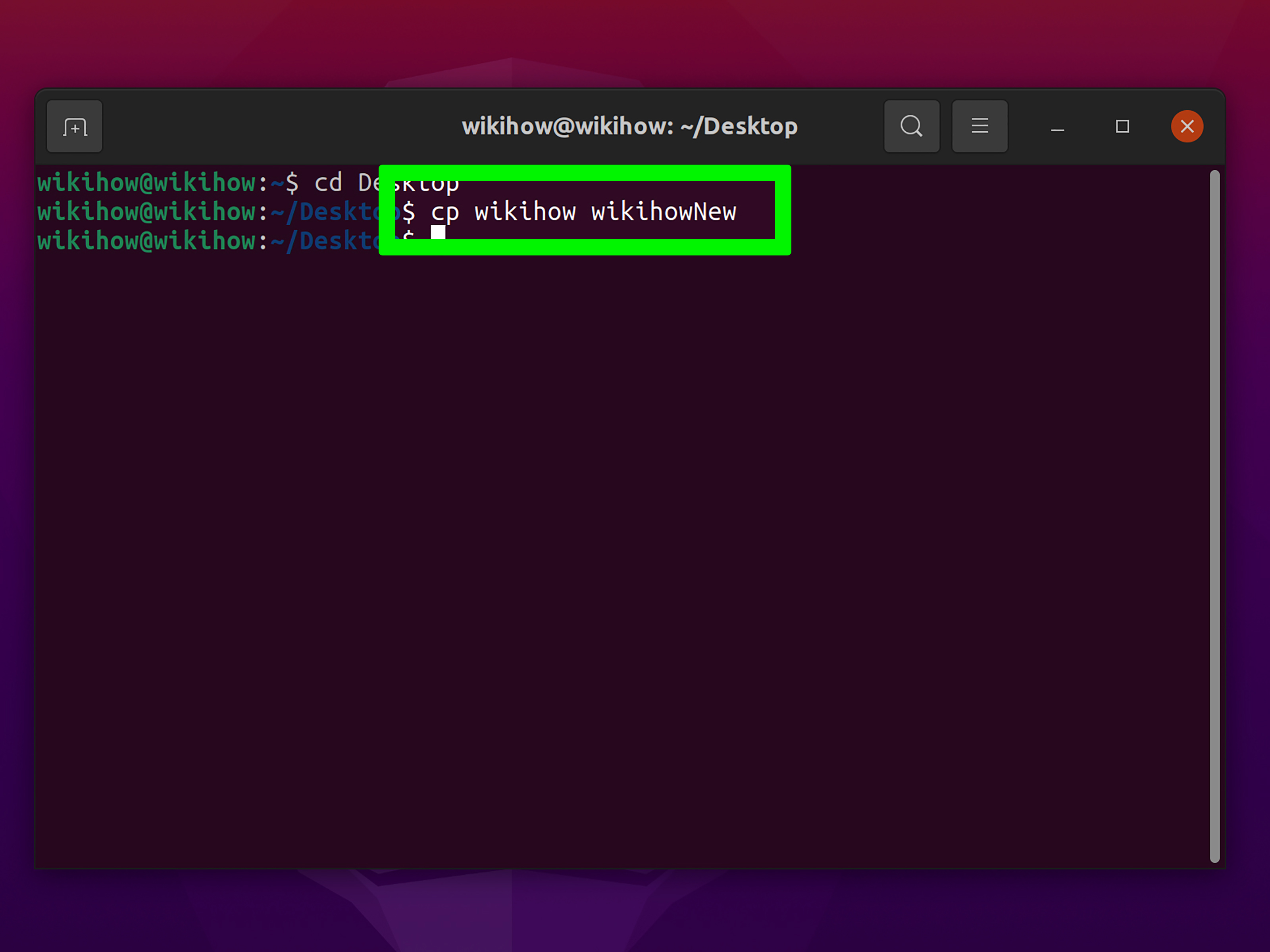
Use cp to Save a Copy
The cp command copies files and directories. It is one of the simplest ways to save a backup before editing something risky.
For example, before changing an Nginx configuration file, you might run:
Now you have the original file saved as nginx.conf.backup. If your edits go sideways and the website starts behaving like it saw a ghost, you can restore the backup.
To copy a file into another folder:
To copy a directory and its contents:
For preserving more file attributes, such as permissions and timestamps, archive-style copying can be useful:
The -a option is commonly used when you want a more faithful copy of a directory. It is especially helpful when saving code projects, website files, or folders where ownership and permissions matter.
Use mv to Save a File Under a New Name
The mv command moves or renames files. Technically, it is not a “save” command, but it often helps organize saved files.
Rename a draft:
Move a file into a folder:
Be careful: if you move a file over another file with the same name, you may overwrite it. Linux assumes you are the boss. Unfortunately, sometimes the boss is tired and has three browser tabs playing audio.
Redirect Command Output into a File
Linux lets you save command output directly into a file. This is extremely useful for logs, reports, diagnostics, and quick notes.
Save a directory listing:
Append output to an existing file:
The single greater-than symbol > creates or overwrites a file. The double symbol >> appends to the end of a file. Remember that difference. One adds a new note; the other can erase your old note with the calm confidence of a villain.
Understand Permissions When Saving Files
Linux file permissions control who can read, write, or execute files. If you cannot save a file, permissions may be the reason. Files under system directories such as /etc, /usr, or /var often require administrator privileges.
For example, editing a system file may require:
For personal files inside your home directory, you usually do not need sudo. In fact, using sudo everywhere is a bad habit because it can create root-owned files in your own folders. That is like giving your house keys to a forklift.
Way 3: Save Linux Files with Backups, Archives, and Sync Tools
The third way to save Linux files is the most important for long-term safety: backups. Saving a file once is good. Saving it somewhere else is better. Saving it automatically and testing that you can restore it is the adult version of file management.
Create Archives with tar
The tar command creates archives, which are single files containing many files and folders. It is widely used on Linux because it preserves directory structure and works well with compression.
Create a compressed archive:
Here is what the options mean:
-ccreates an archive.-zcompresses it with gzip.-vshows progress.-fspecifies the archive file name.
Extract the archive later with:
Archives are excellent for saving project snapshots, website folders, configuration collections, and documents before a major change. They are not magic, though. If you create the archive and leave it on the same failing drive, you have made a beautifully wrapped gift for disaster.
Use rsync for Smarter Backups
The rsync tool is a favorite for Linux backups because it copies only what needs to be updated after the first transfer. That makes it efficient for repeated backups.
Back up a folder to an external drive:
The trailing slashes matter. In this example, the contents of Documents are copied into Documents-backup. Without the slash, the folder itself may be copied as a subfolder. Tiny slash, big personality.
A common option set is -avh: archive mode, verbose output, and human-readable file sizes. For backup scripts, many users also add --delete to remove files from the destination that no longer exist in the source. That option is powerful, but dangerous if used carelessly. Test with --dry-run first:
If the preview looks correct, run the real command. This is the Linux equivalent of measuring twice and cutting once, except the saw is a command that can delete your vacation photos.
Save Important Files Off the Machine
A reliable backup should not live only on the same computer. External drives, network storage, cloud storage clients, and remote servers can all help. Many Linux users follow a practical version of the 3-2-1 backup idea: keep multiple copies, use more than one type of storage, and keep at least one copy away from the original machine.
For personal use, this might mean your laptop, an external SSD, and a cloud-synced folder. For a server, it might mean local snapshots plus remote backups. For a student, it might mean saving homework in the home folder, copying it to a USB drive, and emailing the final version to yourself. Elegant? Maybe not. Effective? Usually.
Best Practices for Saving Linux Files Safely
Name Files Clearly
Use names that describe the content and date. A file named final-final-real-final.txt is not a system. It is a cry for help. Better examples include:
Keep Backups Before Editing System Files
Before changing anything in /etc, make a backup copy. Configuration files can control networking, login behavior, web servers, databases, and services. One missing character can break things in surprisingly theatrical ways.
Do Not Abuse sudo
Use sudo only when needed. If you save normal personal files as root, you may later be unable to edit them without administrator privileges. That creates confusion and unnecessary permission problems.
Test Restores, Not Just Backups
A backup you cannot restore is just digital decoration. Occasionally extract an archive, open a copied file, or restore a test folder. This confirms that your save strategy works before you need it during a real emergency.
Use Version Control for Code and Text Projects
For programming, documentation, or long writing projects, Git is one of the best ways to save progress. It tracks changes over time and lets you return to earlier versions. A basic workflow looks like this:
Git is not a full backup by itself unless the repository is also stored elsewhere, but it is excellent for version history. Think of it as a time machine for files, minus the dramatic movie music.
Common Mistakes When Saving Linux Files
Forgetting to Save Before Exiting
In Nano, use Ctrl + O. In Vim, use :w or :wq. In graphical apps, use Ctrl + S. The editor may warn you about unsaved changes, but do not rely on warnings alone.
Overwriting Files with Redirection
The command > overwrites. The command >> appends. If you want to add to a log, use append. If you use overwrite by mistake, Linux will not pause for a dramatic courtroom objection.
Backing Up to the Same Disk Only
If your only backup sits on the same drive as the original, a disk failure can destroy both. Always consider another device or remote location for important data.
Ignoring File Permissions
Permissions matter. If a file refuses to save, check whether you own it and whether you have write access. Use ls -l to inspect permissions:
If needed, adjust ownership or permissions carefully. Do not randomly run broad permission commands copied from the internet. That is how small problems become weekend projects.
Real-World Examples of Saving Linux Files
Example 1: Save a Quick Note
Type your list, press Ctrl + O, press Enter, then press Ctrl + X. Congratulations, you have saved a file without needing a mouse or a motivational speech.
Example 2: Save a Backup Before Editing
This protects the original file before you edit disk mount settings. That is a very good place to be cautious.
Example 3: Save a Project Folder as an Archive
This creates a compressed snapshot of the folder. You can store it on another drive or upload it to remote storage.
Example 4: Save Documents to an External Drive
This updates the backup efficiently, especially after the first run.
Extra Experience: What Saving Linux Files Teaches You Over Time
After using Linux for a while, you start to realize that saving files is not just one action. It is a habit. At first, most people think about saving only when they are inside an editor. They press a shortcut, close the file, and move on. But Linux slowly teaches a deeper lesson: a file is only truly safe when you know where it is, who can edit it, how it can be restored, and whether another copy exists somewhere else.
One of the most useful habits is saving a backup before every risky change. This sounds obvious, but it becomes priceless the first time you edit a configuration file and break a service. A simple command like cp file file.bak can turn a stressful mistake into a two-minute fix. Without that copy, you may spend an hour searching forums, reading logs, and questioning your career path even if you are only trying to fix Wi-Fi.
Another experience many Linux users share is learning to respect file names. On a messy system, files become invisible because their names are vague. A folder full of test.txt, new.txt, backup2, and stuff is not organization. It is archaeology. Clear names with dates, versions, and purpose make saved files easier to trust. When you see apache-config-before-php-upgrade-2026-06-16.conf, you immediately know what it is and why it exists.
Linux also teaches the importance of location. Saving a file in your home directory is different from saving it in /tmp, where temporary data may disappear. Saving in /etc affects the system. Saving in a synced folder may upload the file automatically. Saving on an external drive protects against local failure only if the drive is actually connected and writable. The folder path is not just a technical detail; it is part of the file’s story.
Terminal editors provide another memorable lesson. Nano teaches simple saving. Vim teaches deliberate saving. Graphical editors teach convenience. None is “best” for every situation. If you are making a quick server edit through SSH, Nano may be perfect. If you live in code all day, Vim or Neovim may feel faster. If you are writing an article, a graphical editor or Markdown app may be more comfortable. The best tool is the one you can use confidently without losing work.
The biggest lesson, however, is that backups are emotional insurance. People rarely care about backups until something goes wrong. Then they care very much, usually while whispering things at a laptop that should not be printed on a family website. A good backup routine removes panic. When your files are copied with rsync, archived with tar, tracked with Git, or stored on another device, mistakes become annoying instead of catastrophic.
Over time, saving Linux files becomes second nature. You edit, save, copy, archive, sync, and verify. You learn to use Ctrl + O, :wq, cp -a, tar -czvf, and rsync -avh without feeling like you are typing secret spells. And in a way, you are. They are small spells for keeping your work alive.
Conclusion
There are three major ways to save Linux files: save directly in an editor, save copies or command output through the terminal, and save long-term backups with archives or sync tools. Each method solves a different problem. Text editors protect your current work. Commands like cp, mv, and redirection help you create and organize files. Tools like tar and rsync protect your data beyond the current moment.
The smartest Linux users are not the ones who never make mistakes. They are the ones who prepare for mistakes. Save early, name clearly, back up often, and test your restores. Your future self will thank you, probably while calmly fixing a problem that would have ruined your afternoon.