
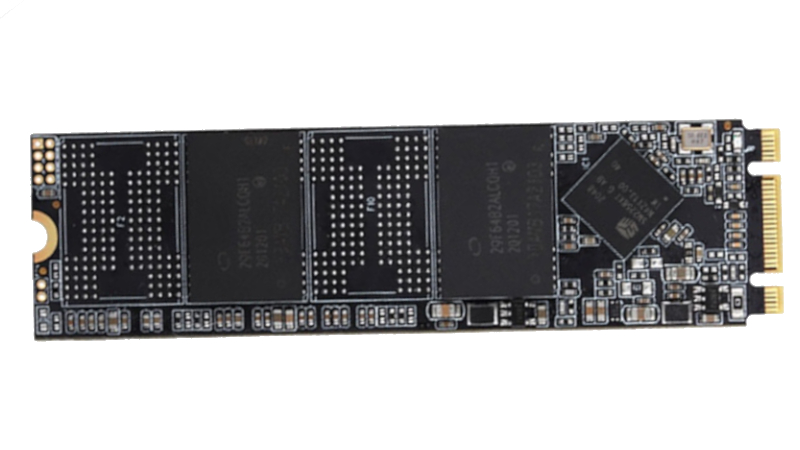
Introduction: Somewhere in a drawer, a tiny external SSD is sitting quietly with your vacation photos, tax folders, half-finished novel, exported video projects, and possibly one mysterious file named “FINAL_final_REAL_final.zip.” It looks calm. It is not spinning. It is not clicking. It is not making the faint mechanical noises that make hard-drive owners suddenly discover religion. But here is the uncomfortable truth: an unpowered SSD is not a magic memory brick. Over time, the data inside can fade.
That does not mean every solid-state drive left unplugged for a year will wake up as an expensive coaster. SSDs are excellent for speed, shock resistance, and everyday computing. They are the reason laptops boot before your coffee machine finishes judging you. But when it comes to long-term offline storage, SSD data retention has limits. NAND flash stores information as electrical charge, and charge does not stay perfectly obedient forever.
This friendly reminder is not meant to start panic-buying, label-making, or a dramatic candlelight vigil for your backup drive. It is meant to explain why unpowered SSDs can lose data, what factors make data loss more likely, and how to build a smarter backup strategy before your archive develops digital amnesia.
Why Unpowered SSDs Can Lose Data
An SSD stores data in NAND flash memory cells. Unlike a hard disk drive, which records data magnetically on spinning platters, an SSD stores bits by trapping electrons in tiny memory structures. Depending on the type of NAND, each cell may represent one bit or several bits by holding different voltage levels.
That design is brilliant for speed. No moving arm. No spinning disk. No tiny mechanical drama. But it also means the drive depends on those stored voltage states remaining readable. Over time, electrons can leak away. When enough charge drifts, the controller may have trouble determining whether a cell represents a 0, a 1, or in multi-level NAND, one of several possible values.
When the SSD is powered on, modern controllers can perform maintenance tasks. They may monitor error rates, refresh vulnerable blocks, use error correction, and move data around through wear leveling. When the SSD is unplugged in a drawer, those background helpers are off duty. The drive becomes a very fancy parking garage for electrons, and some of those electrons eventually wander off like guests at a bad wedding.
The Important Difference Between “Reliable” and “Archival”
SSDs can be reliable daily drives and still be poor long-term cold-storage devices. Those are different jobs. A refrigerator and a suitcase both store things, but only one should contain lasagna for three weeks.
In normal use, an SSD is often more durable than a hard drive because it has no moving parts. It tolerates bumps better, runs quietly, and delivers excellent read and write speeds. For laptops, gaming PCs, editing rigs, and workstations, SSDs are fantastic. The problem begins when people assume “solid-state” means “forever-state.”
Long-term storage is about keeping files readable for years while the device may be unpowered, ignored, moved between rooms, exposed to heat, or forgotten behind a router. SSDs were not primarily designed to be museum vaults. They were designed to be fast, compact, rewriteable storage. When used as cold archives, they need a maintenance plan.
How Long Can an Unpowered SSD Hold Data?
The honest answer is: it depends. That is annoying, but accurate. Data retention depends on the type of NAND, the age of the drive, how much it has been written, storage temperature, manufacturing quality, firmware behavior, and how full the drive is.
Industry endurance standards commonly distinguish between client SSDs and enterprise SSDs. A client SSD is the kind used in consumer PCs and external drives. Enterprise SSDs are designed for servers, data centers, and heavy workloads. Under widely cited endurance testing assumptions, client SSDs are expected to retain data for about one year at 30°C after reaching their rated endurance, while enterprise SSDs may have a shorter power-off retention expectation, often discussed around three months at 40°C after rated endurance. That does not mean a fresh consumer SSD self-destructs after 366 days. It means the guaranteed expectations are narrower than many casual users assume.
A lightly used SSD stored in a cool, dry room may retain data much longer than a year. A heavily used SSD stored in a hot attic may become risky much sooner. Heat is the villain wearing sunglasses. It accelerates charge leakage and makes marginal cells less readable. Wear matters too: every program/erase cycle slightly stresses the insulating layers that help NAND cells hold charge. More wear generally means lower retention margin.
Temperature: The Silent Data Thief
If you remember only one practical point, remember this: do not store important SSD backups in hot places. A closet inside your home is better than a garage. A climate-controlled office is better than an attic. A drawer is better than a car glove box, unless your goal is to slow-roast your files like brisket.
Temperature affects SSD data retention because NAND flash depends on stable electrical states. Higher storage temperatures make it easier for charge to leak and for voltage thresholds to drift. If an SSD has already seen years of heavy writing, heat can make its remaining retention margin even smaller.
For cold storage, aim for stable room temperature, low humidity, and protection from physical damage. Do not leave backup SSDs near radiators, windows, heaters, or direct sunlight. Also avoid places where condensation might occur. Water and electronics have a relationship best described as “lawsuit pending.”
Wear Leveling, TBW, and the Myth of the Brand-New Backup
Many users look at an SSD’s TBW rating, or terabytes written, and assume that as long as they stay far below it, everything is perfect. TBW is useful, but it is not a crystal ball. It estimates how much data can be written before the drive reaches its rated endurance limit under specific conditions.
Wear leveling spreads writes across NAND cells so the same blocks do not wear out too quickly. This is one reason SSDs last so long in everyday use. However, wear leveling also means you usually cannot know exactly where your oldest or most vulnerable data physically lives inside the flash. The controller handles that behind the scenes.
A nearly new SSD used only for backup may be in good shape, but “new” does not mean “archive-grade forever.” NAND type matters. SLC stores one bit per cell and has wide voltage margins. MLC, TLC, and QLC store more bits per cell, increasing capacity and lowering cost but tightening those voltage margins. QLC drives can be excellent for many consumer workloads, but they are not the first choice for decade-long offline archival storage.
What Happens When SSD Data Starts to Fade?
Data loss does not always arrive as a dramatic “your files are gone” message. It may show up as slow reads, corrupted files, copy errors, file system repair warnings, failed checksums, or a drive that suddenly turns read-only. Sometimes the SSD controller can correct errors silently. Other times, the error correction runs out of runway and the file becomes unreadable.
This is why verification matters. Opening a folder and seeing file names is not the same as confirming the files are healthy. A photo thumbnail may load while the full image contains corruption. A video file may play for two minutes and then glitch into digital confetti. A ZIP archive may look normal until extraction fails right when you need it most.
Powering On an SSD Helps, But It Is Not a Magic Spell
A common suggestion is to plug in stored SSDs occasionally. That is good advice, but with a caveat: merely connecting the drive for ten seconds may not refresh every stored cell. Some controllers perform background maintenance when powered, especially if the drive is idle long enough. Reading all files, copying data off and back on, or using a verification routine can do more to force the drive to interact with stored data.
For personal archives, a practical habit is to check backup SSDs every six to twelve months. Plug them in, verify important folders, run checksums if you have them, and copy the data to a fresh drive when the archive becomes old. If the drive is heavily used, stored in warm conditions, or contains irreplaceable files, shorten that interval.
The 3-2-1 Backup Rule Still Wins
The best defense against unpowered SSD data loss is not a more emotional relationship with your SSD. It is redundancy. The classic 3-2-1 backup rule remains popular because it is simple and brutally practical:
- Keep at least three copies of important data.
- Use at least two different storage types or devices.
- Keep at least one copy off-site or in the cloud.
For example, keep your working files on your computer, a local backup on an external hard drive or SSD, and an off-site backup through cloud storage or another physical drive stored elsewhere. This way, if one SSD forgets your wedding photos, your other backups can politely remind it.
Should You Use HDDs Instead of SSDs for Cold Storage?
Hard drives are not perfect, either. HDDs can suffer mechanical failure, head crashes, motor problems, lubricant issues, magnetic degradation, and the classic “click of doom.” However, for long-term offline storage, HDDs often remain attractive because magnetic storage does not depend on trapped charge in the same way NAND flash does.
That does not mean you should trust one hard drive forever. A hard drive left untouched for a decade may spin up beautifully, or it may behave like a sleepy dragon with a bearing problem. For cold storage, many experienced users still prefer HDDs for bulk archives, SSDs for fast working copies, and cloud storage for off-site protection.
Optical archival media, tape, and enterprise backup systems may also make sense for serious long-term preservation, depending on budget and scale. For most households and small businesses, though, a disciplined mix of external drives, cloud backup, and periodic refreshes is enough.
How to Protect Data on Unpowered SSDs
1. Store SSDs in a Cool, Dry Place
Avoid attics, garages, sheds, parked cars, and sunny shelves. Heat shortens retention margins. Moisture increases corrosion risk. Choose stable indoor storage.
2. Power and Verify Drives Regularly
Check your offline SSDs every six to twelve months. For mission-critical data, check more often. Do not just plug them in and admire the drive icon. Open files, copy samples, and verify checksums.
3. Use Checksums for Important Archives
Checksums are like fingerprints for files. Tools that generate SHA-256 or similar hashes can help you confirm that a file has not changed silently. This is especially useful for photos, video projects, code archives, and business records.
4. Refresh Old Archives
Every few years, copy important data to new media. Storage devices age, interfaces change, and future computers may not care about your ancient adapter collection. Refreshing data also gives you a chance to reorganize files before your archive becomes a haunted basement of duplicate folders.
5. Do Not Rely on One SSD
One backup is a hope. Two backups are a plan. Three backups are when your future self starts writing thank-you notes.
6. Label Drives Clearly
Write the backup date, contents, file system, and verification date on the case or label. “Black SSD #3” is not a disaster recovery strategy. It is a scavenger hunt.
7. Prefer Quality Drives
Buy SSDs from reputable manufacturers, especially for backup use. Ultra-cheap no-name drives may use lower-quality NAND, questionable controllers, or misleading capacity claims. Saving $20 is less exciting when the drive eats your family archive.
Real-World Example: The Forgotten Video Project
Imagine a freelance videographer who finishes a client project, exports the final files, copies everything to a portable SSD, and tosses it into a drawer. Two years later, the client asks for a revised version. The SSD mounts, but one project folder takes forever to open. A few video clips copy successfully. Others fail halfway. The editor now has a high-speed external drive and a low-speed emotional crisis.
This situation is preventable. The project should have existed in at least three places: the working machine, a local archive drive, and an off-site or cloud backup. The archive should have been verified after copying. For long-term storage, the files could be refreshed onto newer media after a year or two, especially if the SSD had been used heavily before retirement.
SSD Cold Storage Checklist
Use this simple checklist for any SSD containing important offline data:
- Confirm the SSD is from a reputable brand.
- Store it at stable room temperature.
- Keep it away from humidity, heat, magnets, pets, toddlers, and “I’ll remember where I put it” energy.
- Verify files after every backup.
- Create checksums for irreplaceable files.
- Plug in and verify the drive every six to twelve months.
- Maintain at least two additional copies elsewhere.
- Replace or refresh aging drives before they become mysteries.
Experience Notes: What Actually Happens When You Clean Out the Drawer
Here is the part many people learn the hard way: your storage drawer is probably not an archive. It is a small technology retirement home. Inside it may live old USB sticks, portable SSDs, memory cards, one cable nobody can identify, and an external drive labeled “backup” with no date, no notes, and absolutely no emotional accountability.
The first time I treated SSD backups seriously, it was not because a drive failed in a cinematic explosion. It was because an old external SSD took longer than expected to read a folder full of photos. The files were still there, but the delay was enough to make my stomach perform a tiny gymnastics routine. That moment changed my backup habits. I stopped thinking of offline drives as permanent shelves and started thinking of them as temporary containers that need inspection.
A useful routine is surprisingly simple. Pick two dates each year, such as January and July, and call them “backup checkup days.” Plug in each offline SSD. Open a few folders. Copy a sample of files back to your computer. For the most important archives, compare checksums. If the drive is old, slow, or behaving oddly, move the data immediately. Do not wait for a second warning. Storage devices are not famous for sending polite calendar invites before failure.
Another practical habit is to keep a small backup log. It can be a text file, spreadsheet, or notebook. Record the drive name, serial number, capacity, file system, backup date, contents, and last verification date. This sounds boring until you are searching for a specific tax document at 11:42 p.m. and every drive is named “Untitled.” Future you will appreciate boring documentation more than present you expects.
For photo archives, I like separating “working,” “backup,” and “archive” copies. The working copy lives on the main computer or fast SSD. The backup copy lives on a local external drive. The archive copy lives elsewhere, ideally off-site or in trusted cloud storage. That way, an unpowered SSD can fail without becoming the main character in a tragedy.
It also helps to avoid treating SSDs as disposable vaults. If a drive has served as a scratch disk for video editing, gaming installs, or heavy daily transfers, do not retire it as the only home for precious files. Heavy use consumes endurance. Use that drive for convenience copies, not the sole copy of irreplaceable data. For long-term backup, start with healthy media, verify the copy, and keep duplicates.
The biggest lesson is that backups are not a product; they are a habit. Buying an SSD is easy. Maintaining recoverable data is the real task. A good SSD can be part of a strong backup plan, but an unplugged SSD forgotten for years is more like a sealed envelope left in the rain and then stored near a toaster. It may be fine. It may not. The only way to know is to check before the moment you desperately need it.
Conclusion: Your SSD Is Fast, Not Immortal
Unpowered SSDs are not guaranteed to lose data tomorrow, but they are not ideal “set it and forget it” archives. NAND flash stores data as electrical charge, and that charge becomes harder to read over time, especially when the drive is worn, stored hot, or ignored for years. SSDs are wonderful for everyday performance and portable storage, but long-term data preservation requires redundancy, verification, and periodic refreshes.
The practical answer is not fear. It is maintenance. Keep multiple backups. Store drives properly. Verify files. Refresh archives. Use cloud or off-site copies for irreplaceable data. Your SSD may be silent, but your backup plan should not be asleep.
Note: This article synthesizes publicly available SSD endurance standards, manufacturer guidance, storage reliability research, and practical backup best practices. It is general educational content, not a guarantee for any specific SSD model, firmware, workload, or storage environment.












