
Sometimes a bug is dramatic. Your PC crashes, your browser freezes, and you stare into the void while Windows makes suspicious noises. And sometimes the bug is much smaller, much pettier, and somehow still wildly annoying. That is exactly what happened to a lot of users when Chrome 67 on Windows 10 stopped showing the expected title bar color. Nothing exploded. Nothing caught fire. But the top of the browser suddenly looked wrong, bland, gray, or stubbornly disconnected from your Windows accent color.
If that sounds familiar, the good news is that this problem usually is not a full-blown Windows disaster. In most cases, it is a mismatch between Windows 10 personalization settings and the way Chrome 67 handled its newer interface experiments. Translation: the browser decided to get fancy, and your title bar paid the price.
This guide breaks down what causes the issue, how to diagnose whether Windows or Chrome is really to blame, and the exact steps that usually bring the title bar color back. No fluff, no mystery rituals, and no need to pretend that a gray browser frame is “minimalist.” Let’s fix it properly.
Why Chrome 67 Lost the Title Bar Color in the First Place
The short version is that Chrome 67 arrived during a period when Google was changing the look of Chrome’s top interface. At the same time, Windows 10 was already handling accent colors in its own particular way. When those two things collided, some users ended up with a browser title bar that ignored the Windows accent color or displayed a dull, off-looking shade instead.
In plain English, Chrome was experimenting with a more custom-drawn top area rather than just quietly inheriting the same look Windows used for ordinary title bars. Once that happened, the browser could stop behaving like a normal Windows window. The result was simple: File Explorer might still show your accent color, but Chrome would sit there looking like it had missed the memo.
This is why the problem often feels strangely specific. If other apps still show color in their title bars, then Windows 10 is probably fine and Chrome is the odd one out. If every title bar on your PC looks washed out or colorless, then the issue is more likely coming from Windows personalization settings instead.
Before You Blame Chrome, Check Windows 10 First
Before changing any Chrome flags, make sure Windows 10 is actually allowed to display accent colors on title bars. It sounds obvious, but this setting is easy to overlook, and if it is off, Chrome cannot mirror a color that Windows is not using in the first place.
- Right-click the desktop and open Personalize.
- Click Colors.
- Choose an accent color manually instead of relying only on auto-pick from wallpaper.
- Turn on the option for title bars and window borders.
After that, check another desktop app such as File Explorer. If File Explorer shows the accent color and Chrome does not, the issue is almost certainly inside Chrome. If File Explorer is also colorless, fix Windows first and come back to Chrome later.
One extra tip: if Windows is picking colors automatically from the background, try switching to a manual accent color for testing. Automatic color selection can choose muted shades that make it look like nothing changed when, technically, something did. In other words, your wallpaper may be trolling you.
How To Fix No Title Bar Color In Chrome 67 On Windows 10
1. Remove Any Chrome Theme First
A custom Chrome theme can interfere with what you think is a title bar problem. Before you do anything more advanced, open Chrome settings, go to Appearance, and reset the theme to default. This strips away the possibility that a theme is forcing a flat, dark, or odd-looking top bar.
This matters because many people assume they are dealing with a Windows accent problem when they are really just looking at a browser theme override. If you want a clean test environment, Chrome’s default theme is the best place to start.
2. Disable the Custom-Drawn Windows 10 Title Bar Flag
This is the fix most closely associated with the Chrome 67 title bar color issue.
In the address bar, type:
chrome://flags/#windows10-custom-titlebar
Find the option labeled Custom-drawn Windows 10 Titlebar and change it to Disabled. Then relaunch Chrome.
Why this works: when Chrome draws its own title bar instead of letting Windows handle it in the usual way, accent color behavior can go off the rails. Disabling that experiment pushes Chrome back toward more standard Windows behavior. If your title bar color disappears only in Chrome and nowhere else, this is often the best first real fix.
After relaunching, do not just glance at the browser for half a second and declare victory or defeat. Open a few windows, switch between active and inactive states, and compare Chrome to File Explorer. The difference is sometimes easiest to spot when two windows are sitting next to each other.
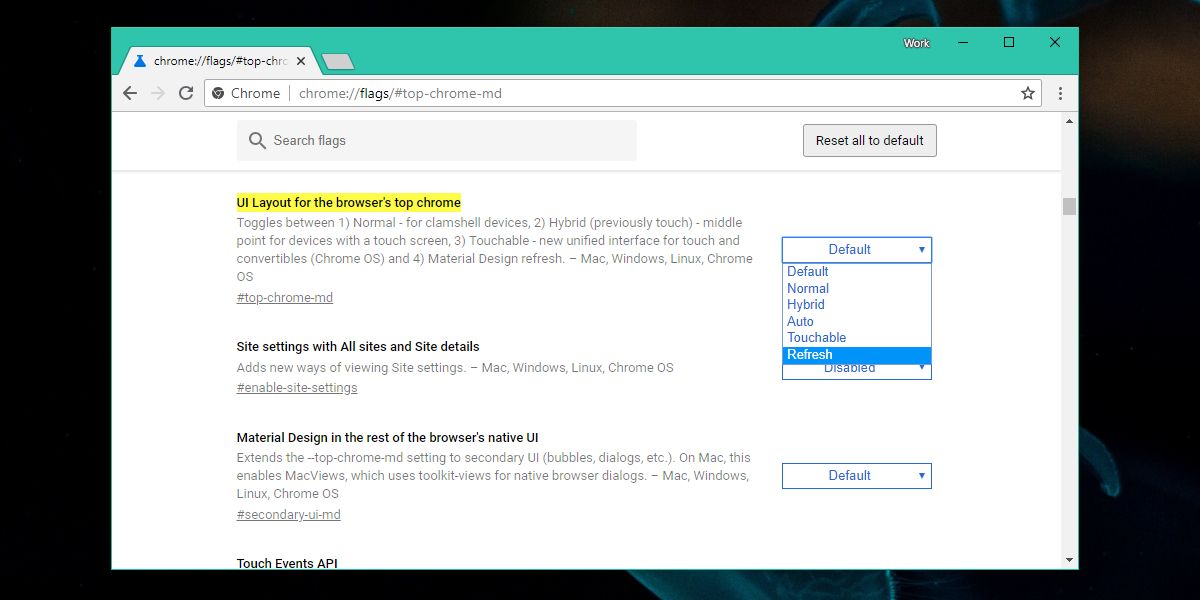
3. Change the Top Chrome UI Layout Flag
If the title bar color issue started after experimenting with Chrome’s refreshed interface, the second place to look is the top Chrome UI flag.
In the address bar, type:
chrome://flags/#top-chrome-md
If it is set to Refresh or another experimental layout, switch it back to Default, Normal, or the standard non-refresh option shown in your version, then relaunch Chrome.
This step matters because the refreshed top Chrome design was part of the broader visual changes rolling around that era. If you enabled the new look early, Chrome may have changed how the top frame and tabs were rendered. Returning that flag to a standard setting often restores normal title bar behavior.
Think of it this way: if Chrome 67 decided to audition for a redesign, this flag tells it to stop trying out costumes and go back to its regular outfit.
4. Reset All Flags If You Have Been Experimenting
Be honest with yourself for a second. Have you ever opened chrome://flags, changed three or four things, forgotten what you changed, and then acted surprised when Chrome looked weird? Welcome to the club.
If you are not sure which experimental settings were modified, open chrome://flags and use the Reset all option. Relaunch the browser afterward.
This is the fastest way to eliminate hidden UI tweaks that might be causing Chrome 67 to ignore Windows 10’s title bar color behavior. It is especially useful if the bug appeared after you were testing interface options just to “see what happens.” Well, now you know what happens.
5. Reset Chrome Settings if the Browser Still Looks Wrong
If disabling the relevant flags does not help, reset Chrome settings to their original defaults. This is a broader cleanup step and can undo changes introduced by extensions, unusual appearance settings, or quiet sync-related oddities.
You can do this from Chrome’s settings under reset options. Your bookmarks and saved passwords stay intact, but many appearance-related tweaks go back to normal.
This step is not always necessary, but it is worth doing if the title bar still looks wrong after the flag changes. Sometimes the issue is not a single setting. It is a pileup of little settings that all decided to be annoying together.
A Smart Way To Diagnose the Problem in Two Minutes
If you want the fastest path to the right fix, use this cheat sheet:
- If File Explorer has color but Chrome does not, Chrome is the problem. Disable
windows10-custom-titlebarand reviewtop-chrome-md. - If both File Explorer and Chrome lack color, Windows personalization is the problem. Fix accent color settings first.
- If Chrome looks strange only on one profile, reset the Chrome theme and settings for that profile.
- If the color changed after you enabled experimental UI options, reset Chrome flags.
This simple comparison saves a lot of time because it separates a Windows theme issue from a Chrome rendering issue. That distinction is the entire game here.
What Not To Do
When people hit this bug, they often start trying random things that do not really target the cause. Here are the most common detours:
Do Not Keep Reinstalling Chrome First
Reinstalling Chrome sounds productive, but it often leaves profile settings, synced appearance preferences, or flag-related issues untouched. It can help in rare cases, but it is not the best first move.
Do Not Assume It Is a Windows Update Bug Just Because the Timing Is Suspicious
The issue often showed up around the same time users were seeing other Windows 10 cosmetic changes, which made the operating system look guilty. But if only Chrome is affected, that points much more strongly to Chrome’s UI experiments than to Windows itself.
Do Not Ignore Themes and Extensions
Even when the bug is rooted in Chrome 67’s UI behavior, a theme can muddy the waters. Reset the theme early so you are not troubleshooting with extra visual noise in the mix.
An Example Fix Sequence That Usually Works
Here is a practical order that covers the problem efficiently:
- Enable accent color on title bars in Windows 10.
- Pick a manual accent color so the test is obvious.
- Open File Explorer and confirm the color appears there.
- In Chrome, reset the theme to default.
- Disable
chrome://flags/#windows10-custom-titlebar. - Set
chrome://flags/#top-chrome-mdback to default or normal. - Relaunch Chrome.
- If the problem remains, reset all flags, then reset Chrome settings.
In a lot of cases, the fix lands before you even reach the last step. That is why it is smart to work from the most targeted change to the most general one.
Experiences From Real-World Use: Why This Tiny Bug Feels So Irritating
Here is the funny part about the no title bar color problem in Chrome 67: it is technically small, but emotionally enormous. You can absolutely keep browsing with a gray or colorless title bar. The browser still opens pages, videos still play, and your tabs do not suddenly file a union complaint. But once you notice the mismatch, it becomes one of those visual splinters you cannot stop seeing.
In everyday use, the problem tends to show up in a few really specific ways. The first is focus confusion. On a properly colored Windows 10 setup, the title bar helps you instantly recognize which window is active. When Chrome 67 ignores that color logic, the browser can blend in too much with inactive windows or look oddly flat next to apps that still respect the accent color. It sounds minor until you are juggling email, a spreadsheet, two browser windows, and a chat app at the same time. Then that missing strip of color suddenly matters more than anyone wants to admit.
The second annoyance is aesthetic inconsistency. Windows 10 may be using a blue, red, or dark accent color that looks perfectly fine in File Explorer, Settings, and other desktop apps. Then Chrome strolls in wearing a washed-out gray top bar like it is above the whole color-coordination concept. It makes the desktop feel unfinished, and users naturally start wondering whether something deeper is broken. That is why this issue triggered so much confusion back then. The browser still functioned, but visually it looked like it had detached itself from the operating system.
There is also the classic “I changed one thing and now everything looks wrong” experience. Many users were experimenting with Chrome flags around that time because Google was visibly working on refreshed interface ideas. The new top Chrome layouts were interesting, and curiosity is powerful. Unfortunately, curiosity plus experimental flags is also how you end up spending a Tuesday night asking why your browser frame now looks like a beige office refrigerator.
Another common experience is blaming the wrong component first. A lot of people naturally suspected Windows 10 because title bars are a Windows feature. That assumption makes sense until you compare Chrome with File Explorer and realize one of them is following the accent rules while the other is improvising. That moment is actually helpful, because once you identify Chrome as the outlier, the fix becomes much more focused.
What makes the issue memorable is that the successful fix often feels almost comically simple. Toggle one Windows setting, disable one Chrome flag, relaunch, and suddenly the browser looks normal again. After all the irritation, the resolution can be weirdly anticlimactic. No registry marathon, no full reinstall, no ancient wizard appearing from the taskbar. Just a couple of settings and a restart.
So yes, this is a cosmetic issue. But it is also the kind of cosmetic issue that affects daily comfort, visual clarity, and the feeling that your desktop is actually under control. And honestly, there is nothing wrong with wanting your browser to stop looking like it forgot how Windows works.
Final Thoughts
If Chrome 67 on Windows 10 has no title bar color, the issue usually comes down to one of two things: Windows is not set to show accent colors on title bars, or Chrome is using an experimental custom-drawn interface that stops honoring those colors the way you expect.
The safest path is to start with Windows personalization, then reset Chrome’s theme, disable the custom Windows 10 title bar flag, and revert the top Chrome UI layout away from the refresh option. In most cases, that restores the normal appearance without any extreme measures.
And if nothing else, remember this: when a browser bug makes you irrationally angry at a strip of color that is about an inch tall, you are not being dramatic. You are just experiencing desktop computing the way the rest of us do.












